
Structuring Your Help Center for Maximum Clarity
Learn how to organize your articles, collections, and categories to ensure users can easily find what they need.
A Help Center is only useful if people can find what they're looking for without having to search for long. The way you organize your content, your collections, categories, and articles, determines whether visitors feel guided or lost. Getting the structure right from the start saves you a lot of reorganizing later and makes every article you publish easier to find.
Start With Collections
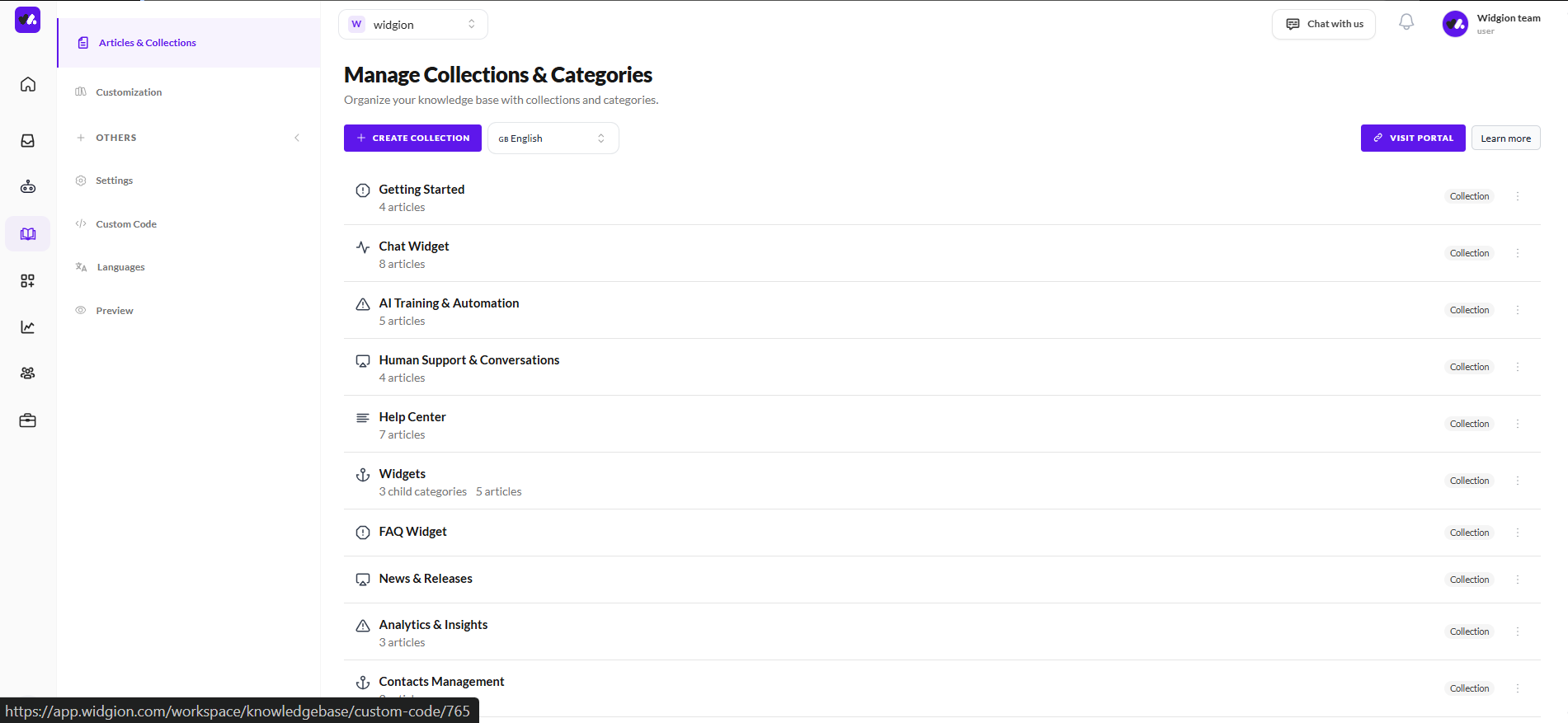
Collections are the top level of your Help Center structure. Think of them as broad topics that group related content together. In Widgion, you manage all your collections from the Articles & Collections page under Help Center, where you can see every collection alongside the number of articles it contains.
When naming collections, keep them broad enough to hold multiple articles but specific enough that a visitor immediately knows what they'll find inside. Collections like Getting Started, Chat Widget, AI Training & Automation, and Help Center are good examples — each one is clear, distinct, and covers a defined area without overlapping with the others.
Use Categories to Go Deeper
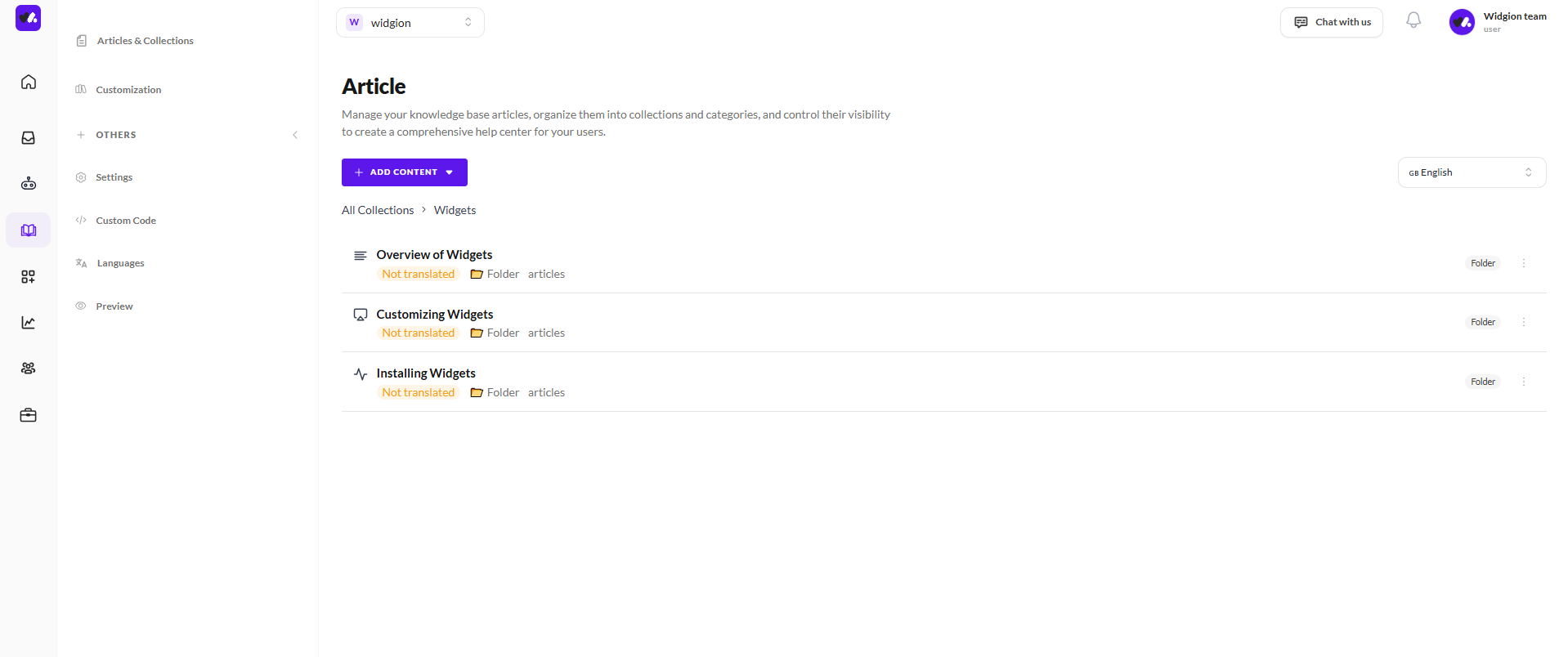
Within a collection, you can create nested categories. Folders that group related articles under a more specific subtopic. This is especially useful when a collection has grown large enough that a flat list of articles becomes hard to scan.
For example, a Widgets collection might contain nested categories like Overview of Widgets, Customizing Widgets, and Installing Widgets, each one housing the specific articles that belong to that subtopic. This way, a visitor looking for installation help knows exactly where to go without scrolling through unrelated content.
 Keep Article Titles Descriptive
Your article titles are the first thing a visitor reads when scanning your Help Center. A title like "Installing the Chat Widget on Your Website" tells the reader exactly what the article covers and who it's for. Vague titles like "Setup" or "Getting Started Steps" make visitors guess whether the article is relevant before they even open it.
Write titles the way your visitors would search for the answer specific, action-oriented, and clear about what they'll walk away knowing.
Don't Overcrowd a Single Collection
A collection with twenty articles and no subcategories is just a long list. If a collection keeps growing, it's usually a sign that it needs to be split into smaller, more focused categories. Use Widgion's nested collection feature to break things down before the list becomes overwhelming.
A good rule of thumb is that if a visitor has to scroll significantly to find an article, the collection needs better organization.
Think Like Your Visitor, Not Like Your Team
Internal terminology, department names, and product codenames mean nothing to a visitor who just wants to solve a problem. Structure your Help Center around the questions visitors actually ask, not around how your team thinks about the product internally.
If most visitors come looking for help with billing, there should be a collection or category that reflects that clearly labeled, easy to find, and placed where they'd naturally look for it.
Review and Refine Over Time
A well-structured Help Center is not a one-time project. As your product evolves and your visitors' needs change, some articles become outdated, some collections get too large, and new topics emerge that need their own space. Building a habit of reviewing your structure periodically, checking what visitors are searching for, which articles get the most traffic, and where people seem to drop off, keeps your Help Center useful long after the initial setup.
The goal is a Help Center that feels effortless to navigate. When visitors can find answers on their own, your support team handles fewer repetitive questions, and your users leave feeling confident rather than frustrated.
Did this answer your question?
What was missing or unclear?
Thank you for your feedback!
Your input helps us make this article better.
Still need help?
Contact support →Related articles
Creating Effective and User-Friendly Content
Understand how to write clear, concise, and helpful articles that solve user problems quickly.
Aligning Your Help Center with Your Brand
Why you need to customize visuals, tone, and messaging to ensure your help center feels consistent with your overall brand experience.
Using Collections and Categories Strategically
Learn how to group related content effectively to create a logical flow that guides users through your knowledge base.
Maintaining and Updating Your Knowledge Base
Understand how to keep your content relevant by regularly reviewing, updating, and removing outdated articles.
On this page