
Training AI with Website Content
Learn how to crawl your website or import sitemaps to train your assistant.
One of the fastest ways to get your Widgion assistant up and running is by training it directly from your website. Instead of manually entering information, you can point the system to your website and it will crawl your pages, extract the content, and turn it into knowledge your assistant can use during real conversations. This is all managed from the Website section under Training.
A
ccessing the Website Training Page
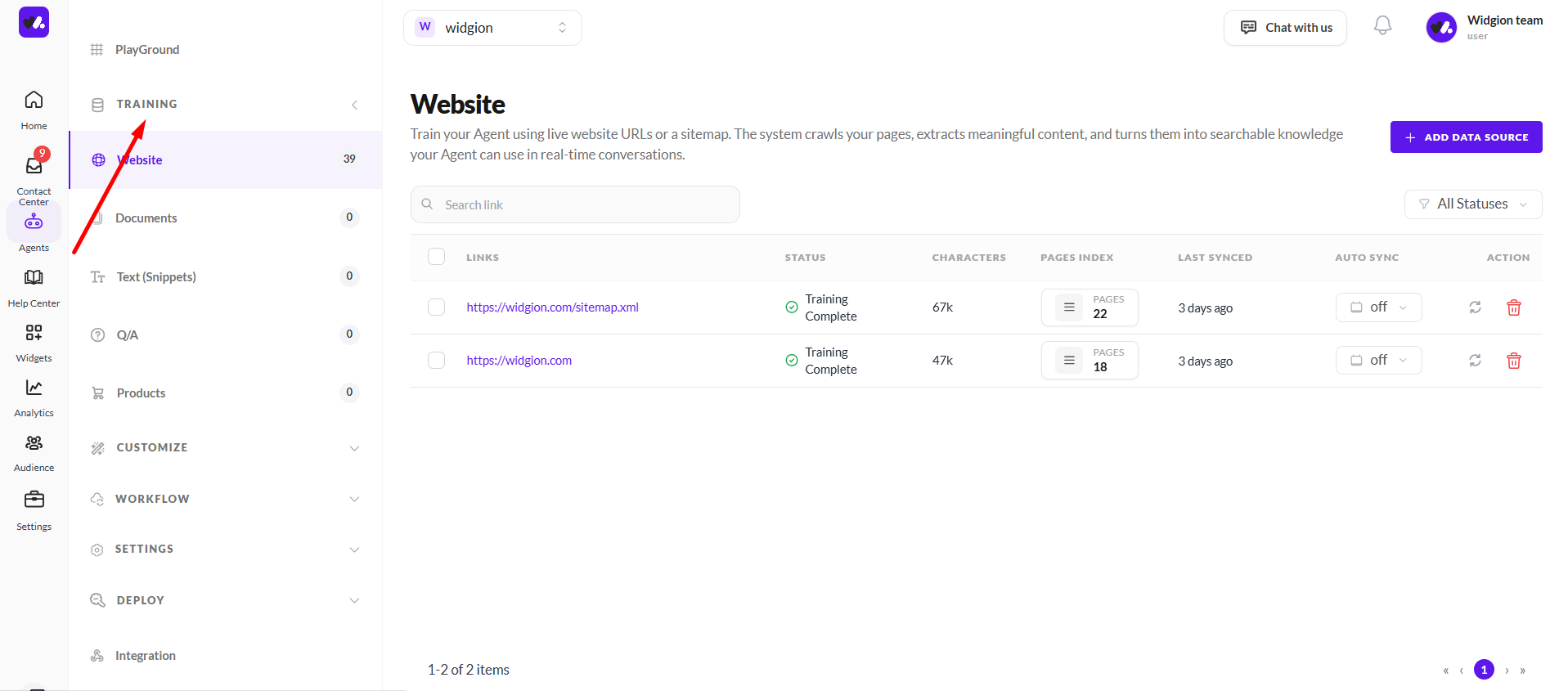
To get started, navigate to Training in the left sidebar under Agents and click Website. This opens the Website page where you can see all the links you have added, their training status, how many pages have been indexed, and when they were last synced.
Adding a Data Source
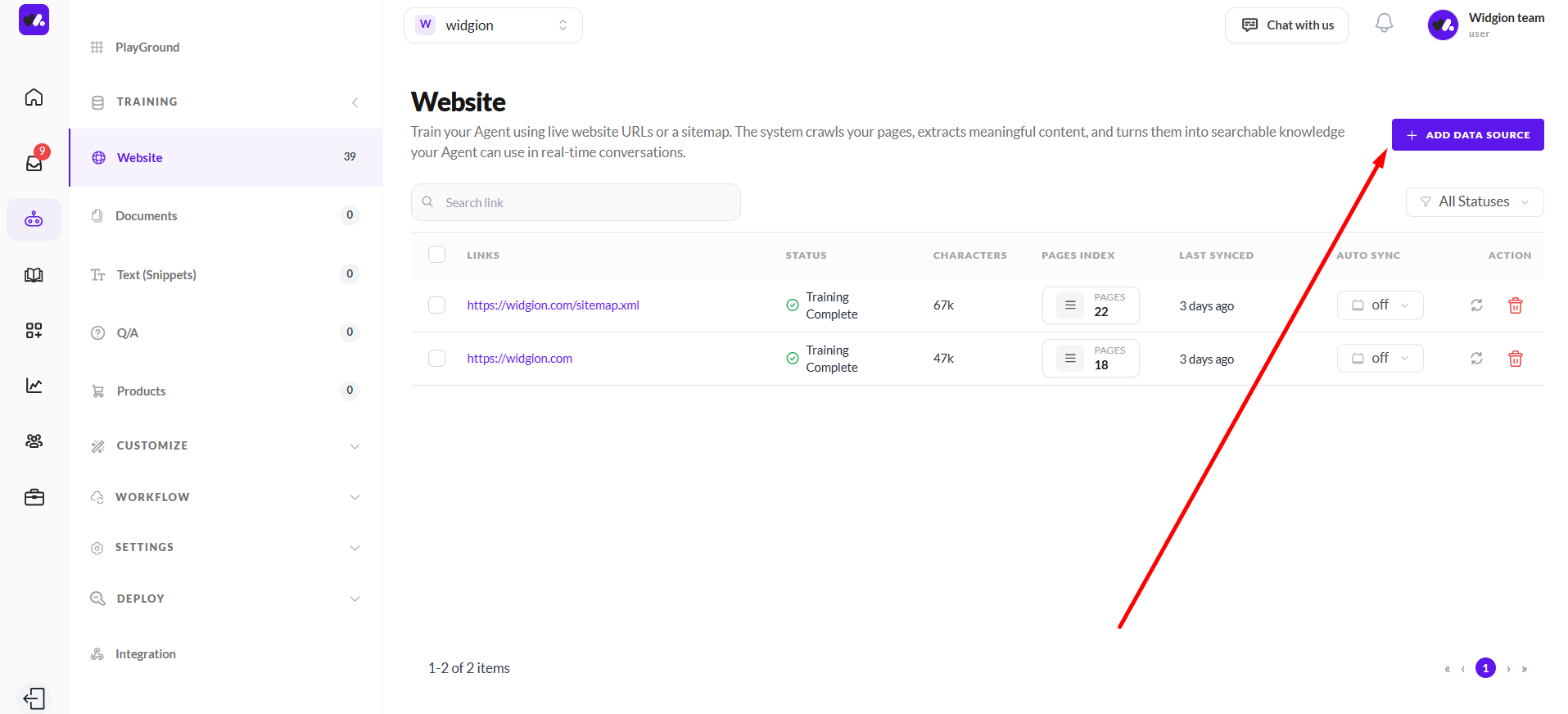
To add a new website for training, click the + Add Data Source button in the top right corner of the page. This opens the Add Website modal where you can choose how you want to provide your content, either through a direct web URL or a sitemap.
Training via Web URL
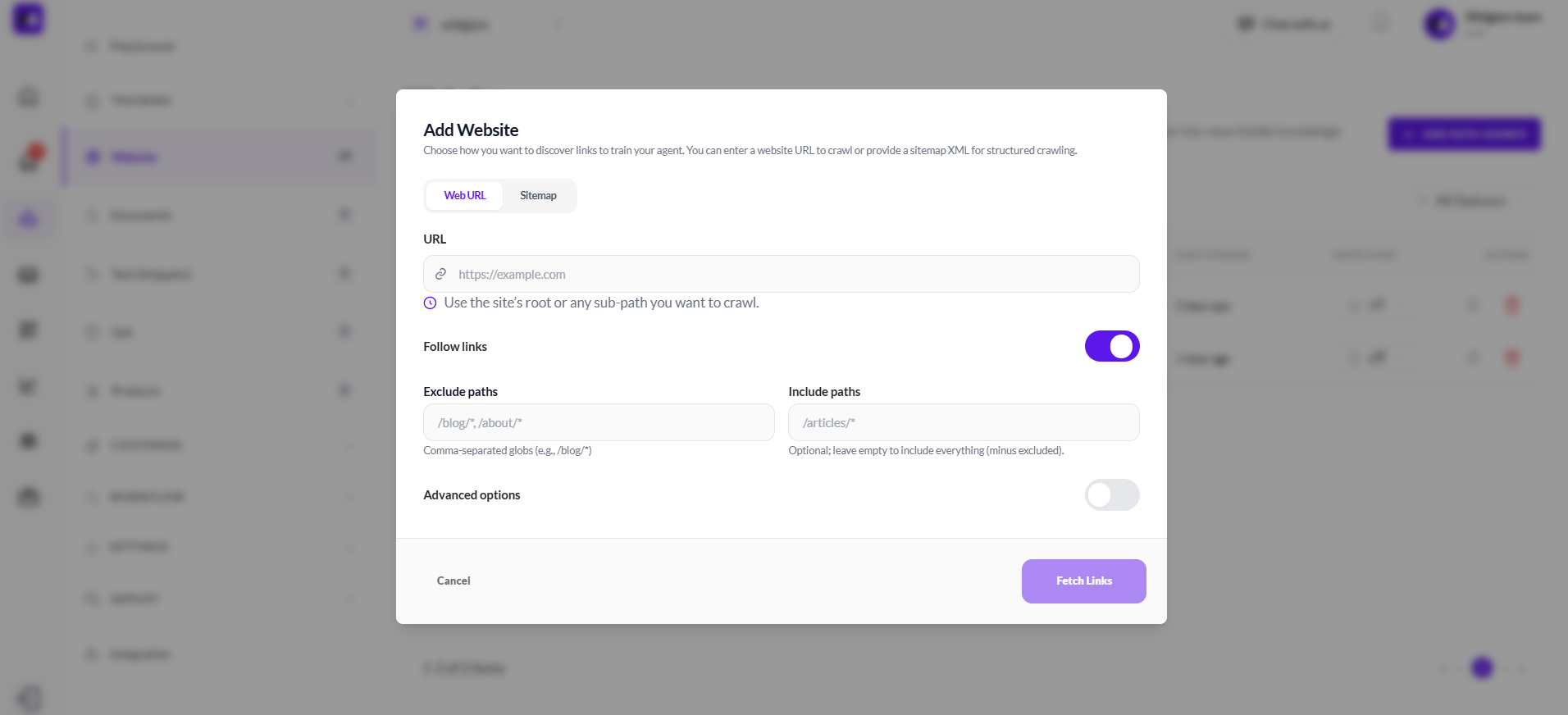
The Web URL tab is selected by default when the modal opens. Enter your website URL in the URL field — you can use the root of your site or any sub-path you want to crawl. Below the URL field, you'll find a few additional options to control how the crawl behaves.
The Follow links toggle is enabled by default, which means the system will automatically discover and crawl linked pages from the URL you provide. You can also define Exclude paths to skip sections of your site you don't want included, and Include paths to limit the crawl to specific sections only. Both fields accept comma-separated glob patterns. There is also an Advanced options toggle for additional configuration. Once you're ready, click Fetch Links to begin.
Training via Sitemap
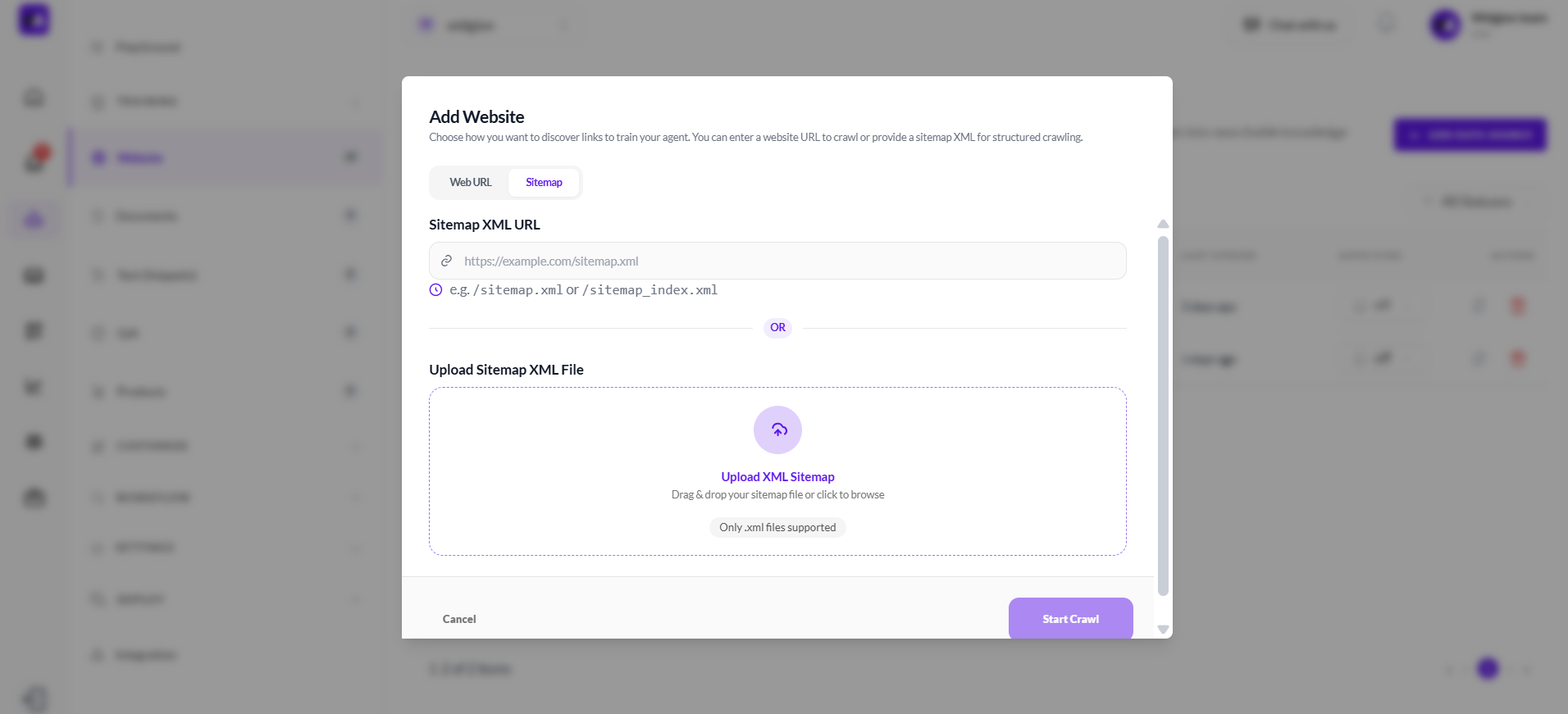
If you prefer a more structured approach, click the Sitemap tab inside the Add Website modal. Here you can either enter your Sitemap XML URL directly — for example /sitemap.xml or /sitemap_index.xml — or upload a sitemap file by dragging and dropping it into the upload area. Only .xml files are supported for uploads.
Once you've provided your sitemap, click Start Crawl to begin the training process.
Monitoring Training Status
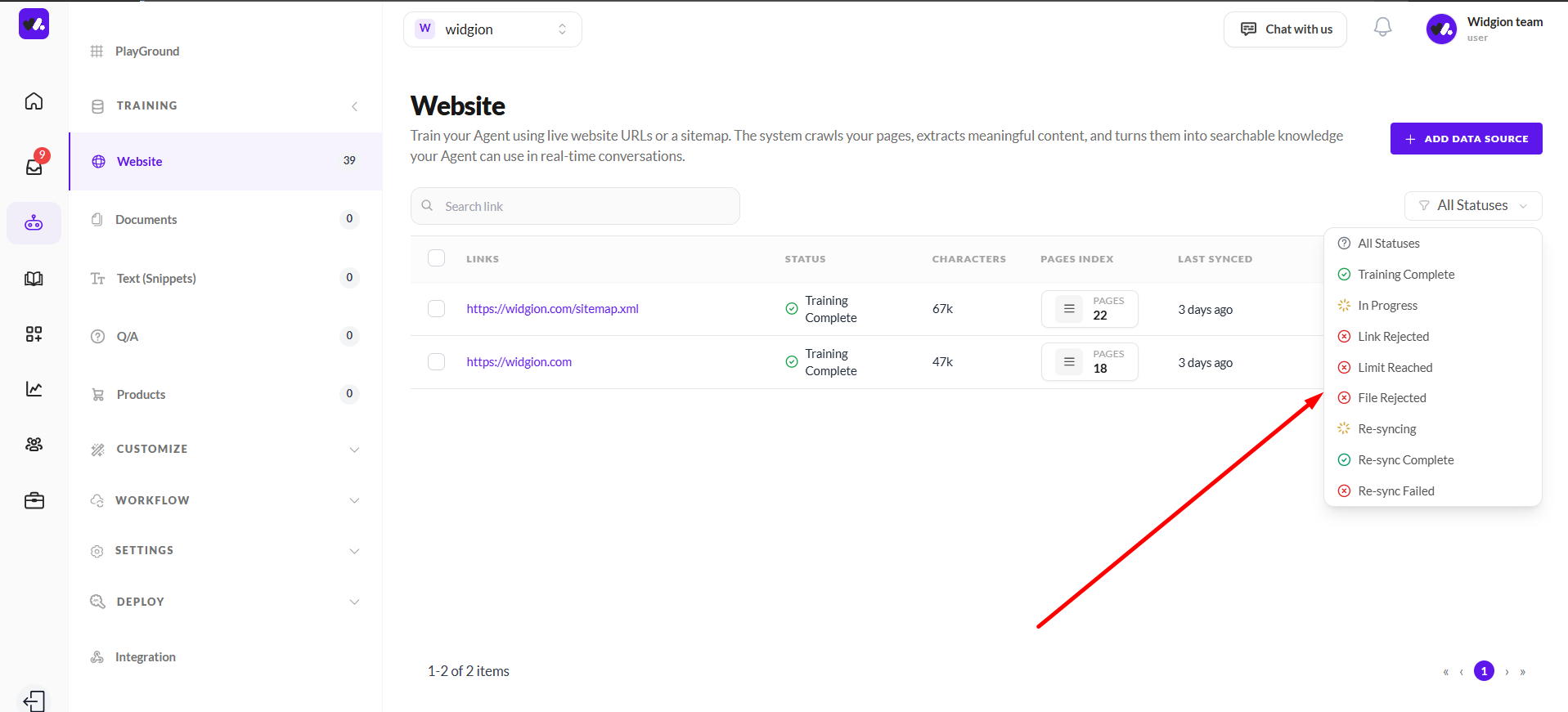
Once your data source has been added, it appears in the links list on the Website page. Each entry shows the link, its current status, the number of characters extracted, the number of pages indexed, and when it was last synced.
You can filter your list by status using the All Statuses dropdown, which includes options such as Training Complete, In Progress, Link Rejected, Limit Reached, File Rejected, Re-syncing, Re-sync Complete, and Re-sync Failed.
Keeping Your Training Data Up to Date
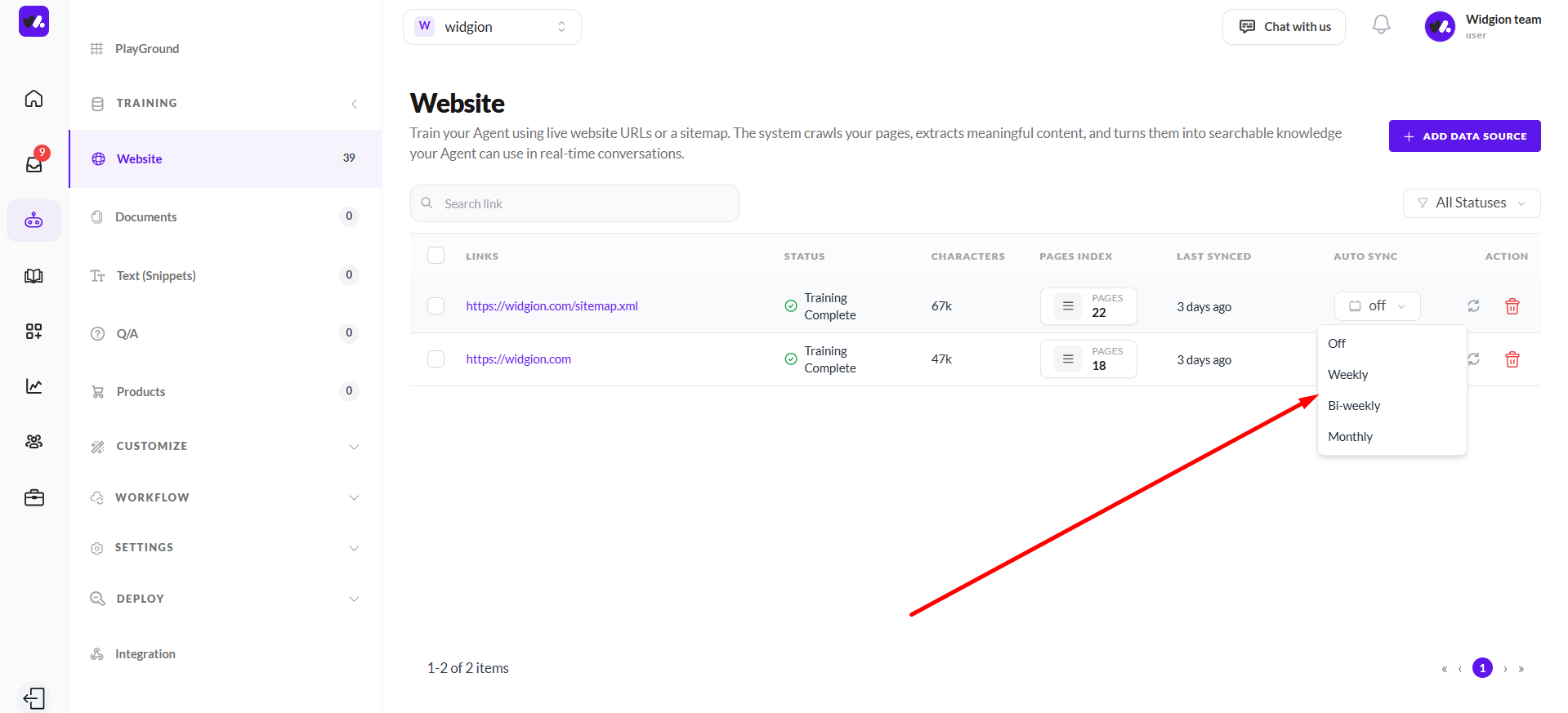
As your website content changes, you'll want your assistant to stay current. Each data source in your list has an Auto Sync option that you can configure to automatically re-crawl and update the training data on a schedule.
Clicking the Auto Sync dropdown for any entry gives you four options — Off, Weekly, Bi-weekly, and Monthly — so you can choose how frequently the system checks for new or updated content.
Your Website, Your Assistant's Knowledge
The more of your website you train your assistant on, the better equipped it will be to answer visitor questions accurately. Whether you crawl your entire site or target specific sections, every page you add becomes part of the knowledge your assistant draws from in every conversation.
Keep your training data fresh and your assistant will always reflect the most current version of your business.
Did this answer your question?
What was missing or unclear?
Thank you for your feedback!
Your input helps us make this article better.
Still need help?
Contact support →Related articles
Uploading Documents for AI Training
Train your AI using PDFs, guides, and internal documents.
Creating Workflow Actions (API Calls)
Trigger external APIs directly from chat to perform real-time actions.
How AI Works in Widgion
Understand the underlying AI system and how it uses your data to generate responses.
Adding Manual Content & Q&A
Improve accuracy by adding custom-written answers and knowledge.
On this page