
Uploading Documents for AI Training
Train your AI using PDFs, guides, and internal documents.
If your business has existing resources like product guides, internal documentation, FAQs, pricing sheets, or any other written material, you can upload them directly to Widgion and use them to train your AI assistant.
This is managed from the Documents section under Training, and it gives your assistant structured, controlled knowledge to draw from during conversations.
Accessing the Documents Page
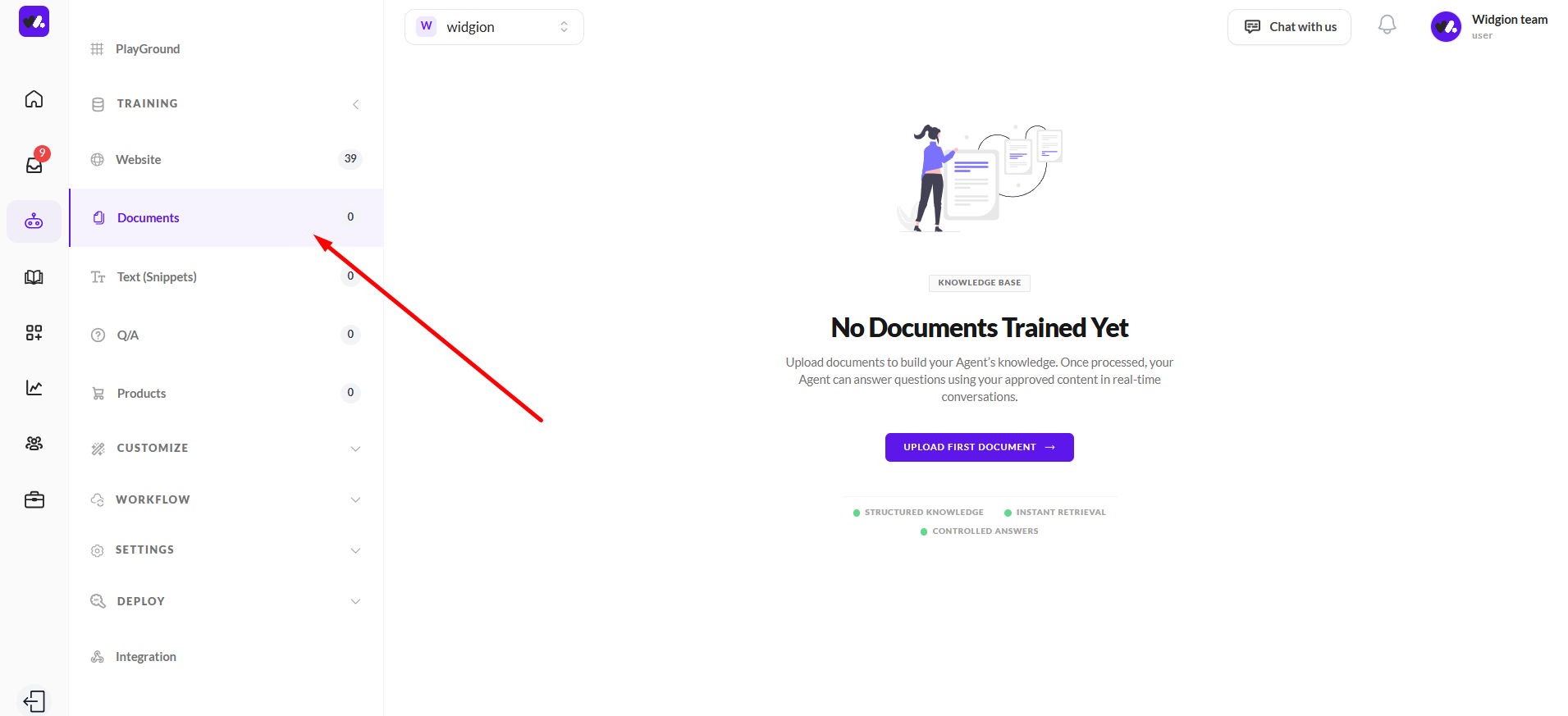
To get started, navigate to Training in the left sidebar and click Documents. If no documents have been uploaded yet, the page will show a "No Documents Trained Yet" state with an Upload First Document button at the center of the screen.
Uploading Your First Document
Click either the Upload First Document button on the empty state or the + Upload Document button in the top right corner once documents have already been added.
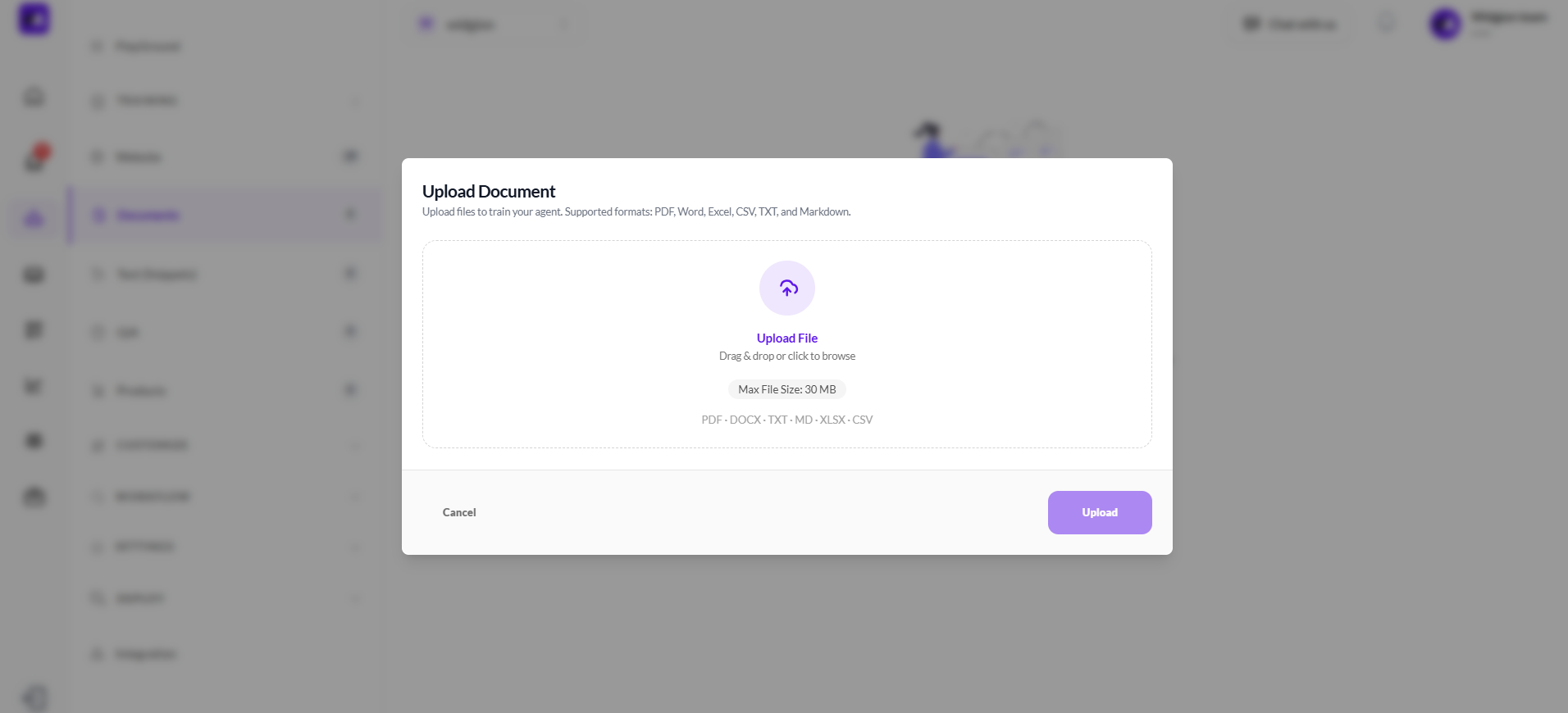
This opens the Upload Document modal. You can drag and drop your file into the upload area or click to browse your device. The maximum file size allowed is 30 MB, and the supported formats are PDF, DOCX, TXT, MD, XLSX, and CSV.
Confirming Your File Before Uploading
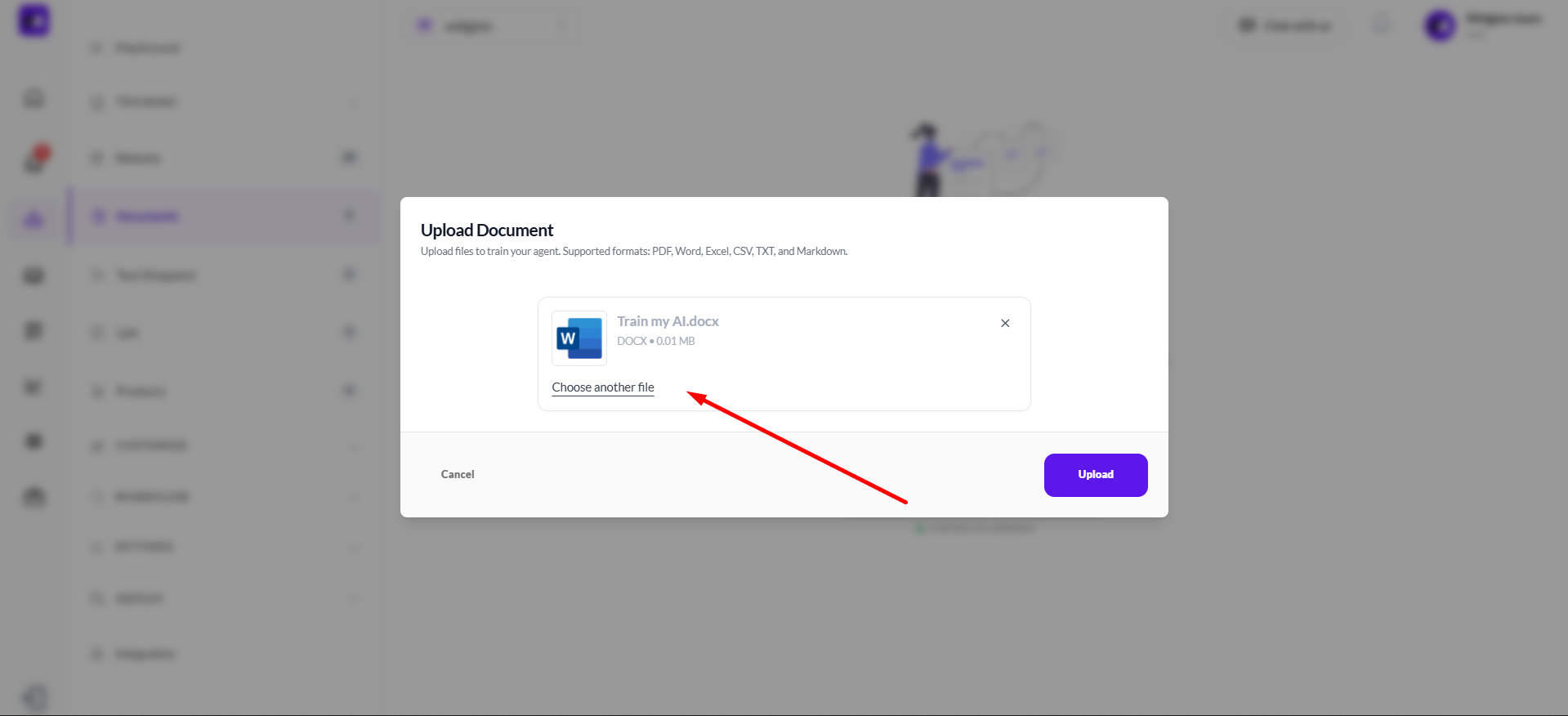
Once you select a file, it will appear inside the modal showing the file name, format, and size. If you selected the wrong file, you can click Choose another file to replace it before proceeding. When you're satisfied with the file selected, click Upload to submit it for processing.
Monitoring Training Progress
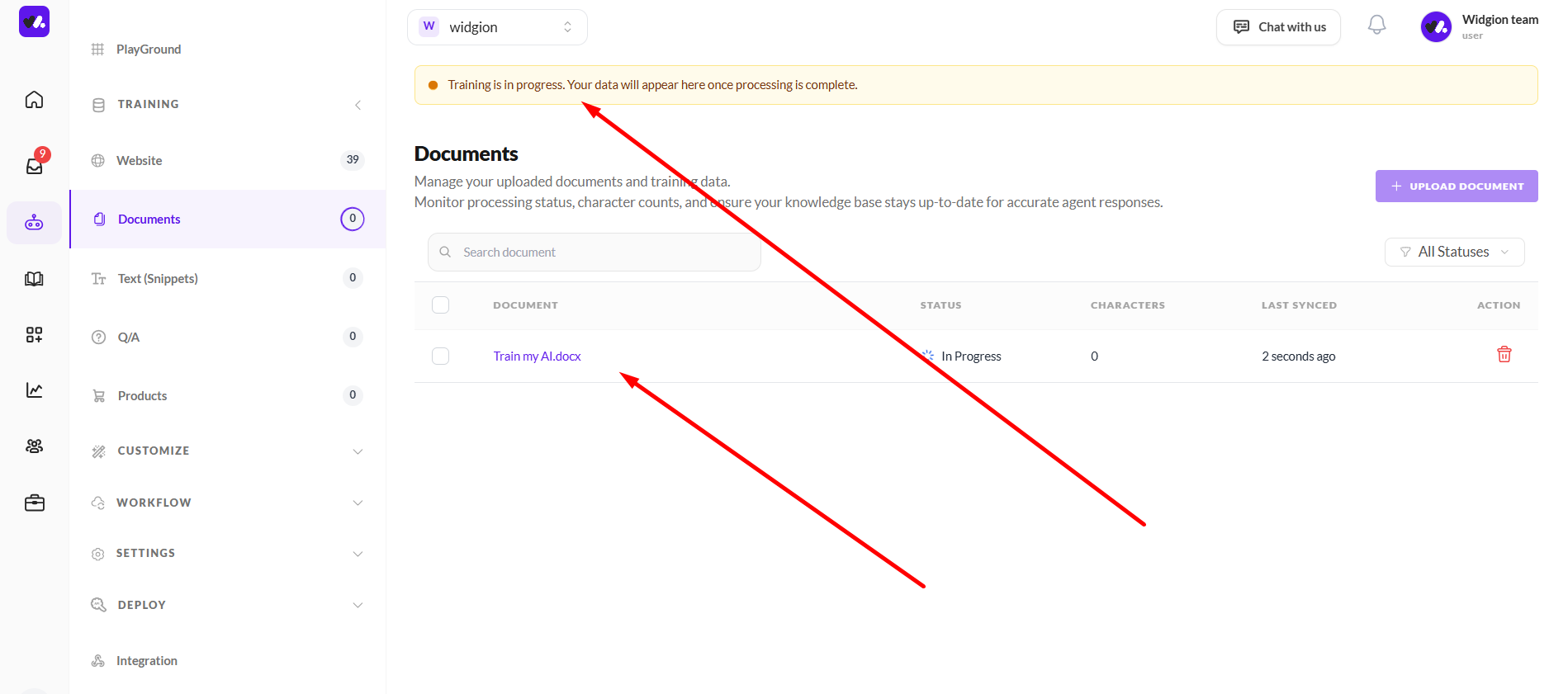
After uploading, your document will appear in the documents list on the Documents page. A yellow banner at the top of the page will notify you that "Training is in progress. Your data will appear here once processing is complete."
Each document in the list shows its name, current status, character count, and when it was last synced. While the document is being processed, its status will show as In Progress.
Filtering by Status
As your document library grows, you can use the All Statuses dropdown to filter your list by training state. The available status options are Training Complete, In Progress, Link Rejected, Limit Reached, File Rejected, Re-syncing, Re-sync Complete, and Re-sync Failed.
This makes it easy to quickly spot any documents that need attention.
Your Documents, Your Assistant's Knowledge
Every document you upload becomes part of the knowledge base your assistant draws from when answering visitor questions. The more relevant and accurate your documents are, the more reliable your assistant's responses will be.
Think of each upload as briefing your assistant on another part of your business — the more thorough the brief, the better it performs.
Did this answer your question?
What was missing or unclear?
Thank you for your feedback!
Your input helps us make this article better.
Still need help?
Contact support →Related articles
Training AI with Website Content
Learn how to crawl your website or import sitemaps to train your assistant.
Creating Workflow Actions (API Calls)
Trigger external APIs directly from chat to perform real-time actions.
How AI Works in Widgion
Understand the underlying AI system and how it uses your data to generate responses.
Adding Manual Content & Q&A
Improve accuracy by adding custom-written answers and knowledge.
On this page