
Adding Manual Content & Q&A
Improve accuracy by adding custom-written answers and knowledge.
Not everything your assistant needs to know can be crawled from a website or pulled from a document. Sometimes you need to add specific pieces of information directly; a particular policy, a custom explanation, or a precise answer to a question your visitors ask regularly.
Widgion gives you two dedicated sections for this under Training: Text (Snippets) for adding custom written content, and Q&A for adding specific question and answer pairs.
Text Snippets
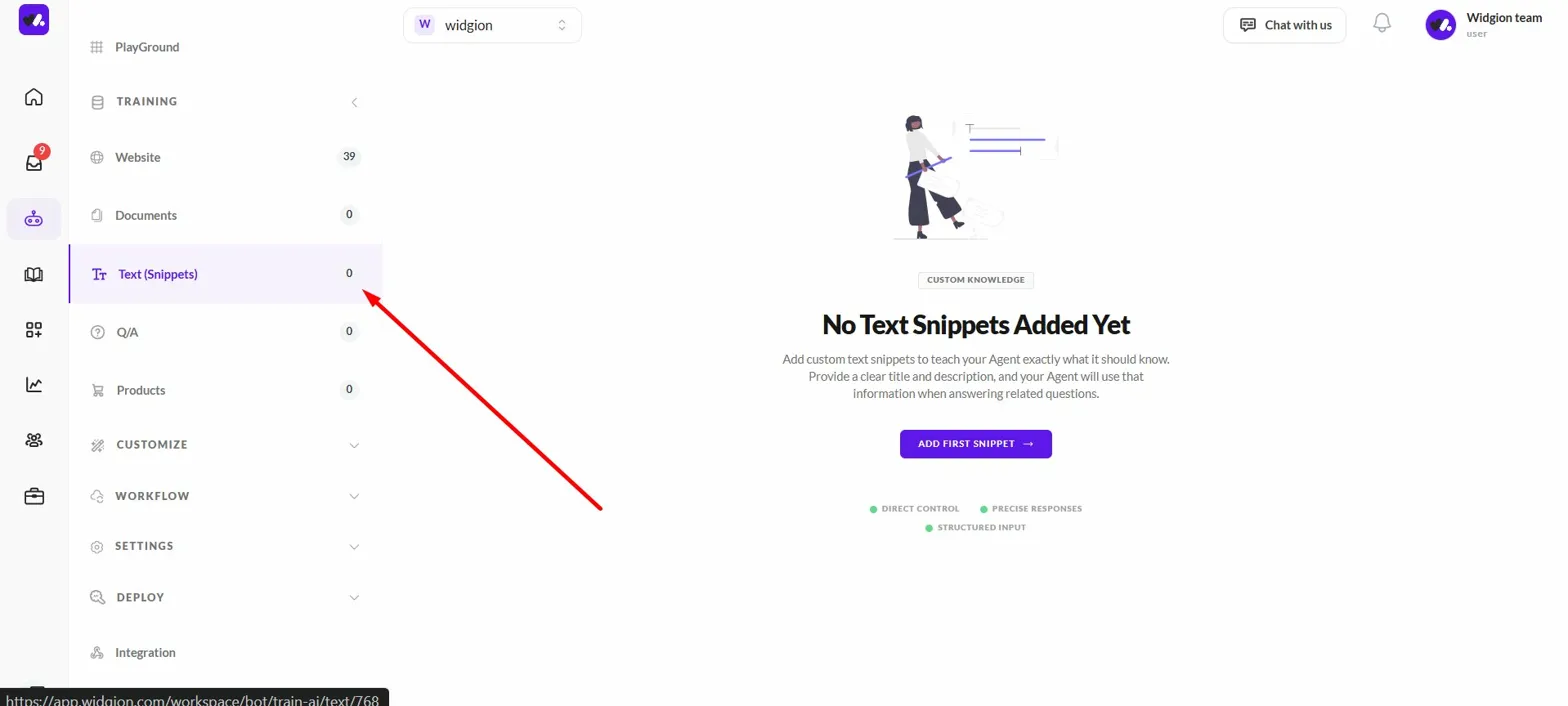
Navigate to Training in the left sidebar and click Text (Snippets). If no snippets have been added yet, the page will show a "No Text Snippets Added Yet" state with an Add First Snippet button at the center of the screen.
Adding a Text Snippet
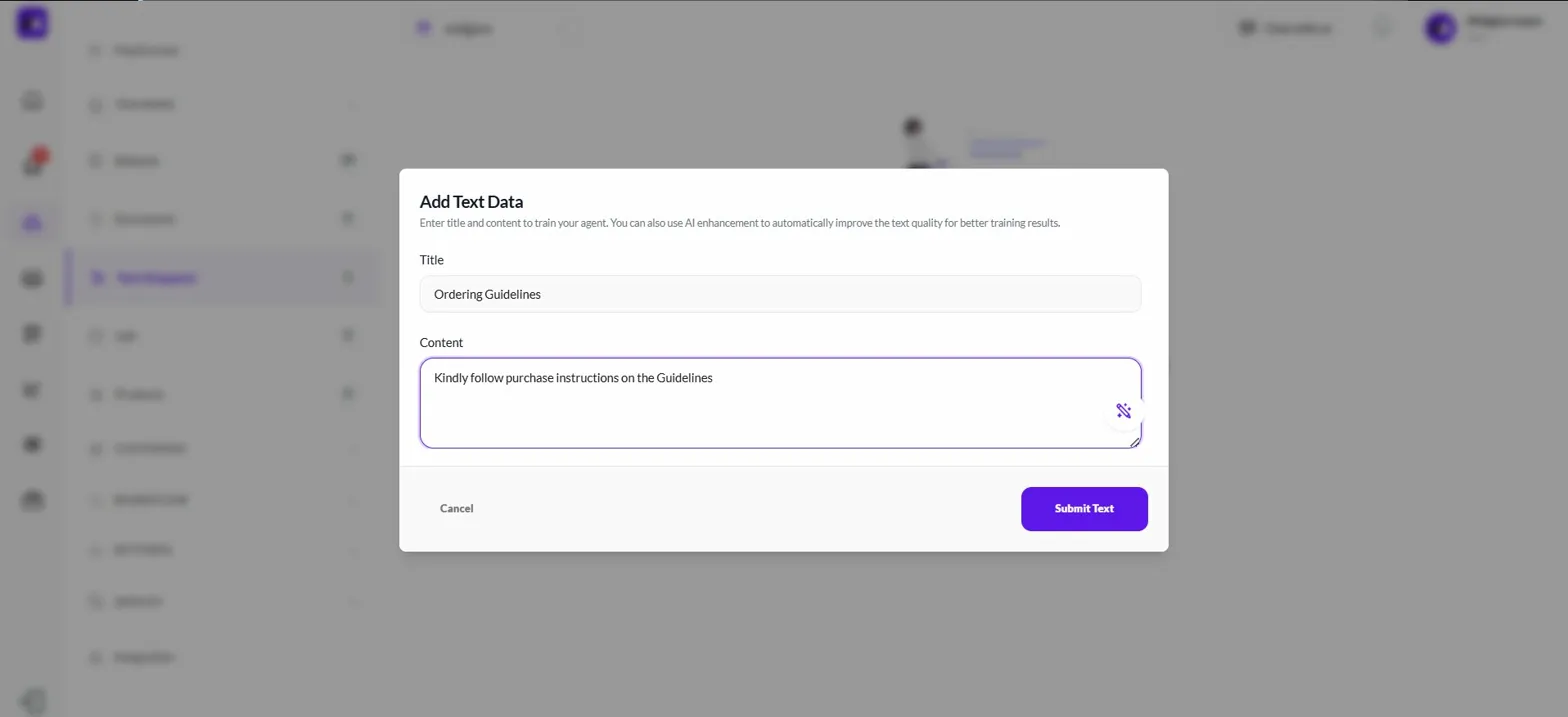
Click Add First Snippet or the + Add Text Snippet button in the top right corner once snippets already exist. This opens the Add Text Data modal. Enter a clear Title that describes the content and write your information in the Content field. The modal also notes that you can use AI enhancement to automatically improve the text quality for better training results. Once you're done, click Submit Text to save it.
Managing Your Snippets
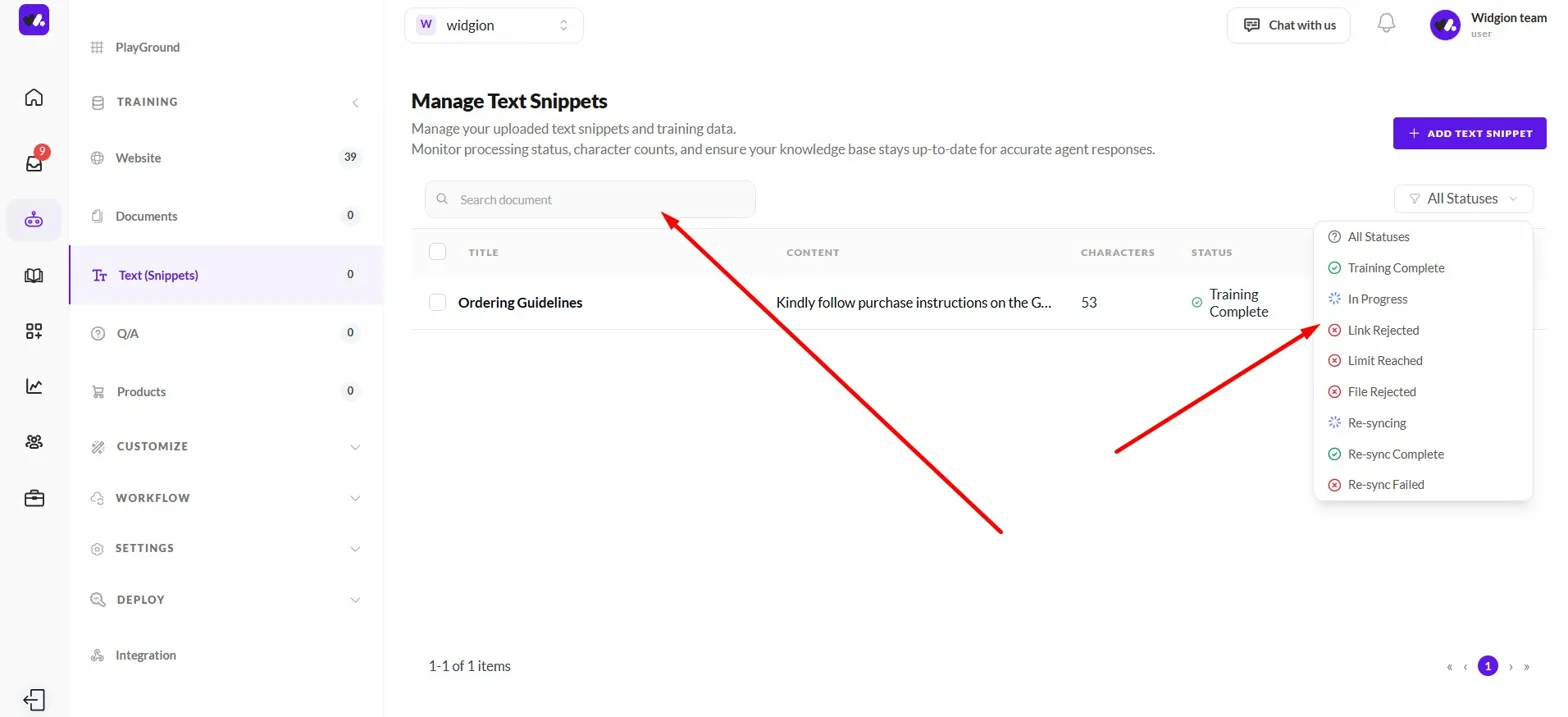
After submitting, your snippet appears on the Manage Text Snippets page showing the title, a preview of the content, character count, status, and when it was last synced.
You can use the All Statuses dropdown to filter your snippets by training state, and the Edit or delete buttons in the Action column to manage individual entries.
Accessing the Q&A Page
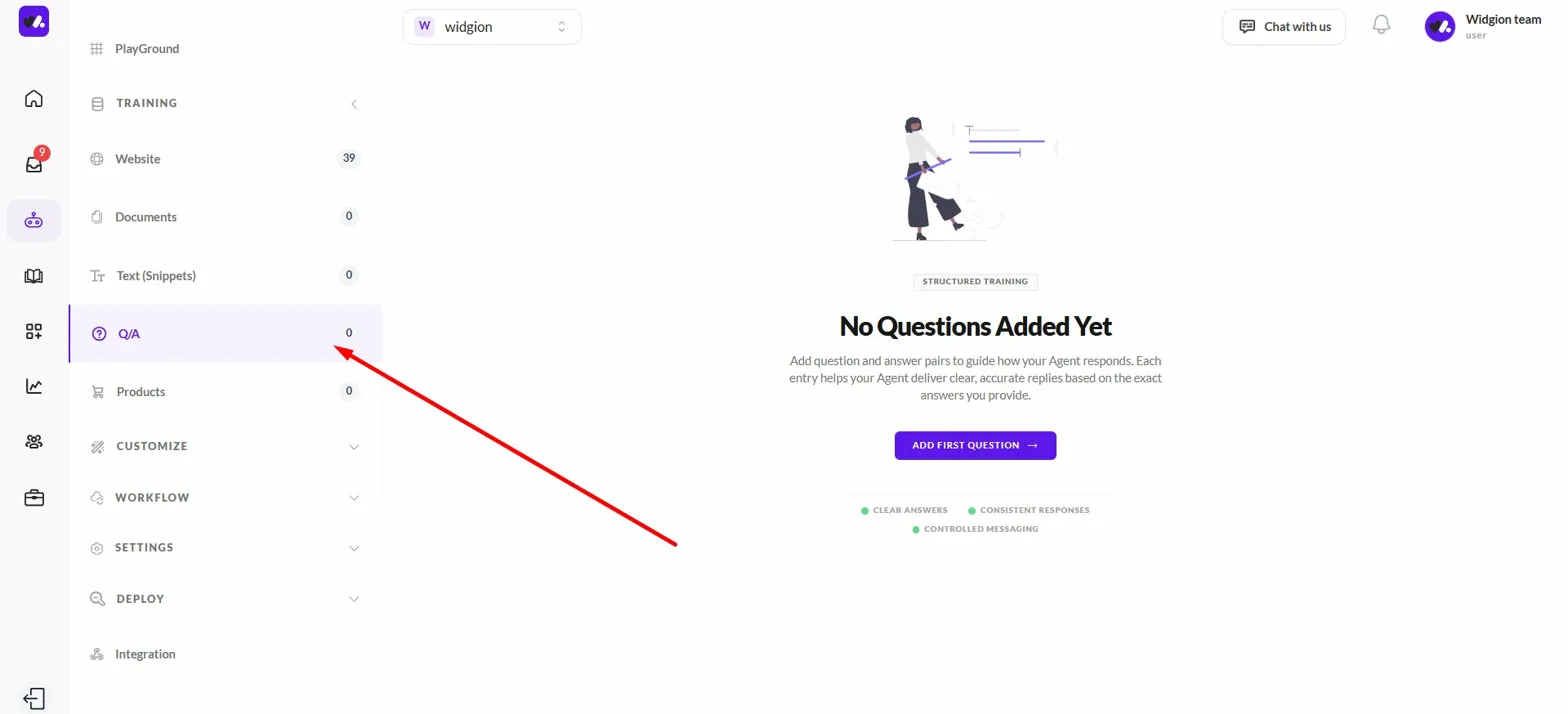
Navigate to Training in the left sidebar and click Q/A. If no questions have been added yet, the page will show a "No Questions Added Yet" state with an Add First Question button at the center of the screen.
Adding a Question and Answer Pair
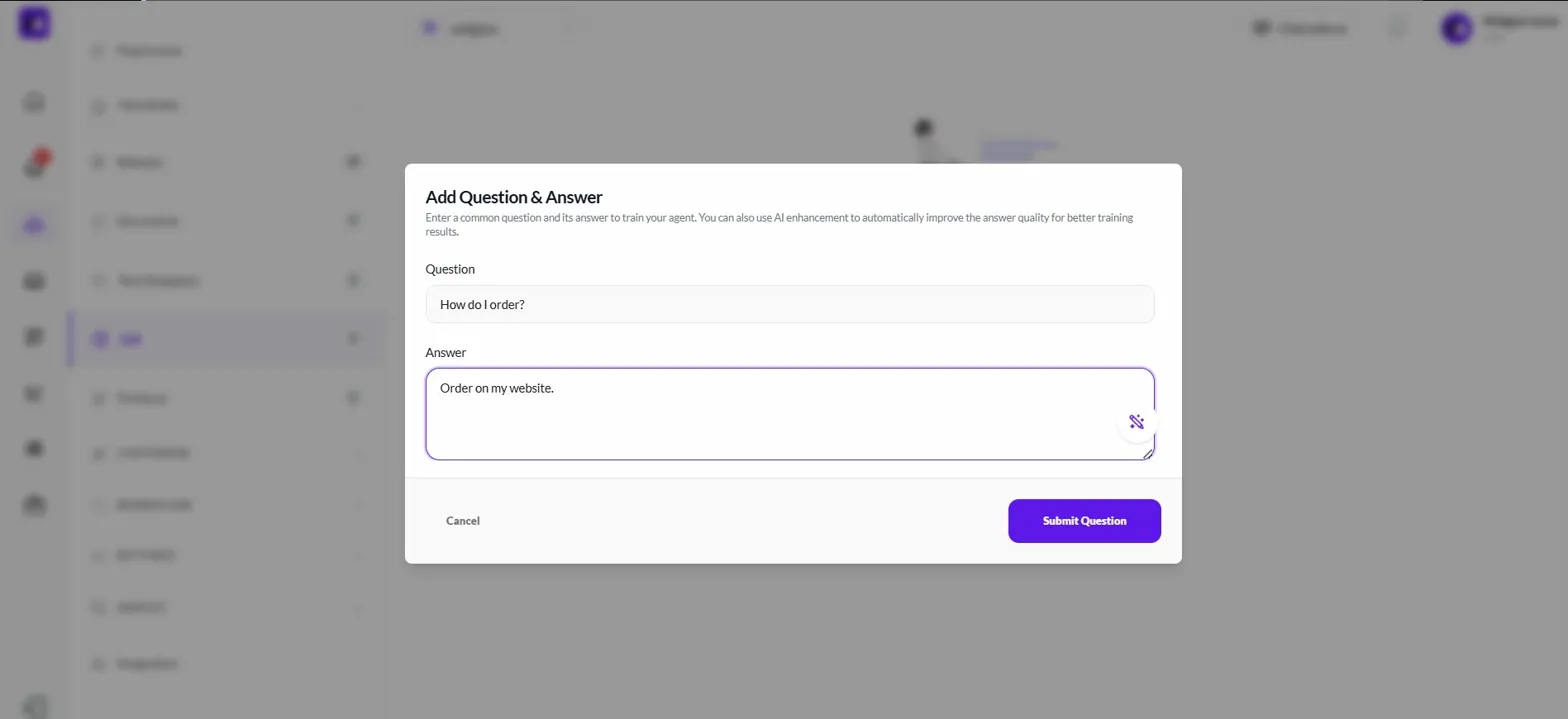
Click Add First Question or the + Add Q & A Pair button in the top right corner once entries already exist. This opens the Add Question & Answer modal. Enter the question in the Question field and write the corresponding answer in the Answer field.
Like Text Snippets, this modal also supports AI enhancement to improve answer quality for better training results. When you're ready, click Submit Question to save the pair.
Managing Your Q&A Pairs
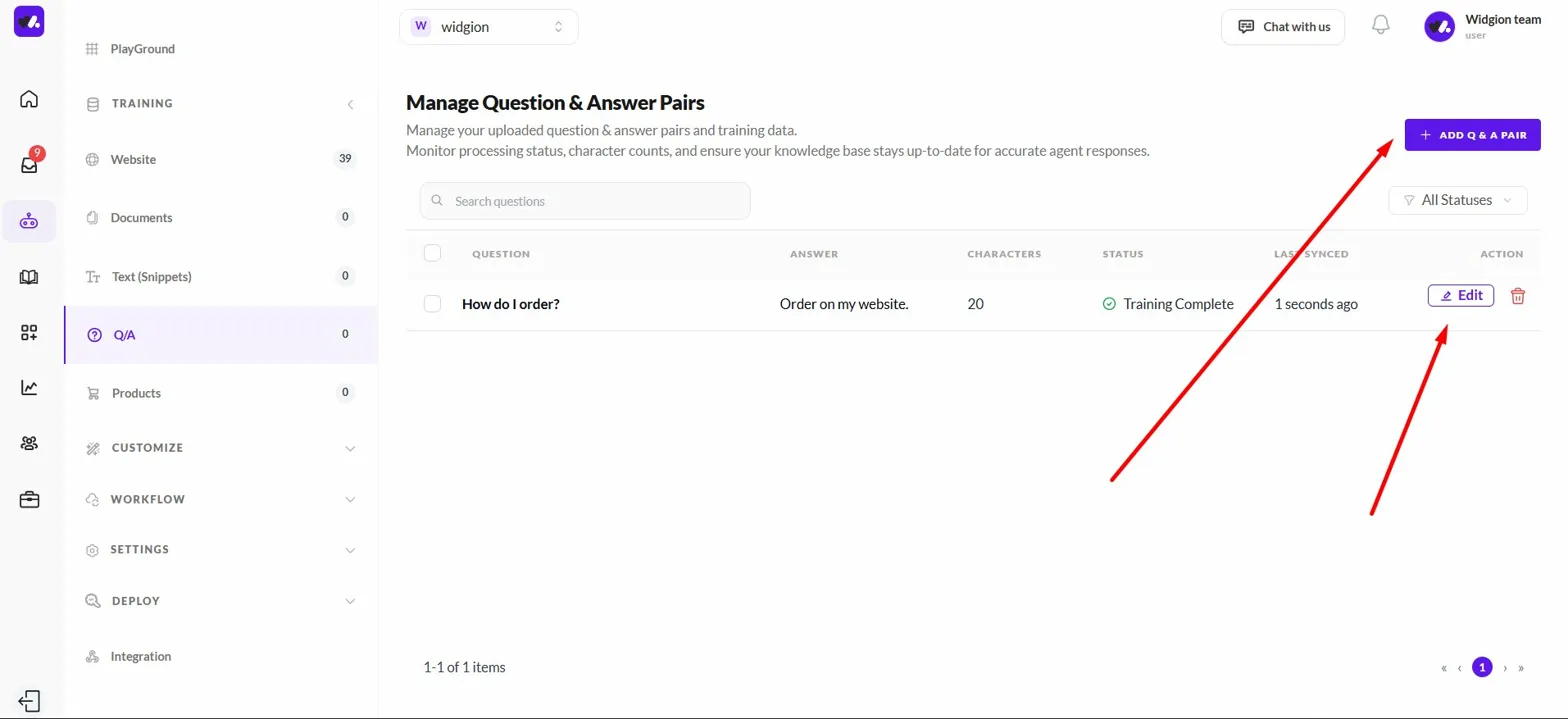
Once submitted, your question and answer pair appears on the Manage Question & Answer Pairs page. Each entry shows the question, answer, character count, status, last synced time, and options to Edit or delete.
You can add more pairs at any time using the + Add Q & A Pair button in the top right corner.
The More You Teach It, The Better It Gets
Text Snippets and Q&A pairs give you direct control over what your assistant knows and how it responds. While website crawling and document uploads handle broad knowledge, these two sections let you fill in the gaps — the specific details, policies, and answers that make your assistant genuinely useful to the people it talks to.
Did this answer your question?
What was missing or unclear?
Thank you for your feedback!
Your input helps us make this article better.
Still need help?
Contact support →Related articles
Training AI with Website Content
Learn how to crawl your website or import sitemaps to train your assistant.
Uploading Documents for AI Training
Train your AI using PDFs, guides, and internal documents.
Creating Workflow Actions (API Calls)
Trigger external APIs directly from chat to perform real-time actions.
How AI Works in Widgion
Understand the underlying AI system and how it uses your data to generate responses.
On this page