
Creating Collections
Organize your documentation into logical categories.
Collections allow you to organize your Help Center content into clear, structured categories. Instead of presenting all articles in one place, collections group related content together, making it easier for users to navigate and find what they’re looking for.
By organizing your documentation into logical sections, you create a more intuitive experience for your users while keeping your content structured and easy to manage as it grows.
Creating a New Collection
To create a new collection, navigate to the Manage Collections & Categories page in your Help Center dashboard and click on the Create Collection button at the top of the screen.
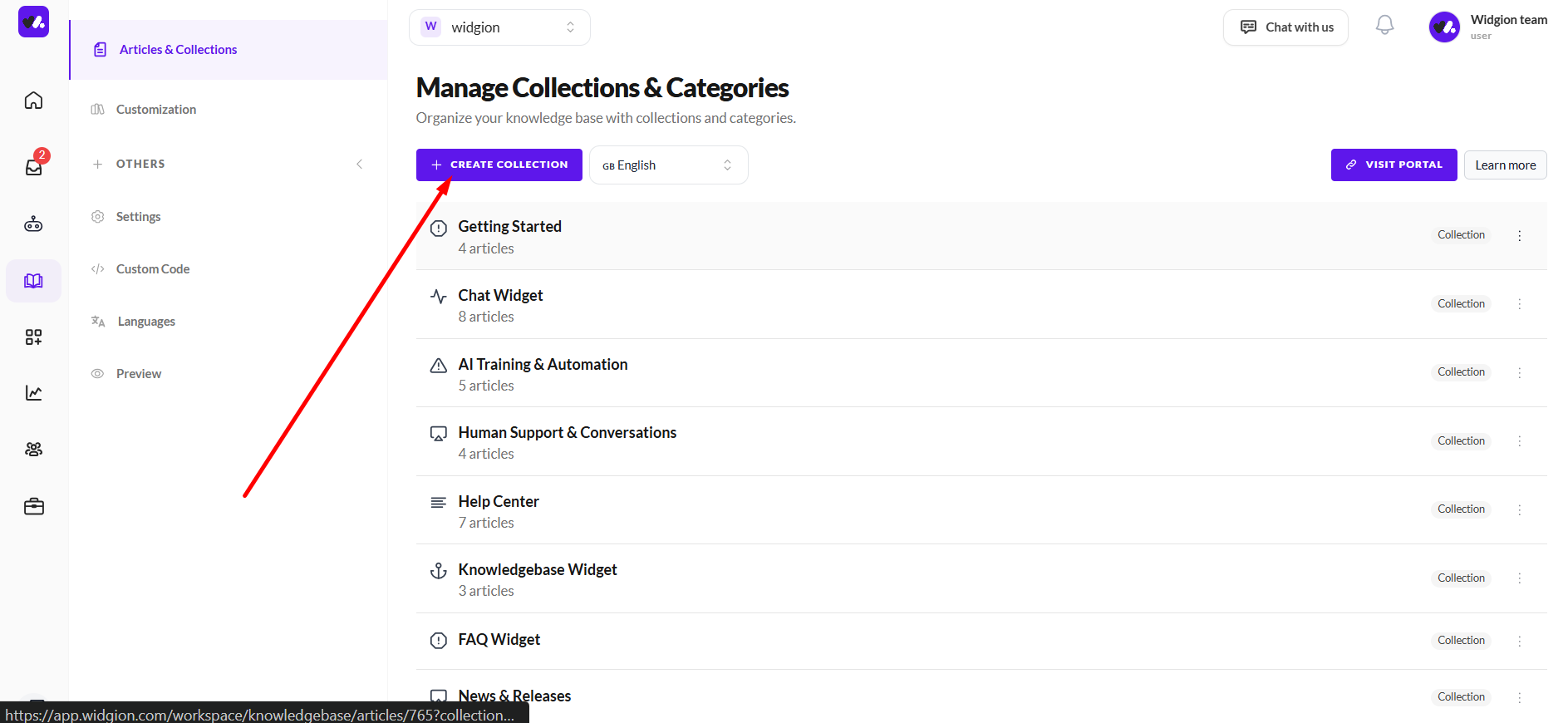
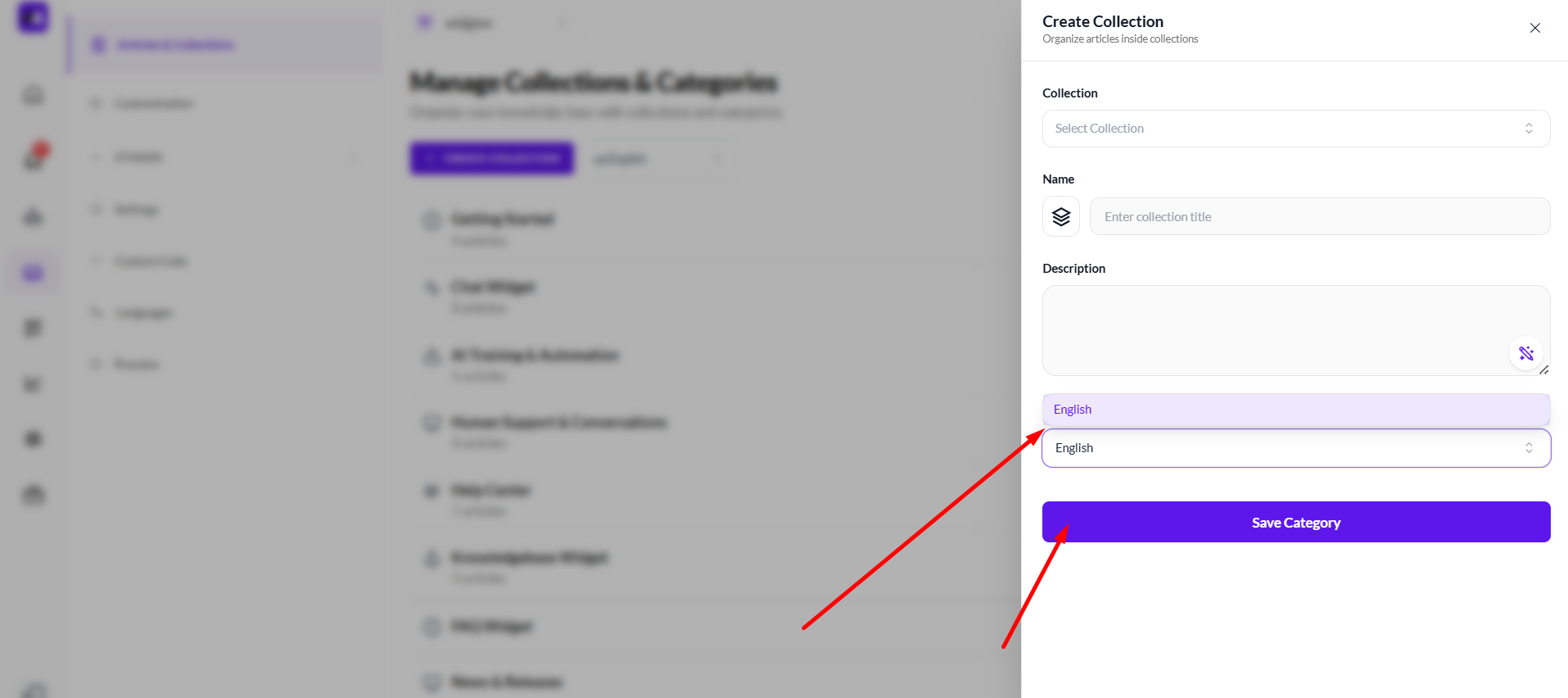
Once clicked, a panel opens on the right where you can configure the collection. Here, you’ll enter the collection name, which serves as the main title users will see, and optionally add a description to give more context about what the collection contains. You can also select the appropriate language for the collection. After filling in these details, click Save Category to create and add the collection to your Help Center.
Naming Your Collection and Adding an Icon
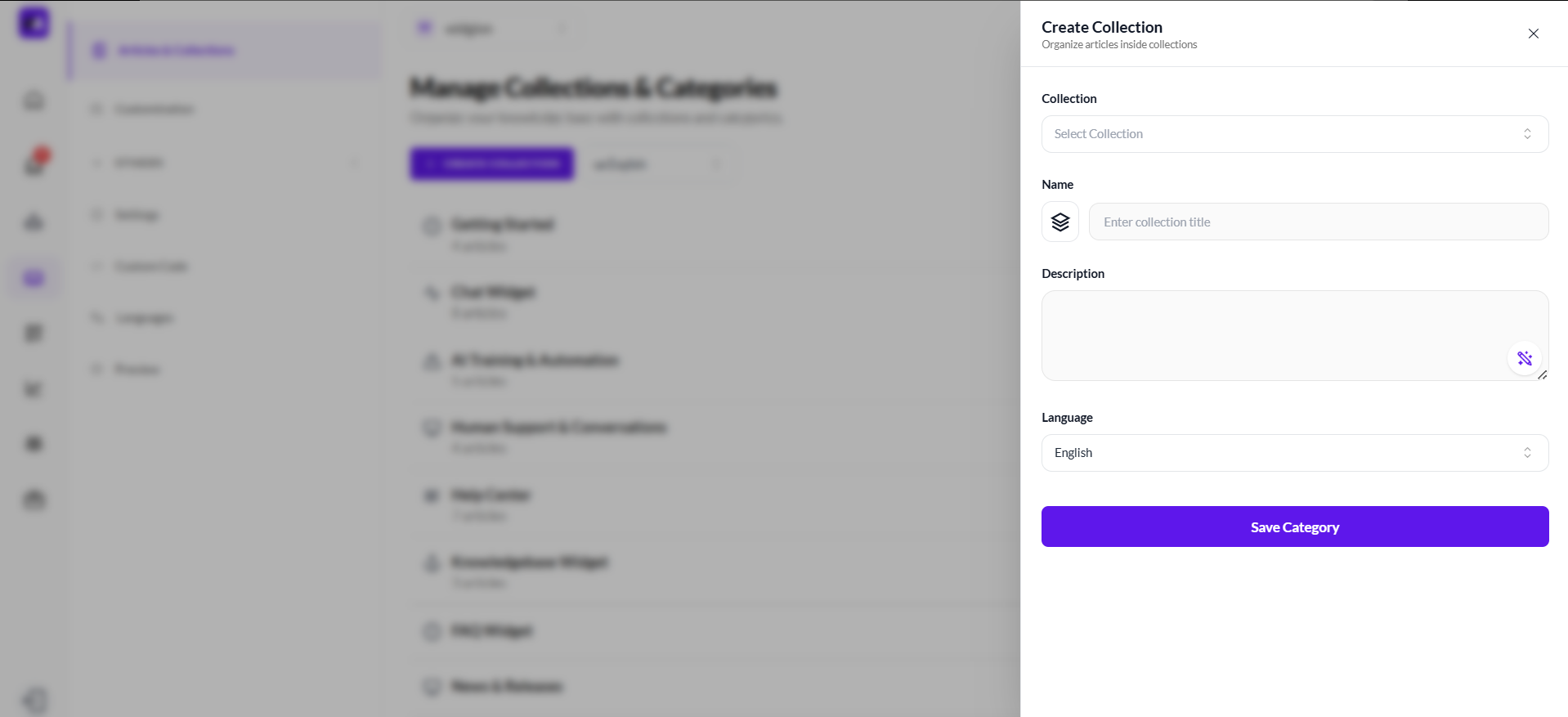
When creating a collection, the Name field is where you define the title of that collection. This should be clear, specific, and easy to understand, as it represents the category users will see when navigating your Help Center. A well-named collection helps users quickly identify where to find relevant information without confusion.
You also have the option to assign an icon to your collection. By clicking the icon selector, you can choose from a range of available icons to visually represent the content of that collection. Adding an icon is not just decorative—it improves visual recognition and makes your Help Center more intuitive and engaging, especially when users are scanning through multiple categories.
Adding a Description to Your Collection
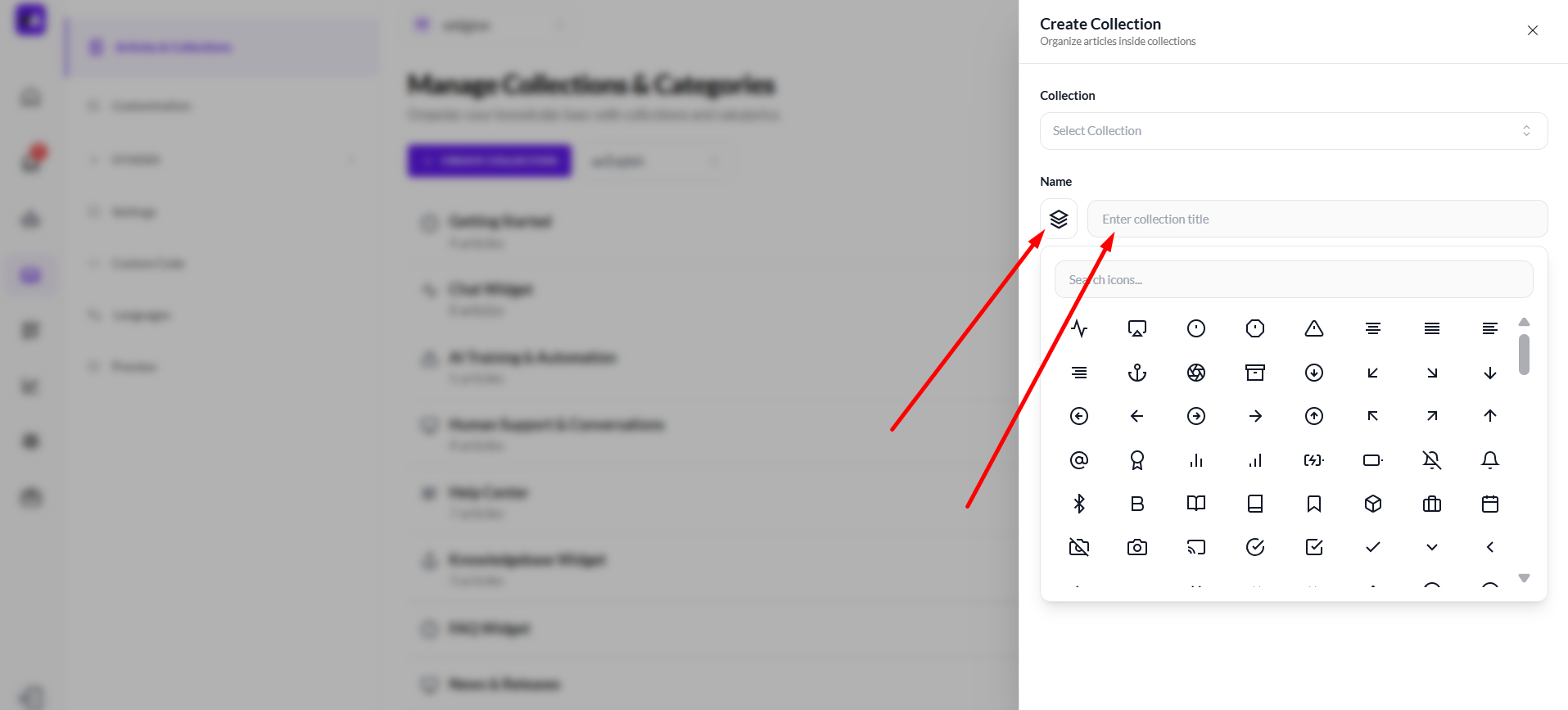
The Description field allows you to provide more context about what the collection contains. While the name gives a quick label, the description helps users better understand what kind of information they can expect to find inside that category. This is especially useful when your Help Center contains multiple collections, as it guides users toward the most relevant section more efficiently.
You can also use the enhancement icon within the description field to assist in refining your text. This helps you create clearer, more polished descriptions without extra effort. A well-written description improves clarity, makes navigation easier, and contributes to a more professional and user-friendly Help Center experience.
Selecting Language and Saving Your Collection
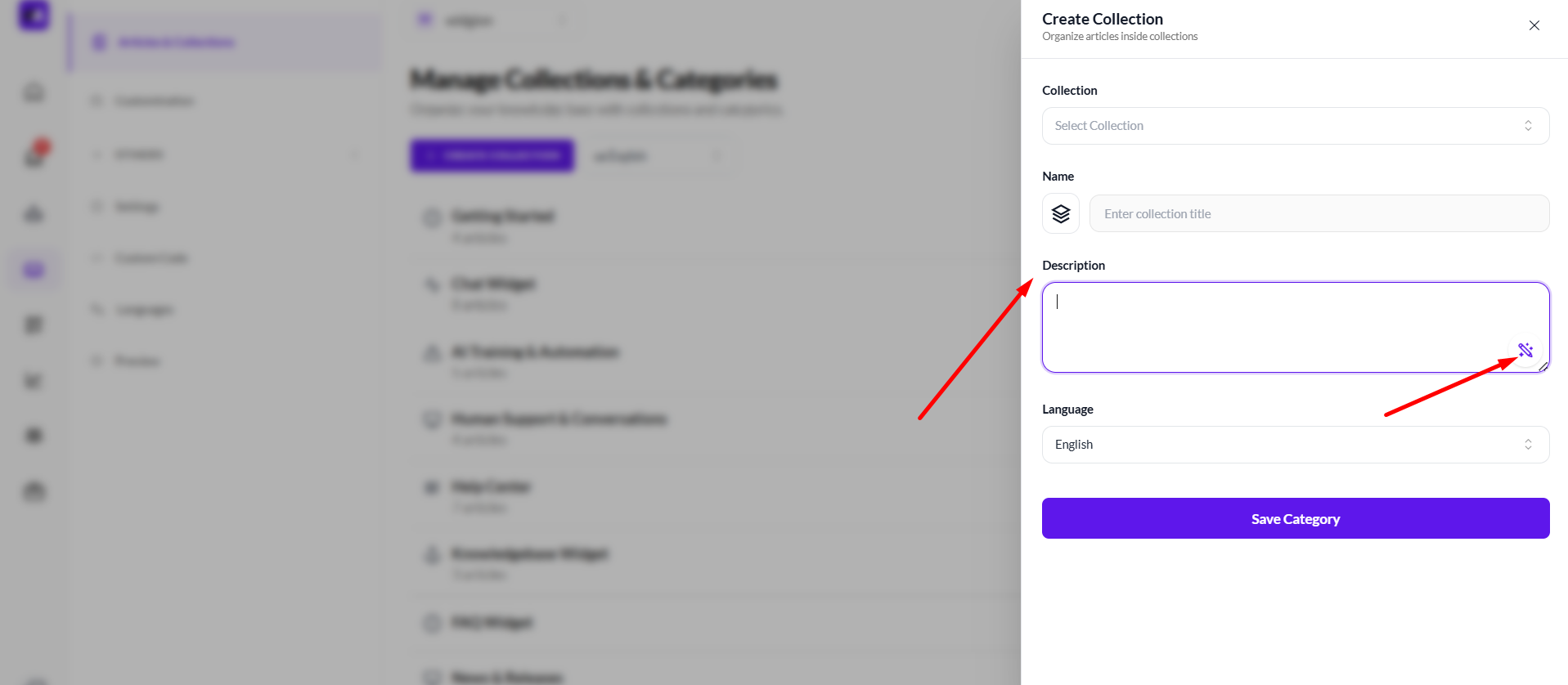
Before finalizing your collection, you’ll need to confirm the language it belongs to. This ensures your content is properly organized, especially if your Help Center supports multiple languages. Selecting the correct language helps users access content that is relevant and understandable to them.
Once all fields are completed, click the Save Category button to create your collection. Your new collection will immediately appear within your Help Center structure, ready for you to start adding articles and building out your documentation.
Best Practices for Creating Effective Collections
When creating collections, aim for clarity and simplicity. Each collection should focus on a specific topic or purpose, avoiding overly broad or vague categories. This makes it easier for users to quickly understand where to go and reduces the time spent searching for information. Consistent naming, clear descriptions, and thoughtful use of icons all contribute to a more intuitive structure.
It’s also important to think from the user’s perspective. Organize collections based on how your users think and the kind of questions they typically have, rather than how your internal team is structured. As your Help Center grows, periodically review and refine your collections to ensure they remain relevant, well-organized, and easy to navigate.
Building a Well-Structured Help Center
Creating collections is the foundation of an organized and effective Help Center. By grouping your content into clear, logical categories, you make it easier for users to navigate your documentation and find the information they need without confusion.
A well-structured collection system not only improves the user experience but also makes your content easier to manage as it grows. When done right, it ensures consistency, scalability, and faster access to answers—helping you deliver a more efficient and professional support experience.
Did this answer your question?
What was missing or unclear?
Thank you for your feedback!
Your input helps us make this article better.
Still need help?
Contact support →Related articles
On this page