
Multi-language Help Center Setup
Provide documentation in multiple languages.
Widgion’s multi-language help center enables you to deliver your documentation in multiple languages, ensuring users can access support content in the language they are most comfortable with. This makes your help center more accessible, inclusive, and effective for a diverse audience.
By supporting multiple languages, you can provide a consistent support experience across regions while maintaining a well-structured and organized knowledge base.
Adding and Managing Languages
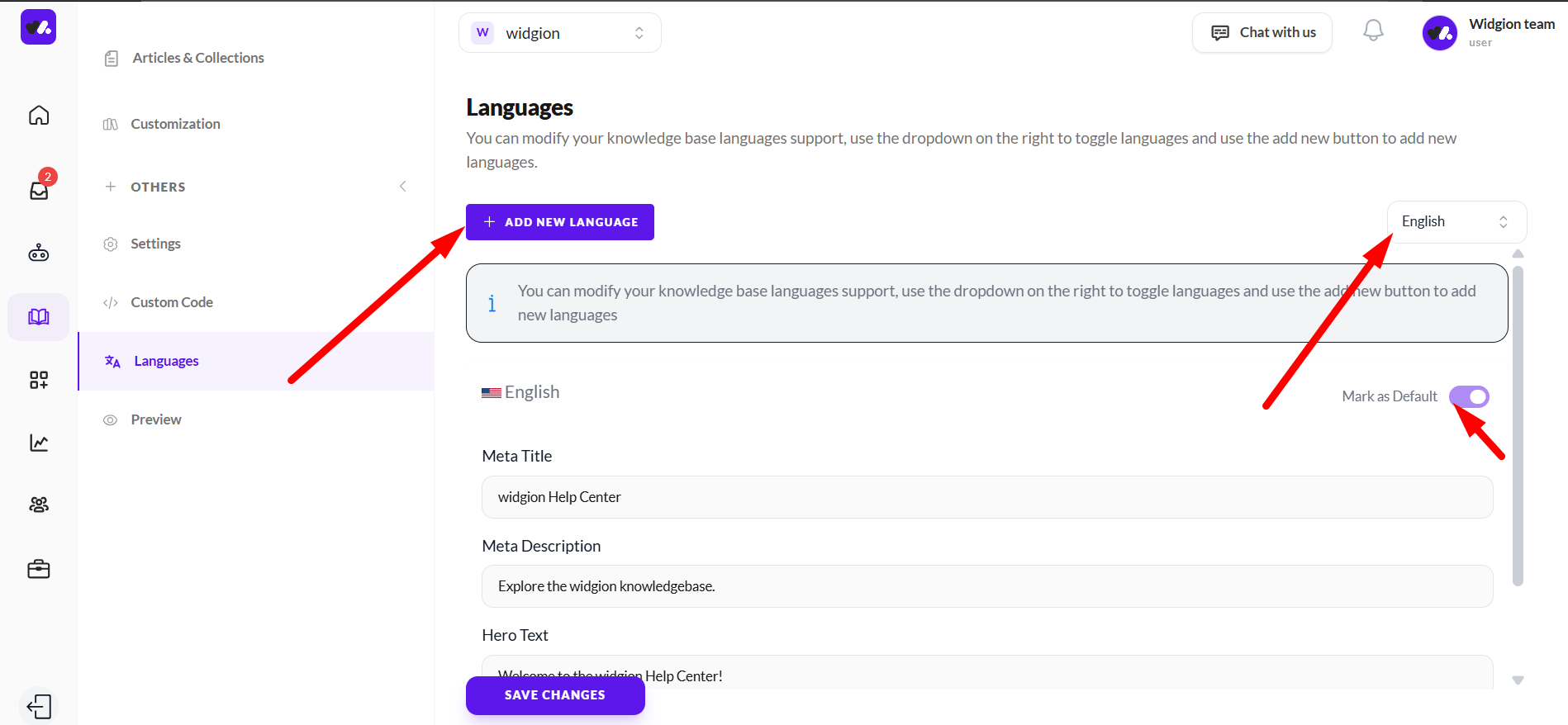
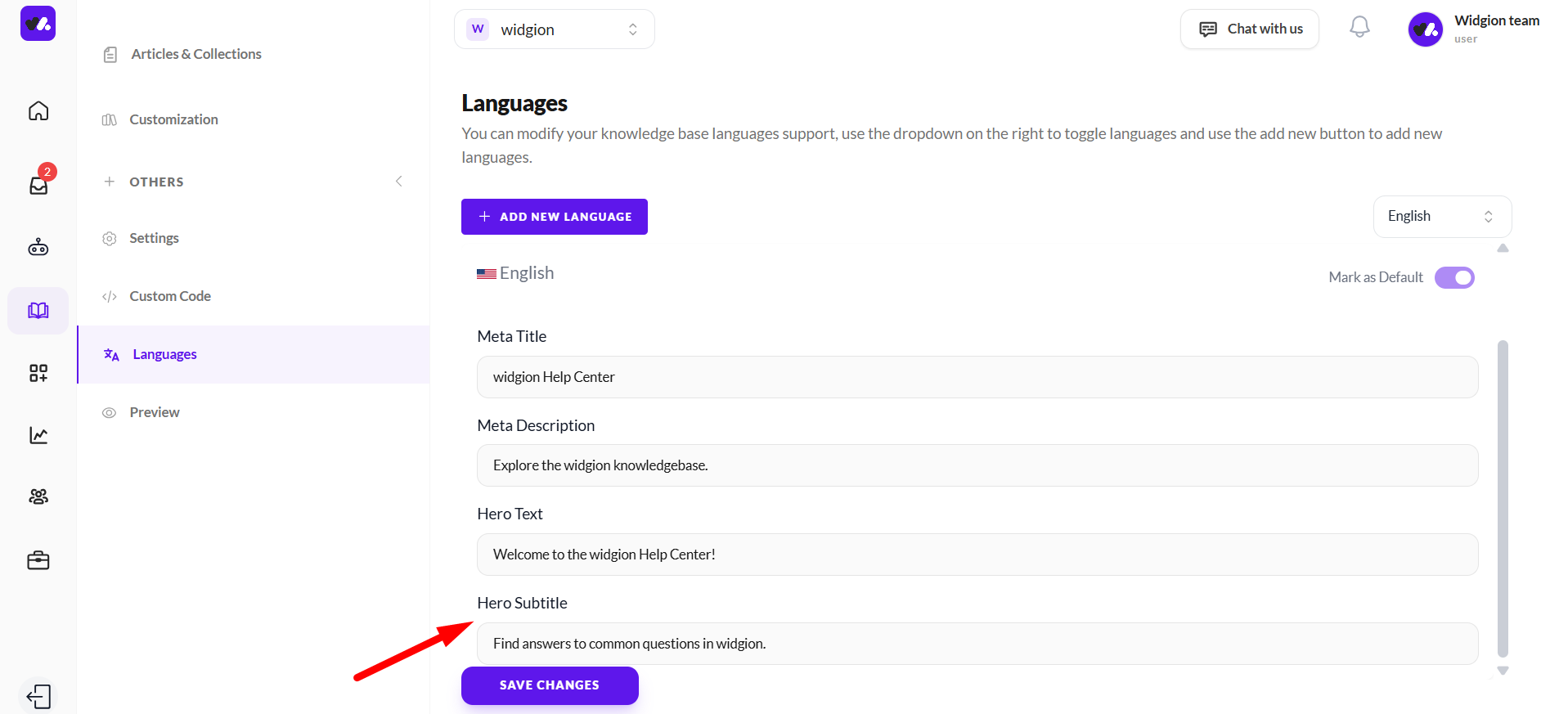
In the Languages section, you can control how your help center supports multiple languages. To add a new language, click the “Add New Language” button. This allows you to expand your help center and make your content accessible to a wider audience.
You can also switch between available languages using the dropdown on the right. This helps you view and edit content for each language individually. Additionally, you have the option to set a default language, which will be the primary language shown to users unless they choose otherwise.
Customizing the Meta Title
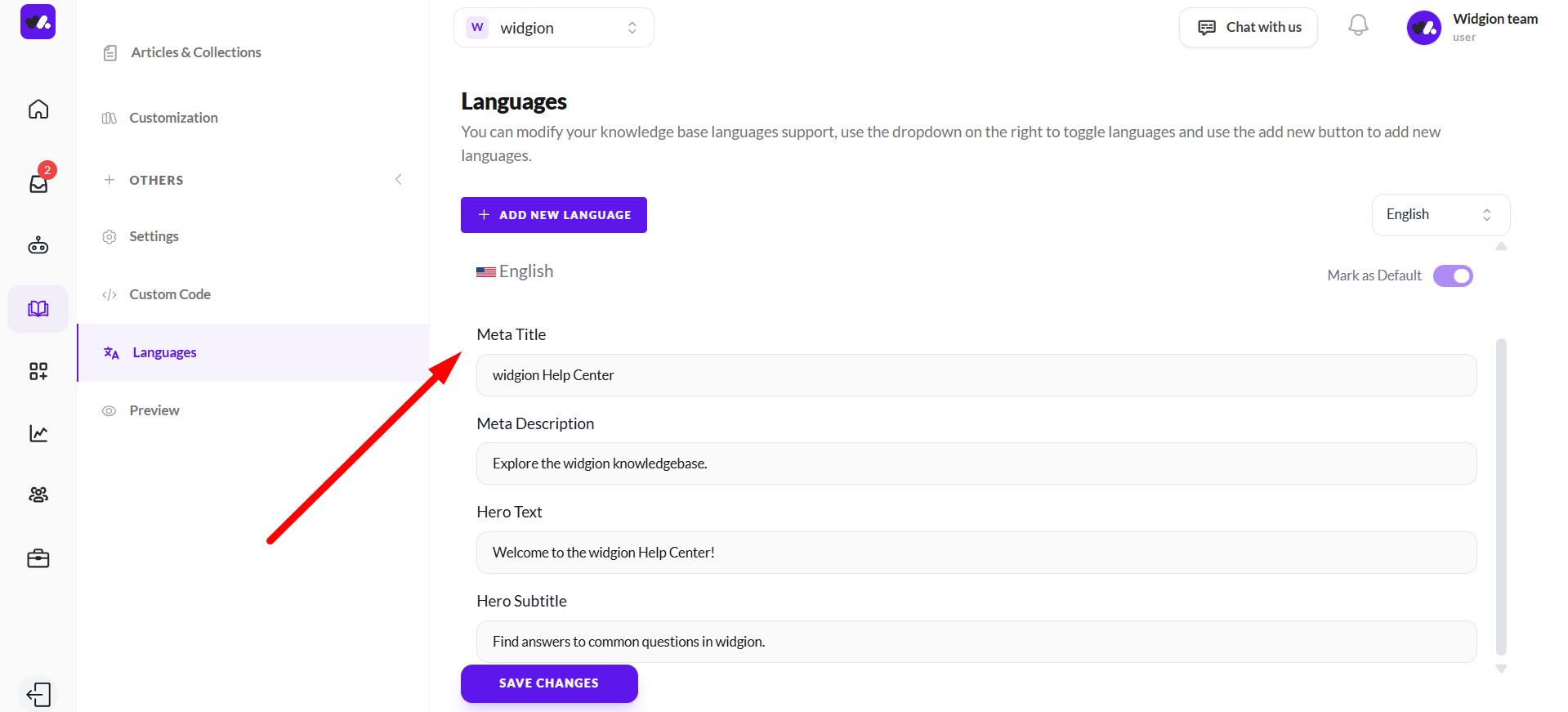
The Meta Title defines how your help center appears in search engine results and browser tabs for each selected language. This is the primary title users see when your help center page is indexed or shared, making it an important element for visibility and branding.
You should keep your meta title clear, relevant, and aligned with your help center’s purpose. Including your product or brand name such as “Widgion Help Center” helps users instantly recognize your content and improves search discoverability.
Customizing the Meta Description
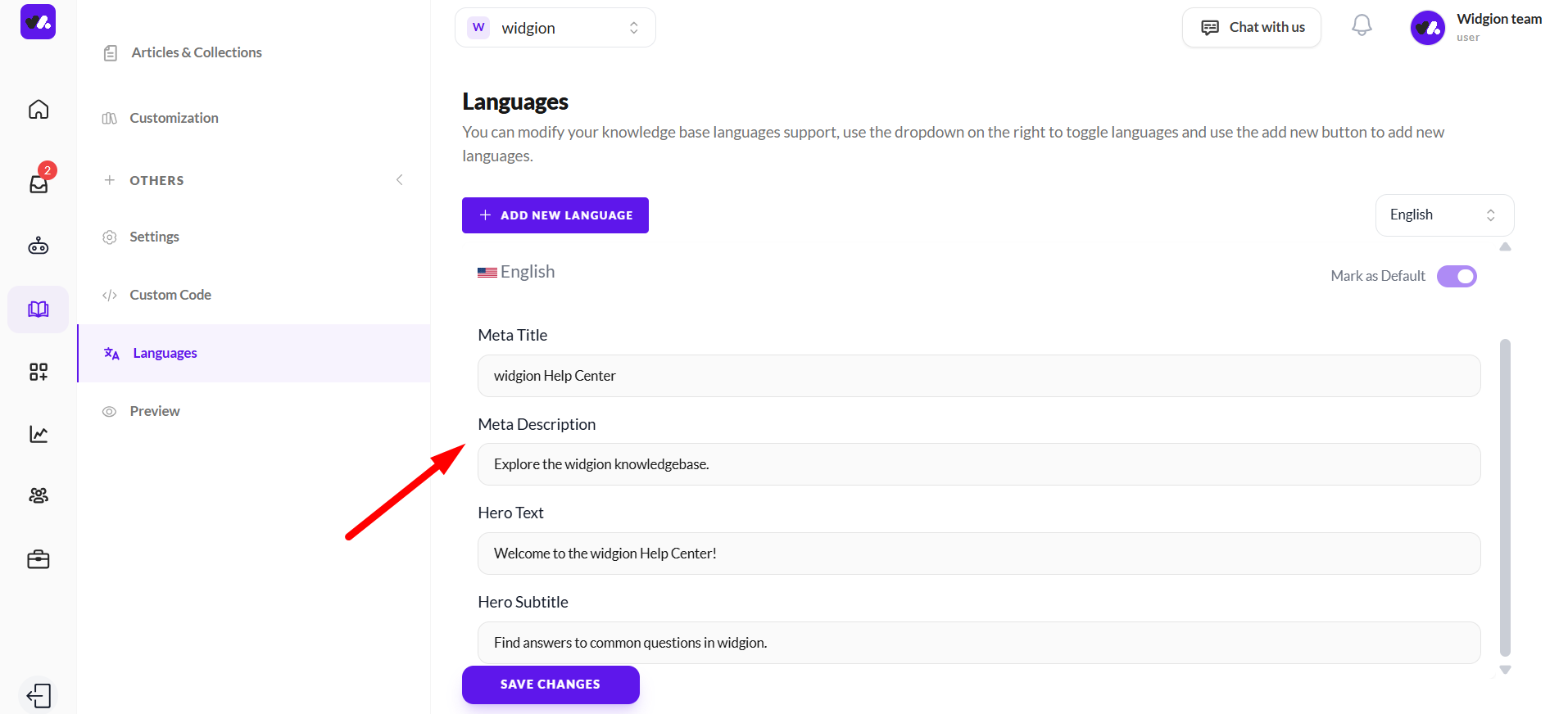
The Meta Description provides a brief summary of your help center that appears in search engine results. It helps users quickly understand what your help center offers before they click through.
To make it effective, keep your description clear, concise, and informative. Focus on the value users will get such as finding answers, guides, or support resources. A well-written meta description improves visibility and encourages more users to explore your help center.
Customizing the Hero Text
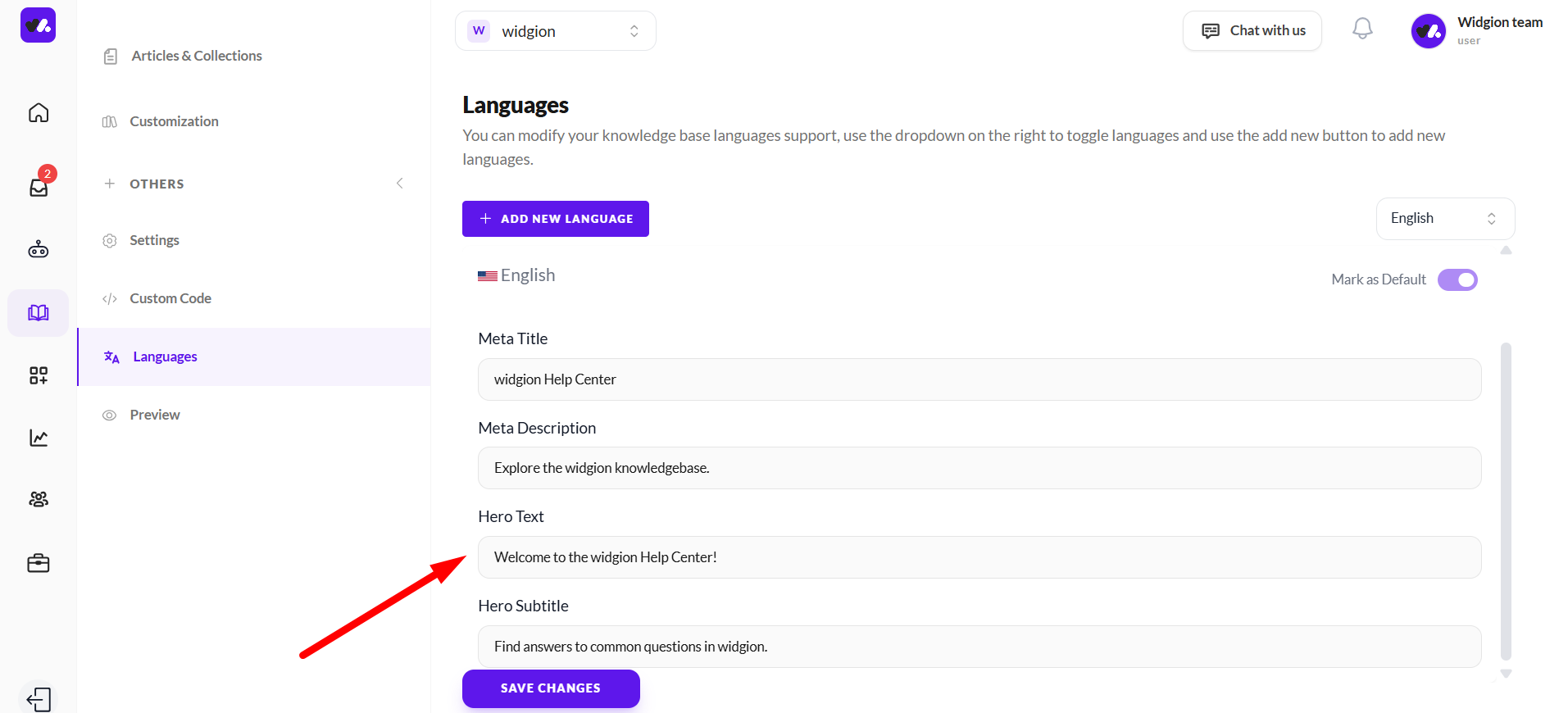
The Hero Text is the main headline displayed at the top of your help center. It’s the first message users see when they land on the page, making it important for setting the tone and guiding users on what to expect.
This text should be clear, welcoming, and aligned with your brand voice. A simple message like “Welcome to the Widgion Help Center” helps orient users and reassures them that they’re in the right place to find support and information.
Customizing the Hero Subtitle
The Hero Subtitle appears directly beneath the main hero text and provides additional context about your help center. While the hero text welcomes users, the subtitle helps clarify what they can do or expect once they’re there.
This is a great place to guide users by highlighting the purpose of your help center such as finding answers, exploring guides, or getting support. Keep it concise and informative, ensuring it complements the hero text while reinforcing the value of your help center.
Saving and Applying Language Settings
After configuring your language preferences and customizing each field, click Save Changes to apply your updates. This ensures that all modifications such as added languages, default settings, and localized content, are properly reflected in your help center.
Be sure to save regularly, especially when working across multiple languages, to avoid losing progress and to keep your content consistent.
Delivering a Consistent Global Experience
A well-configured multi-language help center helps you connect with users across different regions while maintaining a unified brand voice. By organizing and localizing your content effectively, you make it easier for users to find answers, understand your product, and get the support they need.
With the right setup and ongoing updates, your help center becomes a powerful, scalable resource for a global audience.
Did this answer your question?
What was missing or unclear?
Thank you for your feedback!
Your input helps us make this article better.
Still need help?
Contact support →Related articles
Customizing Help Center Design
Apply branding, layouts, and styling.
Using Nested Collections
Create advanced structures for large documentation systems.
Creating and Editing Articles
Creating and Editing Articles
What is the Help Center?
Overview of the help center and its role in customer support.
On this page