
Using Nested Collections
Create advanced structures for large documentation systems.
Widgion allows you to organize your Help Center content using collections, and within those collections, you can create subcategories to group related articles even further.
This is useful when your documentation has grown large enough that a single flat list of articles no longer cuts it — nested collections let you build a clear, layered structure that makes it easier for visitors to find exactly what they're looking for.
Accessing the Articles Page
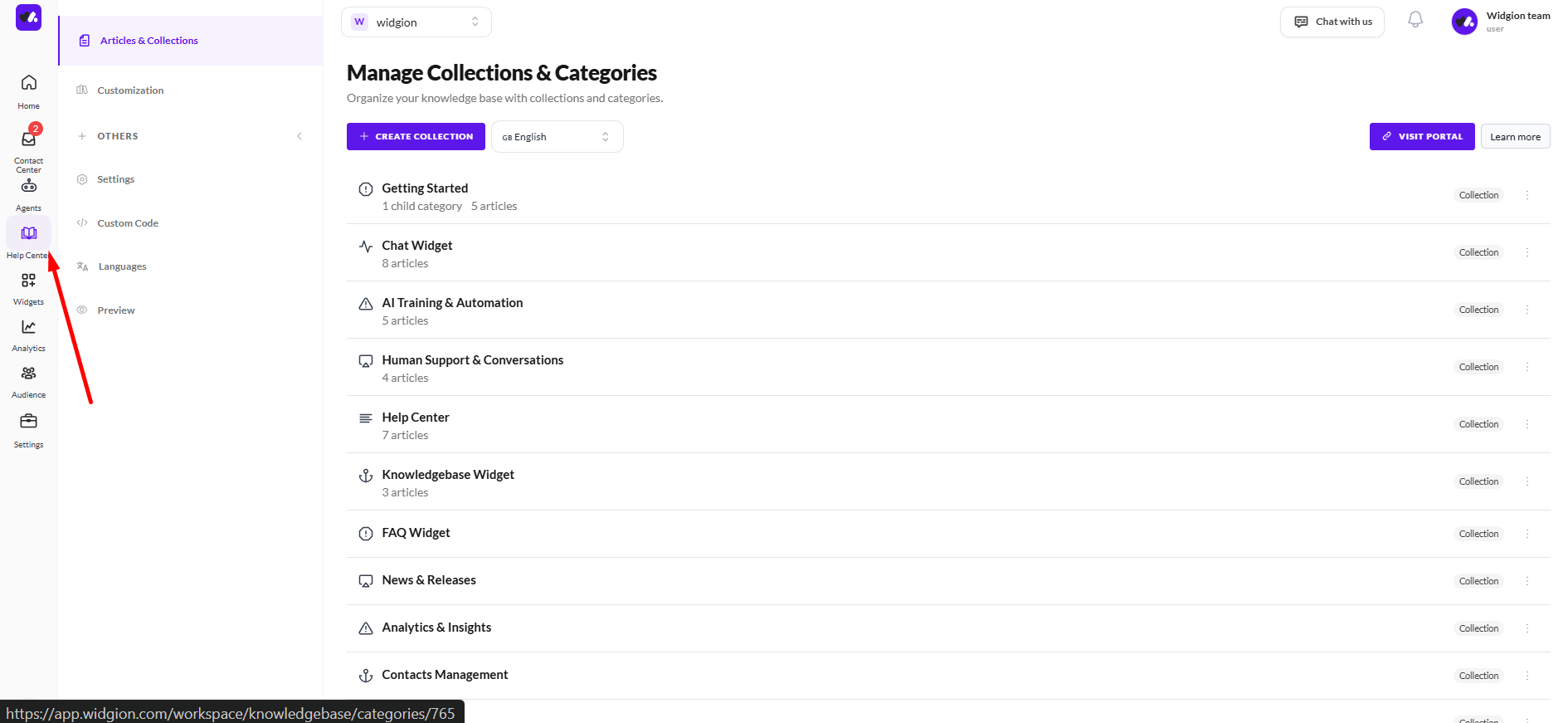
To get started, navigate to Help Center in the left sidebar and click Articles & Collections. This opens the Article page where all your content is managed. From here you can see your existing articles, their publish status, dates, and feedback ratings.
Adding a New Category Inside a Collection
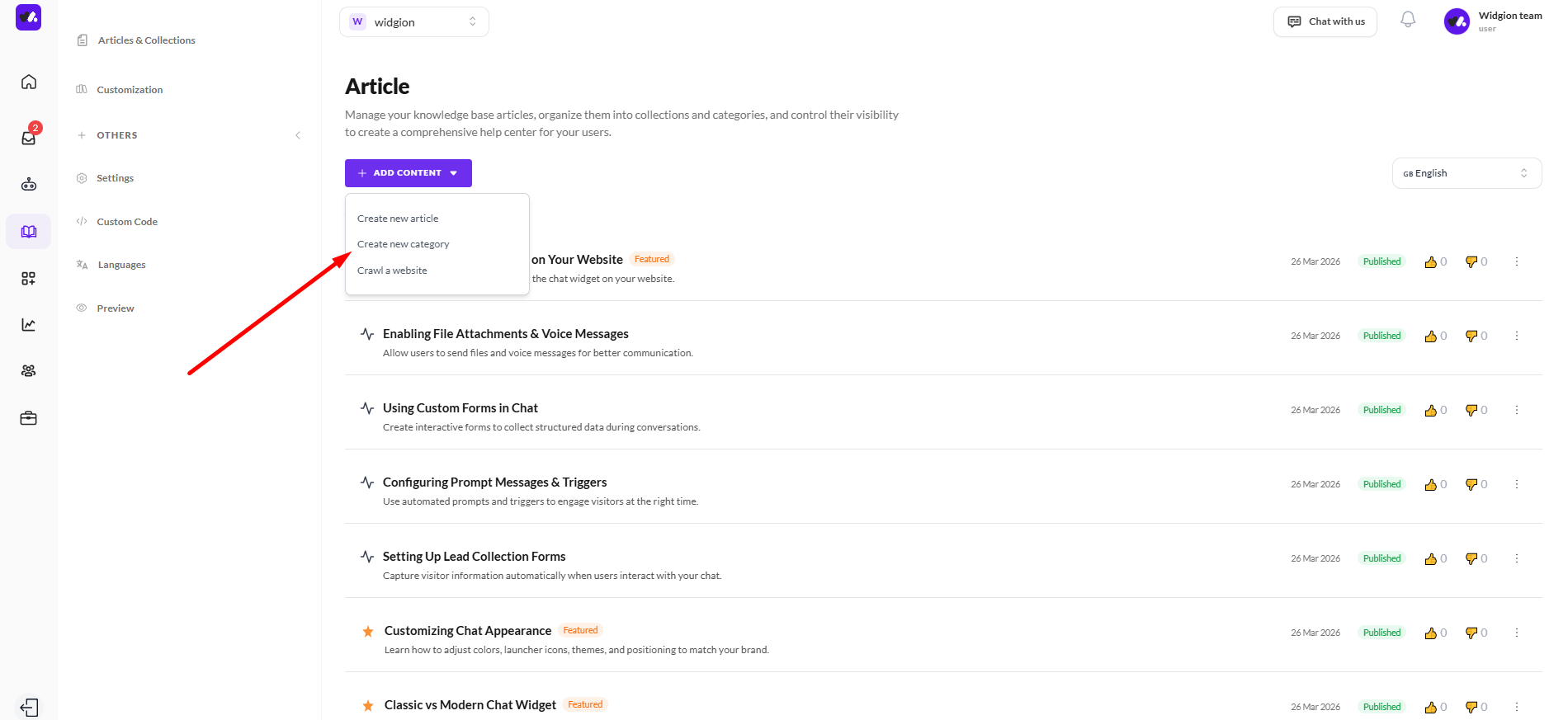
To create a category inside an existing collection, click the + Add Content button at the top of the page. A small dropdown will appear with three options — Create new article, Create new category, and Crawl a website. Click Create new category to proceed.
Configuring the New Category
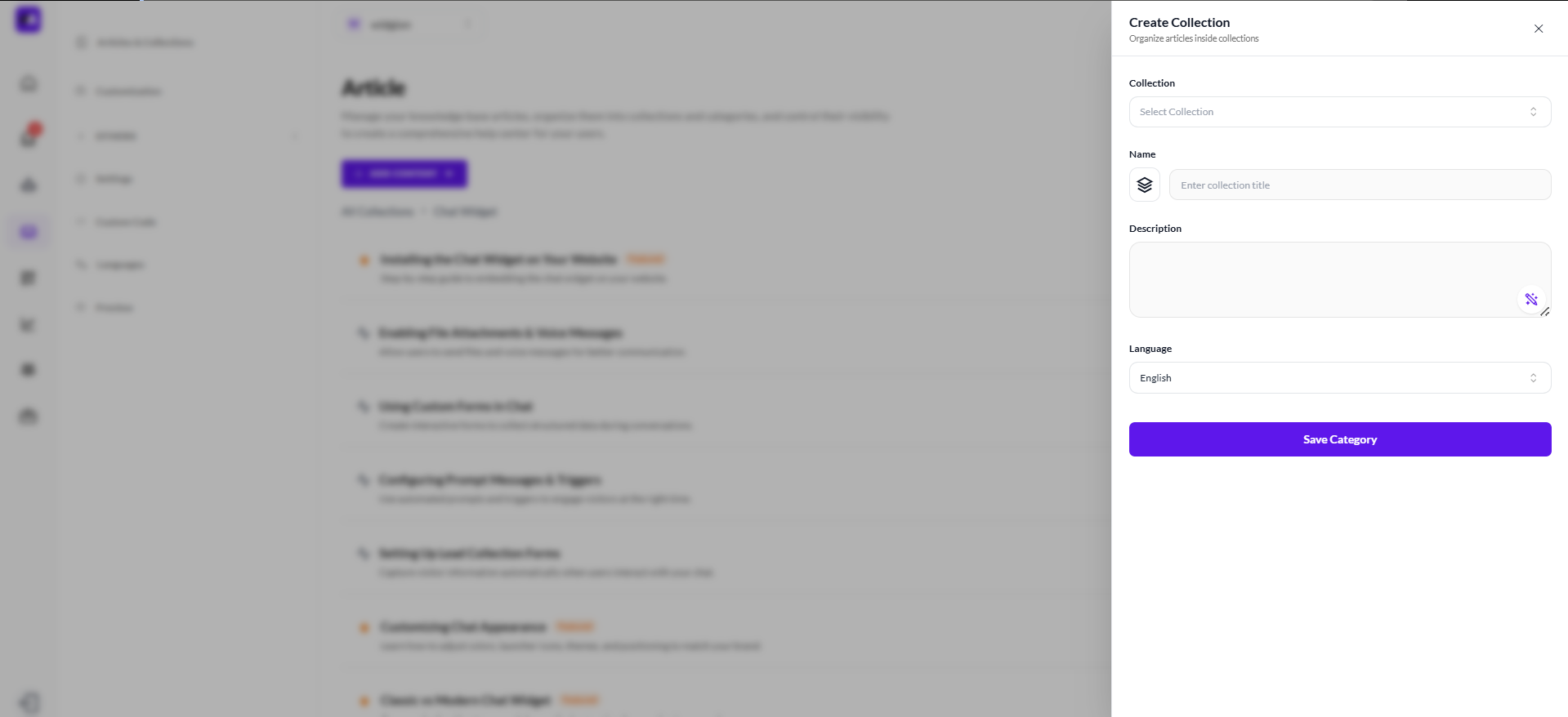
A panel will slide in from the right side of the screen titled Create Collection. Here you'll find four fields to fill in. The Collection dropdown lets you select which existing collection this new category should sit inside — this is what makes it nested. The Name field is where you enter the title of the category.
The Description field lets you add a brief explanation of what the category covers. The Language dropdown lets you set the language for the category, which defaults to English. Once everything is filled in, click Save Category to create it.
How It Looks Once Created
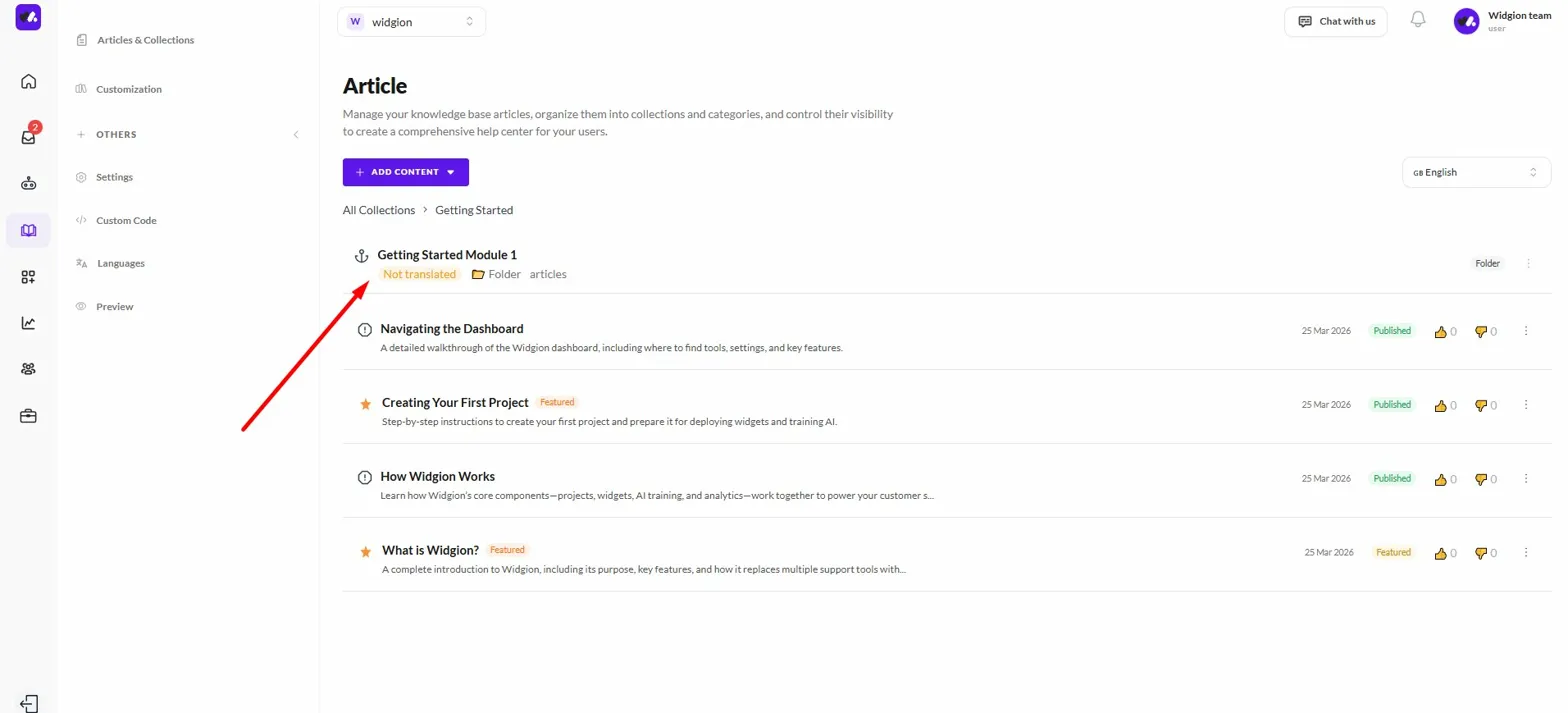
Once saved, the new category appears in your articles list as a Folder sitting within its parent collection. In the breadcrumb at the top of the page, you'll see the full path — for example, All Collections → Getting Started — and the nested category will appear above the individual articles in that collection, clearly labeled as a Folder.
Navigating Into a Nested Category
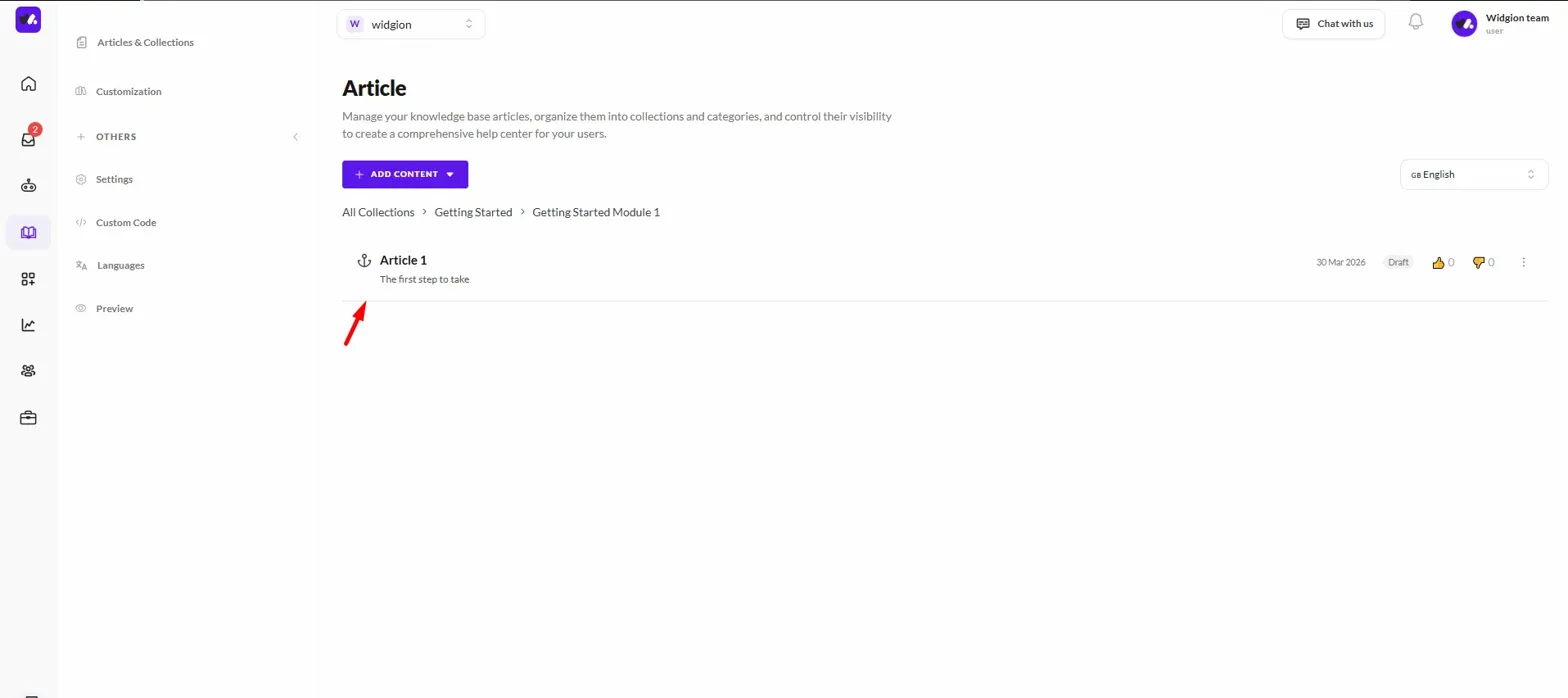
Clicking on a nested category takes you one level deeper. The breadcrumb updates to reflect your current location — for example, All Collections → Getting Started → Getting Started Module 1 — and any articles sitting inside that specific subcategory are listed below.
You can continue adding articles or even further subcategories from this level using the same + Add Content button.
 Structure First, Content Later
Getting your collection structure right before you start adding articles makes everything easier to manage down the line. Think of your top-level collections as broad topics and your nested categories as the specific subtopics within them.
The clearer your structure, the easier it is for visitors to navigate your Help Center without needing to search for everything.
Did this answer your question?
What was missing or unclear?
Thank you for your feedback!
Your input helps us make this article better.
Still need help?
Contact support →Related articles
On this page