
Managing New Customer Requests
Learn how to review and manage new customer requests in Widgion's Contact Center, including how to find incoming requests and handle them using the available options.
The New Requests section in Widgion's Contact Center is where incoming customer requests appear. It gives your team a central place to monitor new support requests, see their current status, identify the channel they came from, and check whether an agent has been assigned.
Each request is displayed with relevant information, including the visitor, last active time, ticket status, assigned agent, communication channel, and conversation topic. This helps your team identify incoming requests and keep track of those that need attention.
Accessing New Requests
To view incoming customer requests, log in to your Widgion workspace and select Contact Center from the left sidebar. Then select the New Requests tab at the top of the Contact Center page. Any incoming requests available to your workspace will appear in the request list.
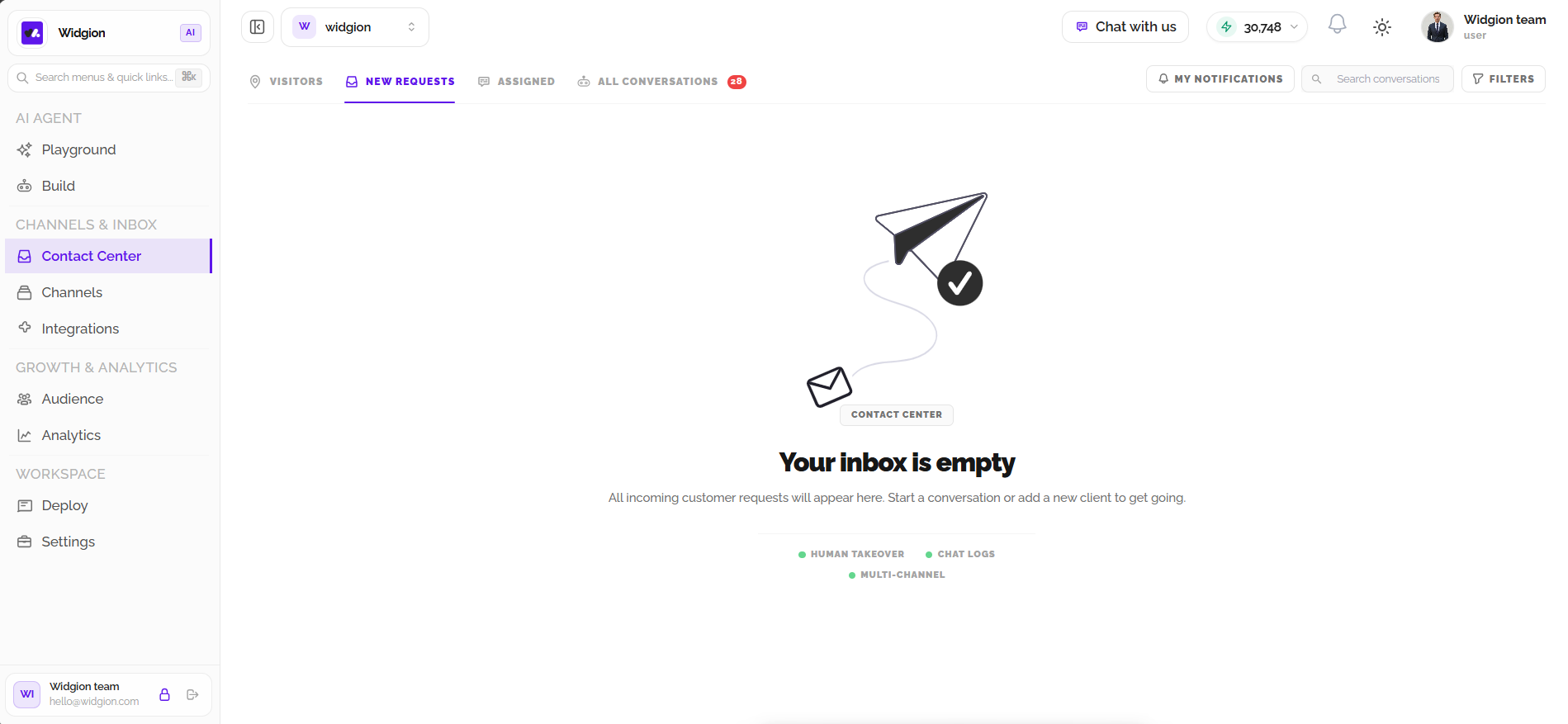
If there are no incoming requests, Widgion displays an empty inbox message indicating that all incoming customer requests will appear there. You can also start a conversation or add a new client to get started.
Understanding Request Information
The New Requests table displays important details about each customer request. The Visitor column identifies the person who submitted the request and may include a ticket reference and an initial message. Last Active shows when the request was last active, while Ticket Status indicates its current state. The Agent column shows the team member handling the request or displays Unassigned if no agent has been assigned.
The Channel column identifies where the request originated, such as Web Chat, WhatsApp, or Email, while Topic displays the conversation subject. Together, these details help your team understand where requests are coming from and which ones may require attention.
Filtering Customer Requests
Use the Filters button at the top-right of the New Requests page to narrow down the requests displayed. The filter panel allows you to filter by ticket status, communication channel, and date range. Available ticket statuses include New, Open, Pending, Resolved, and Closed. You can also select Reopened tickets only to focus on requests that have been reopened.
Under Channels, you can filter requests from Web Chat, Web Voice, Phone Call, WhatsApp, Instagram, Messenger, Email, Gmail, or Slack. You can also specify a start and end date using the From and To fields to find requests within a particular period.
Managing Request Notifications
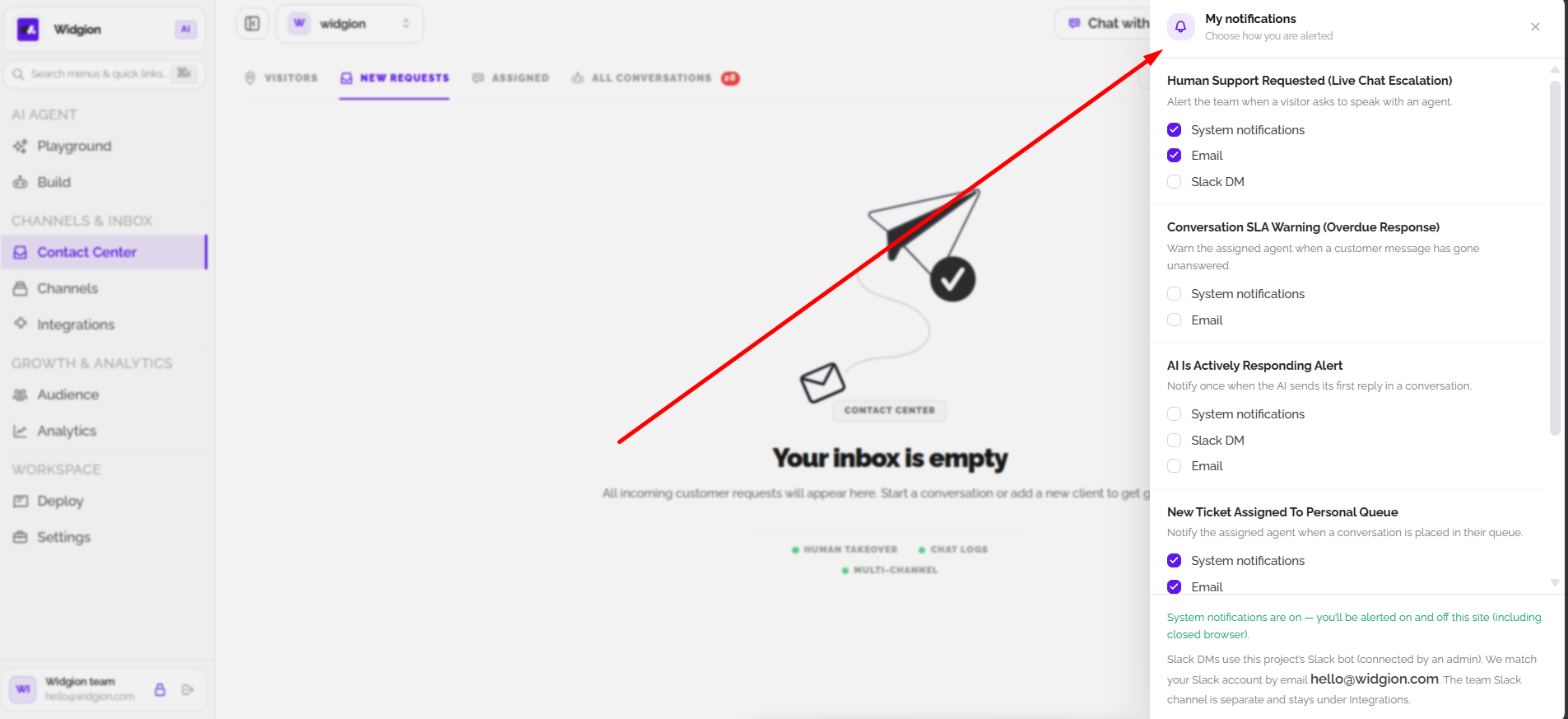
Select My Notifications at the top of the New Requests page to open your notification preferences. This panel lets you choose how you want to receive alerts for different support events, using the available options such as system notifications, email, and Slack DM where supported.
The notification preferences shown include alerts for Human Support Requested (Live Chat Escalation), Conversation SLA Warning (Overdue Response), AI Is Actively Responding Alert, and New Ticket Assigned To Personal Queue. You can enable or disable the available notification methods for each event, depending on how you want to be alerted.
Keeping Track of Incoming Requests
Regularly reviewing the New Requests section helps your team stay aware of incoming customer enquiries and their progress. Use the ticket status, assigned agent, channel, and last active information to identify requests that need attention and keep your support inbox organized.
Did this answer your question?
What was missing or unclear?
Thank you for your feedback!
Your input helps us make this article better.
Still need help?
Contact support →Related articles
Viewing Website Visitors
Learn how to view and monitor website visitors in Widgion's Contact Center and understand the visitor information available to help manage customer interactions.
Installing the Chat Widget on Your Website
Step-by-step guide to embedding the chat widget on your website.
Adding, Editing, and Managing Contact Data
Handles actions like adding contacts, editing details, deleting, and exporting.
What is Widgion?
A complete introduction to Widgion, including its purpose, key features, and how it replaces multiple support tools with one unified platform.
On this page