
Adding, Editing, and Managing Contact Data
Handles actions like adding contacts, editing details, deleting, and exporting.
Beyond viewing your contacts, Widgion gives you direct control over your contact data. You can add new contacts manually, update existing details, delete contacts you no longer need, and export your list — all from the Audience section in the left sidebar.
Adding a New Contact
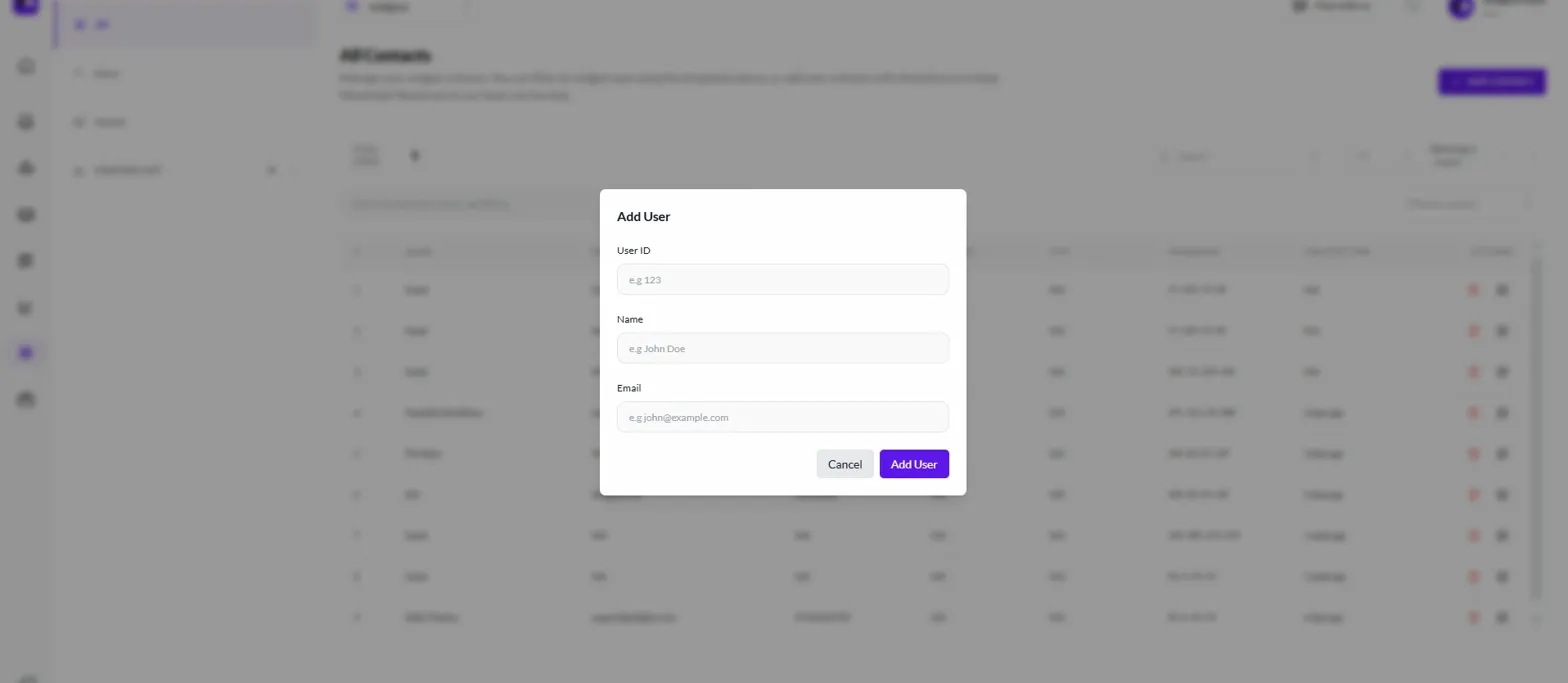
To add a contact manually, click the + Add Contact button in the top right corner of the All Contacts page. This opens the Add User modal where you can enter the contact's User ID, Name, and Email. Once you've filled in the details, click Add User to save the contact to your list.
Editing a Contact
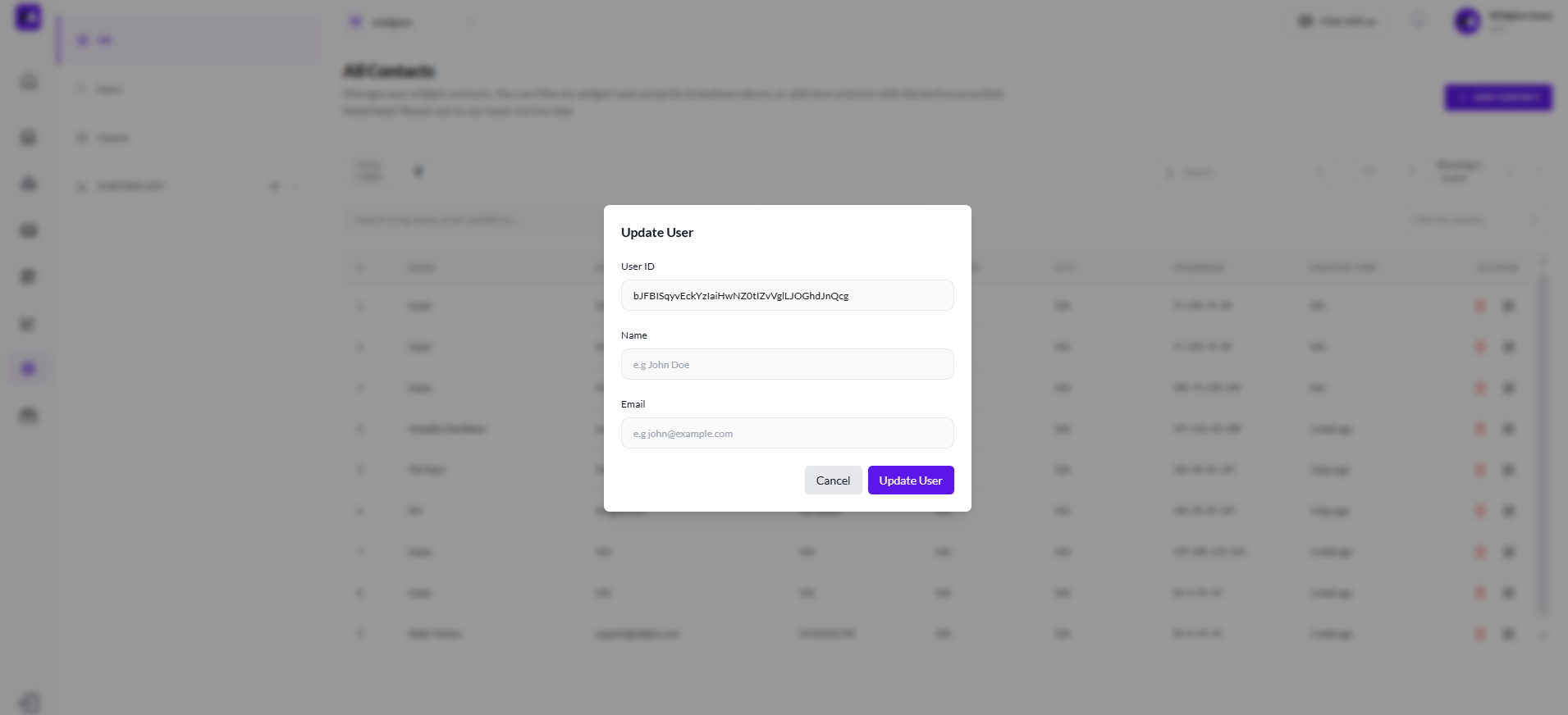
To update an existing contact's details, click the edit icon in the Actions column on the right side of their row. This opens the Update User modal, which shows the contact's current User ID and allows you to update their Name and Email. Make your changes and click Update User to save them.
Deleting a Contact
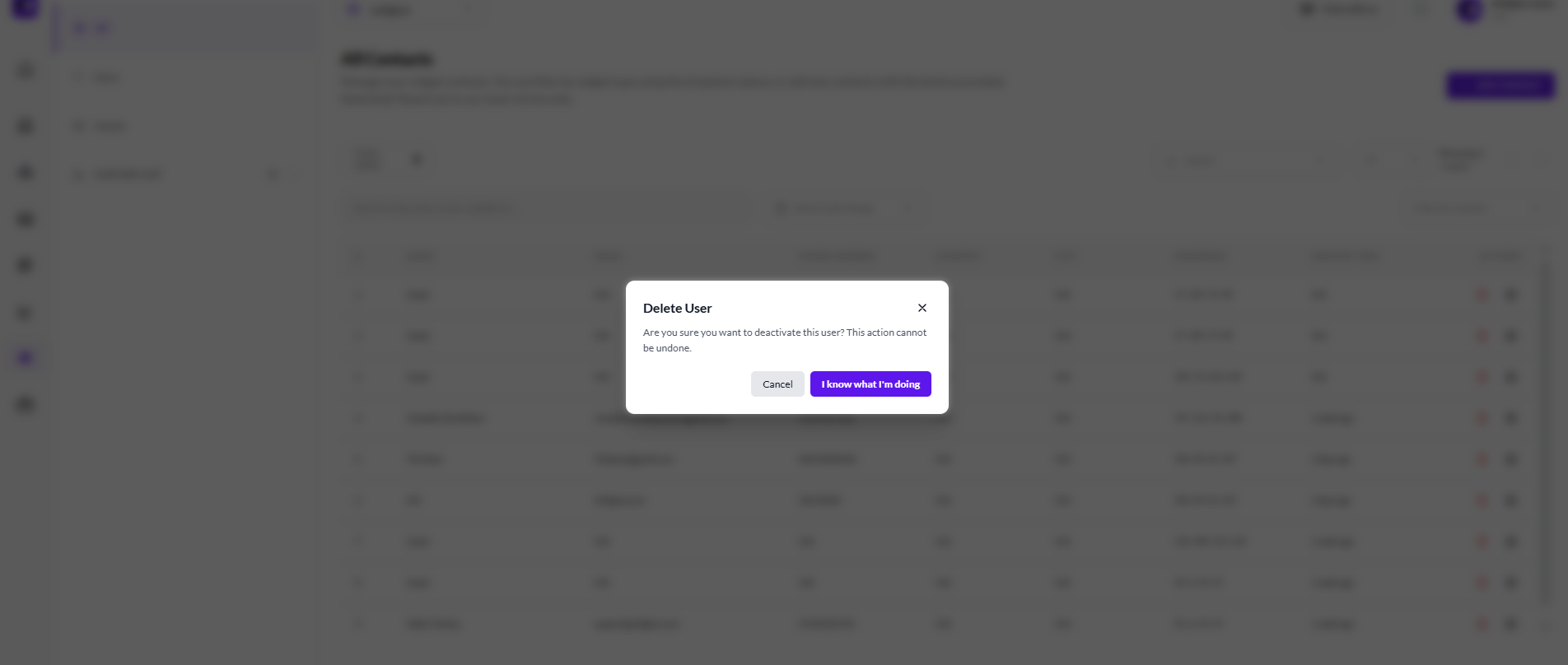
To remove a contact, click the delete icon in the Actions column next to their entry. A Delete User confirmation modal will appear letting you know that deactivating the user cannot be undone. If you're certain, click I know what I'm doing to proceed. If you've changed your mind, click Cancel to go back.
Exporting Your Contact List
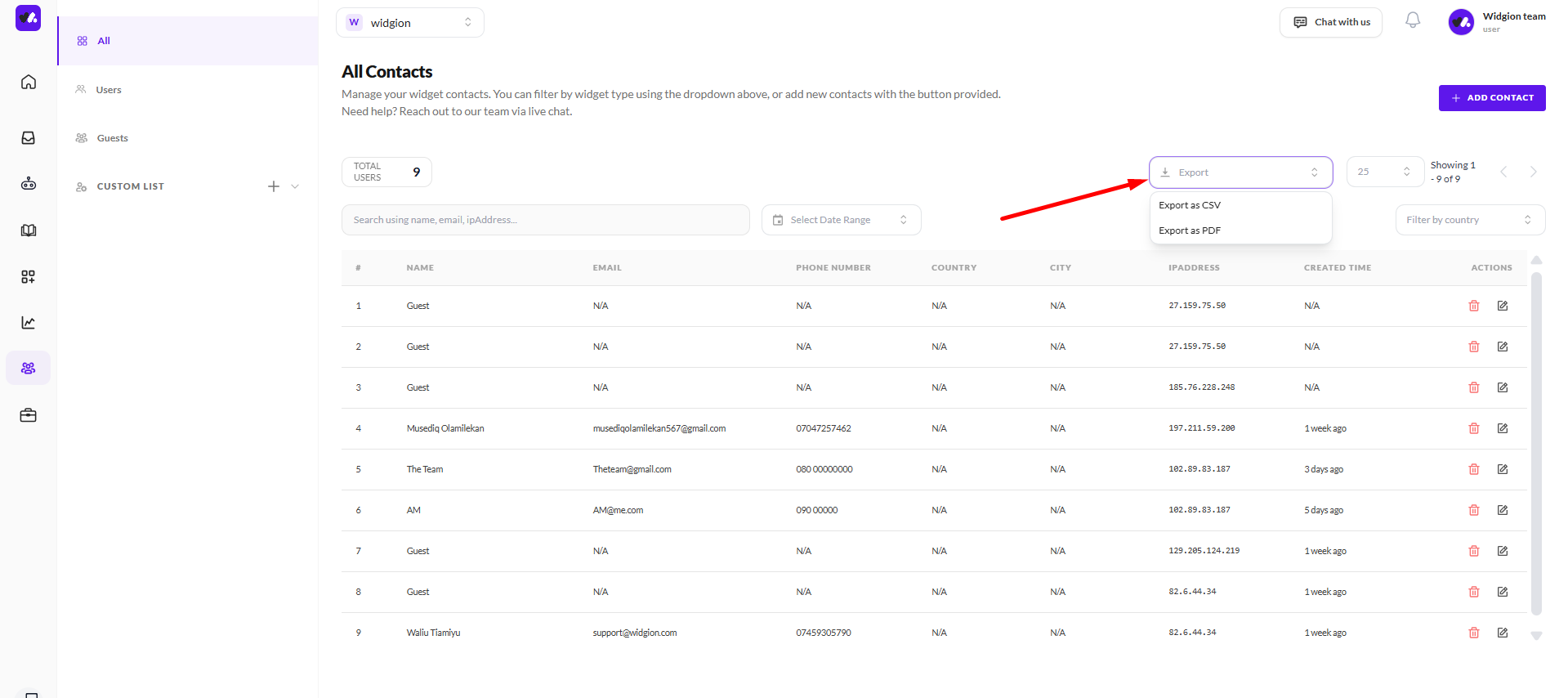
To export your contacts, click the Export button at the top of the contacts list. This downloads your current contact data for use outside of Widgion, whether for reporting, CRM imports, or any other external workflow.
Keep Your Contact Data Clean
Regularly reviewing and updating your contact list ensures your audience data stays accurate and useful. Adding contacts manually when needed, keeping details up to date, and removing inactive or duplicate entries all contribute to a cleaner, more reliable contact base that you can act on with confidence.
Did this answer your question?
What was missing or unclear?
Thank you for your feedback!
Your input helps us make this article better.
Still need help?
Contact support →Related articles
Understanding Contact Types (Users, Guests, and Custom Lists)
Explains the difference between Users, Guests, and Custom Lists, and how each is used within the platform.
Filtering, Searching, and Navigating Contacts
Covers search, filters, segmentation, and how to move across different contact views efficiently.
Installing the Chat Widget on Your Website
Step-by-step guide to embedding the chat widget on your website.
Classic vs Modern Chat Widget
Compare both widget types and choose the best option for your business needs.
On this page