
Viewing Website Visitors
Learn how to view and monitor website visitors in Widgion's Contact Center and understand the visitor information available to help manage customer interactions.
The Visitors section in Widgion's Contact Center gives you an overview of people browsing your website and interacting with your Widgion widget. It allows you to monitor visitor activity, see the pages they're viewing, identify where they came from, and understand how they're interacting with your website.
You can also search for specific visitors, filter visitor records, and switch between list and map views to explore visitor activity in more detail.
Accessing the Visitors Section
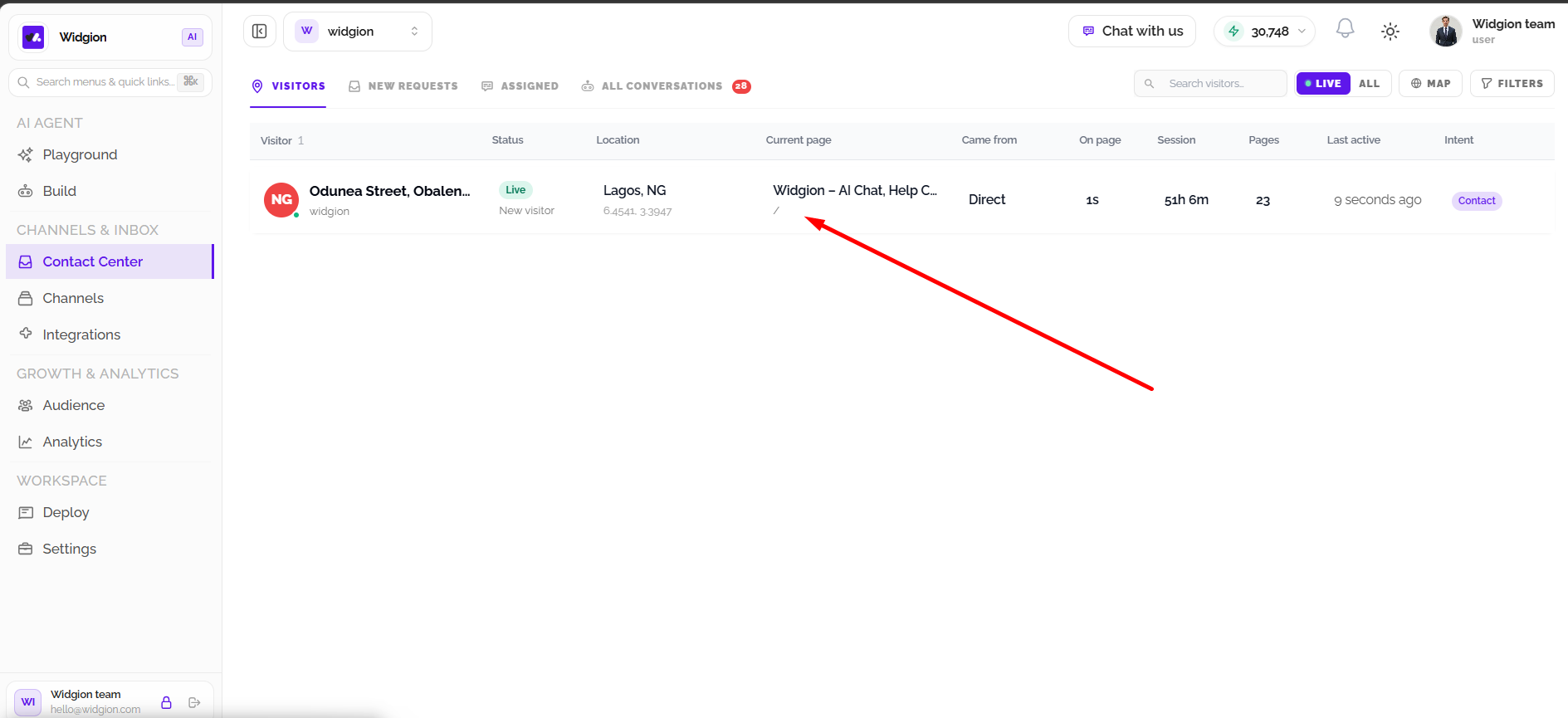
To view your website visitors, log in to your Widgion workspace and select Contact Center from the left sidebar. The Visitors tab opens by default, displaying your visitor records and their available activity information.
Understanding Visitor Information
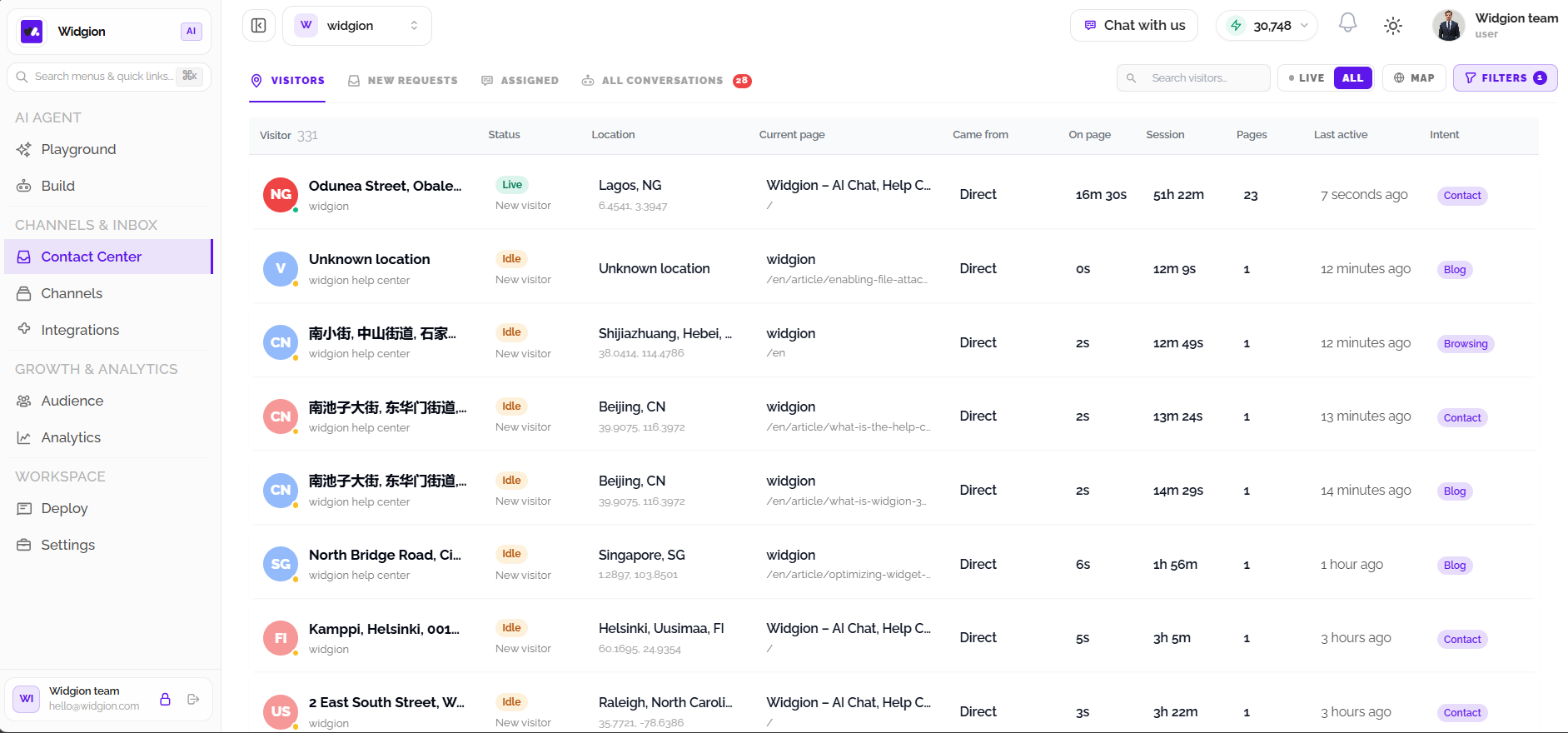
The visitor table provides details that help you understand each visitor's activity. The Visitor column displays their name or location-based identifier, while Status indicates whether they're currently Live or Idle. Location shows their detected geographical location, and Current Page displays the page they're viewing on your website.
You can also see where visitors came from under Came From, how long they've spent on their current page under On Page, their overall session duration, and the number of pages they've visited. Last Active shows how recently they were active, while Intent displays an associated category such as Contact or Blog.
Understanding Visitor Status
Widgion uses Live and Idle statuses to indicate visitor activity. Live means the visitor is currently active on your website, while Idle indicates that they're not currently active.
Visitors may also be identified as New Visitors or Known Users. These labels help you distinguish between people visiting your website for the first time and users already recognized by Widgion.
Switching Between Live and All Visitors
The Visitors page provides Live and All options above the visitor table. Select Live to focus on visitors currently active on your website, or select All to view the broader collection of visitor records, including those who are no longer active.
Searching for Visitors
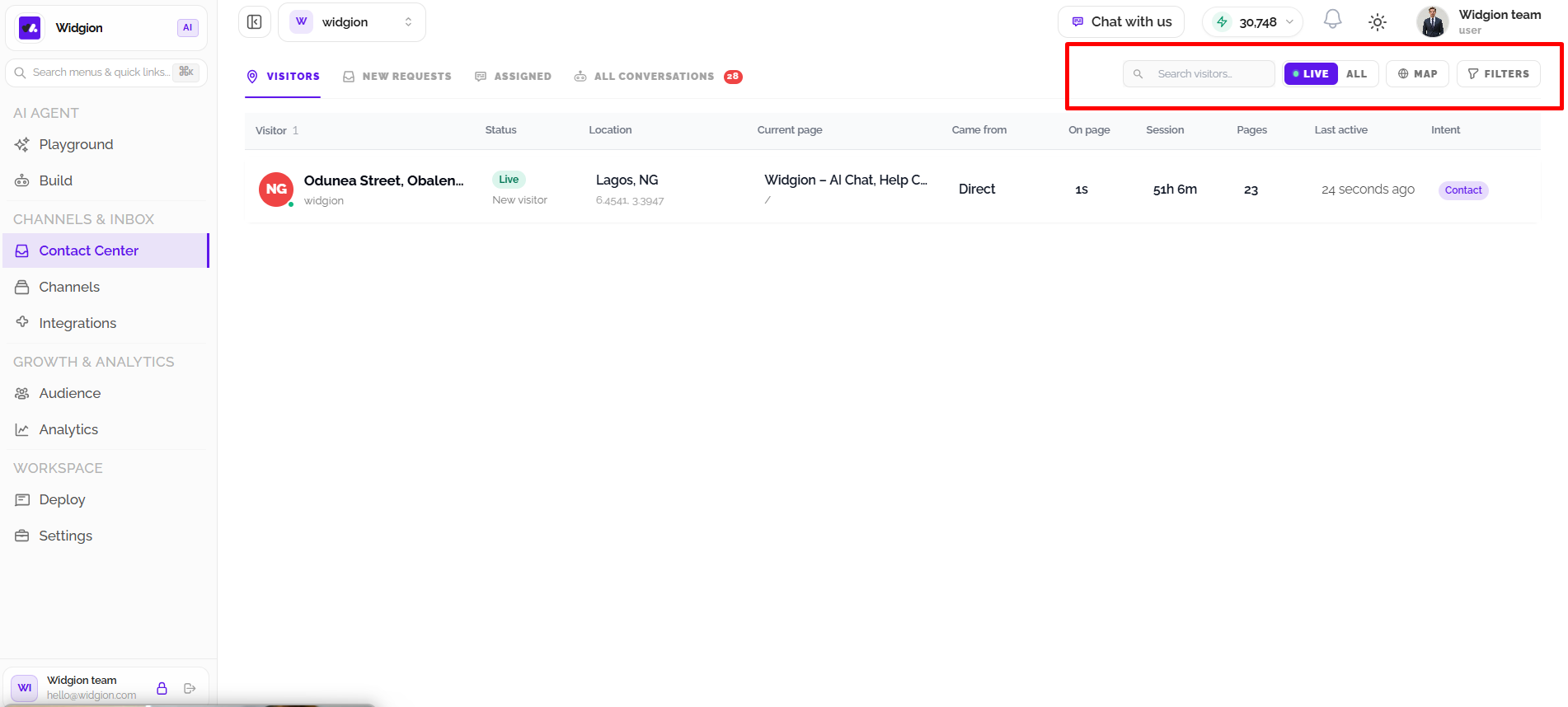
Use the Search visitors field at the top of the Visitors page to find specific visitor records. Enter the information you're looking for, then review the results displayed in the table.
Filtering Visitors
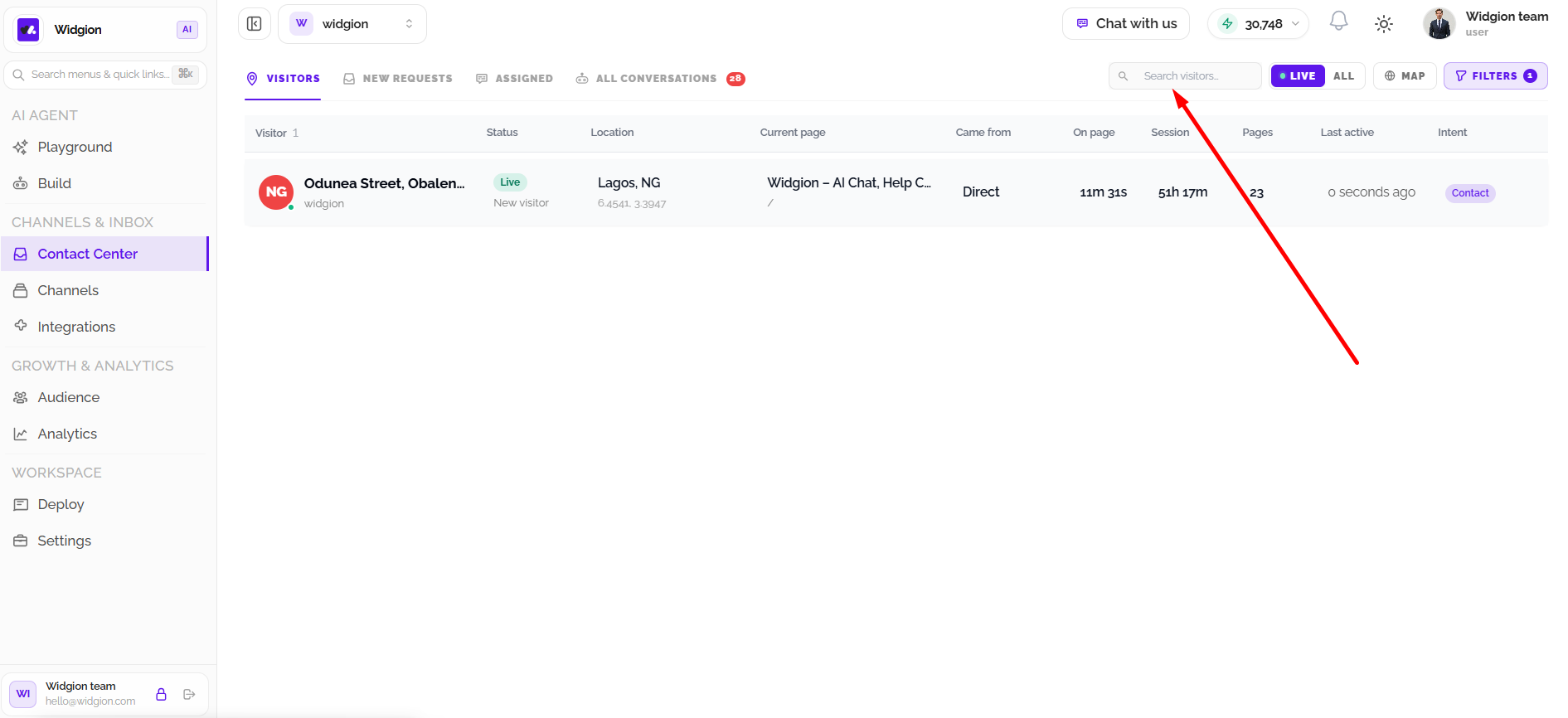
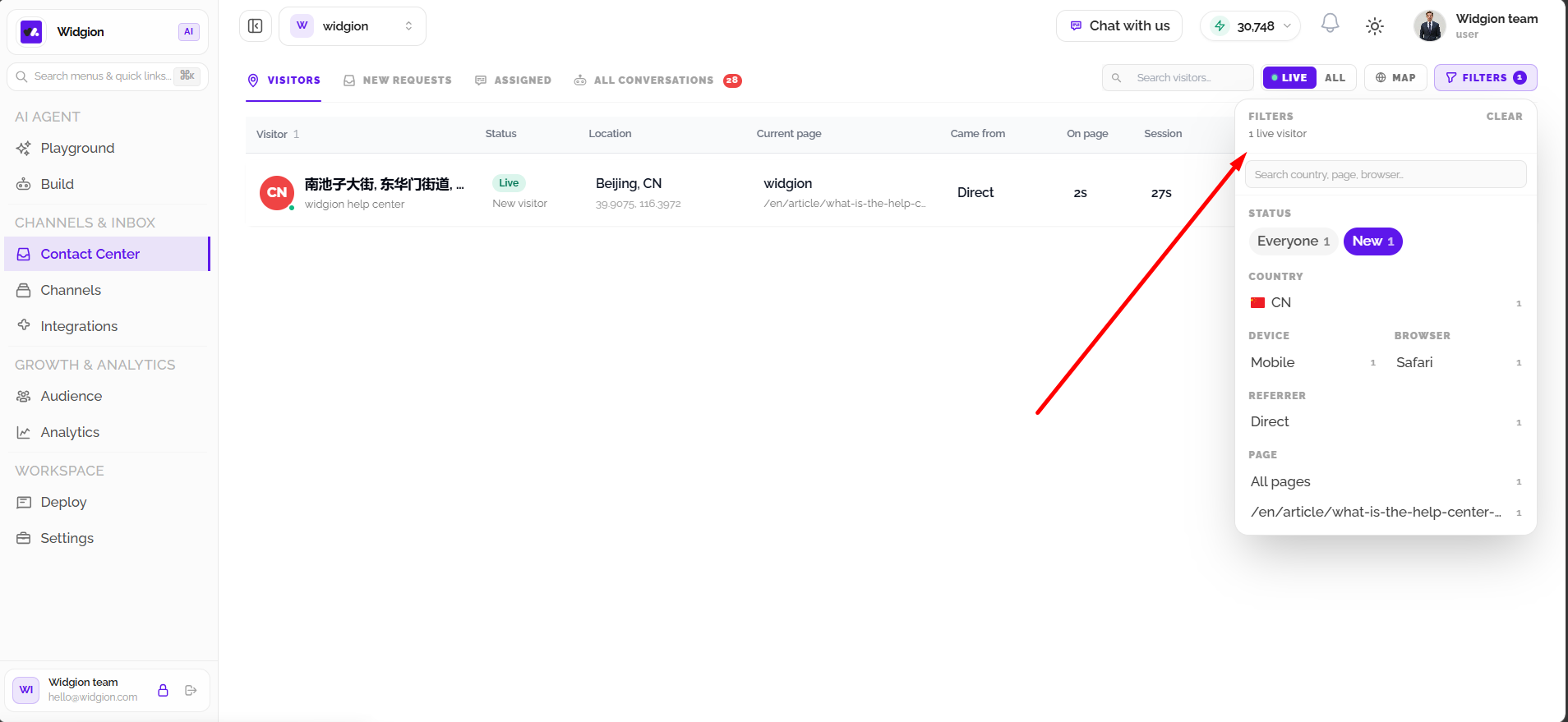
Select Filters to open the visitor filter panel. You can narrow down the displayed records using the available criteria, including visitor status, country, device, browser, referral source, and website page. The panel also includes a search field for finding specific countries, pages, or browsers.
When filters are active, the Filters button displays the number of applied filters. Select Clear in the filter panel to remove the active filters and return to the broader visitor view.
Switching Between List and Map Views
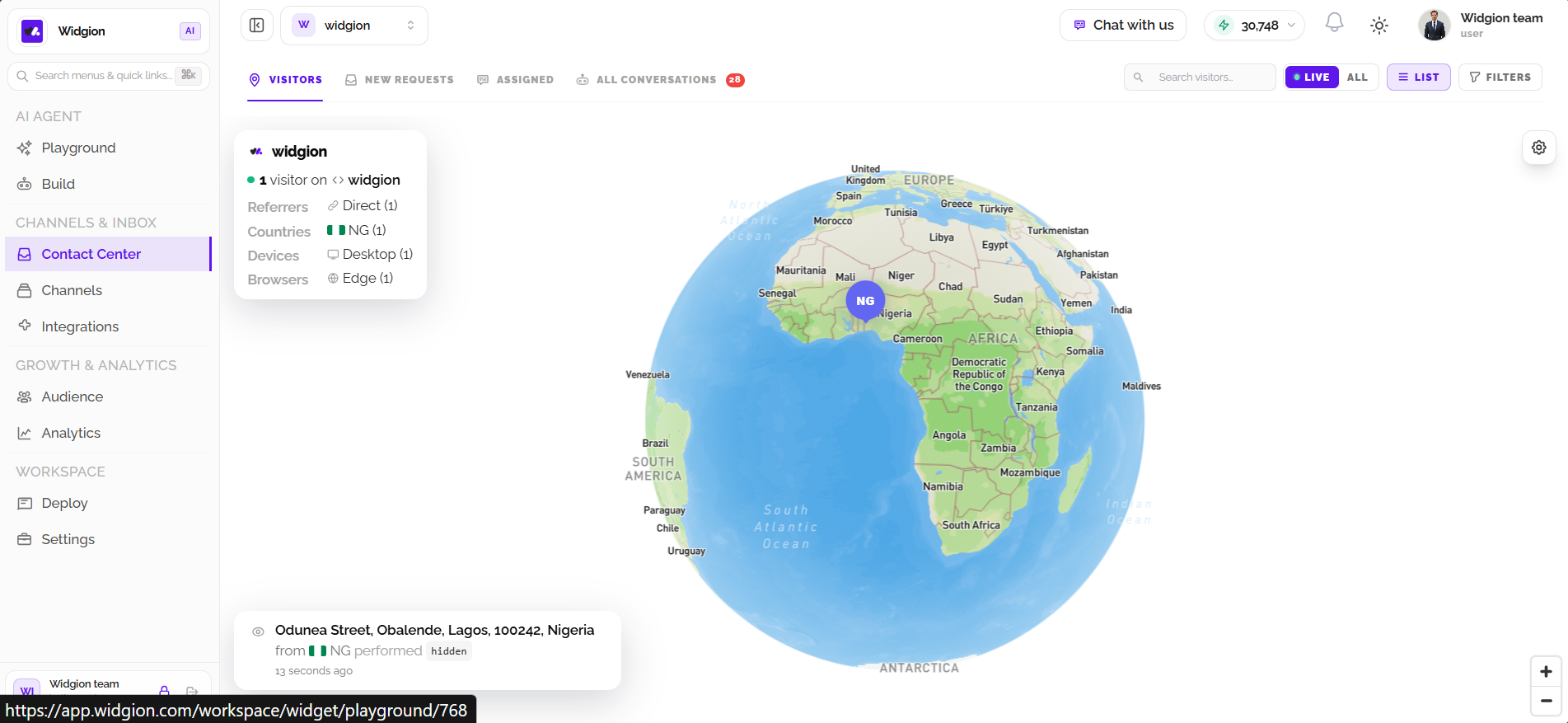
Widgion provides two ways to explore visitor activity. List view displays visitors in a table alongside their activity information, making it easier to review individual records. Select Map to switch to a geographical view of your visitors.
In Map view, you can explore where visitors are accessing your website from. The map also provides an overview of visitor information, including referral sources, countries, devices, and browsers, as well as location details for individual visitors where available. Select List to return to the table view.
Monitoring Website Activity
The Visitors section helps you understand who is browsing your website, what pages they're viewing, and where they're coming from, and can help you send proactive messages to those on your website in real time. Reviewing this information regularly can help you identify visitor activity and better understand how people interact with your website.
Did this answer your question?
What was missing or unclear?
Thank you for your feedback!
Your input helps us make this article better.
Still need help?
Contact support →Related articles
Installing the Chat Widget on Your Website
Step-by-step guide to embedding the chat widget on your website.
Adding, Editing, and Managing Contact Data
Handles actions like adding contacts, editing details, deleting, and exporting.
What is Widgion?
A complete introduction to Widgion, including its purpose, key features, and how it replaces multiple support tools with one unified platform.
Classic vs Modern Chat Widget
Compare both widget types and choose the best option for your business needs.
On this page