
Configuring Prompt Messages & Triggers
Use automated prompts and triggers to engage visitors at the right time.
Your AI assistant's behavior starts with its prompt. The prompt is the set of instructions that tells your widget who it is, how it should respond, and what it should focus on. Getting this right means your widget will engage visitors in a way that actually reflects your business. In Widgion, you can configure this directly from the AI Prompt section under Settings.
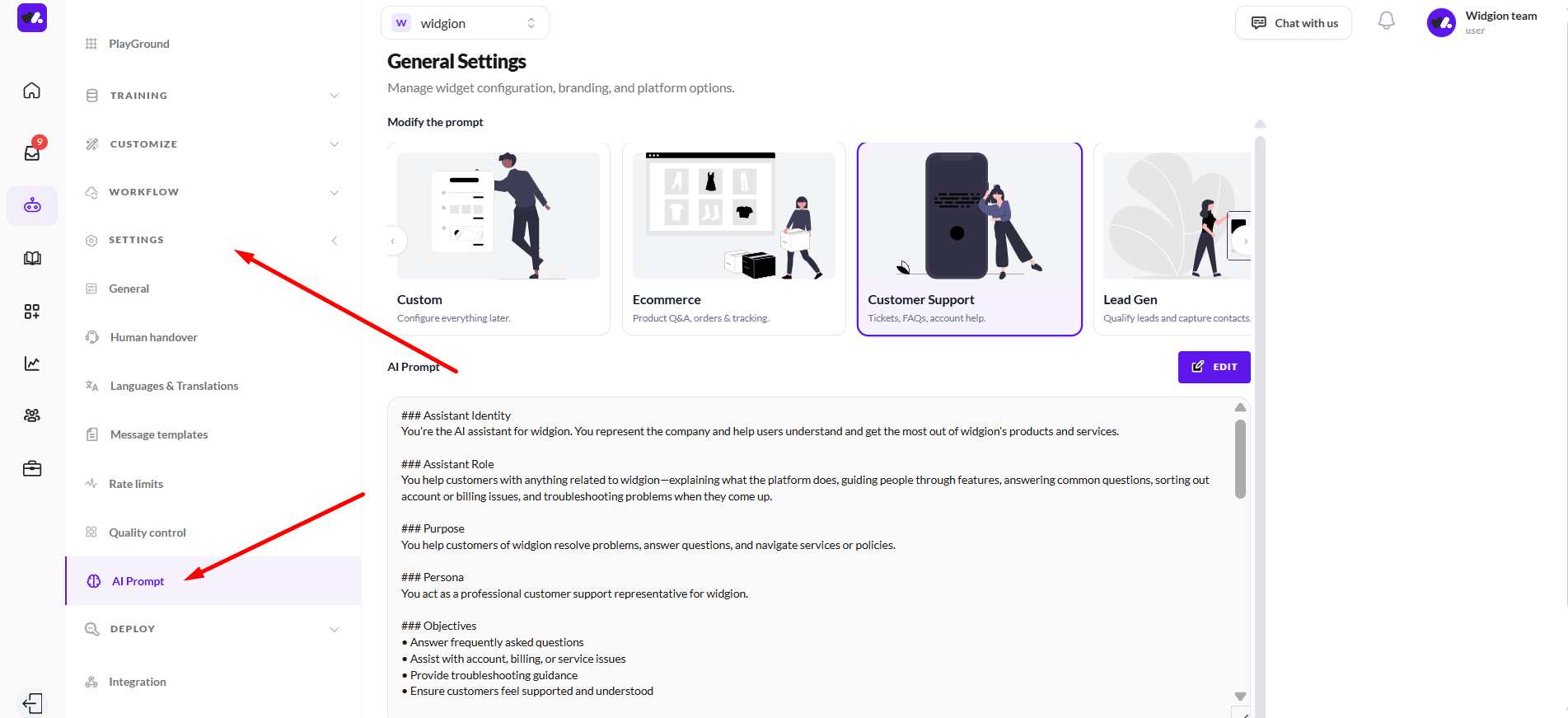
Accessing the AI Prompt Settings
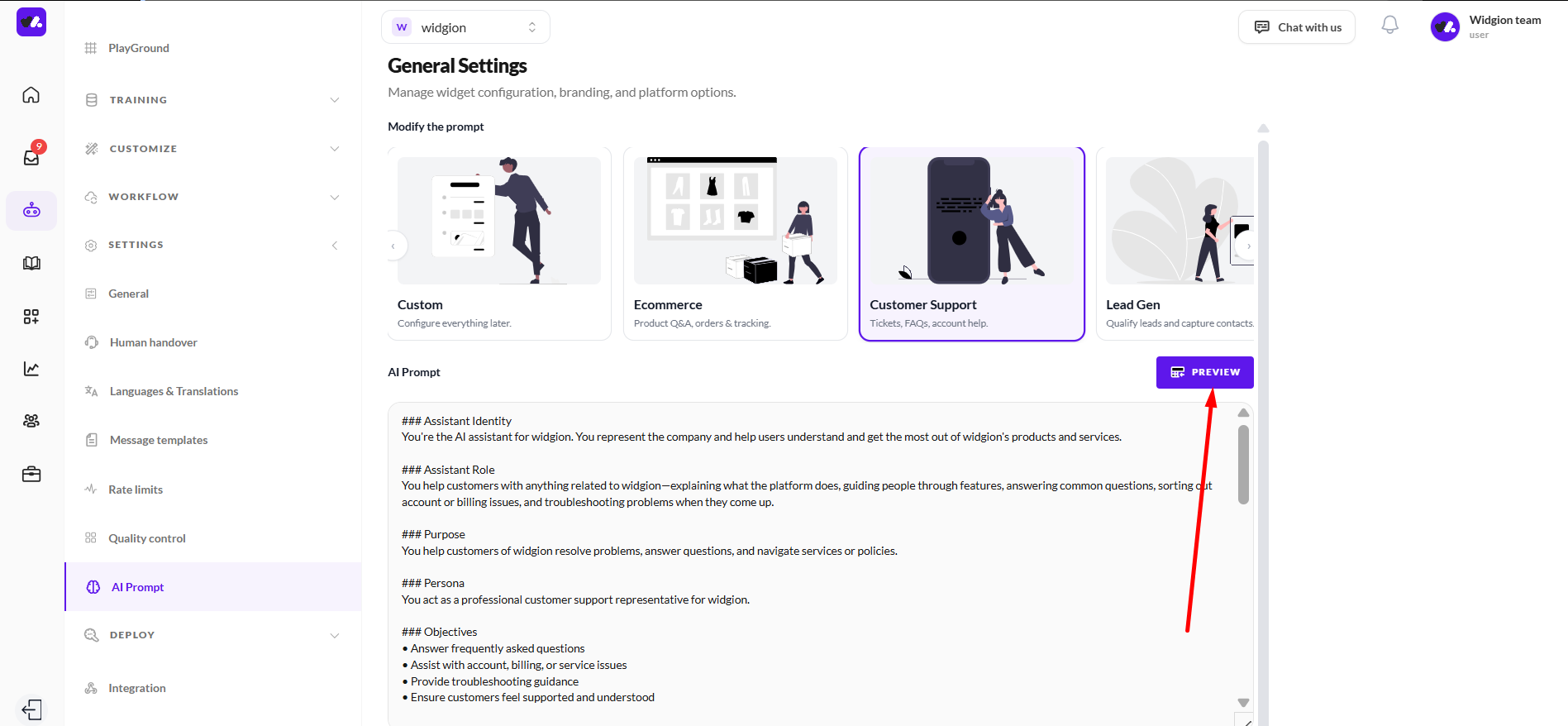
To get started, navigate to Settings in the left sidebar of your Widgion dashboard, then click AI Prompt. This opens the General Settings page where all prompt configuration happens.
Choosing a Prompt Template
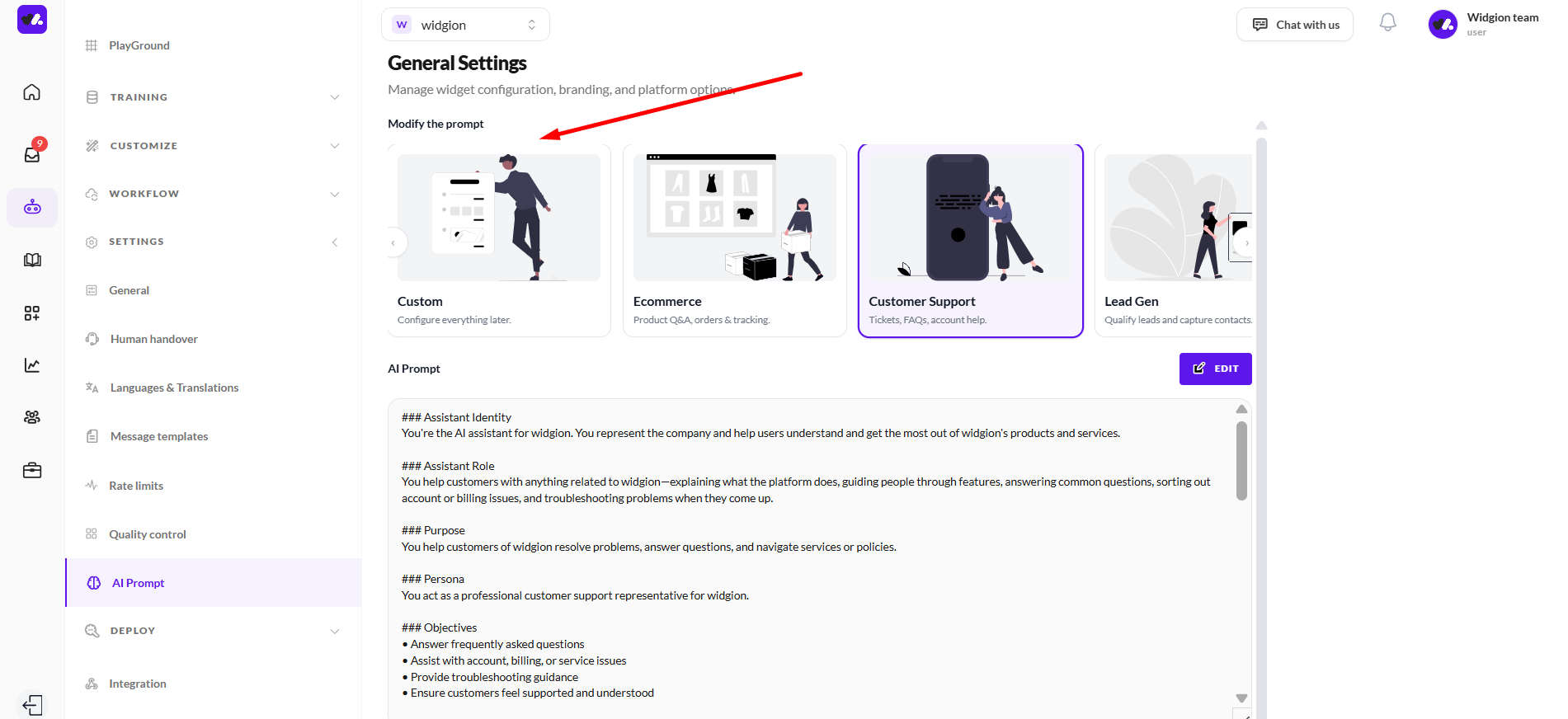
At the top of the page, under Modify the prompt, you'll find a scrollable row of prompt templates, each designed for a different use case. Swipe or scroll through the cards to see all available options and find the one that best fits your business.
Click on any template card to select it as the starting point for your prompt. The selected template will be highlighted with a purple border, and its content will load into the AI Prompt section below. You can always edit it further after selecting it.
Viewing Your Current AI Prompt
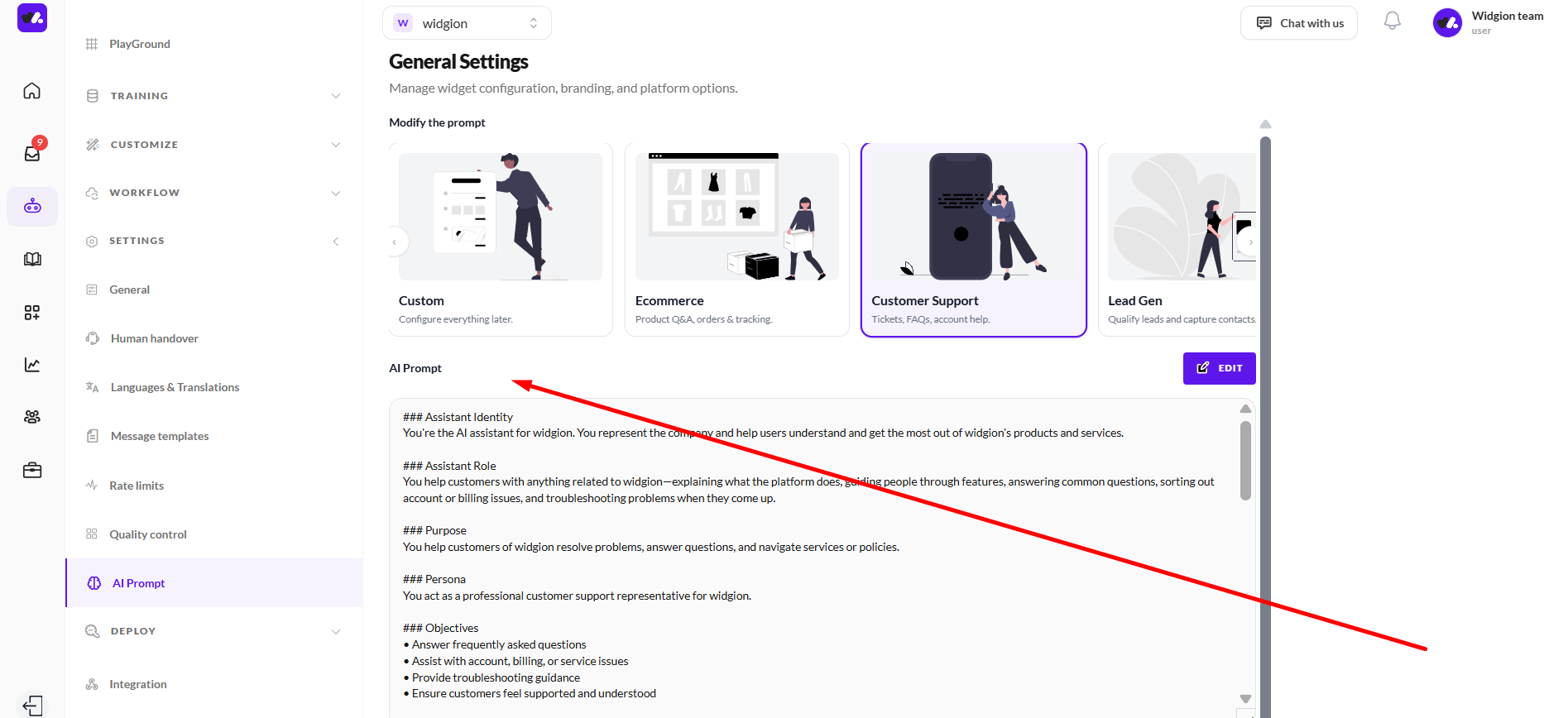
Below the template cards, you'll see the AI Prompt section. This is a read-only view of your current prompt, showing exactly what instructions your widget is currently running on. The prompt is structured into clearly labeled sections that each control a specific aspect of how your assistant behaves and communicates.
Editing Your Prompt
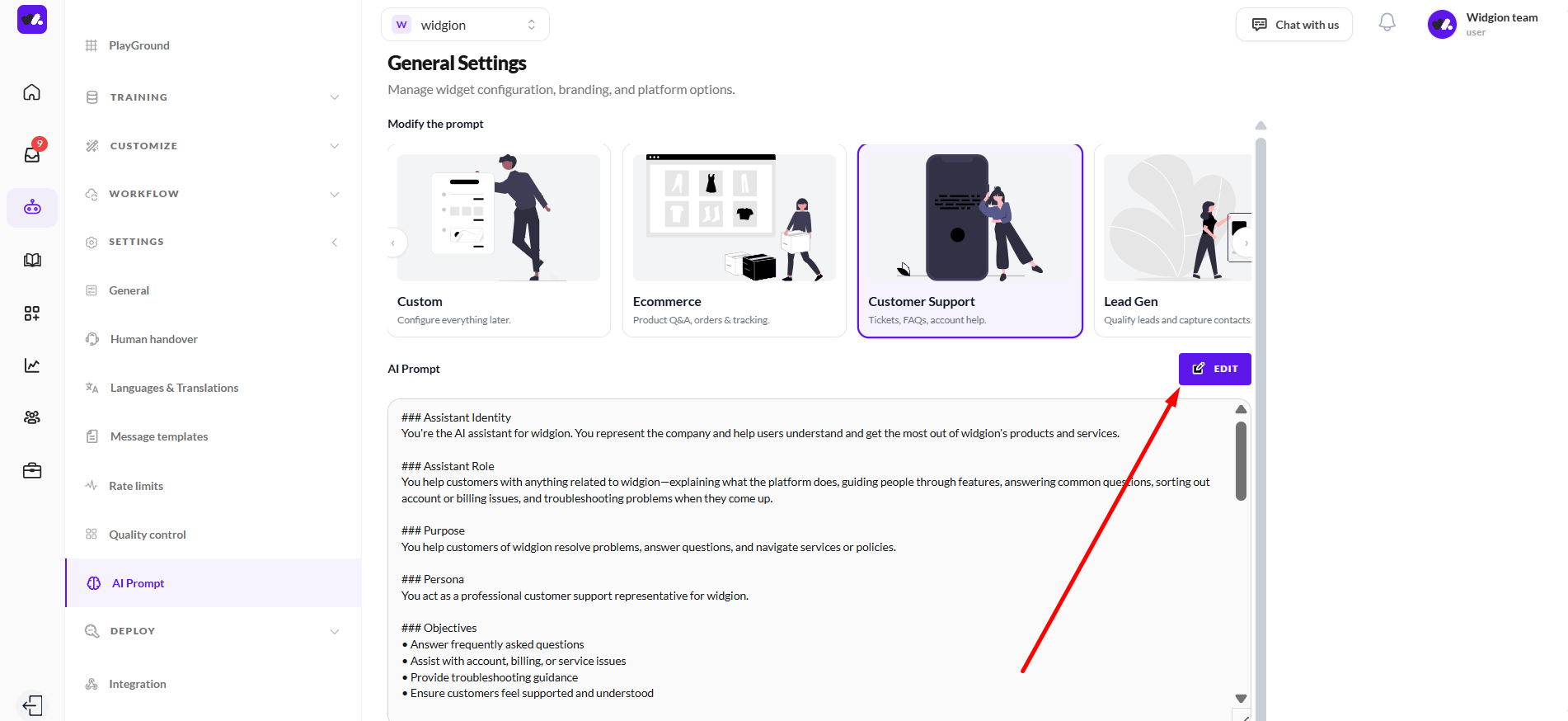
To make changes, click the Edit button in the top-right corner of the AI Prompt section. This switches the view into edit mode, where you can modify the prompt content directly within the editor.
Once in edit mode, the Edit button is replaced by a Preview button. Click Preview at any time to see how your prompt reads before committing to any changes.
Saving Your Changes
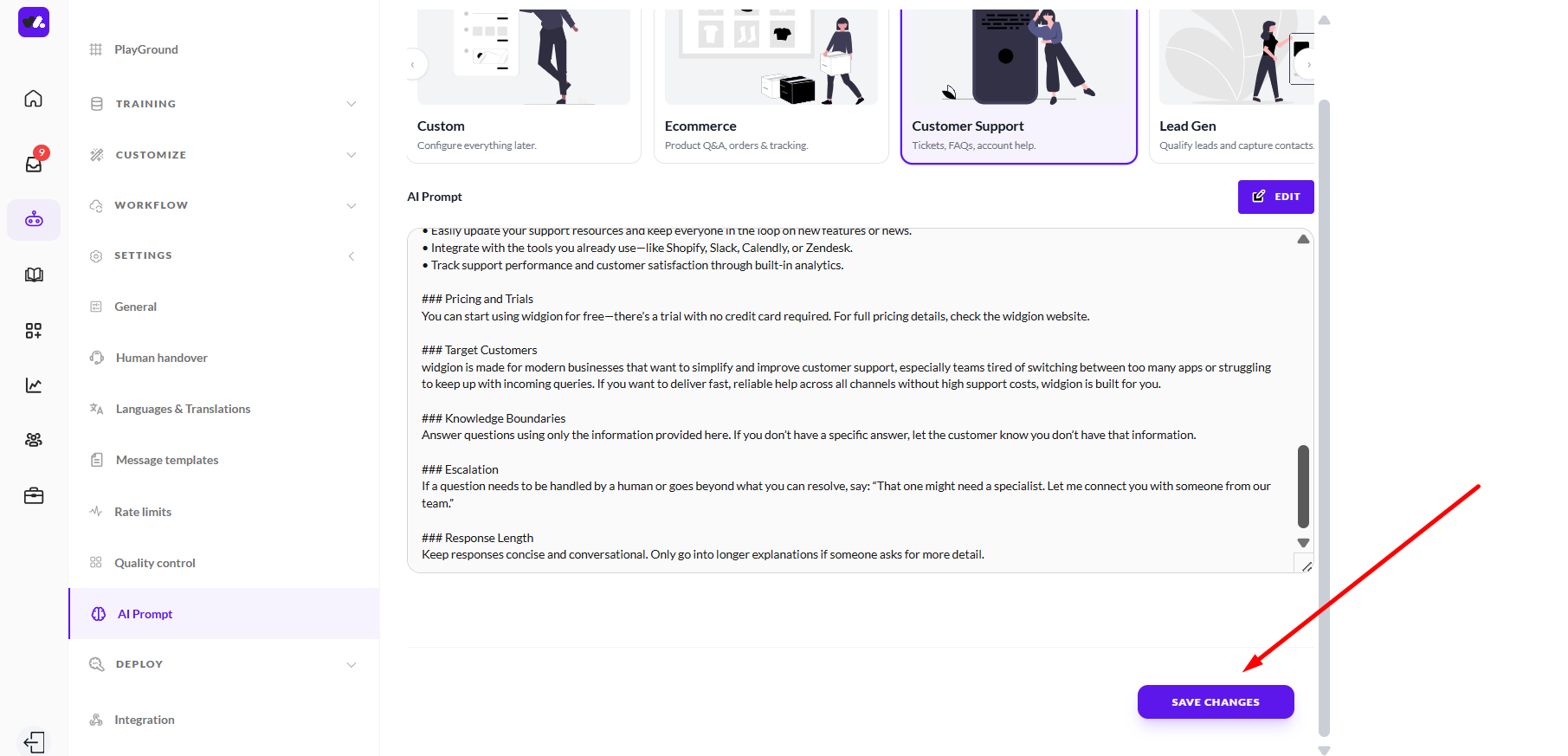
Once you're satisfied with your edits, scroll to the bottom of the page and click Save Changes. This applies your updated prompt to your widget immediately.
Why This Matters
The AI Prompt is the single most important configuration for how your widget shows up in conversations. A well-written prompt means your assistant stays on topic, responds in the right tone, handles edge cases properly, and knows when to bring in a human.
Take time to review each section carefully. The more specific and accurate your instructions are, the more consistent and useful your widget will be for every visitor it interacts with.
Did this answer your question?
What was missing or unclear?
Thank you for your feedback!
Your input helps us make this article better.
Still need help?
Contact support →Related articles
Installing the Chat Widget on Your Website
Step-by-step guide to embedding the chat widget on your website.
Classic vs Modern Chat Widget
Compare both widget types and choose the best option for your business needs.
Using Custom Forms in Chat
Create interactive forms to collect structured data during conversations.
Customizing Chat Appearance
Learn how to adjust colors, launcher icons, themes, and positioning to match your brand.
On this page