
Using Custom Forms in Chat
Create interactive forms to collect structured data during conversations.
Widgion gives you a built-in way to collect visitor information directly within your chat widget, without sending them to a separate page or form.
The Default Settings form handles this automatically — it captures contact details like name, email, and phone number from visitors either before or during a conversation, depending on how you configure it.
Accessing the Forms Page
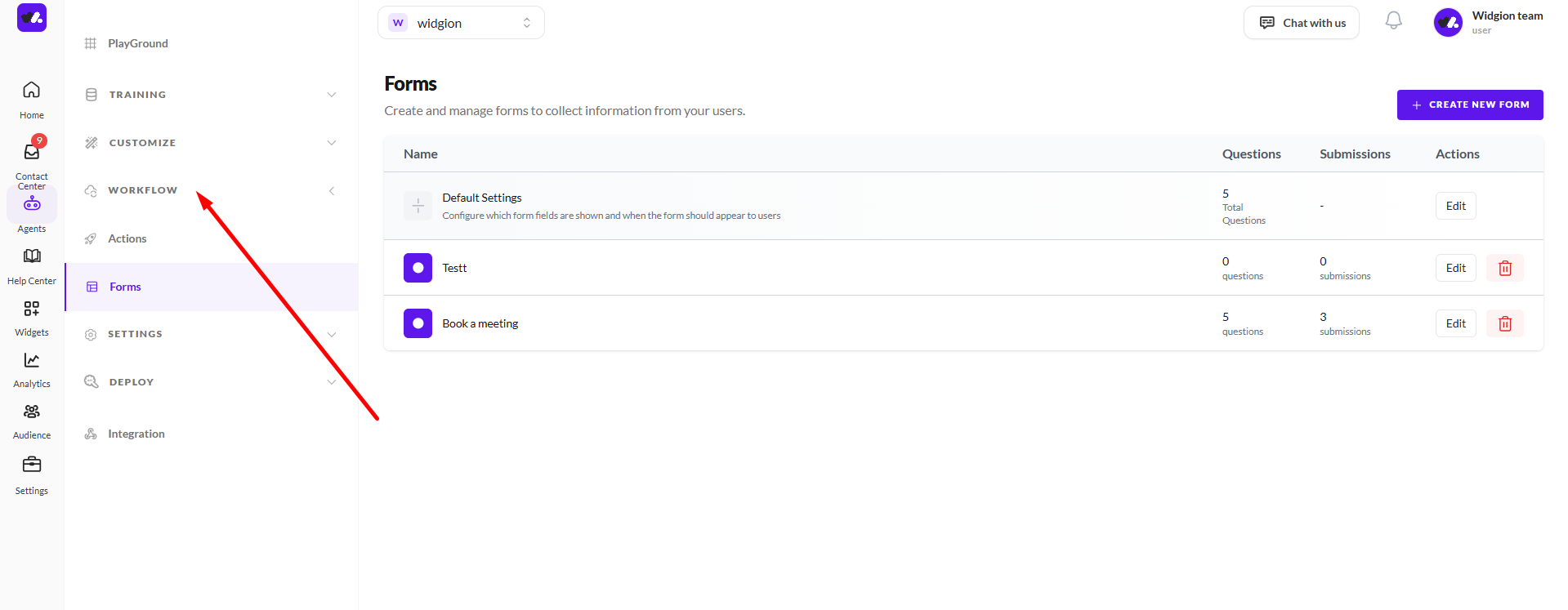
To get started, navigate to Workflow in the left sidebar of your Widgion dashboard, then click Forms. This opens the Forms page where you can see all your forms listed by name, along with the number of questions and submissions each one has.
 Understanding Default Settings
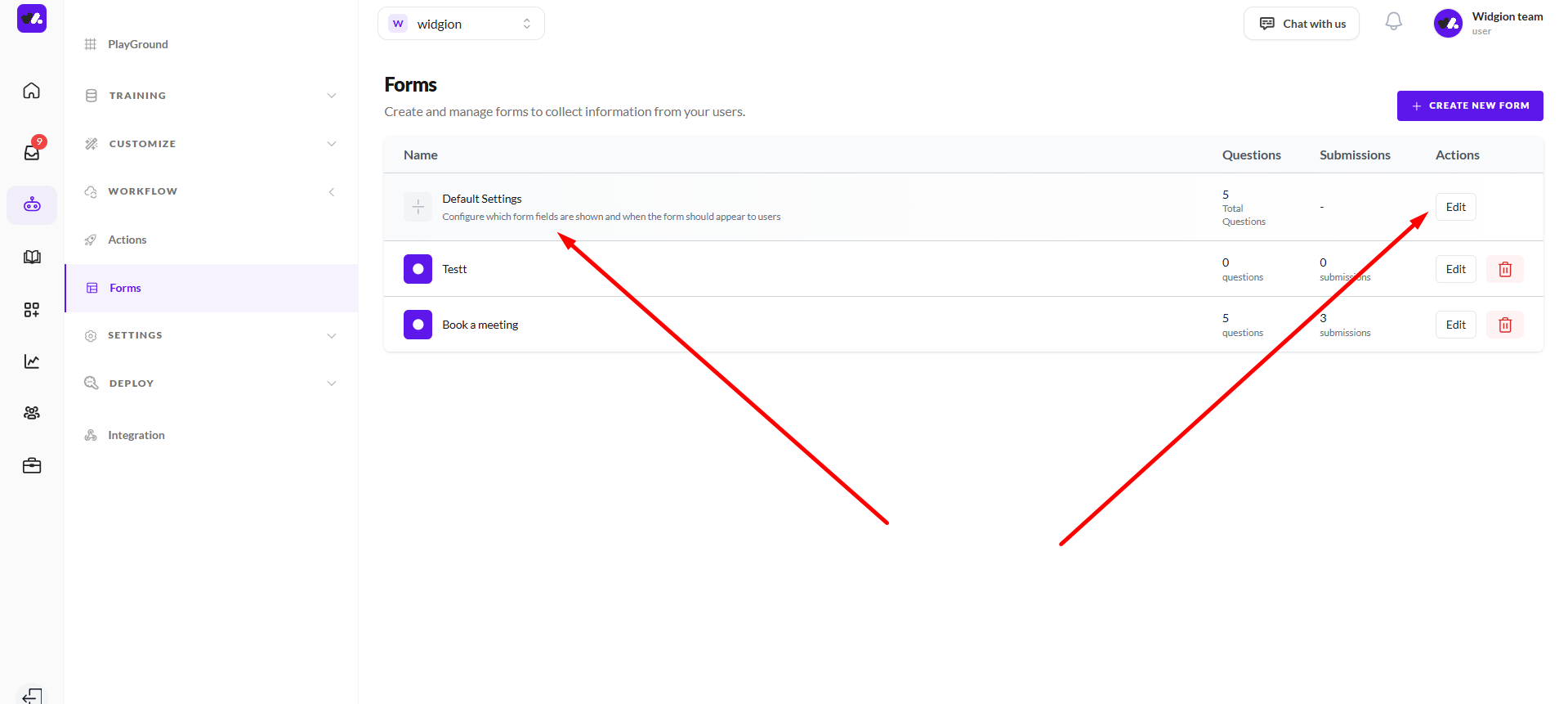
At the top of your forms list, you'll notice a Default Settings entry. Unlike the other forms on this page, this is not a custom form you build from scratch — it is Widgion's built-in contact collection form.
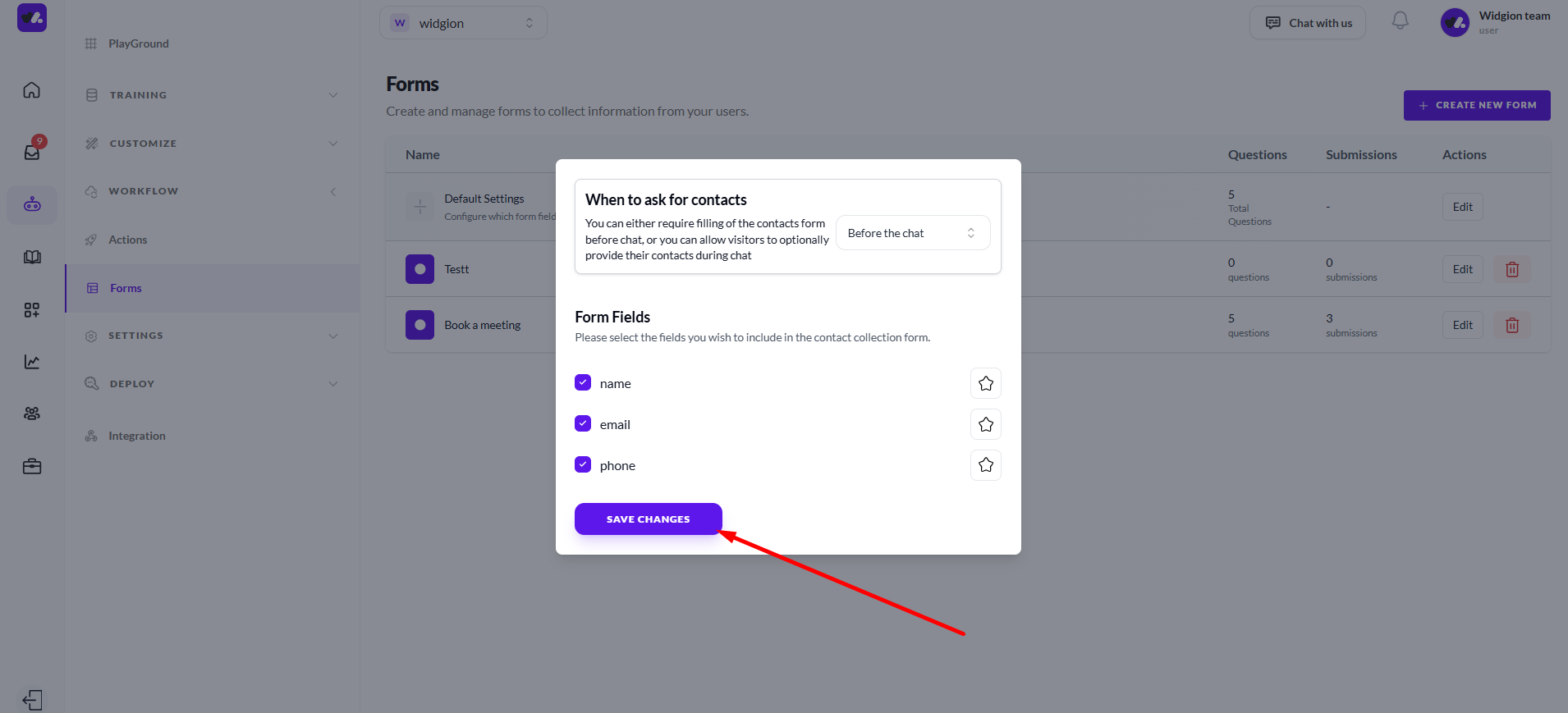
Clicking Edit on this entry opens a modal where you can configure which fields to collect and when the form should appear to visitors.
Choosing When to Ask for Contacts
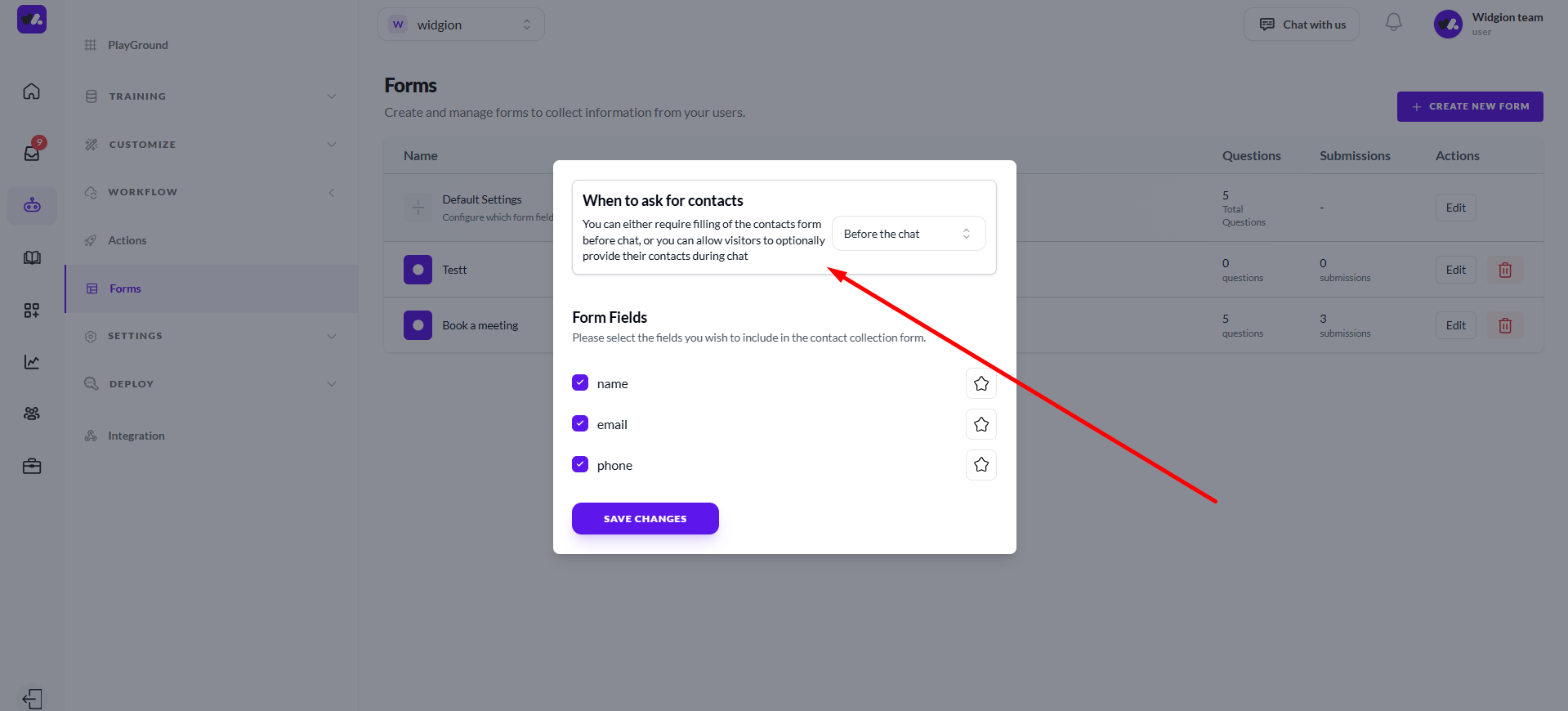
Inside the Default Settings modal, the first thing you'll see is the When to ask for contacts section. This is where you decide at what point during the chat experience visitors are asked to provide their information. Clicking the dropdown reveals three options — Before the chat, During the chat, and Disable.
Selecting Before the chat means visitors will need to fill in their contact details before the conversation starts. During the chat allows them to provide their information after they've already sent their first message. If you want to turn off contact collection entirely, select Disable.
Selecting Your Form Fields
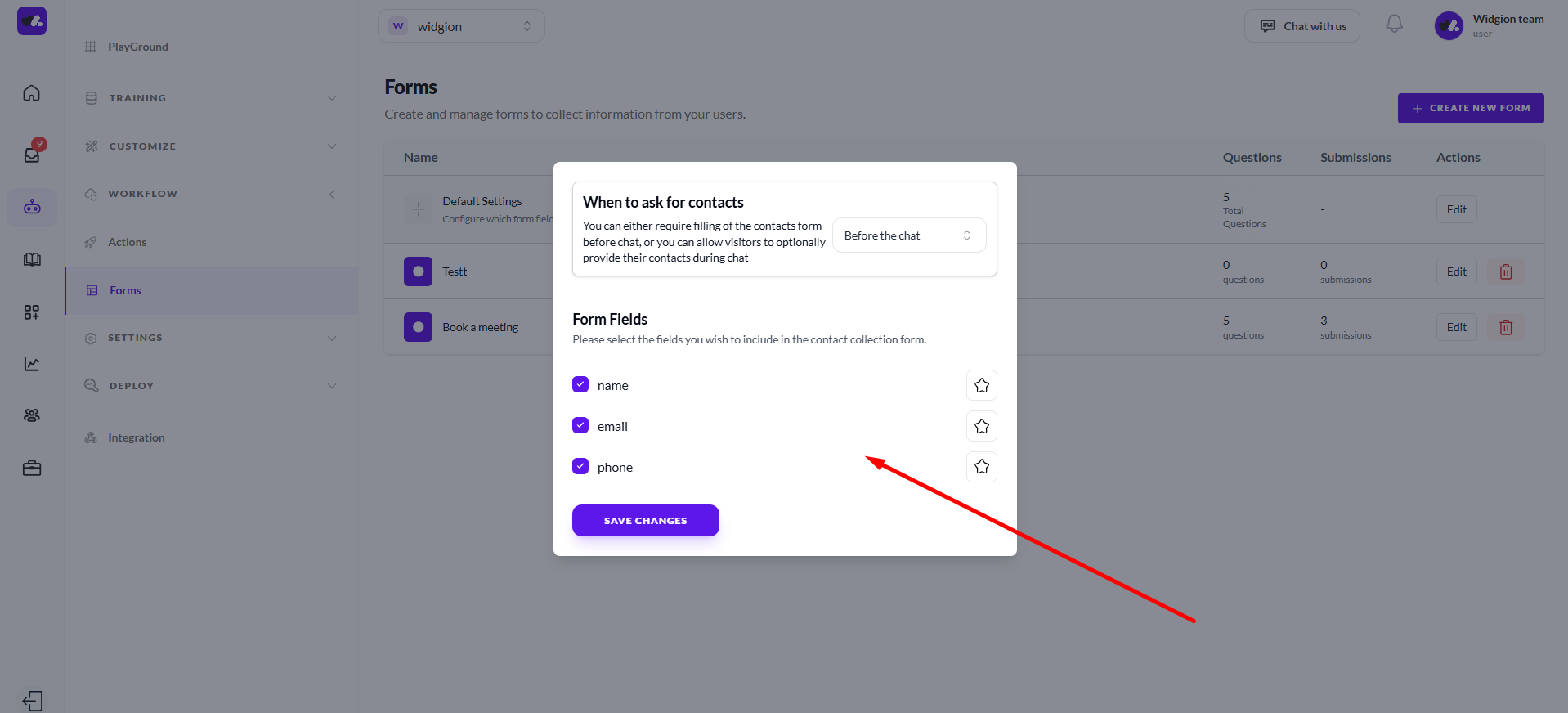
Below the timing setting, you'll find the Form Fields section. This is where you choose which pieces of information to collect. The available fields are name, email, and phone, each with a checkbox that you can toggle on or off depending on what your business needs.
Simply check the fields you want to include and uncheck the ones you don't. Only the fields you enable will be shown to visitors when the form appears.
Saving Your Configuration
Once you've set your preferred timing and selected your fields, click Save Changes at the bottom of the modal to apply your settings. Your chat widget will immediately start collecting visitor information based on the configuration you've set.
Make Every Chat Count
Collecting visitor contact details through your chat widget means you never lose a lead just because someone didn't fill out a form elsewhere on your site.
Whether you choose to capture information before or during the conversation, Widgion makes the experience seamless for the visitor while ensuring you always have the details you need to follow up.
Did this answer your question?
What was missing or unclear?
Thank you for your feedback!
Your input helps us make this article better.
Still need help?
Contact support →Related articles
Installing the Chat Widget on Your Website
Step-by-step guide to embedding the chat widget on your website.
Classic vs Modern Chat Widget
Compare both widget types and choose the best option for your business needs.
Customizing Chat Appearance
Learn how to adjust colors, launcher icons, themes, and positioning to match your brand.
Enabling File Attachments & Voice Messages
Allow users to send files and voice messages for better communication.
On this page