
Configuring Voice and Phone Calls
Widgion voice assistant, voice and phone calls, AI phone assistant, voice configuration, phone support, voice agent setup
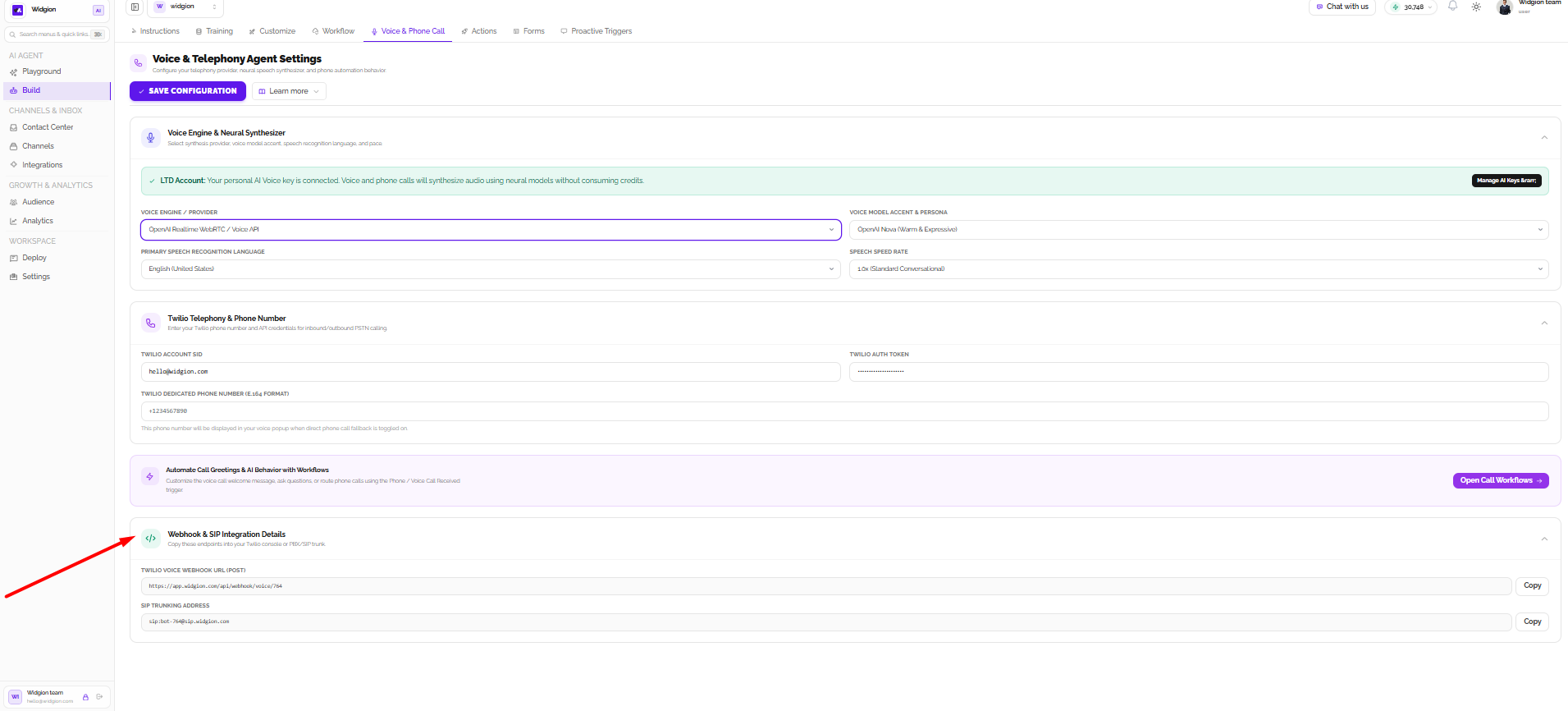
Widgion's Voice & Phone Call settings allow you to configure how your AI assistant communicates through voice and telephone calls. You can choose a voice provider, customise the assistant's voice and speaking speed, connect your Twilio account, and set up the required telephony integrations. Select Save Configuration to apply your changes.
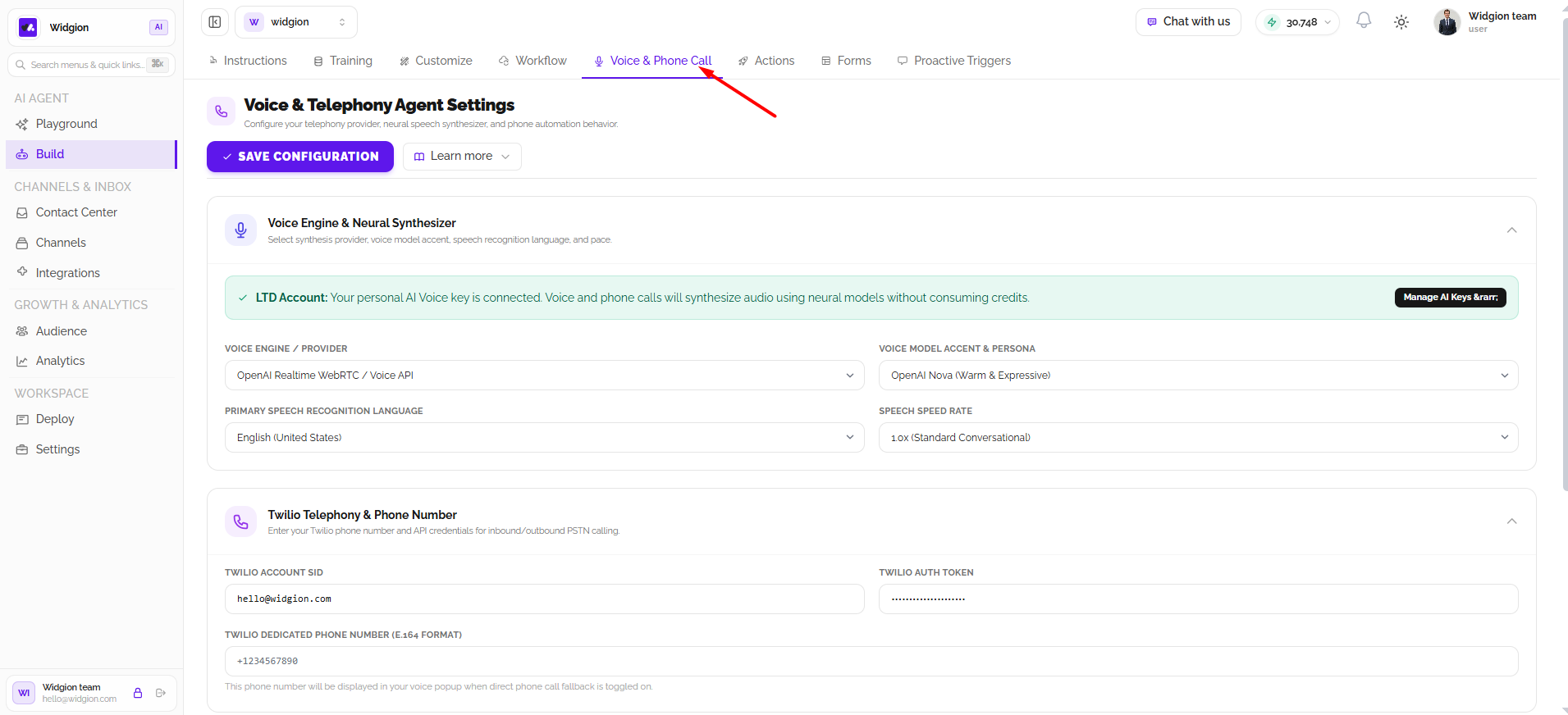
Voice Engine & Neural Synthesizer
Choose the voice technology that powers your assistant under Voice Engine or Provider. You can customise its sound using Voice Model Accent & Persona, with options such as warm, neutral, deep, and energetic voices.
The Primary Speech Recognition Language determines the language the assistant recognises, while Speech Speed Rate controls how quickly it speaks. If your personal AI voice key is connected, you can manage it using Manage AI Keys.
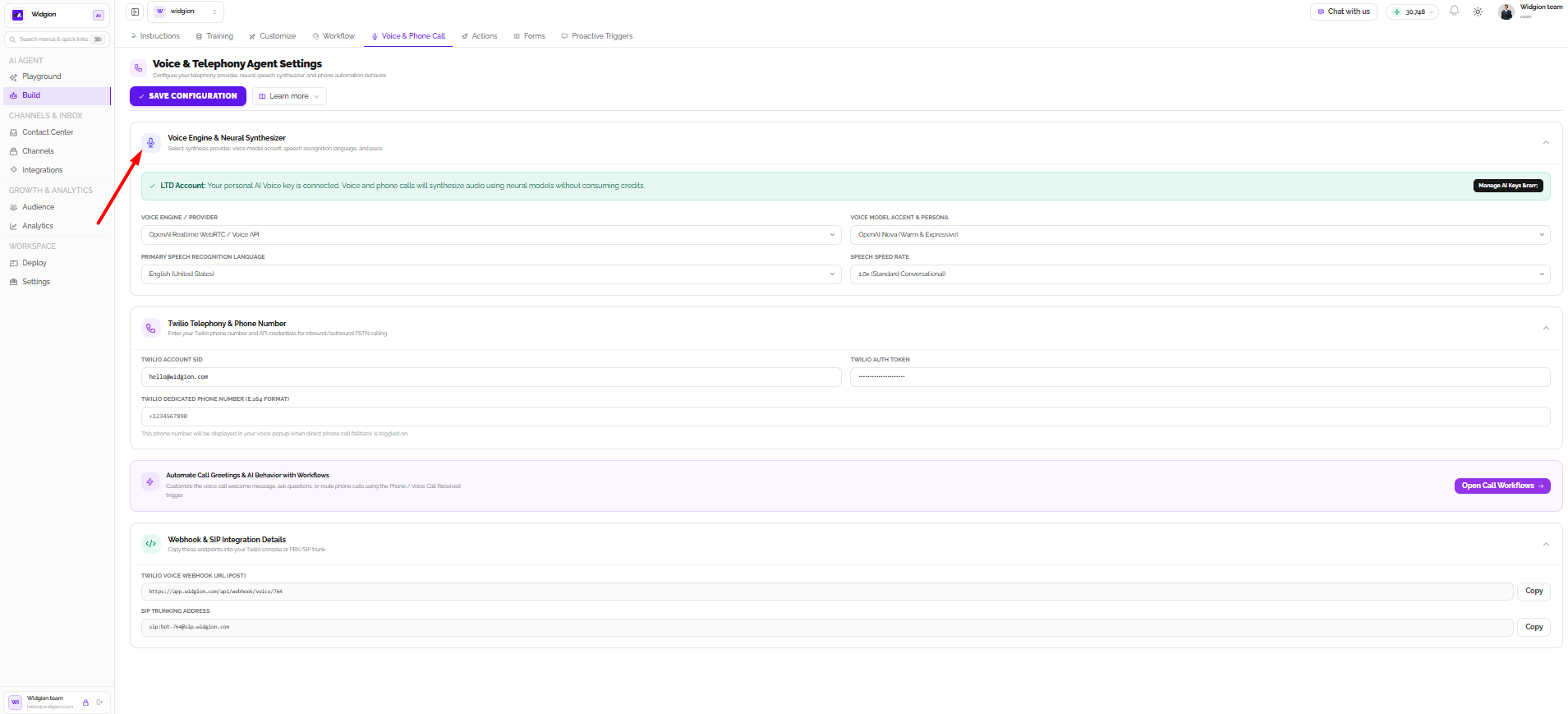
Twilio Telephony & Phone Number
Connect your Twilio account to enable inbound and outbound phone calls. Enter your Twilio Account SID, Twilio Auth Token, and Twilio Dedicated Phone Number in the provided fields. The phone number must follow the international E.164 format, including the country code.
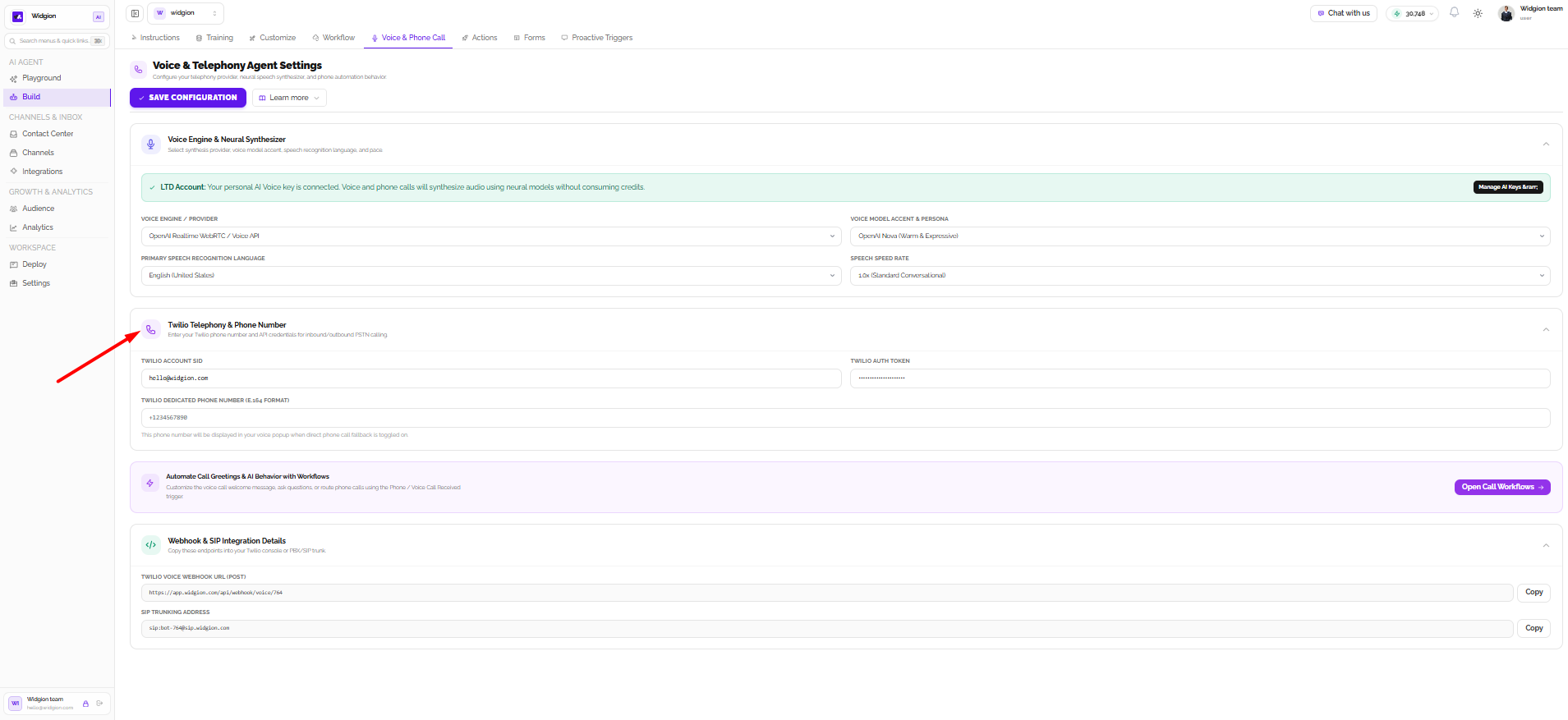
Automating Call Greetings & AI Behaviour
Connect voice calls to your Widgion workflows to customise greetings, ask questions, and route incoming calls automatically. Select Open Call Workflows to create or manage these automations using the Phone / Voice Call Received trigger.
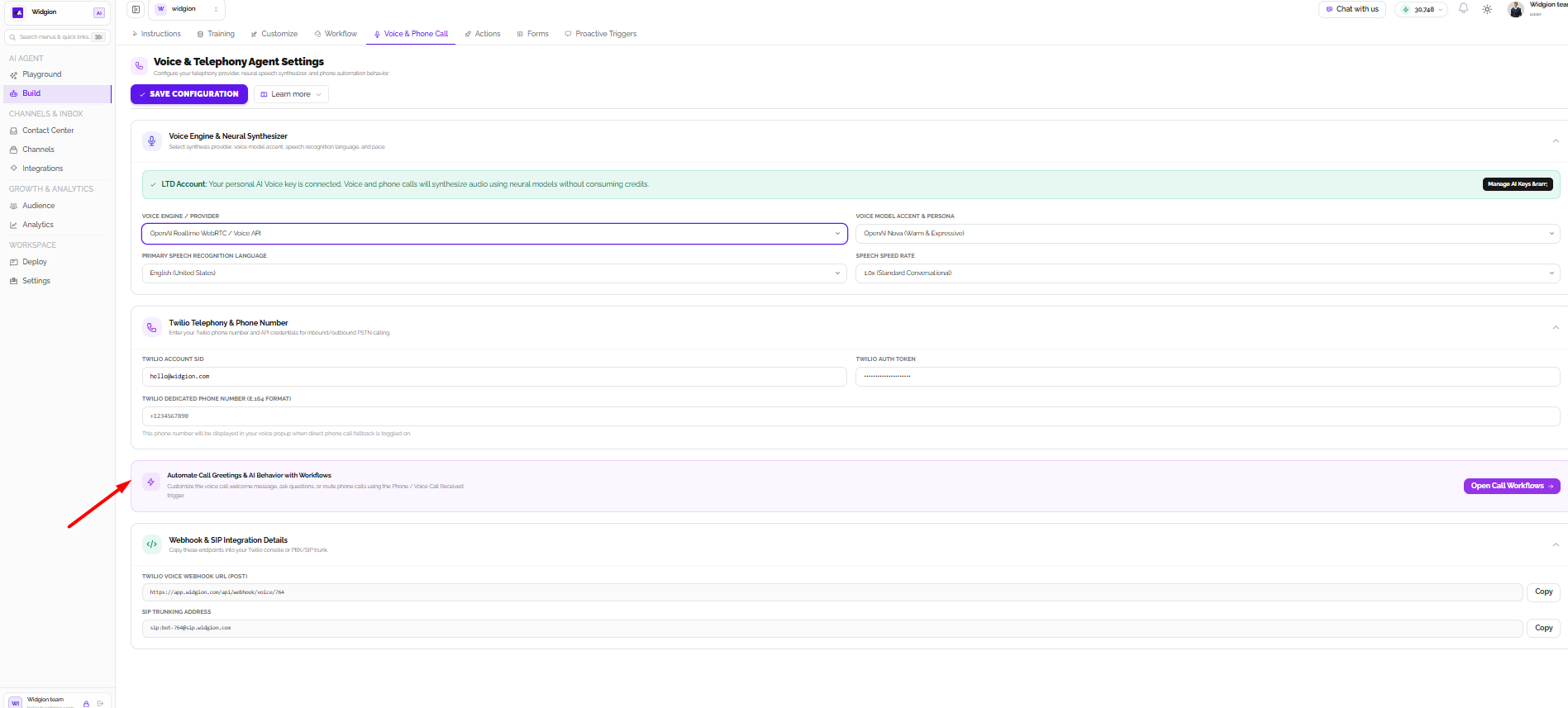
Webhook & SIP Integration Details
Widgion provides a Twilio Voice Webhook URL (POST) and a SIP Trunking Address for connecting your voice assistant to external telephony services. Use the Copy buttons beside each field to copy the required details into your Twilio console or SIP provider configuration.
Summary
Voice & Phone Call settings help you customise your assistant's speech, connect Twilio, automate call handling, and configure the endpoints needed for telephone integration. Remember to save your configuration after making changes.
Did this answer your question?
What was missing or unclear?
Thank you for your feedback!
Your input helps us make this article better.
Still need help?
Contact support →Related articles
Understanding Agent Instructions
Learn how to configure Widgion agent instructions, define your AI assistant's behaviour, and guide its responses to customer questions.
Training Your AI Assistant
Learn how to train your Widgion AI assistant using websites, documents, text snippets, and other supported knowledge sources.
Installing the Chat Widget on Your Website
Step-by-step guide to embedding the chat widget on your website.
Adding, Editing, and Managing Contact Data
Handles actions like adding contacts, editing details, deleting, and exporting.
On this page