
Training Your AI Assistant
Learn how to train your Widgion AI assistant using websites, documents, text snippets, and other supported knowledge sources.
The Training section allows you to provide your Widgion AI Agent with information about your business. This knowledge helps your agent understand your products, services, policies, and frequently asked questions so it can provide more relevant responses to users.
Understanding Training Sources
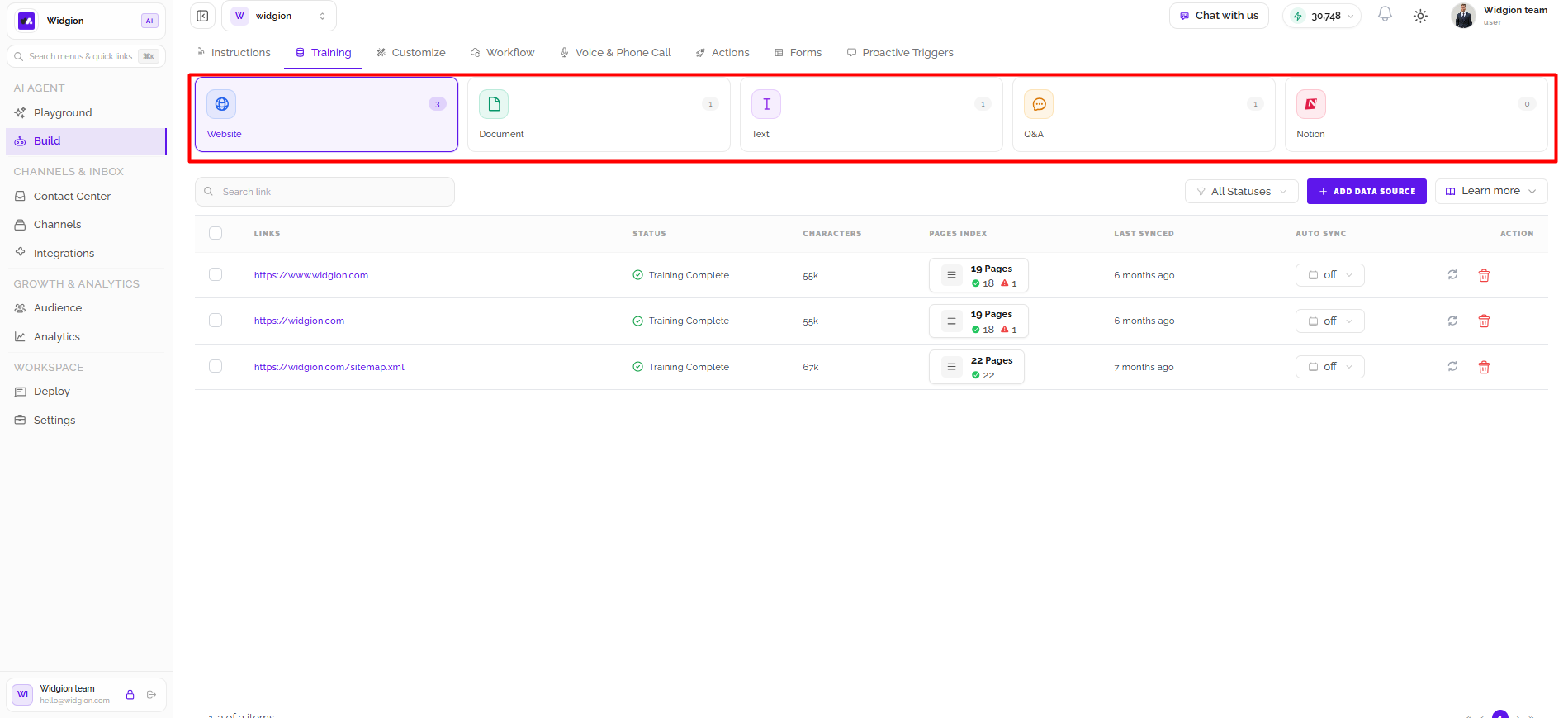
Widgion provides five training source categories: Website, Document, Text, Q&A, and Notion. Each category offers a different way to provide information to your agent. The number displayed on each category indicates how many sources have been added under it.
Select a category to view its sources, add new information, and manage existing training content.
Website
The Website option allows you to train your agent using content published on your website. Select Add Data Source to submit website links that Widgion can process and index. Once added, your links appear in a table displaying their training status, character count, indexed pages, and last synchronization time. The Auto Sync option lets you enable or disable automatic updates for each source.
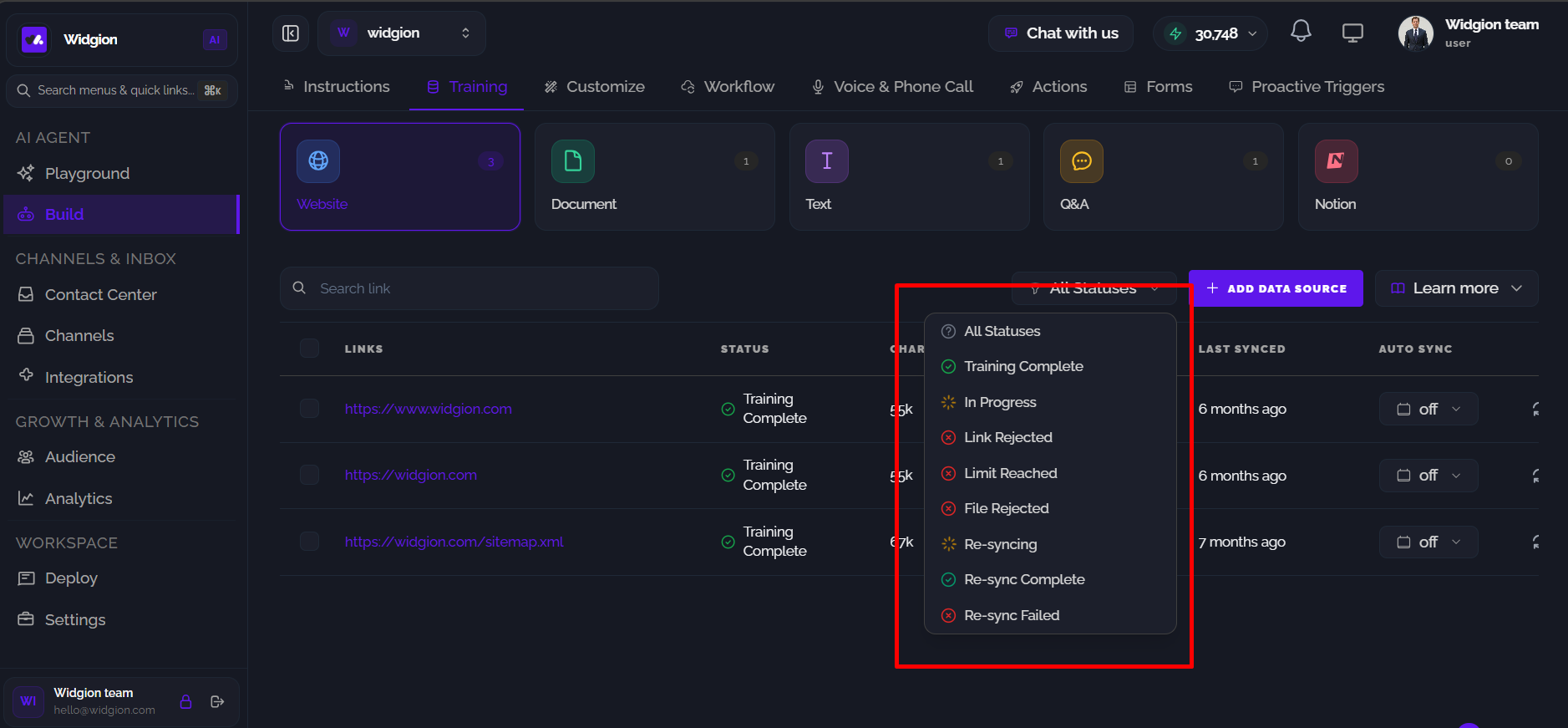
You can use the search field to find specific links and All Statuses to filter sources by their processing status, including Training Complete, In Progress, Link Rejected, Limit Reached, File Rejected, Re-syncing, Re-sync Complete, and Re-sync Failed. The refresh icon lets you initiate synchronization, while the delete icon removes a source. You can also use Learn More to access additional guidance.
Document
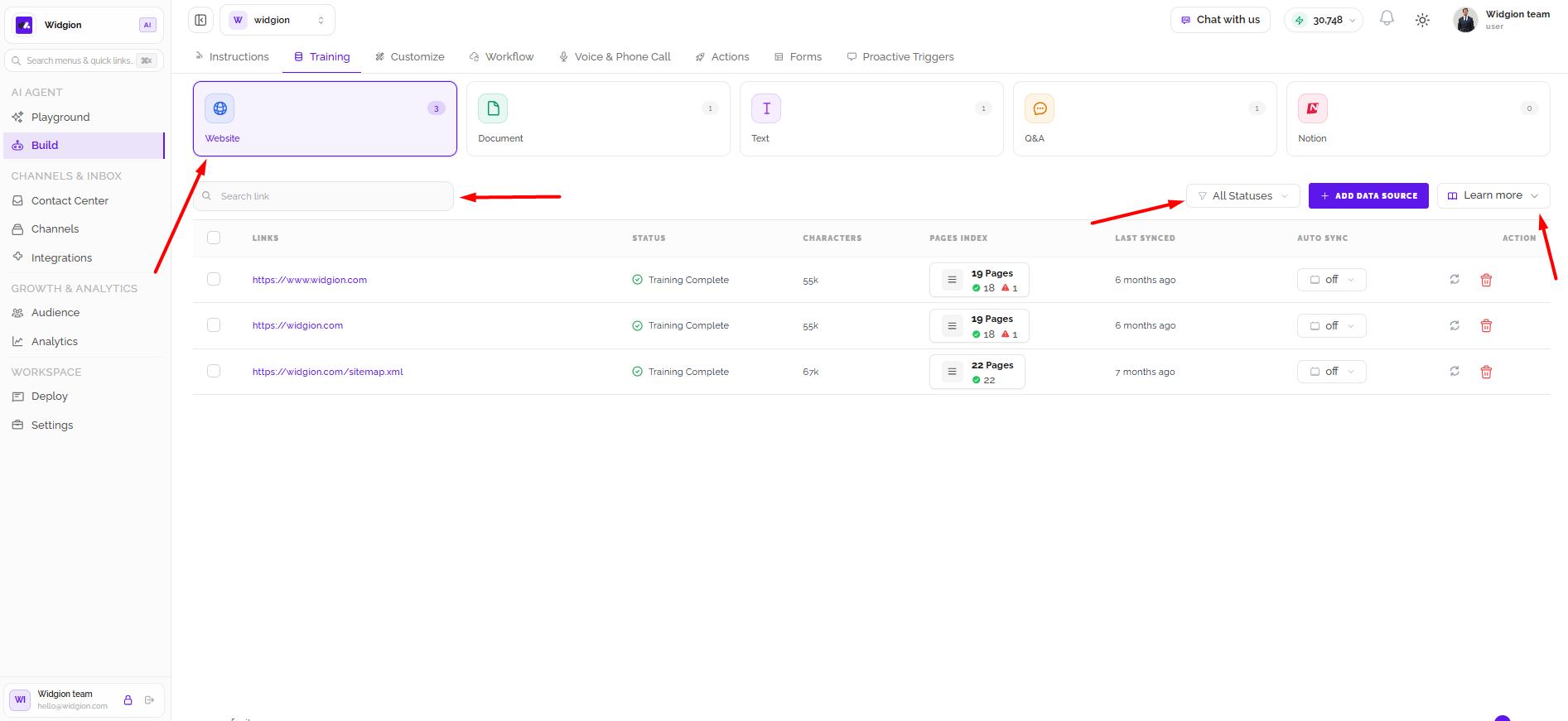
The Document option allows you to train your agent using files containing business information, such as product guides, company policies, service descriptions, and other important documents. Select Upload Document to add a file. Uploaded documents appear in a table showing their names, training status, character count, and last synchronization time.
You can use the search field to find specific documents and All Statuses to filter them by training status. The delete icon allows you to remove documents you no longer need, while Learn More provides additional guidance about document training.
Text
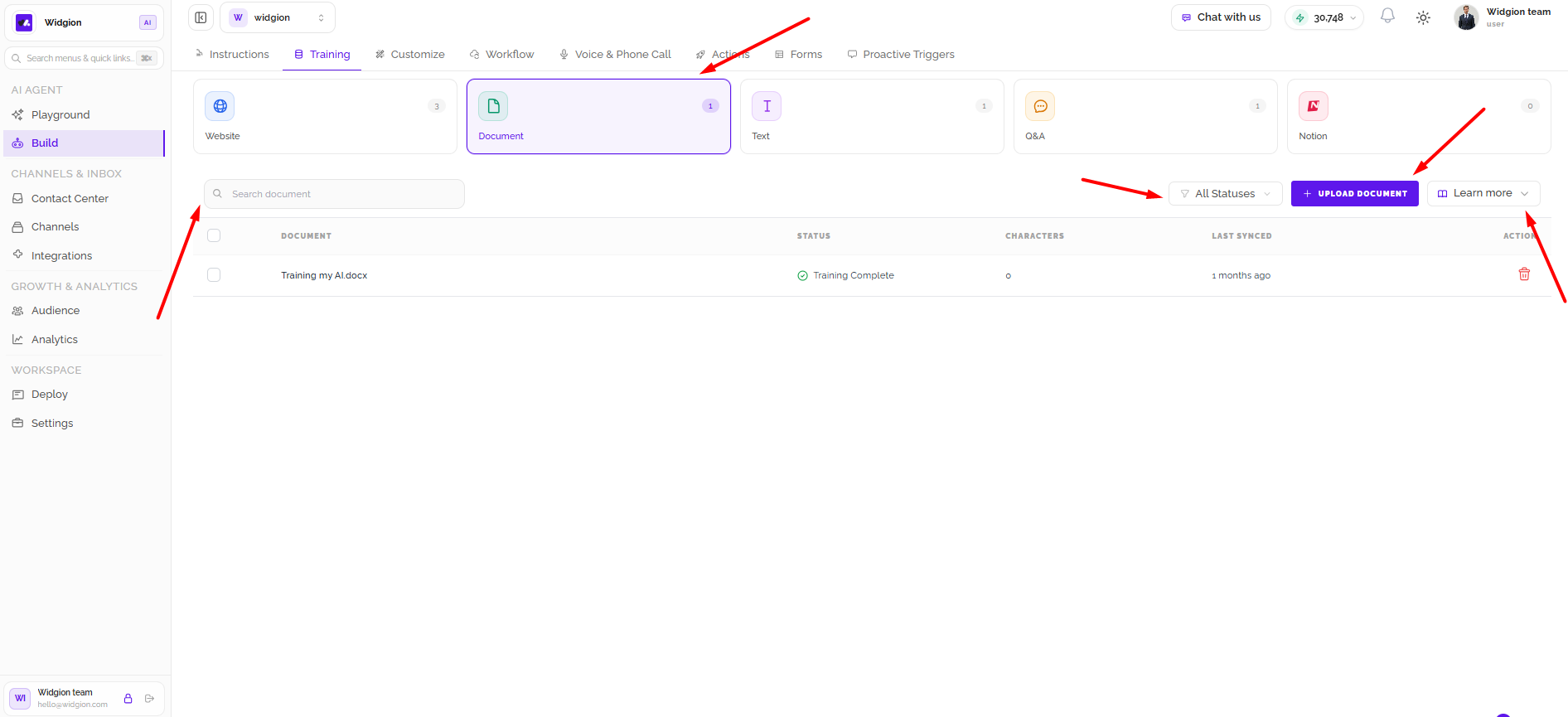
The Text option allows you to add information directly into Widgion without uploading a document or providing a website link. This is useful for entering business details, policies, guidelines, and other information your agent should understand. Select Add Text Snippet to create an entry with a title and its corresponding content.
Saved snippets appear in a table displaying their titles, content, character counts, training status, and last synchronization time. You can search for specific entries, filter them by status, and use the Edit or delete options to update or remove existing snippets.
Q&A
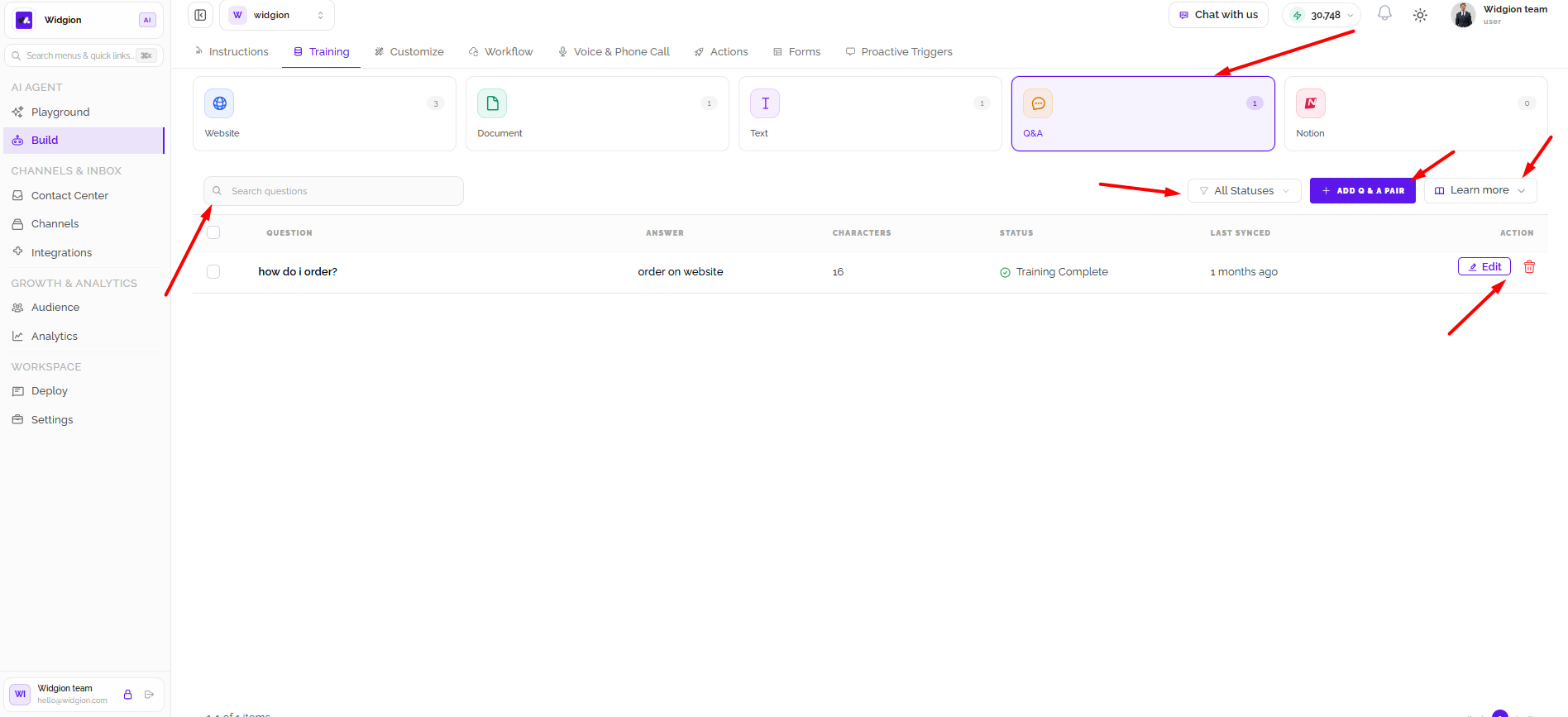
The Q&A option allows you to train your agent using specific questions and their corresponding answers. This is useful for providing direct answers to common customer enquiries, helping your agent respond using information supplied by your business. Select Add Q&A Pair to create a new question-and-answer entry.
Saved entries appear in a table displaying their questions, answers, character counts, training status, and last synchronization time. You can search for specific questions, filter entries by status, and use the Edit or delete options to manage existing pairs. Learn More provides additional guidance about Q&A training.
Notion
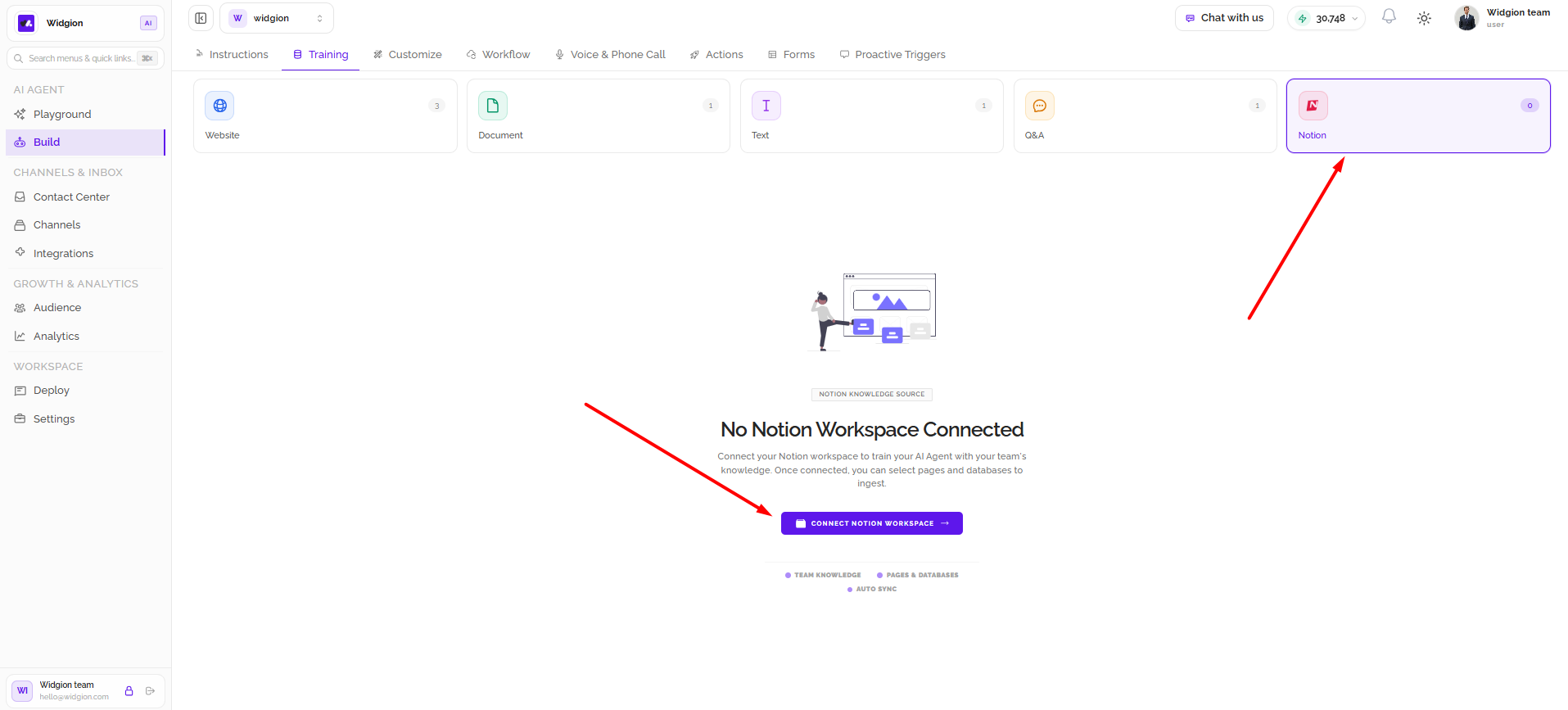
The Notion option allows you to connect your Notion workspace and use its content as a training source for your AI Agent. This is useful for businesses that store documentation, guides, and other important information in Notion. Select Connect Notion Workspace to begin connecting your account.
Once connected, you can select the Notion pages and databases you want Widgion to ingest as knowledge for your agent. This allows your agent to use relevant information from your existing Notion workspace when responding to users.
Understanding Training Status
Widgion uses status indicators to show the progress and outcome of your training sources. Training Complete means processing has finished, while In Progress indicates that processing is ongoing. Other statuses include Link Rejected, Limit Reached, and File Rejected, which indicate that a source could not be processed successfully.
During synchronization, you may see Re-syncing, Re-sync Complete, or Re-sync Failed. These statuses indicate whether an update is still processing, has finished successfully, or encountered an issue. You can use the All Statuses filter to find sources with a particular status.
The Training section helps you build your Widgion AI Agent's knowledge using websites, documents, text snippets, Q&A pairs, and Notion content. You can add and manage information, monitor training progress, and keep your agent's knowledge up to date.
Did this answer your question?
What was missing or unclear?
Thank you for your feedback!
Your input helps us make this article better.
Still need help?
Contact support →Related articles
Understanding Agent Instructions
Learn how to configure Widgion agent instructions, define your AI assistant's behaviour, and guide its responses to customer questions.
Installing the Chat Widget on Your Website
Step-by-step guide to embedding the chat widget on your website.
Adding, Editing, and Managing Contact Data
Handles actions like adding contacts, editing details, deleting, and exporting.
Classic vs Modern Chat Widget
Compare both widget types and choose the best option for your business needs.
On this page