
Customizing Your AI Assistant
Learn how to customize your Widgion AI assistant's appearance, personality, and customer-facing experience using the available configuration options.
The Customize section allows you to control how your Widgion AI agent appears and interacts with visitors on your website. You can personalize the web chat and voice call widgets by adjusting their appearance, launcher buttons, colours, text, positioning, animations, and visitor prompts to match your brand and customer experience.
Web Chat Customization
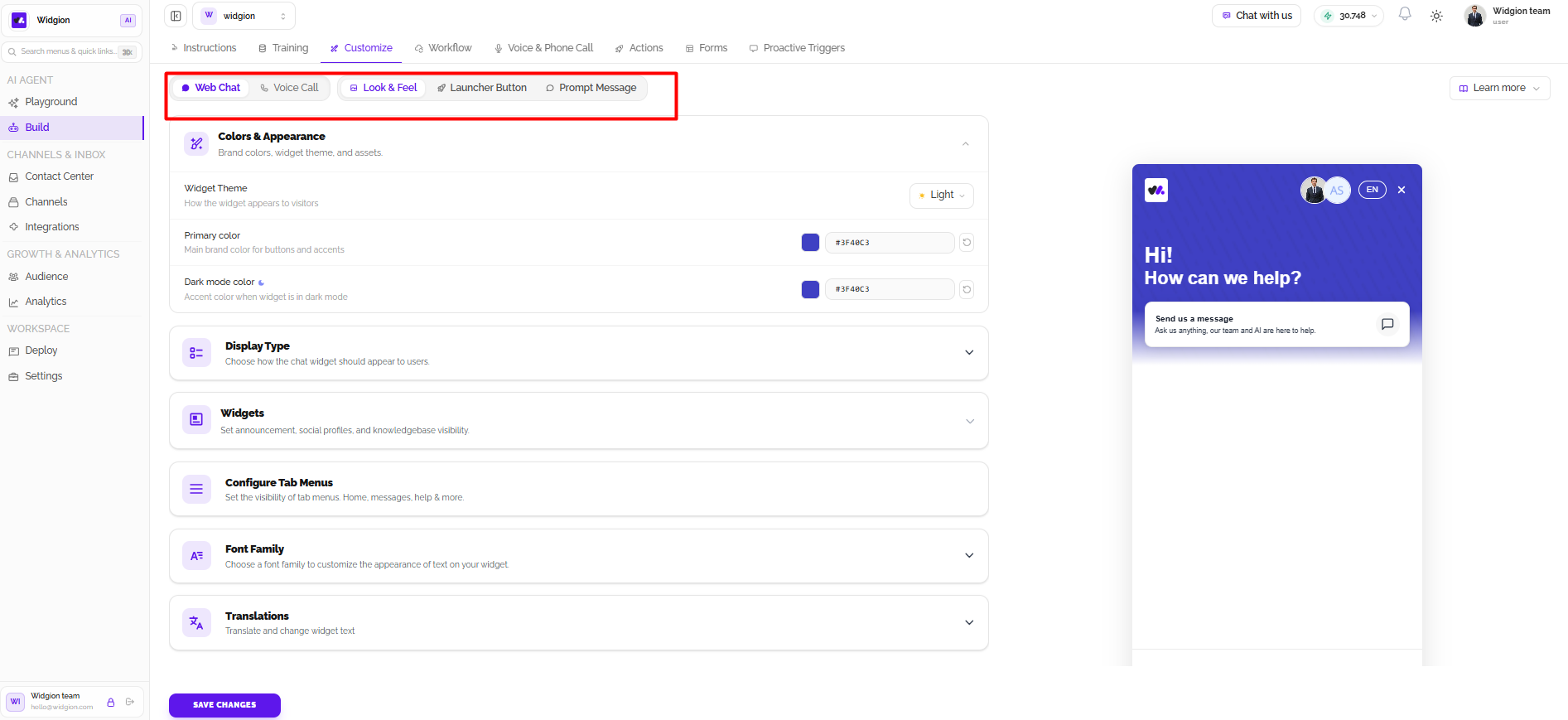
The Web Chat option contains three main areas: Look & Feel, Launcher Button, and Prompt Message. These settings allow you to customize the appearance of your chat widget, determine how visitors access it, and configure messages that encourage them to start a conversation.
Look & Feel
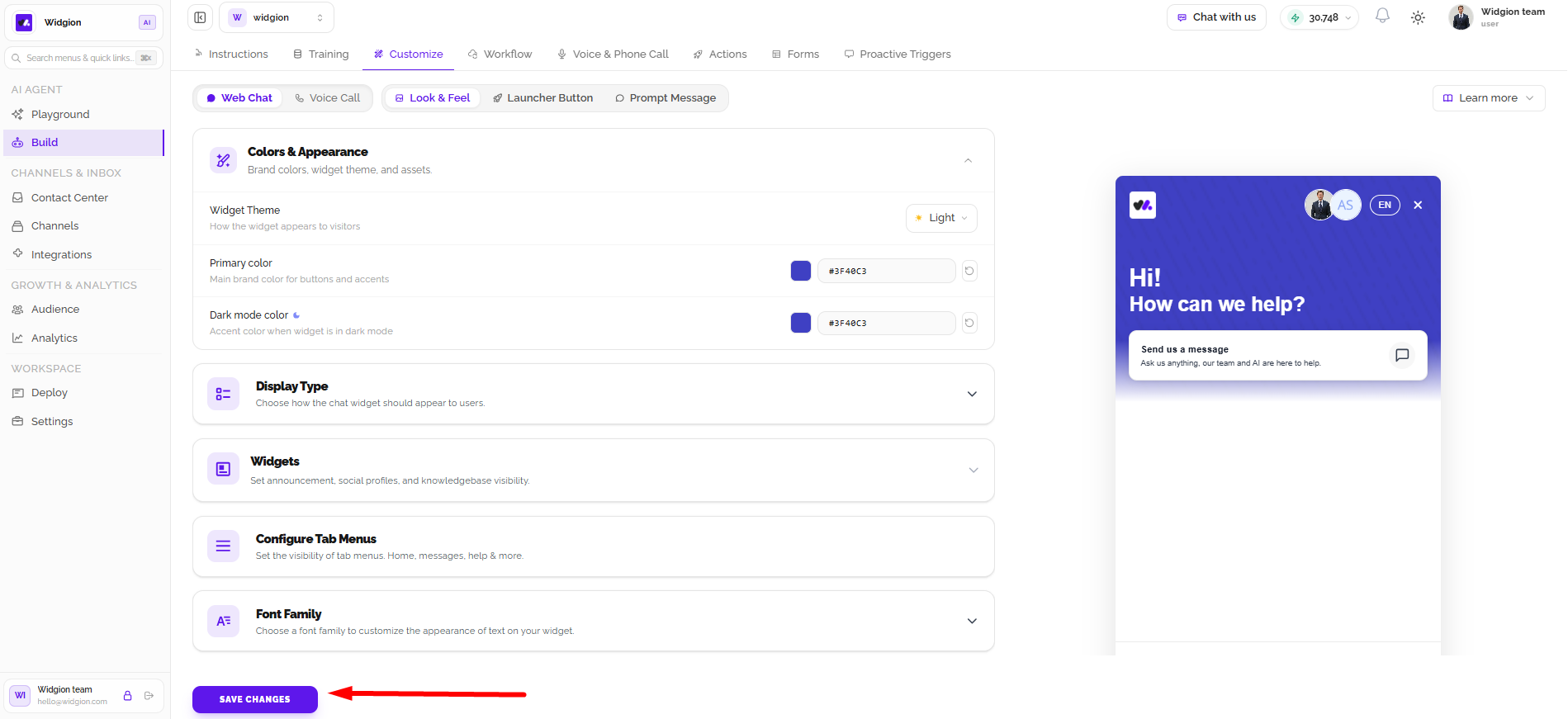
The Look & Feel tab allows you to customize the visual appearance of your web chat widget. Under Colors & Appearance, you can choose between light and dark themes and set the primary and dark-mode colours to match your brand. Display Type controls how the chat widget appears, while Widgets lets you configure the visibility of announcements, social profiles, and knowledge base content. You can also manage the available navigation tabs under Configure Tab Menus, select a preferred Font Family, and use Translations to change the text displayed throughout the widget.
Launcher Button
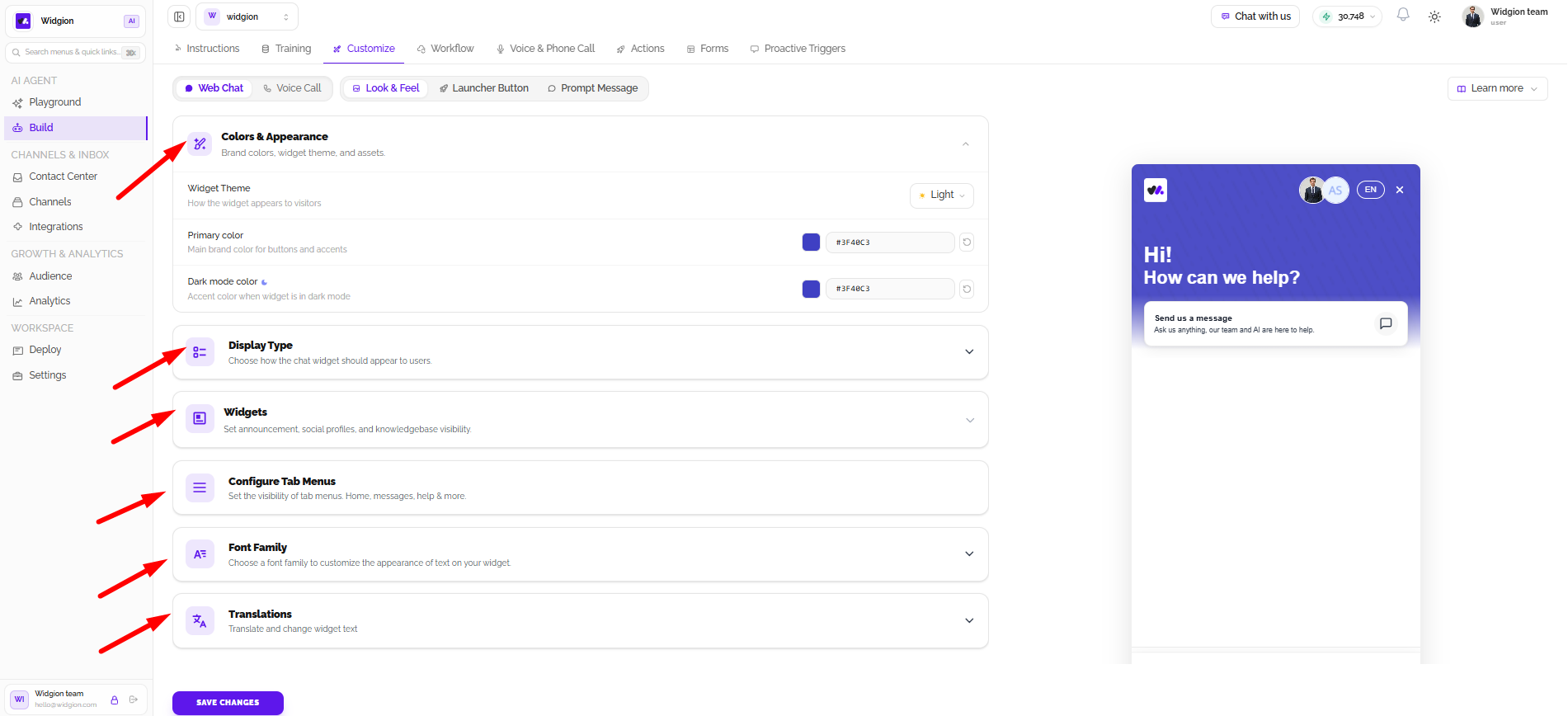
The Launcher Button tab controls the floating button visitors use to open the web chat widget. Under Position & Type, you can choose where the button appears and its display type. Button Style lets you define its appearance, label, or use an image, while Button Icon allows you to select or customize the icon. You can further adjust its horizontal and vertical placement using Button Spacing and choose visual effects under Button Animation to make the launcher static, zoom, beam, or use a breathing effect.
Prompt Message
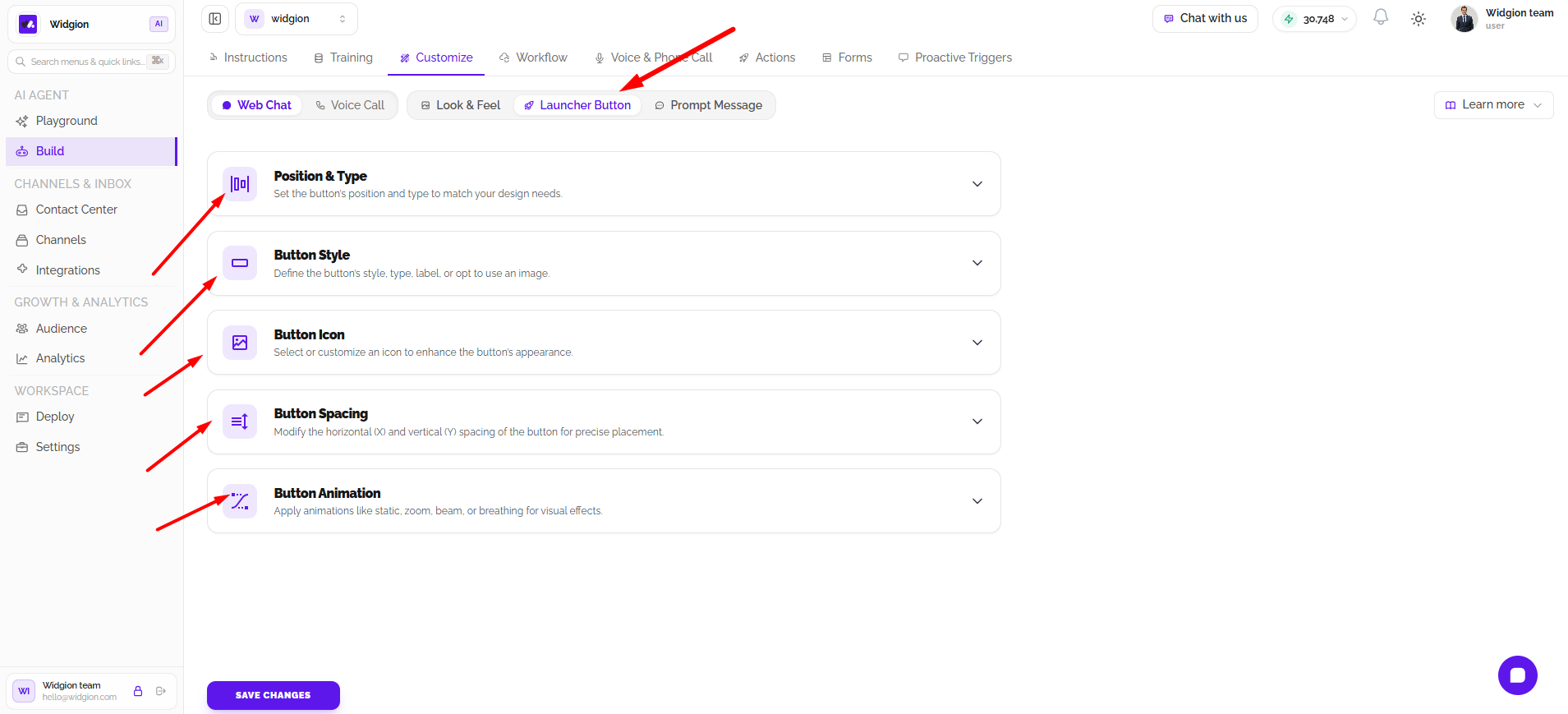
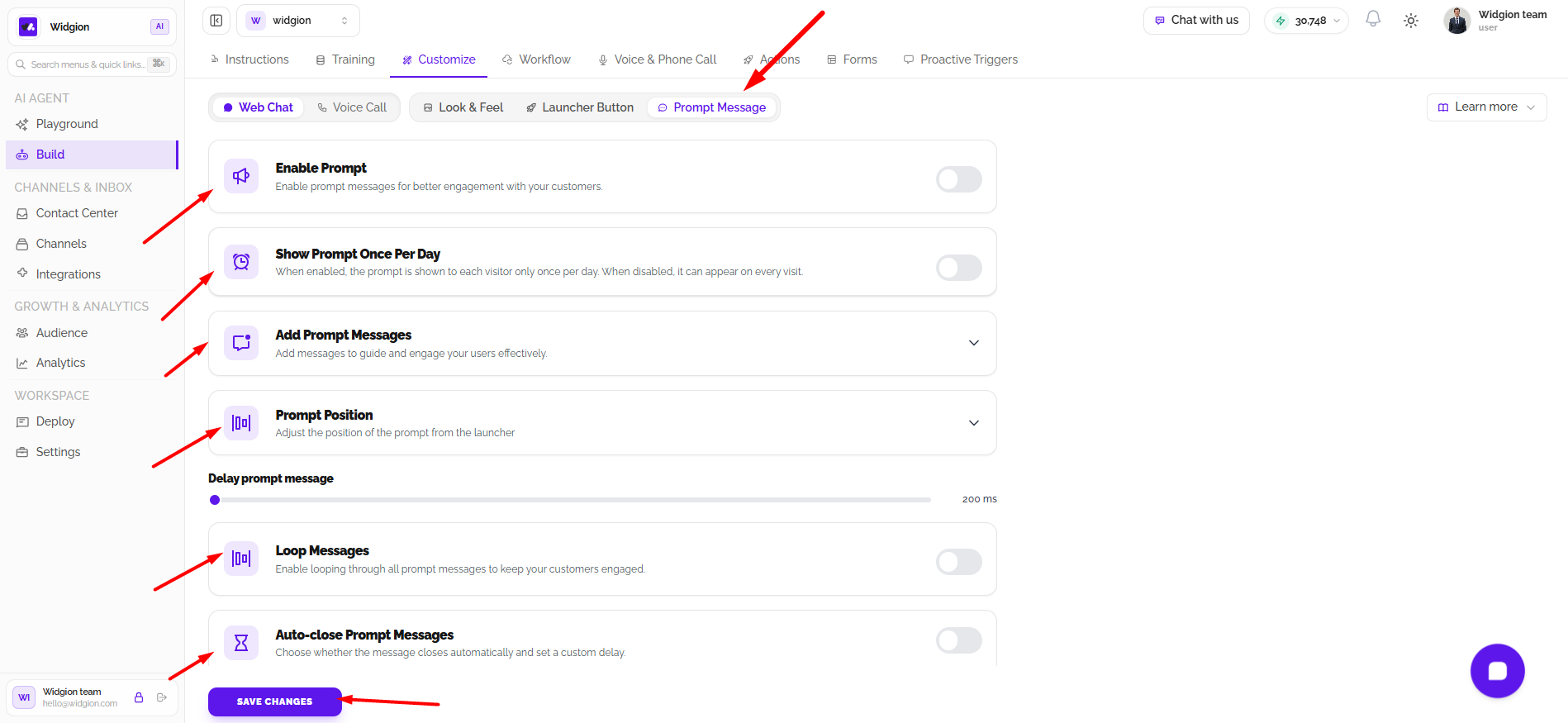
The Prompt Message tab allows you to display introductory messages above the chat launcher to encourage visitors to interact with your AI agent. You can enable or disable prompts using Enable Prompt and control their frequency with Show Prompt Once Per Day. Add Prompt Messages lets you create the messages visitors see, while Prompt Position controls where they appear relative to the launcher. You can also configure the display delay, enable Loop Messages to rotate through prompts, and use Auto-close Prompt Messages to determine whether prompts close automatically after a set period.
Voice Call Customization
The Voice Call option provides separate settings for personalizing the voice call experience. Like Web Chat, it includes Look & Feel, Launcher Button, and Prompt Message, allowing you to customize the voice call popup, floating launcher, and invitation messages displayed to website visitors.
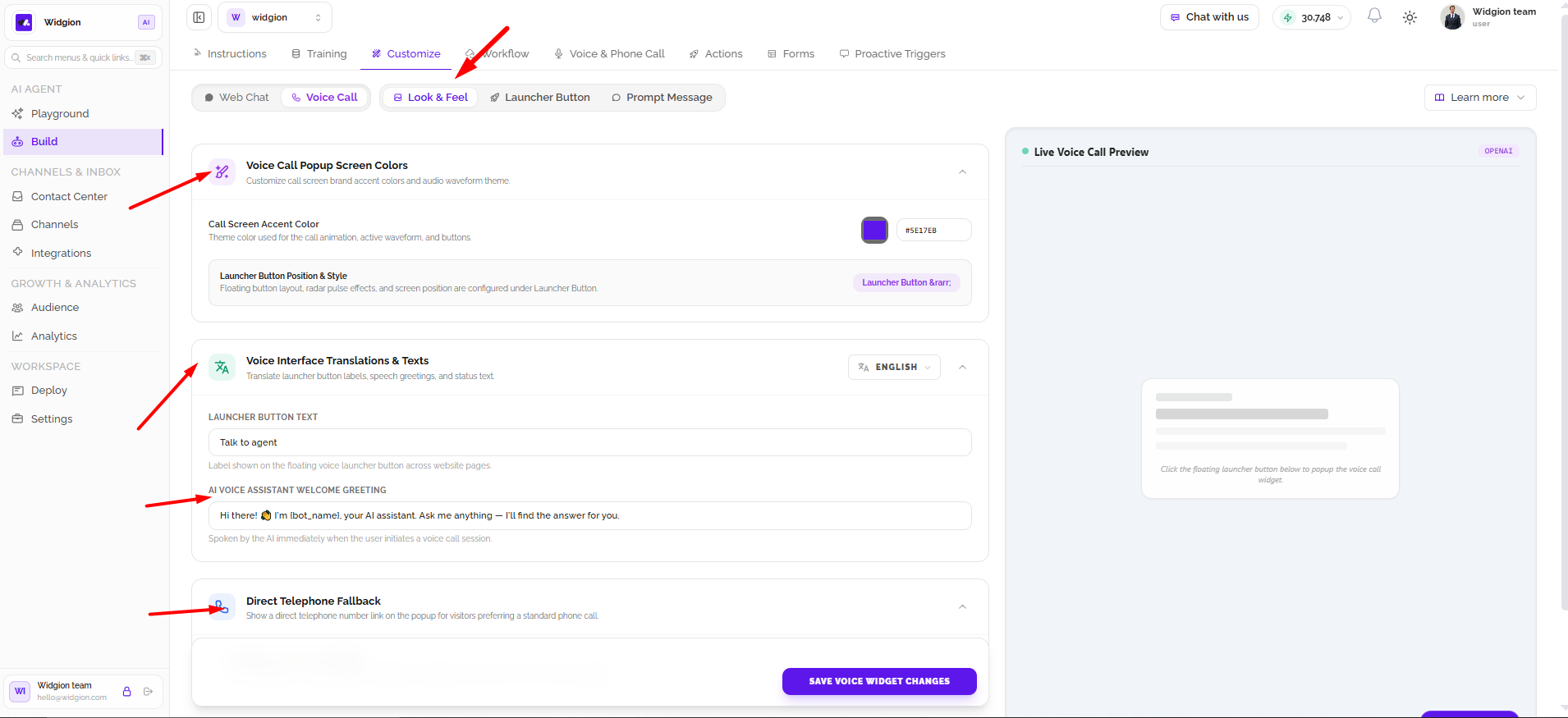
Look & Feel
The Voice Call Look & Feel tab allows you to customize the appearance and text of the voice call interface. Under Voice Call Popup Screen Colors, you can set the call screen accent colour, which is used for elements such as the call animation, active waveform, and buttons. Voice Interface Translations & Texts allows you to select a language and customize the launcher button label and AI voice assistant welcome greeting. The Direct Telephone Fallback option lets you display a direct phone call option on the voice call popup for visitors who prefer making a standard telephone call.
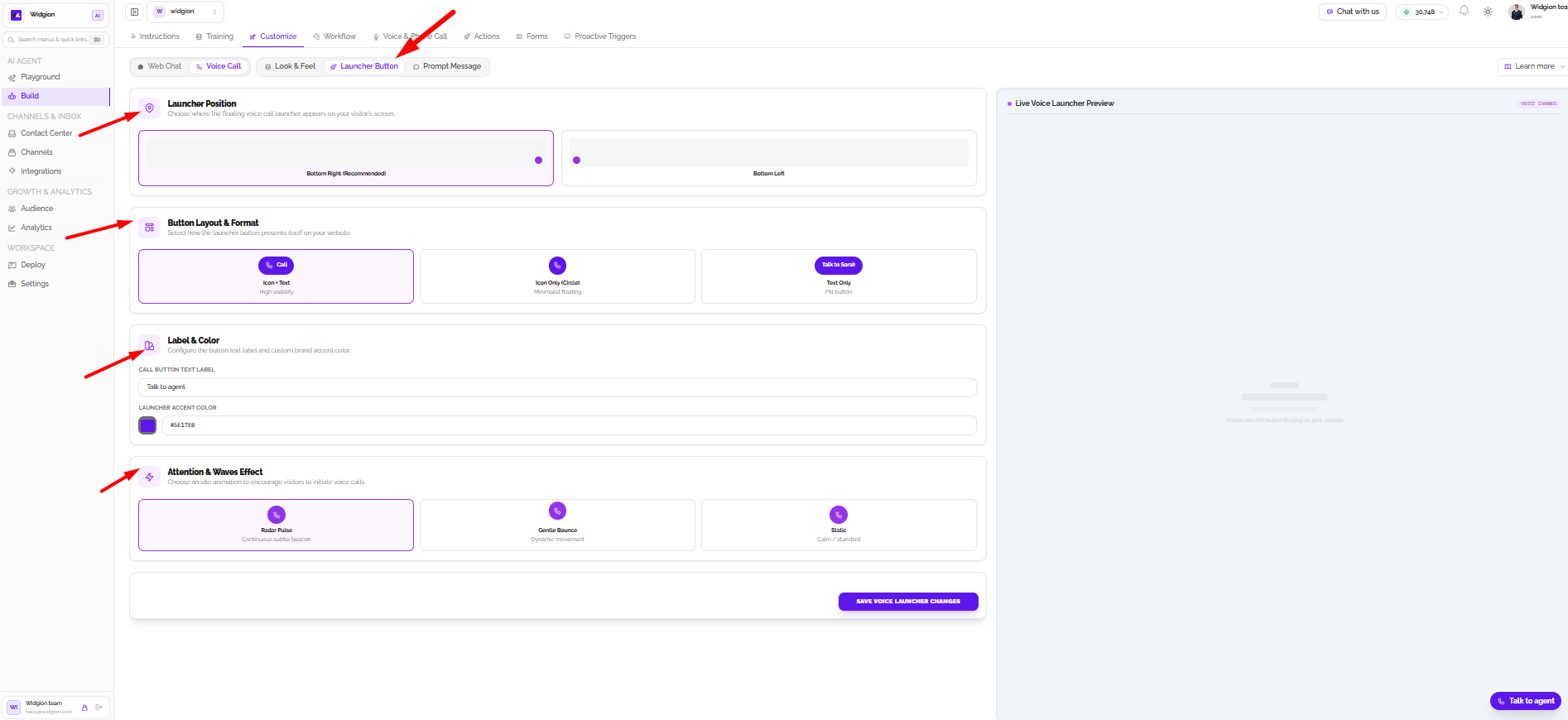
Launcher Button
The Voice Call Launcher Button tab controls how the floating voice call button appears on your website. Under Launcher Position, you can choose between the bottom-right and bottom-left positions. Button Layout & Format lets you display the launcher as an icon with text, an icon-only circle, or a text-only pill button. You can customize its label and accent colour under Label & Color, then choose an attention effect under Attention & Waves Effect, including Radar Pulse, Gentle Bounce, or Static.
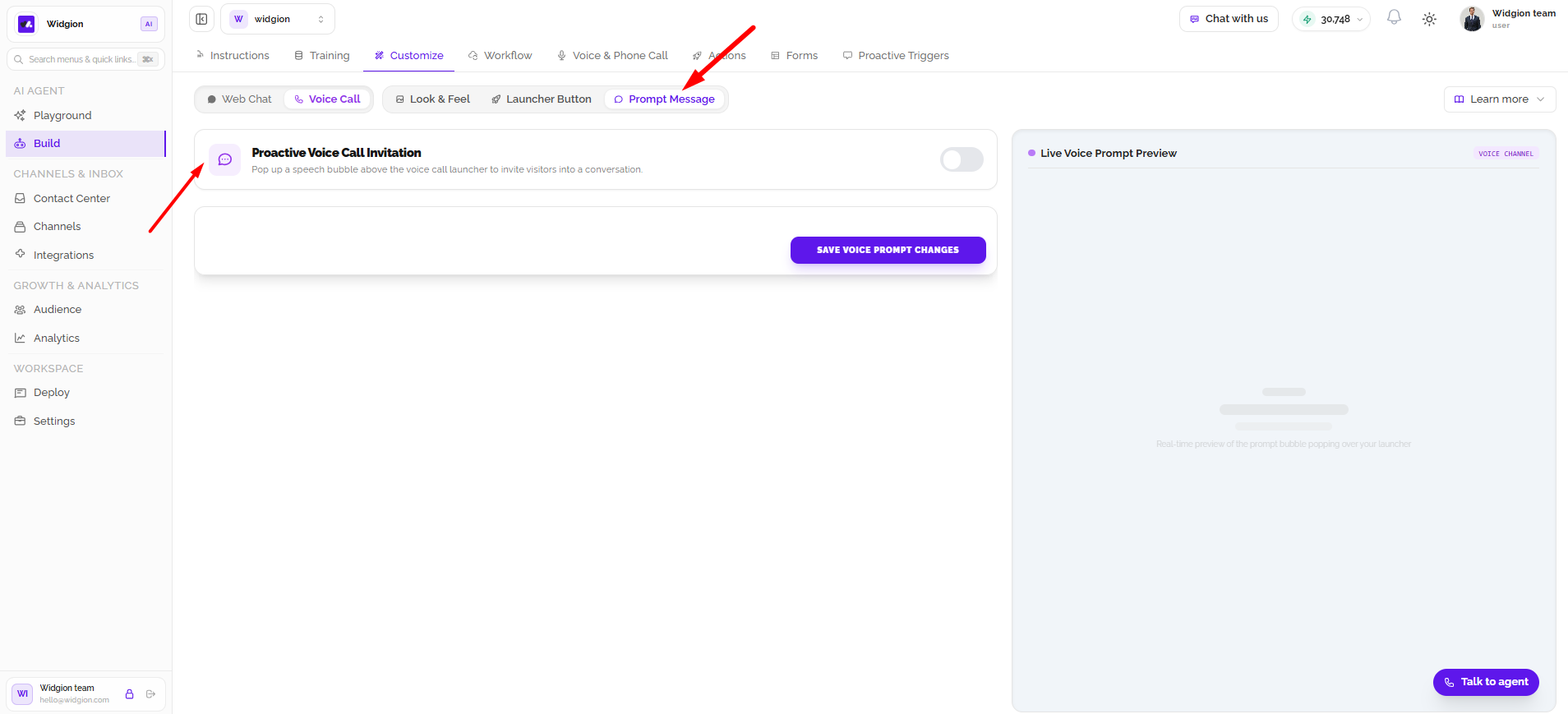
Prompt Message
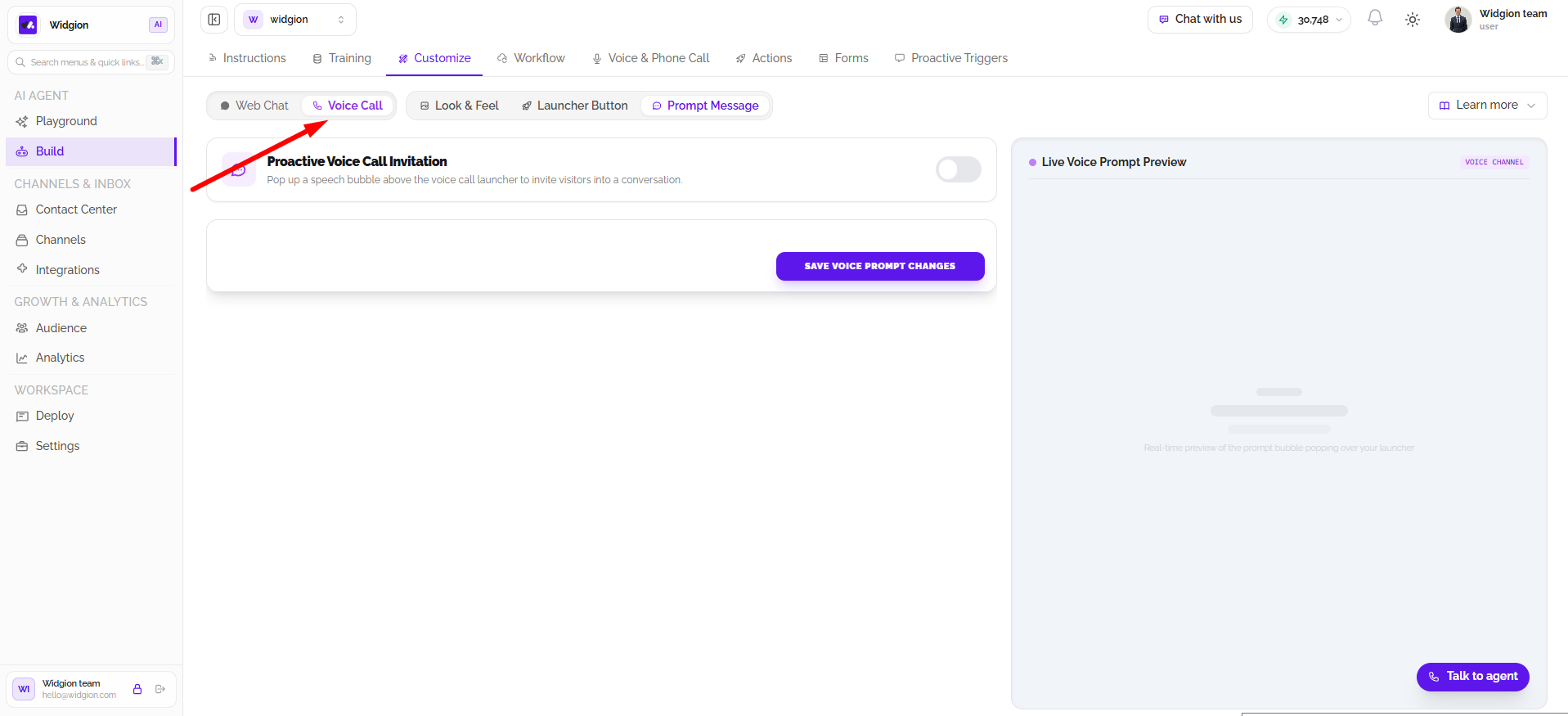
The Voice Call Prompt Message tab contains the Proactive Voice Call Invitation setting. When enabled, this feature displays a speech bubble above the voice call launcher to invite website visitors to start a voice conversation with the AI agent. You can enable or disable this invitation depending on how you want visitors to discover the voice call feature.
Learn More
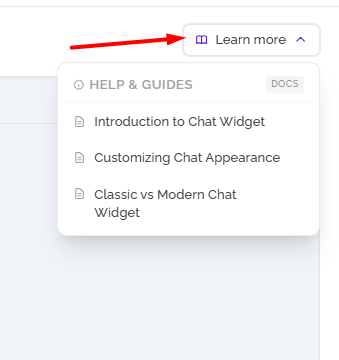
The Learn More dropdown provides quick access to additional help articles and guides related to widget customization. Under Help & Guides, you can find resources such as Introduction to Chat Widget, Customizing Chat Appearance, and Classic vs Modern Chat Widget. These resources help you understand the widget, explore its appearance settings, and learn about the available chat widget styles.
Saving Your Customizations
After making changes to either the Web Chat or Voice Call settings, use the corresponding save button to apply your updates. The preview panel on the right allows you to see how your customizations will appear before saving, helping you review the widget's appearance and make adjustments where necessary.
Did this answer your question?
What was missing or unclear?
Thank you for your feedback!
Your input helps us make this article better.
Still need help?
Contact support →Related articles
Understanding Agent Instructions
Learn how to configure Widgion agent instructions, define your AI assistant's behaviour, and guide its responses to customer questions.
Training Your AI Assistant
Learn how to train your Widgion AI assistant using websites, documents, text snippets, and other supported knowledge sources.
Installing the Chat Widget on Your Website
Step-by-step guide to embedding the chat widget on your website.
Adding, Editing, and Managing Contact Data
Handles actions like adding contacts, editing details, deleting, and exporting.
On this page