
Handling Permission and Access Issues
Discover how to fix issues related to restricted access, missing permissions, or team members being unable to view or manage certain features.
If a team member is unable to access certain features or sections in Widgion, the issue is most likely related to their role, their account status, or whether their invitation has been accepted. All team member management is handled from the Team Members section in your Widgion settings.
Check the Team Member's Role and Status
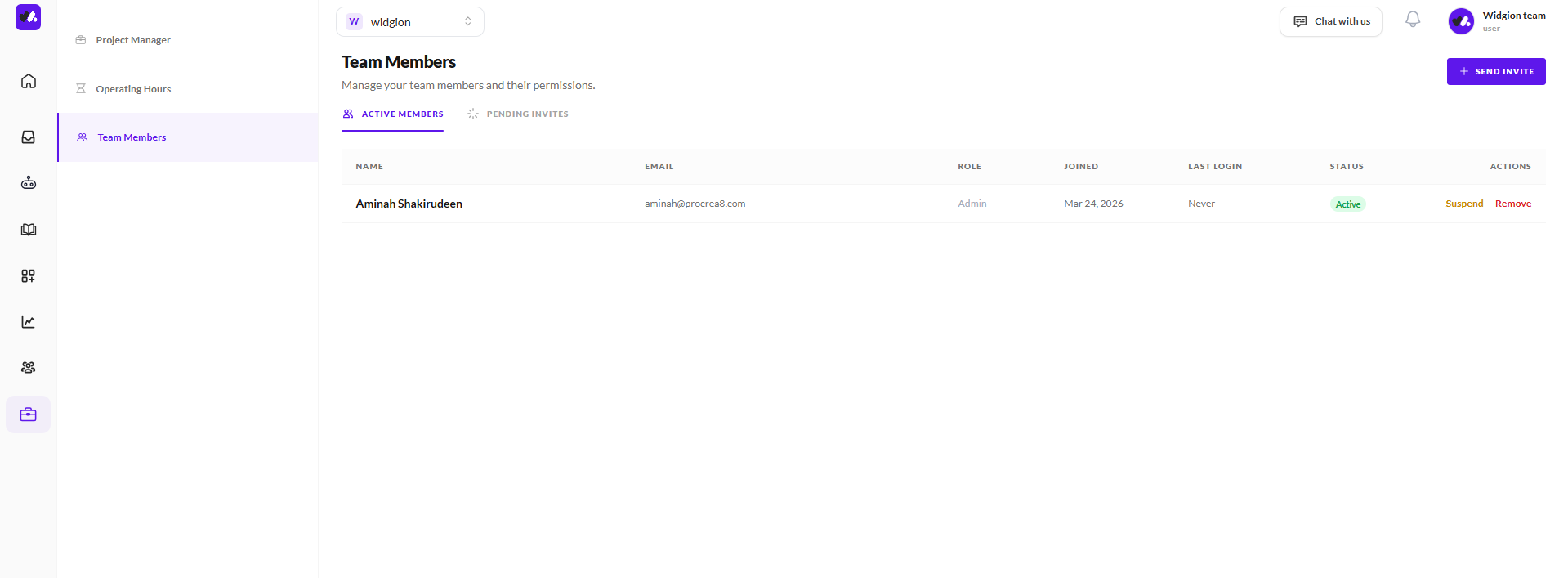
Navigate to Settings → Team Members in your Widgion dashboard. Here you'll see a list of all Active Members with their name, email, assigned role, join date, last login, and current status. If a team member is showing as Suspended, they will not be able to access the platform.
Click Suspend again to reactivate them or use the Remove option if you need to revoke their access entirely and re-invite them with the correct permissions.
 Check for Pending Invitations
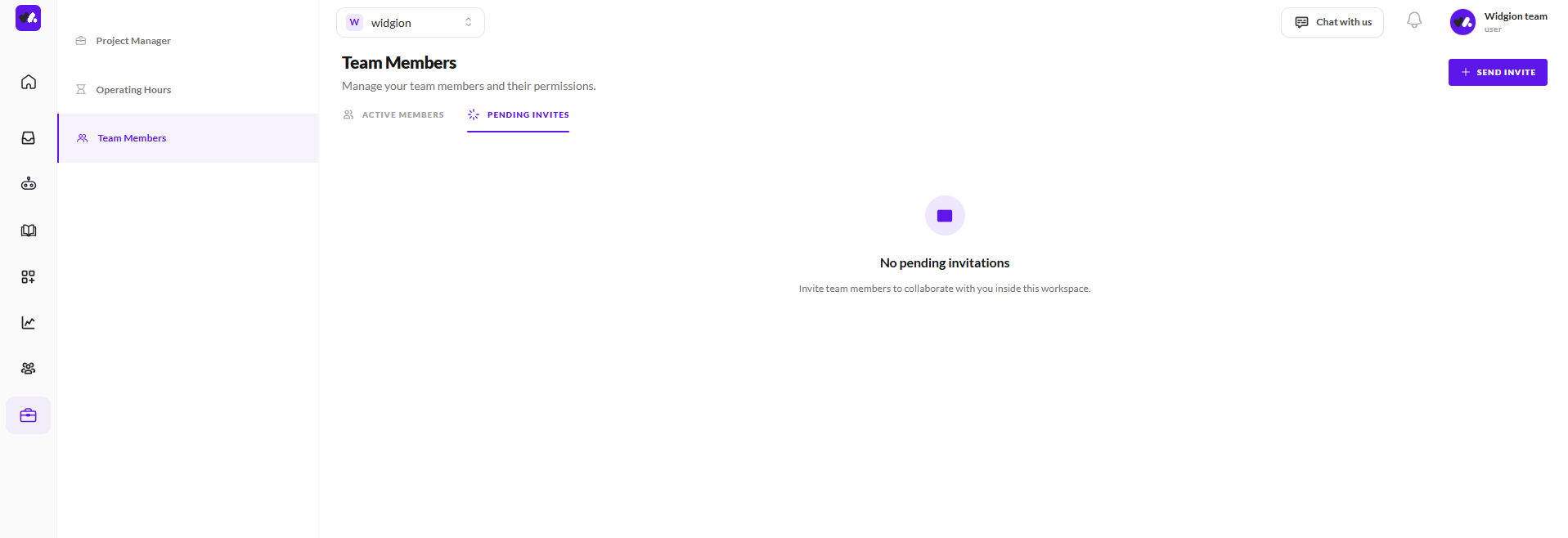
If a team member says they never received access or can't log in, click the Pending Invites tab on the Team Members page. If their invitation is still showing there, it means they haven't accepted it yet. Ask them to check their email, including spam or junk folders for the invitation from Widgion. If the invitation has expired, use the + Send Invite button to send a new one.
 Verify the Correct Role Was Assigned
The Role column on the Team Members page shows what level of access each member has been granted. If a team member can log in but can't access a specific feature or section, their role may not include the permissions required for that area. Review their assigned role and confirm it matches what they need to do their work. If it doesn't, you may need to remove them and re-invite them with the appropriate role.
When to Contact Support
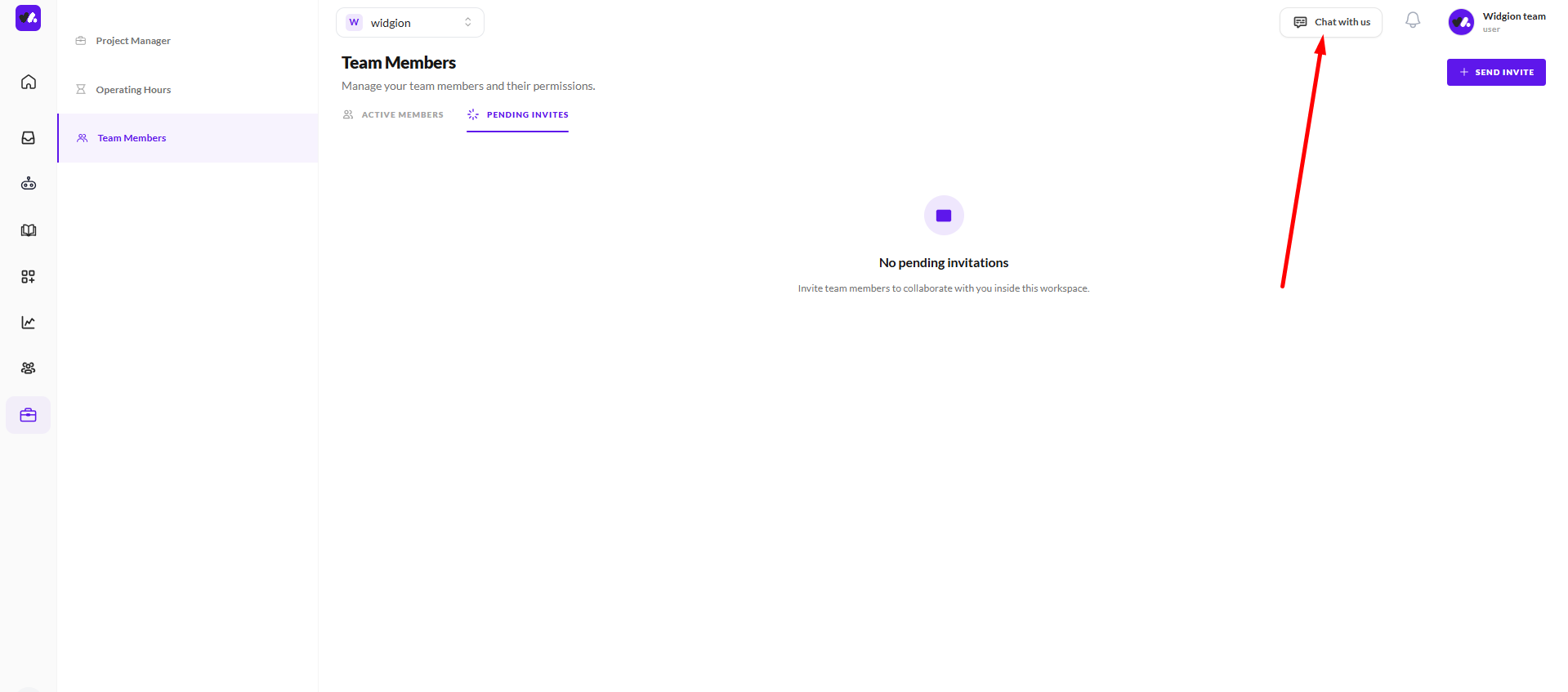
If you've checked all of the above and a team member still can't access what they need, or if you're locked out of your own account, reach out to the Widgion support team directly via the Chat with us button in the top right corner of your dashboard. Have the affected team member's email address ready so the support team can investigate quickly.
Did this answer your question?
What was missing or unclear?
Thank you for your feedback!
Your input helps us make this article better.
Still need help?
Contact support →Related articles
Widget Not Showing on Your Website
Identify common reasons why the widget may not appear and how to fix installation or configuration issues.
Fixing Article Display and Formatting Issues
Learn how to resolve problems related to broken layouts, missing content, or improper formatting in your articles.
Resolving Widget Customization Not Applying
Understand why changes to widget appearance or settings may not reflect on your website and how to ensure updates are properly applied.
Resolving Integration and API Errors
Get guidance on handling errors when using API-based implementations and ensuring smooth functionality across your setup.
On this page