
Previewing Your Widgion Widgets
Learn how to preview your Widgion deployment, inspect how your AI assistant appears and behaves, and check the experience before making it available to website visitors.
The Preview section in Widgion’s Deploy workspace lets you review how your widgets appear before integrating them into your website. You can switch between different widget types and inspect their appearance and placement in a simulated website environment.
Accessing the Preview
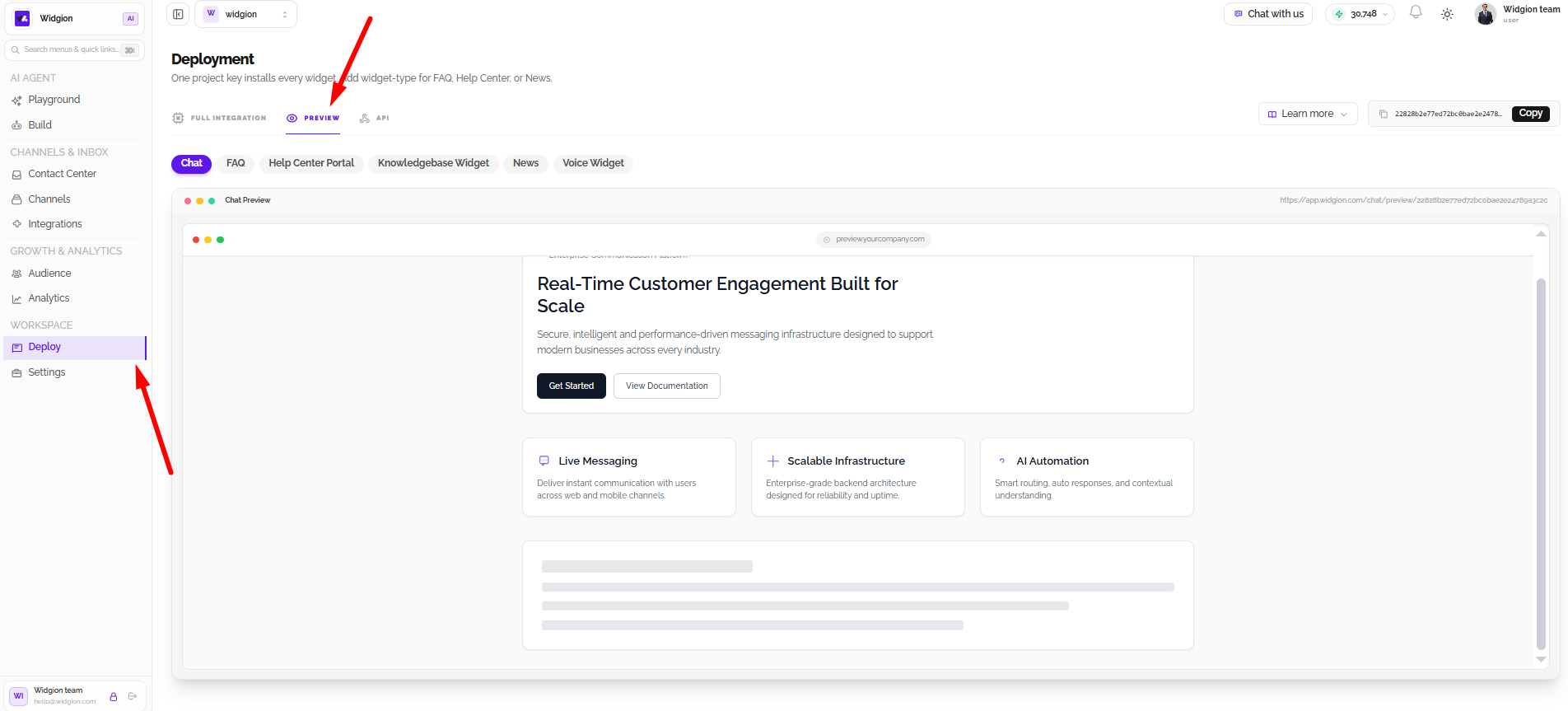
Navigate to Deploy from the sidebar and select the Preview tab. This opens the preview workspace, where you can explore how your configured widgets appear to visitors before deployment.
Selecting a Widget Type
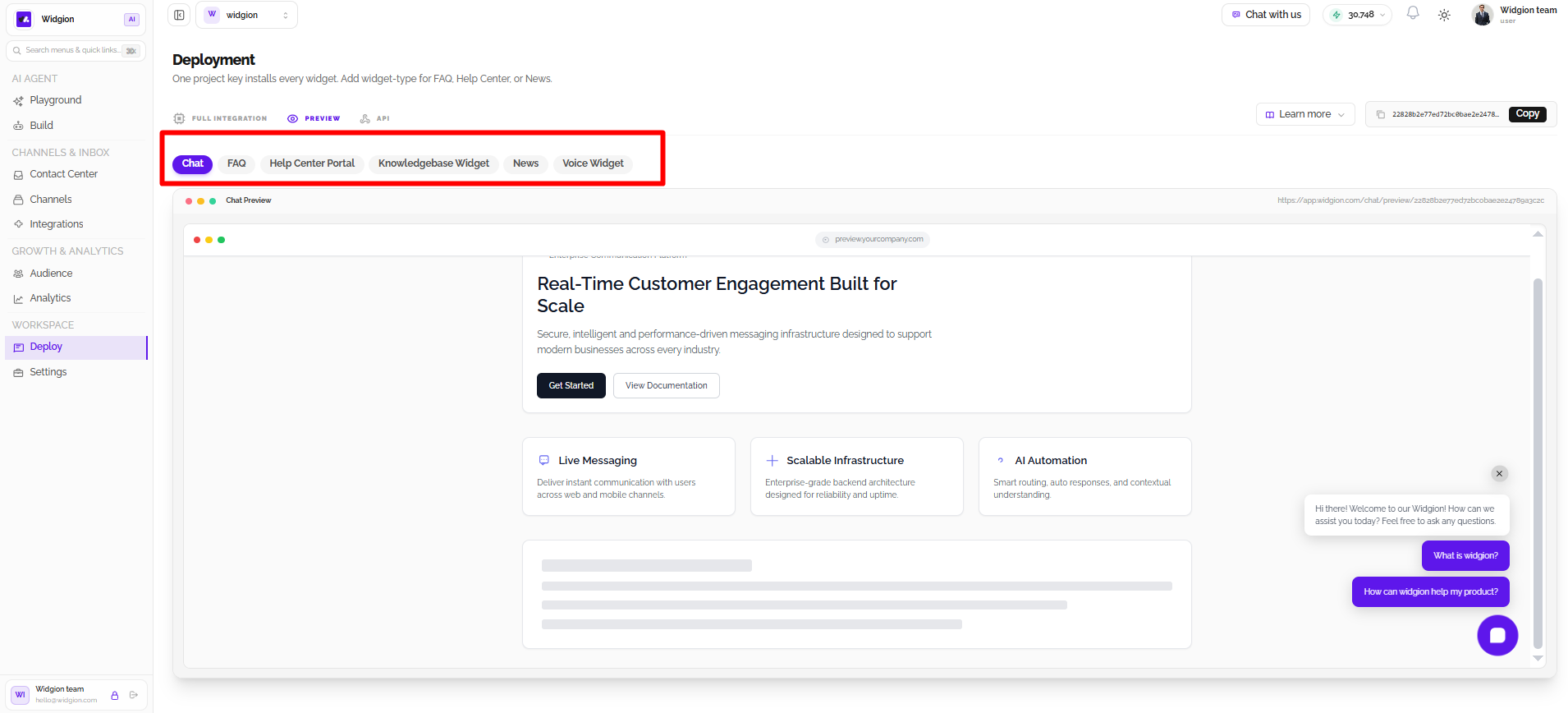
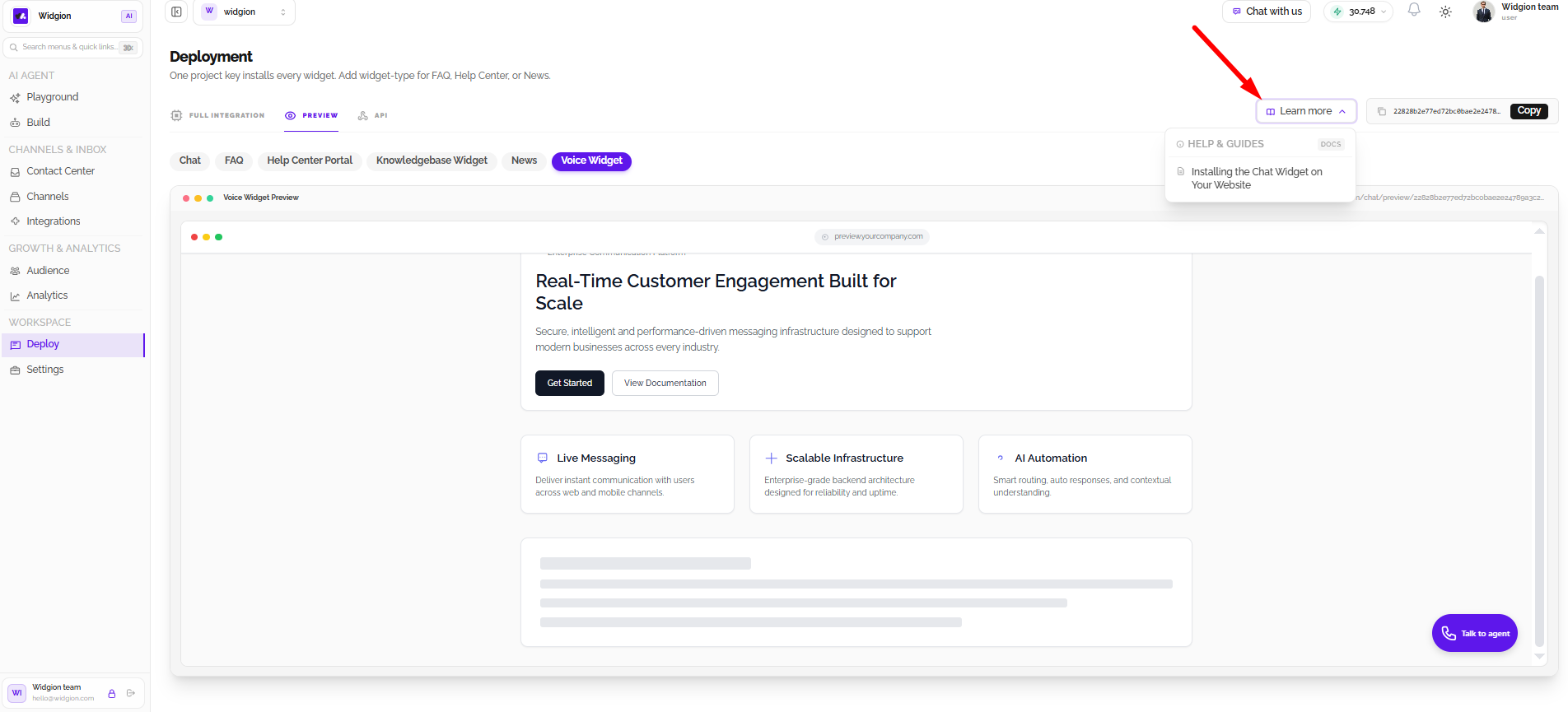
Use the widget tabs to switch between the available previews. Widgion provides previews for Chat, FAQ, Help Center Portal, Knowledgebase Widget, News, and Voice Widget.
Select the widget you want to review. The preview area updates to display the corresponding widget experience.
Previewing the Chat Widget
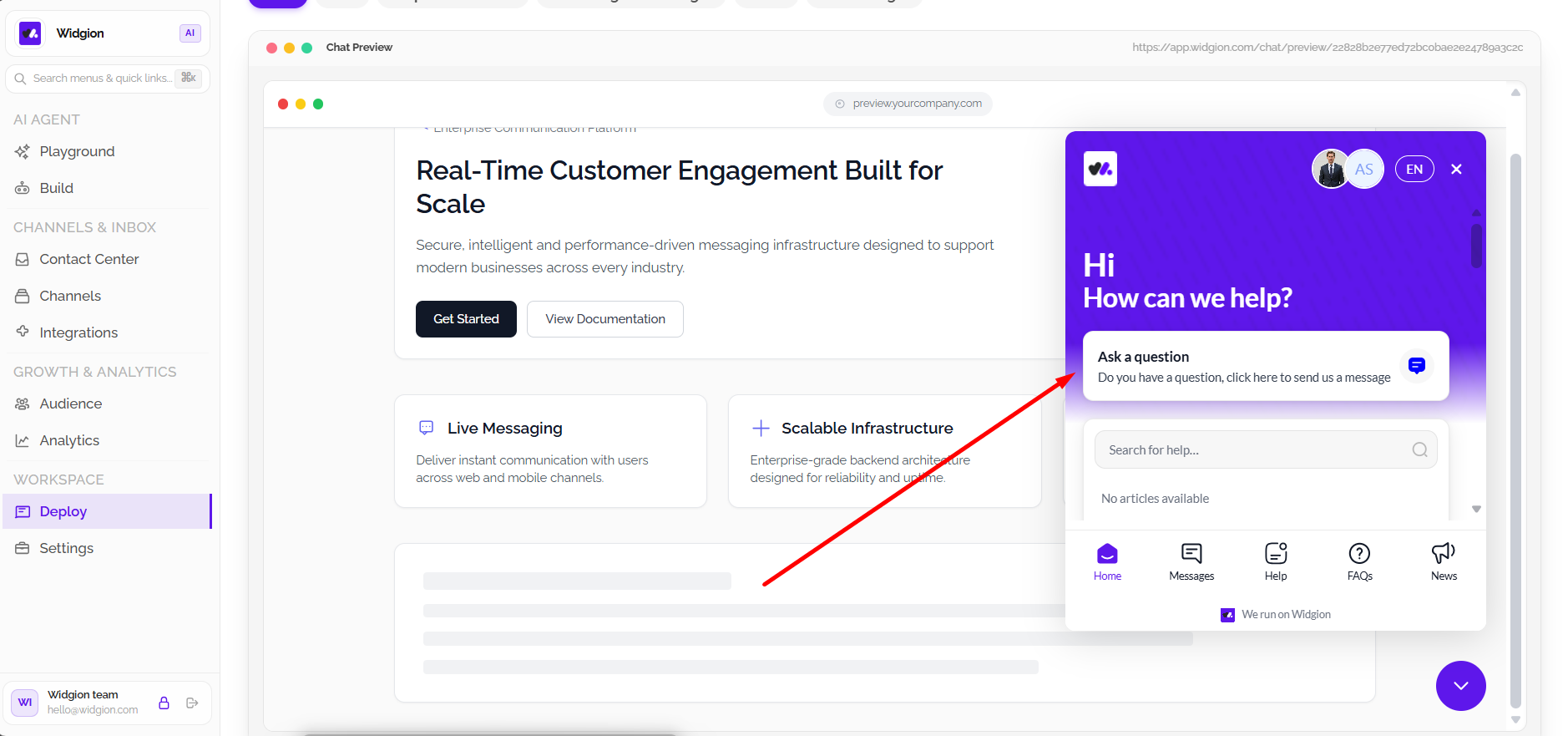
Select Chat to view the chat widget within the simulated website. The preview lets you examine how the widget appears alongside website content, including its chat launcher and visible conversation interface.
Previewing the FAQ Widget
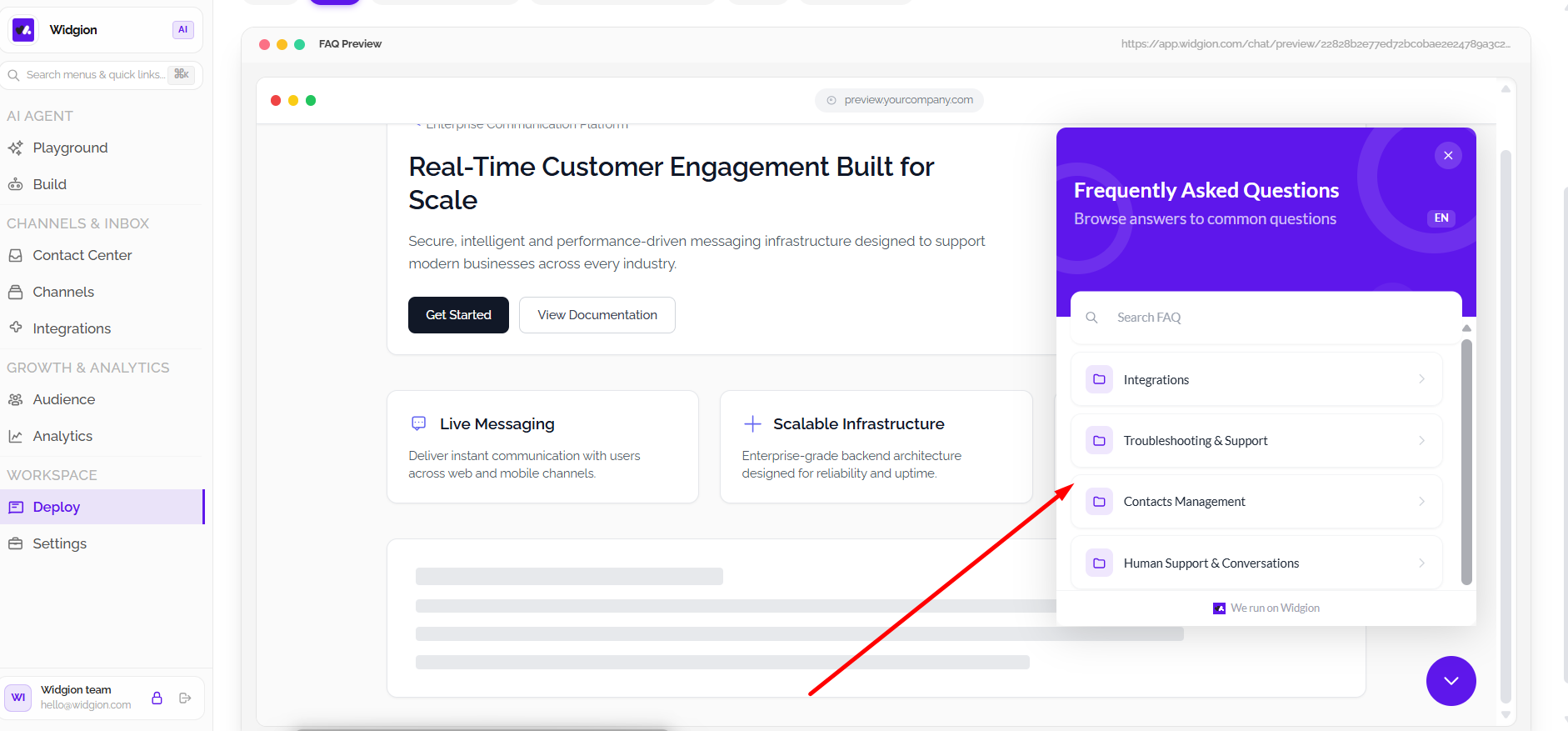
Select FAQ to view the FAQ widget in the preview area. This helps you review how visitors may access FAQ content from your website.
Previewing the Help Center Portal
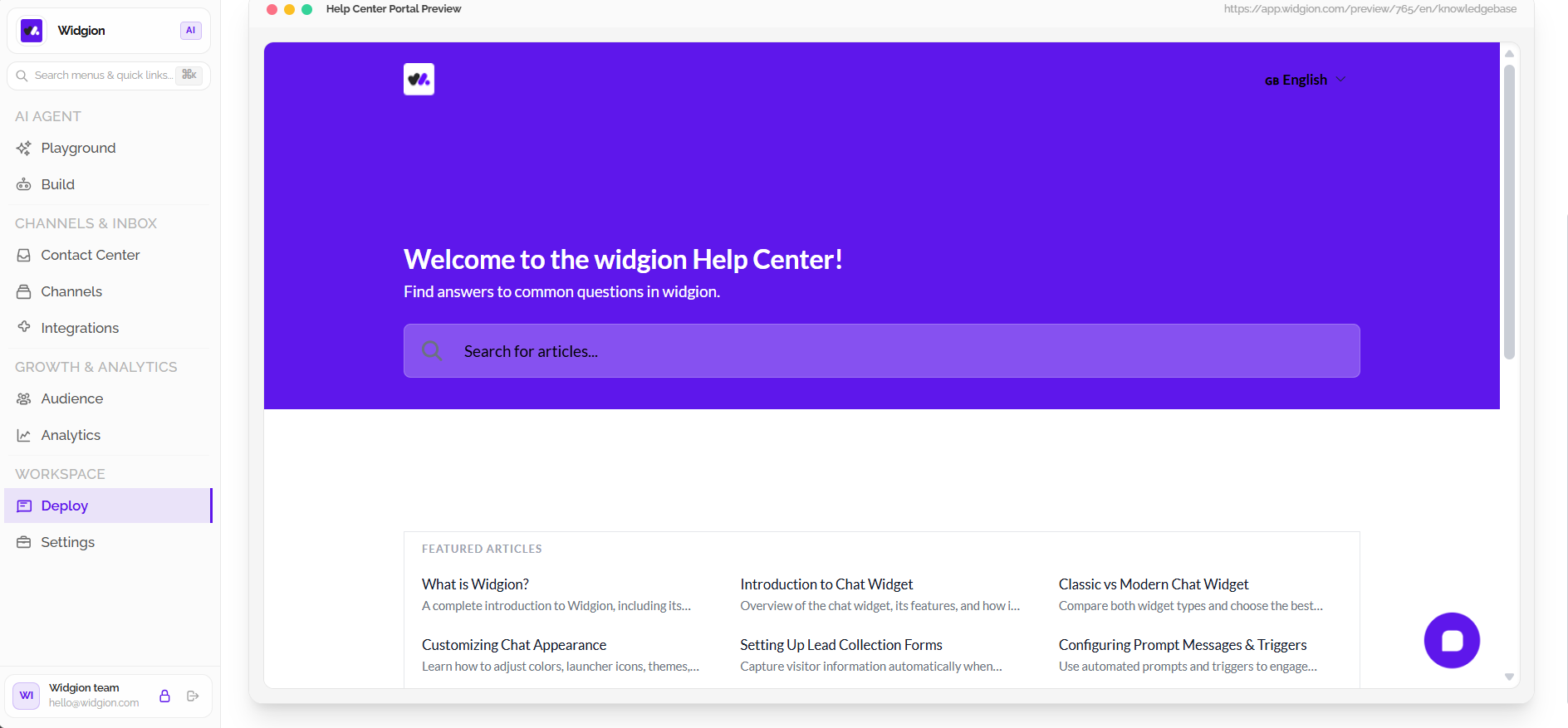
Select Help Center Portal to view the Help Center experience. The preview displays the portal layout, including its welcome section, search field, and visible help categories.
Previewing the Knowledgebase Widget
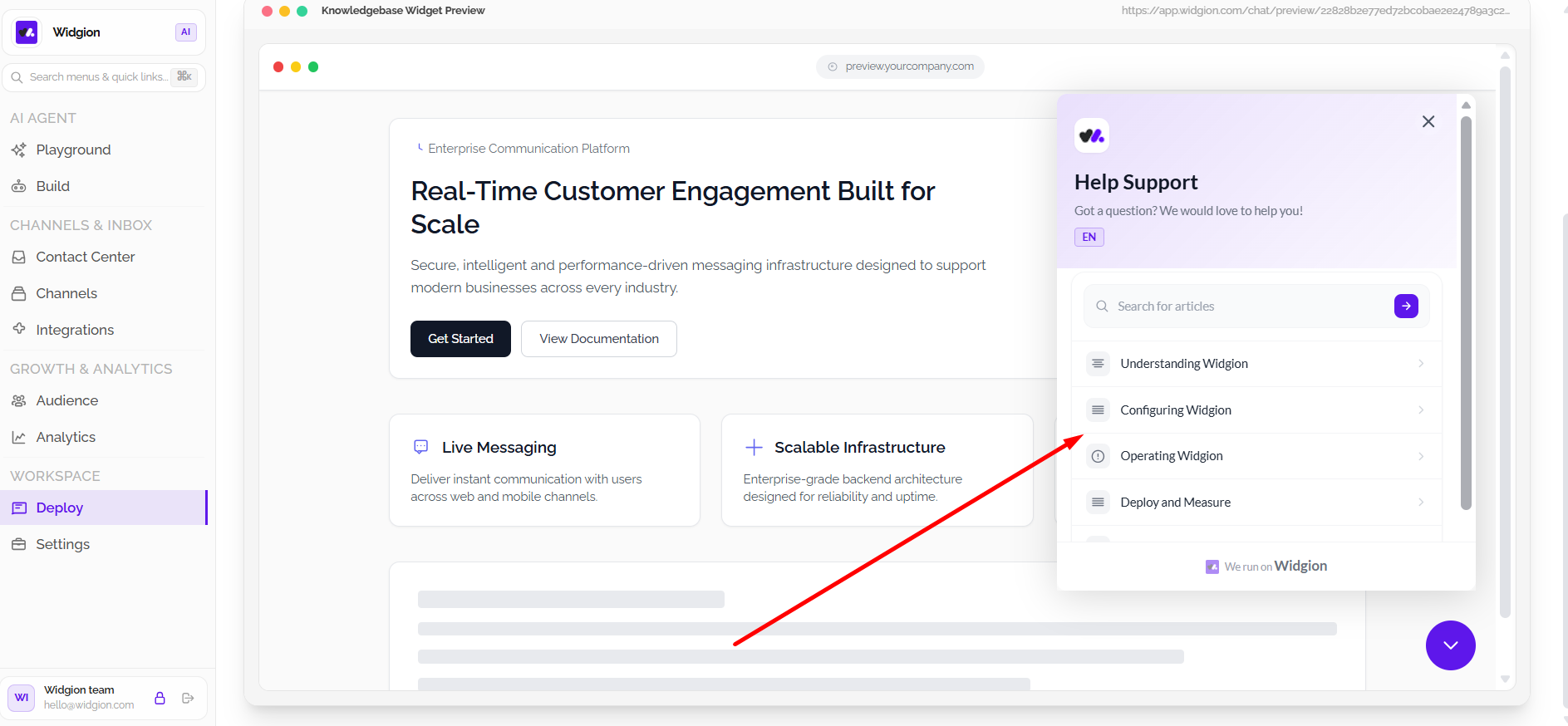
Select Knowledgebase Widget to inspect its appearance within the simulated website. Review how the widget is positioned alongside the website content.
Previewing the News Widget
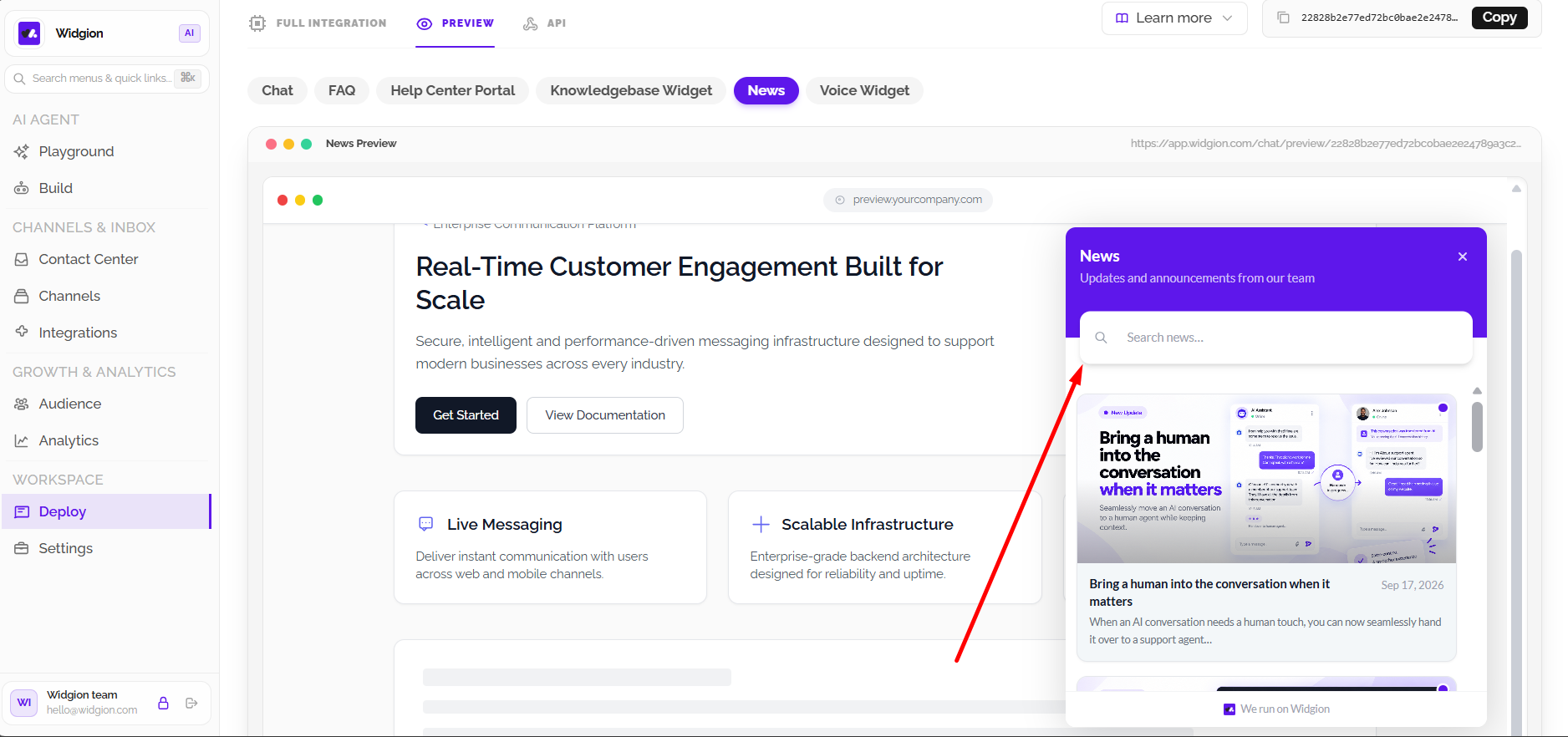
Select News to view the News widget preview. This allows you to inspect how the news experience appears within the simulated website before publishing it.
Previewing the Voice Widget
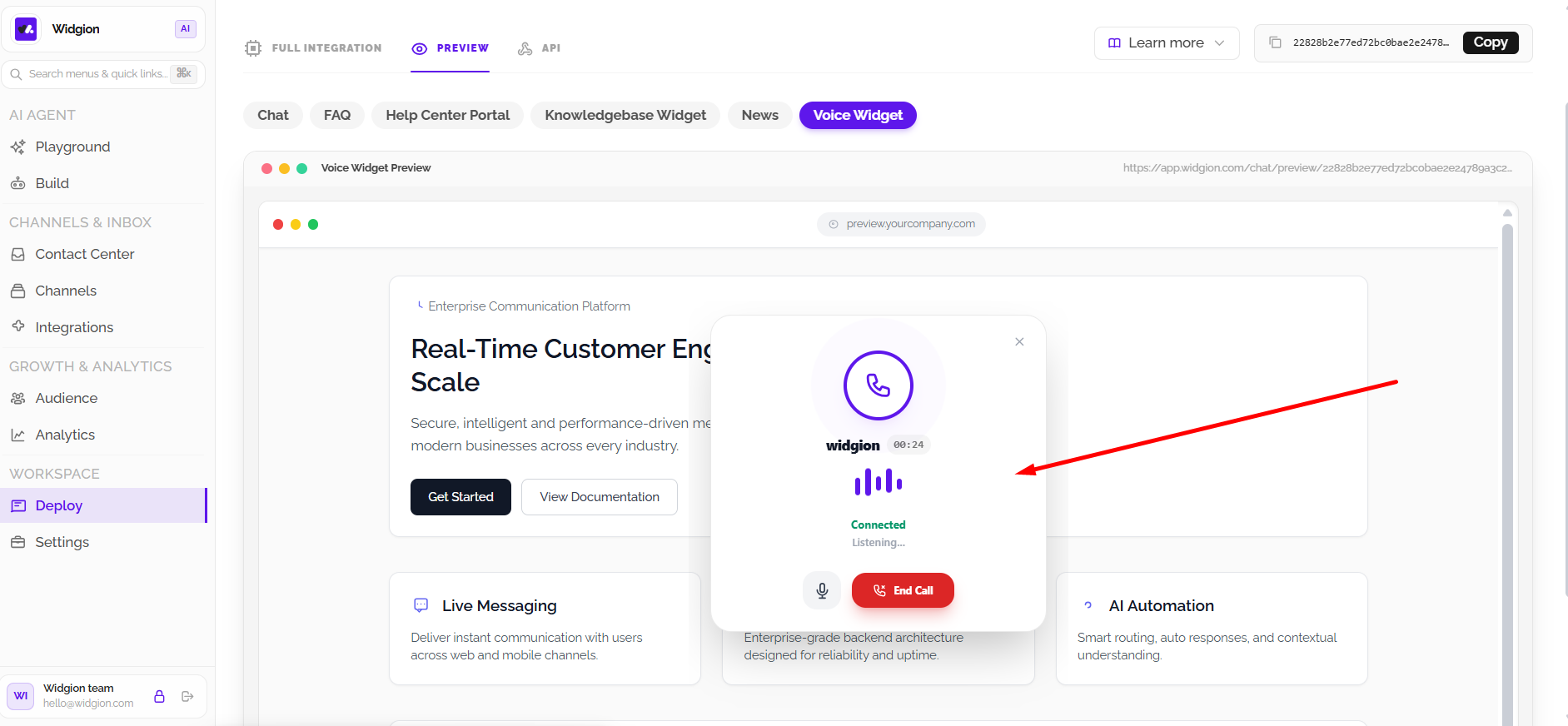
Select Voice Widget to review the voice widget experience. The preview displays the voice interaction launcher, allowing you to check how visitors can access the voice assistant.
Accessing Deployment Guides
The Learn more dropdown provides access to help documentation related to deployment. Select the available guide to open instructions for installing the Chat Widget on your website.
Reviewing Your Widgets Before Deployment
Use the Preview workspace to review each widget type and understand how it appears in a website environment. Switch between the available previews to inspect the different visitor experiences before proceeding with integration.
When you’re satisfied with the preview, return to Full Integration to access the installation options for your selected widget.
Did this answer your question?
What was missing or unclear?
Thank you for your feedback!
Your input helps us make this article better.
Still need help?
Contact support →Related articles
Integrating Widgion with Your Website
Learn how to integrate Widgion with your website using the available deployment options and prepare your AI assistant to interact with website visitors.
Connecting to Widgion Through the API
Explore Widgion’s API deployment options and learn how to connect your application to Widgion using the available API documentation, configuration details, and integration requirements.
Installing the Chat Widget on Your Website
Step-by-step guide to embedding the chat widget on your website.
Adding, Editing, and Managing Contact Data
Handles actions like adding contacts, editing details, deleting, and exporting.
On this page