
Setting Up Lead Collection Forms
Capture visitor information automatically when users interact with your chat.
Widgion allows you to capture visitor information directly within conversations using forms. Instead of sending users to external pages, forms are built into your chat experience, allowing you to collect details such as names, phone numbers, preferences, and more as users interact with your widget.
Forms are designed as step-by-step conversational flows. Each step asks a specific question and stores the response, making the experience feel natural for users while collecting structured data in the background. This allows you to qualify leads, gather requests, and capture important information without interrupting the conversation.
Accessing Forms
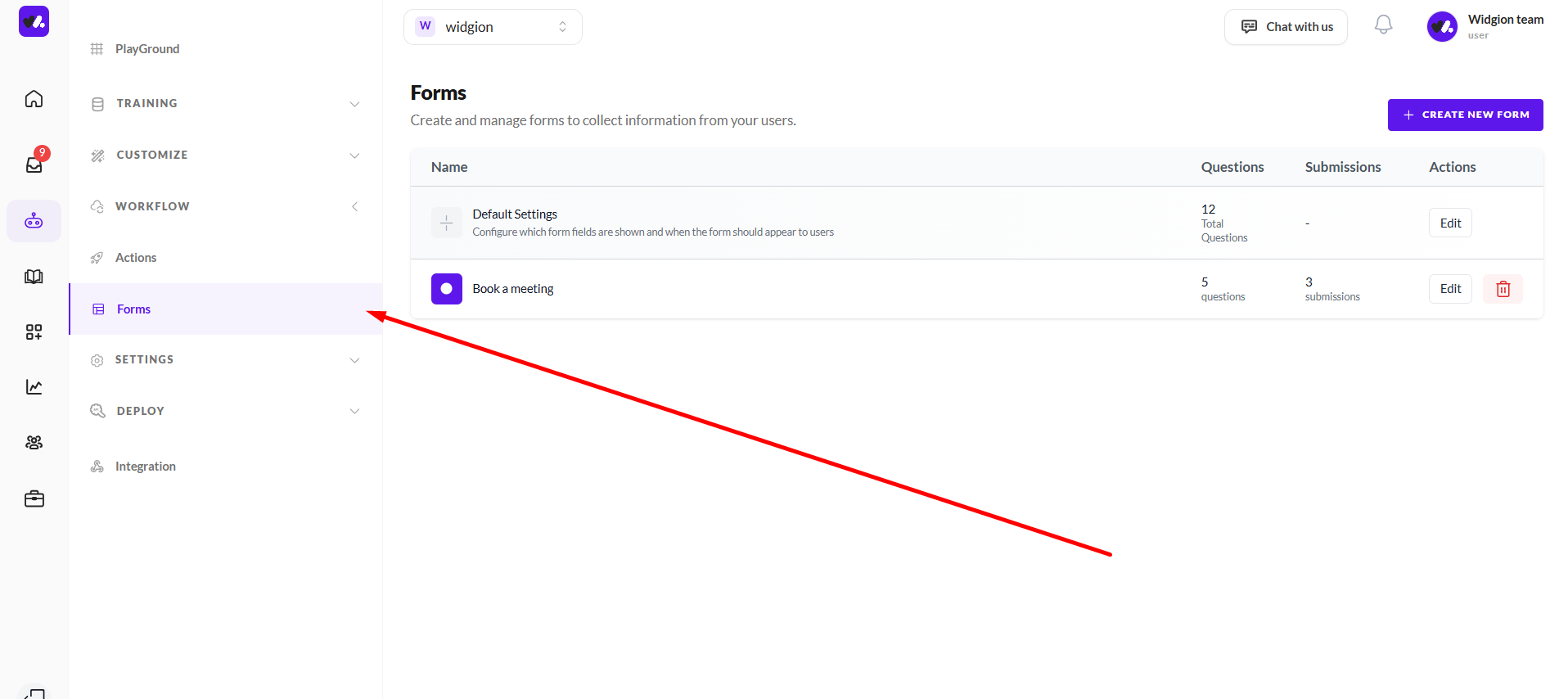
To create and manage forms, navigate to Agents → Workflow → Forms. This is where all your forms are stored.
From this dashboard, you can view your forms, see how many questions each form contains, track submissions, and access options to edit or delete them.
Creating a New Form
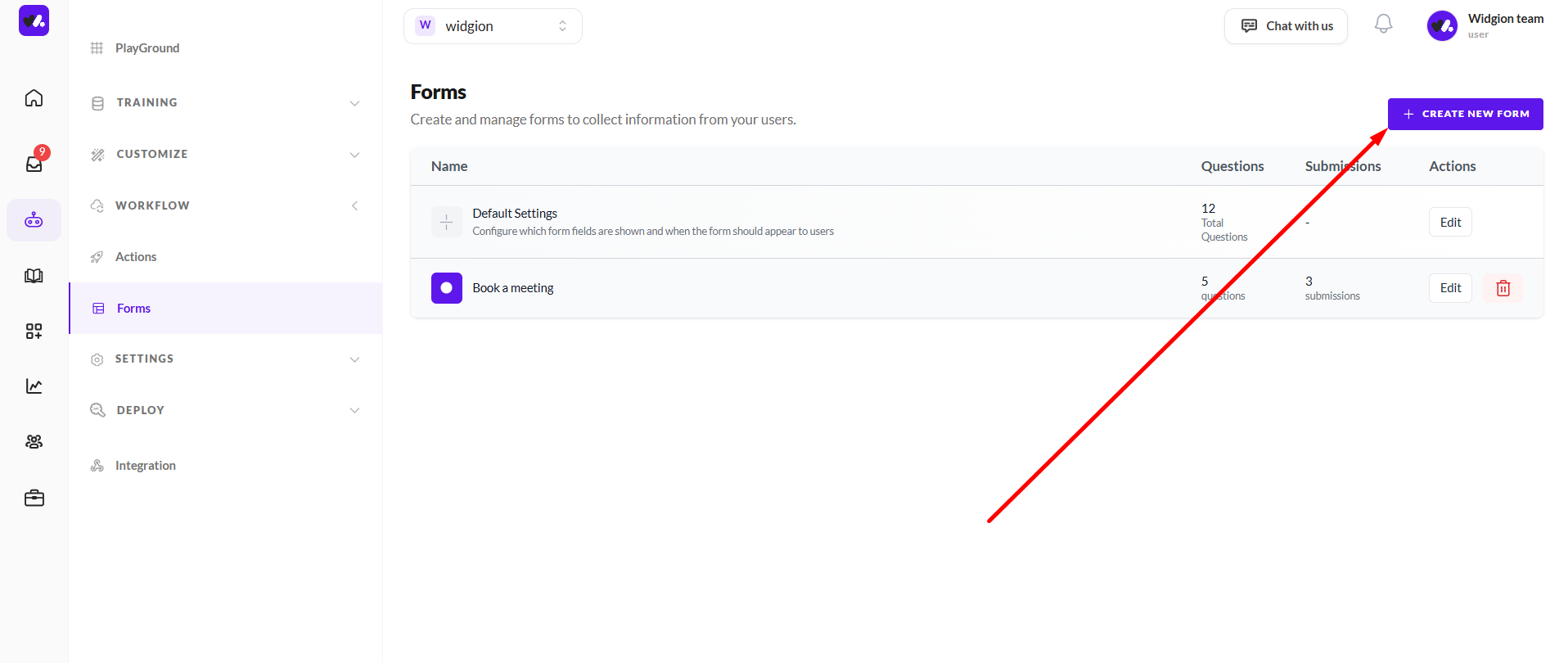
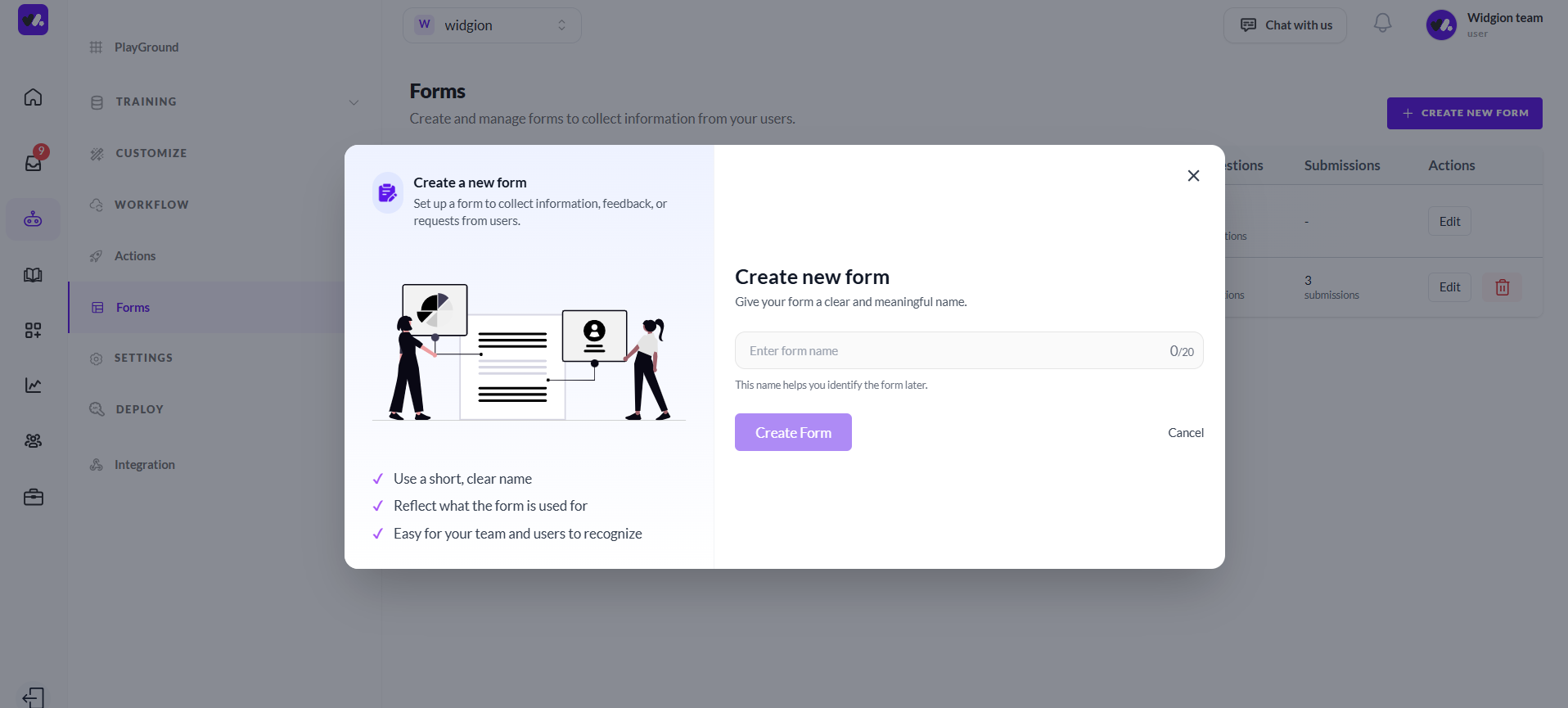
To create a form, click Create New Form, enter a clear and descriptive name, and confirm. The name helps you identify the form later, especially when managing multiple workflows.
Once created, the form appears in your list and is ready to be configured.
Building Your Form
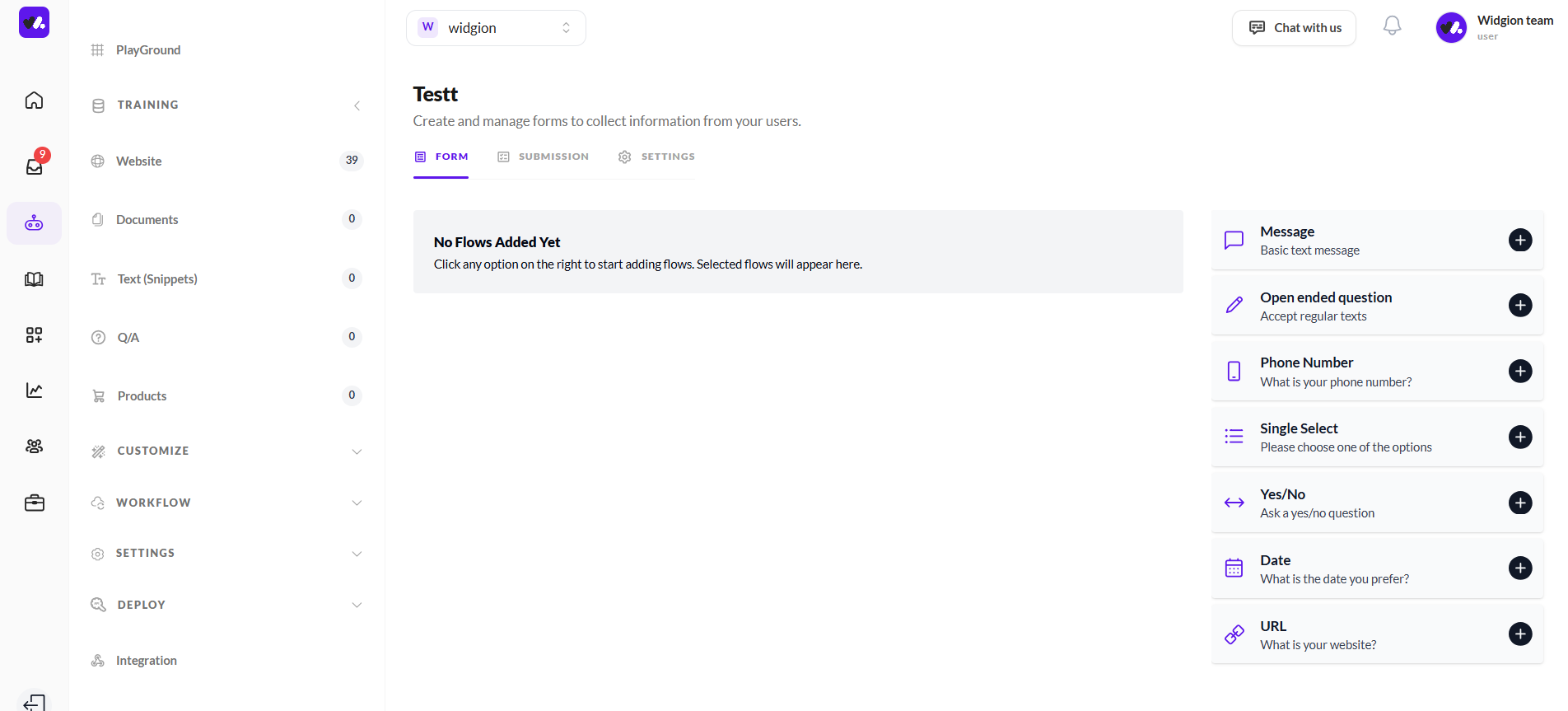
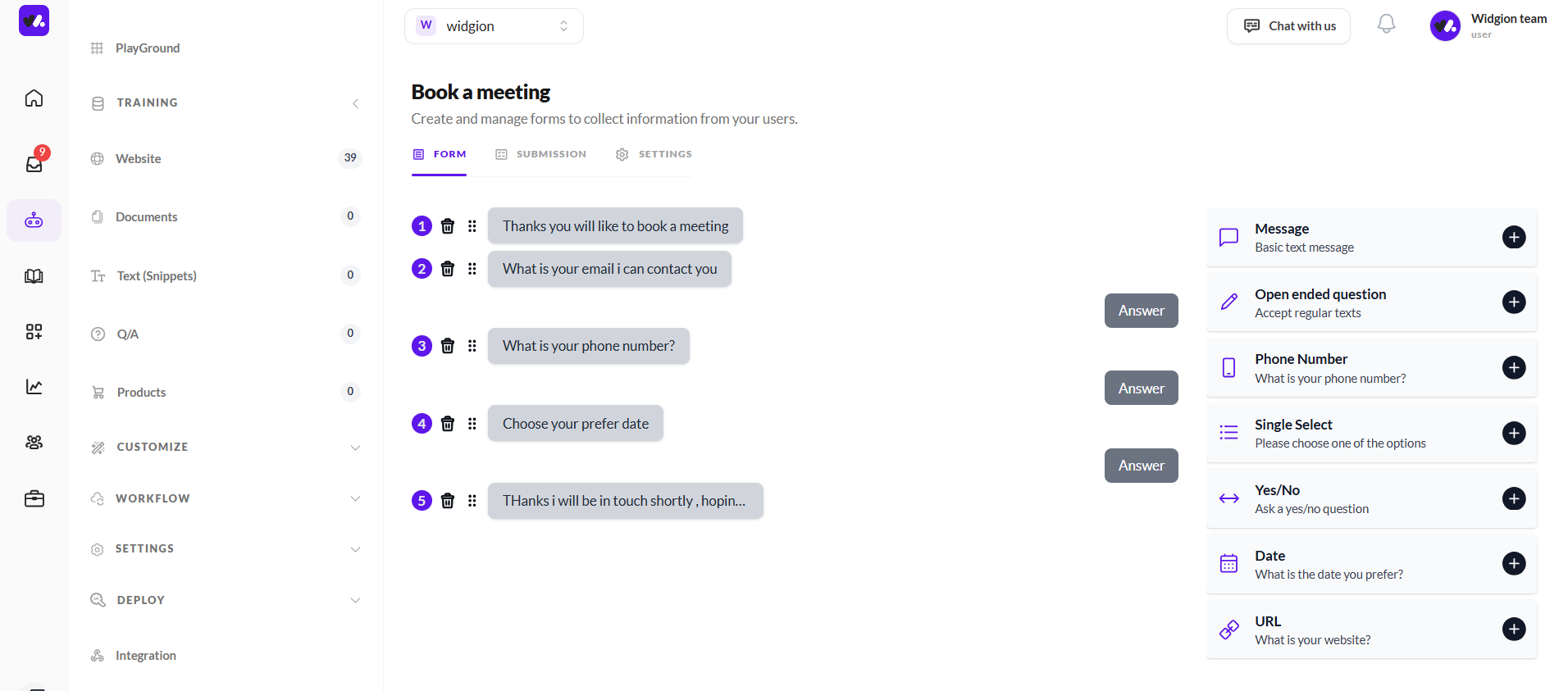
After creating a form, click Edit to start building it. Forms are created as conversational flows, where each step represents a question or message shown to the user.
You can add different types of steps depending on the kind of information you want to collect. These include text messages, open-ended questions, phone number inputs, single-choice selections, yes or no questions, date inputs, and website fields. Each step is added sequentially, allowing you to guide users through a structured conversation.
Configuring Each Step
Each step in your form can be customized by editing the question and defining how it should behave. You can write the exact prompt the user will see and choose whether the response is required. When a step is marked as required, users must provide an answer before continuing.
For steps with predefined options, such as single select or yes and no, you can define and manage the available choices. These options are presented as selectable responses within the chat, making it easier for users to respond quickly.
How Forms Capture Information
As users interact with your chat widget, the form is presented as a guided conversation. Each question appears in sequence, and the user’s responses are collected and stored automatically.
This approach reduces friction, improves completion rates, and ensures that the data collected is structured and easy to use. Instead of filling out a traditional form, users simply respond within the chat.
Managing Submissions
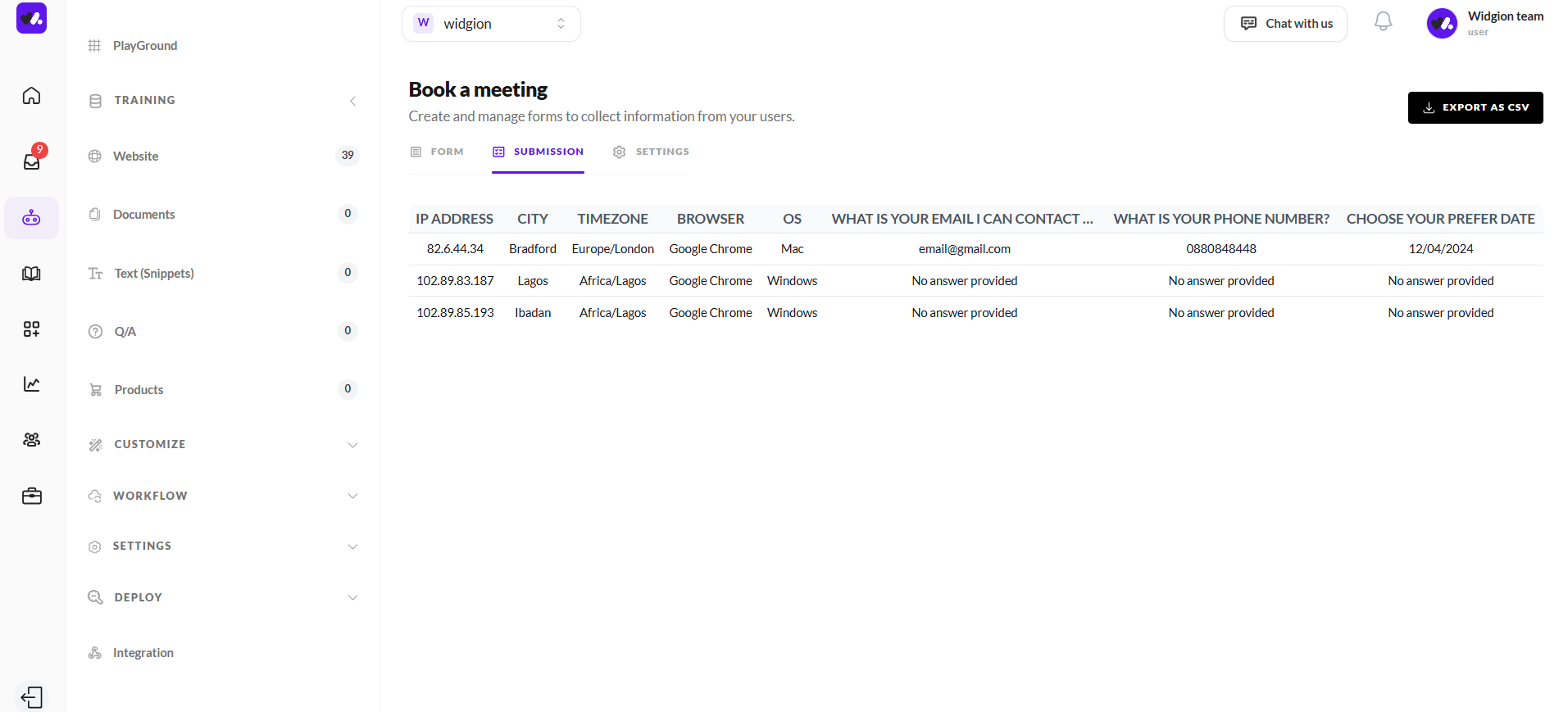
All collected responses are stored in the Submission tab of the form. Here, you can view each submission along with additional details such as user environment data and responses to each question.
You can also export submissions as a CSV file for further use, making it easy to integrate your data into other tools or workflows.
Configuring Form Behavior
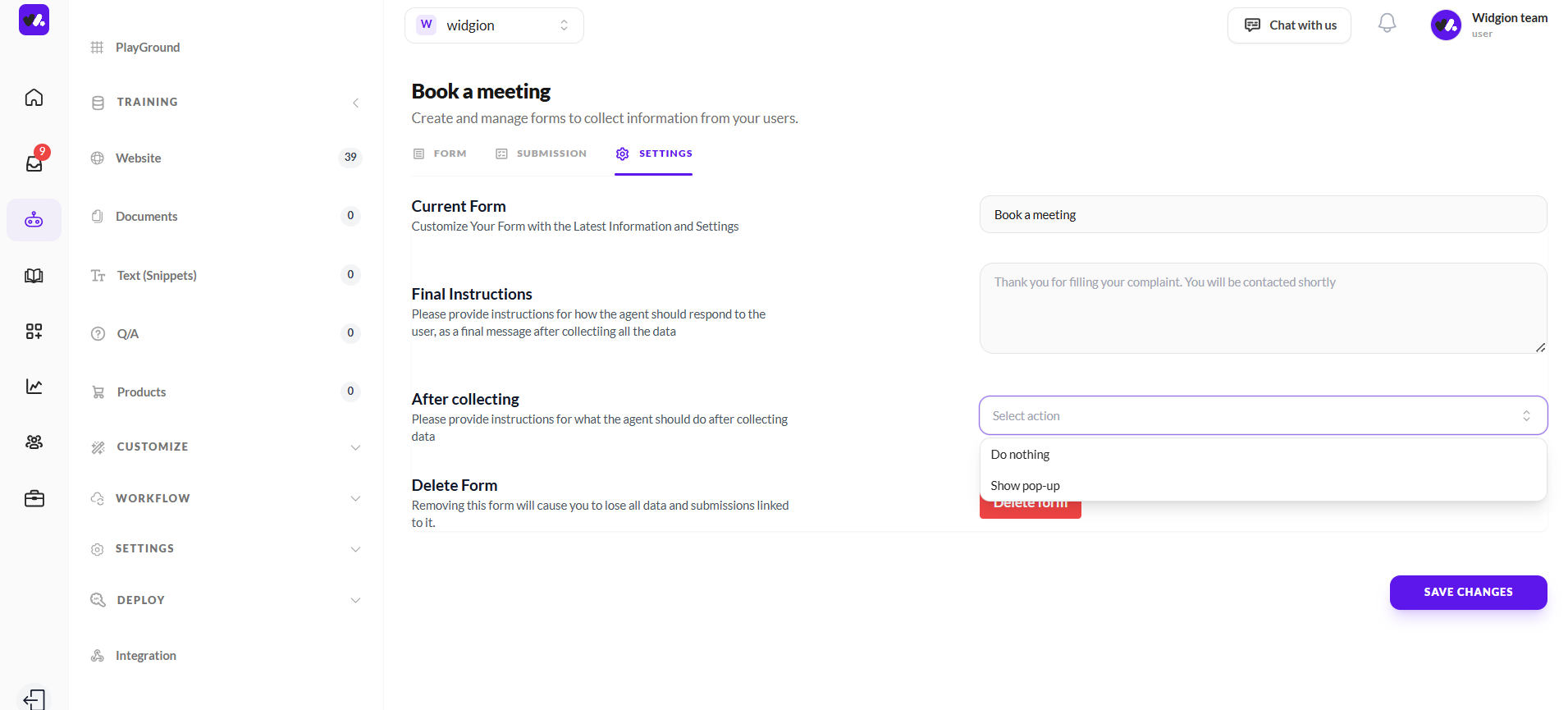
In the Settings tab, you can define what happens after the form is completed. You can customize the final message shown to users after they submit their responses, allowing you to confirm receipt or provide next steps.
You can also choose what action the system should take after collecting the data, such as doing nothing or triggering a follow-up interaction like a pop-up.
Why This Matters
Lead collection forms in Widgion are more than static input fields. They are built into your conversations, allowing you to capture, qualify, and manage user information in a way that feels natural and seamless.
By structuring your form as a guided flow and configuring each step thoughtfully, you can turn everyday interactions into meaningful data and valuable opportunities.
Did this answer your question?
What was missing or unclear?
Thank you for your feedback!
Your input helps us make this article better.
Still need help?
Contact support →Related articles
Installing the Chat Widget on Your Website
Step-by-step guide to embedding the chat widget on your website.
Classic vs Modern Chat Widget
Compare both widget types and choose the best option for your business needs.
Using Custom Forms in Chat
Create interactive forms to collect structured data during conversations.
Customizing Chat Appearance
Learn how to adjust colors, launcher icons, themes, and positioning to match your brand.
On this page