
Widgion + Calendly Integration Guide
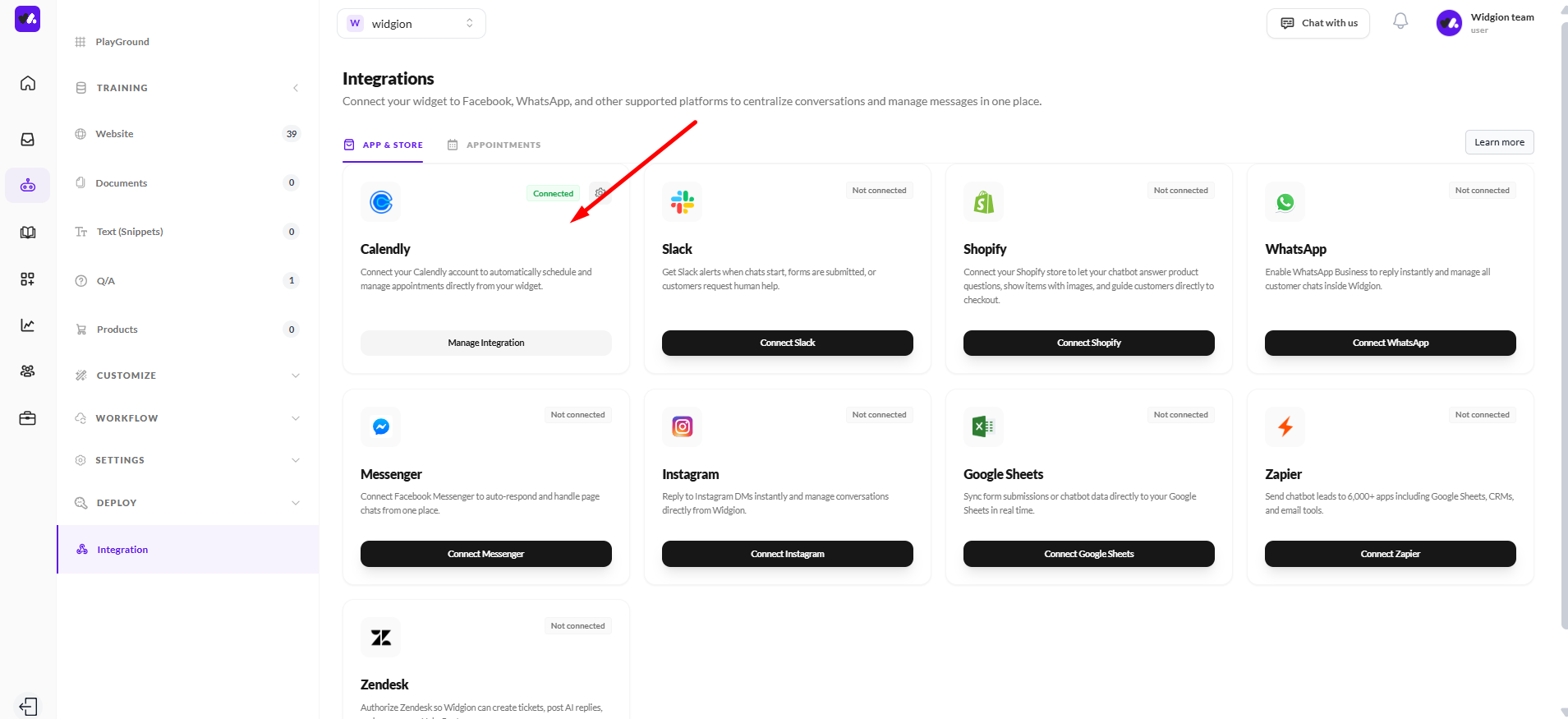
Connect Widgion with Calendly to schedule meetings and capture bookings directly from chat.
The Calendly integration allows your chatbot to offer real-time booking options directly within conversations and on the chatbot homepage, making it easy for users to schedule meetings without leaving the chat experience.
Widgion supports two booking modes: the Bot Operator Event for in-chat booking and the Homepage Event for instant booking directly from the widget.
Bot Operator Event (In-Chat Booking)
The Bot Operator Event allows your chatbot to offer a booking option during a conversation when a user shows interest in scheduling a meeting.
Widgion monitors messages for specific trigger words such as schedule, appointment, meeting, or book a call. When a match is detected, the chatbot displays a booking card inside the chat.
Configuration Fields
The Bot Operator Event allows you to select the Calendly event your chatbot will use, such as a 30-minute meeting. You can also customize the invitation text shown before presenting the booking option, along with the button text displayed inside the chat.
You can further control when the booking option appears by setting trigger words. These are comma-separated keywords that activate the booking prompt during a conversation, helping you show the option at the right moment.
How It Works in Conversation
When a user sends a message containing one of your trigger words, the chatbot detects the intent to schedule a meeting and responds accordingly. It then displays a booking card with your invitation message, guiding the user toward taking action.
The user can click the button to open the Calendly popup and select a time without leaving the chat. This flow allows appointments to be booked instantly while keeping the conversation seamless.
Homepage Event (Widget Booking)
The Homepage Event provides a direct booking option inside the chatbot interface, allowing users to schedule a meeting without waiting for the chatbot to respond. This feature is useful for users who already know they want to book a meeting and prefer a faster path.
Configuration Fields
The Homepage Event allows you to select the Calendly event that will be displayed by default on the chatbot homepage. This makes it easy for users to access booking options immediately when they open the widget.
You can also customize the invitation text to describe the booking option and set the button text that appears on the booking button, ensuring the experience aligns with your tone and intent.
How It Works on the Widget Homepage
When the chatbot widget loads, it displays the booking option directly on the homepage, making it immediately visible to users. The user can click the booking button, which opens a Calendly popup with the selected event.
From there, the user selects a time and confirms the booking without needing to interact with the chatbot first. This makes scheduling quick and accessible right from the start.
Best Practices
Keep your invitation text short and clear so users immediately understand the booking option. Use simple trigger words such as “book,” “schedule,” or “meeting” to ensure the chatbot can detect intent easily during conversations.
Make sure your Calendly event is active and publicly accessible before enabling it. After setup, test both booking modes to confirm everything works as expected and provides a smooth experience for users.
Summary
The Calendly integration improves how users interact with your chatbot by offering a direct path to booking meetings. Whether triggered during a conversation or accessed from the homepage, it helps reduce friction and makes scheduling simple and immediate.
Did this answer your question?
What was missing or unclear?
Thank you for your feedback!
Your input helps us make this article better.
Still need help?
Contact support →Related articles
Widgion + WhatsApp Integration Guide
Connect Widgion with WhatsApp to manage conversations and engage users in real time.
Widgion + Slack Integration Guide
Connect Widgion with Slack to receive notifications and manage conversations within your workspace.
Widgion + Facebook Messenger Integration Guide
Connect Widgion with Facebook Messenger to manage conversations and respond to users in real time.
Widgion + Shopify Integration Guide
Connect Widgion with Shopify to enhance support and capture leads directly in your store.
On this page