
Widgion + WhatsApp Integration Guide
Connect Widgion with WhatsApp to manage conversations and engage users in real time.
This guide explains how to connect your WhatsApp Business account to Widgion. Once connected, your chatbot can receive and respond to WhatsApp messages in real time, allowing you to manage conversations directly from your Widgion workspace.
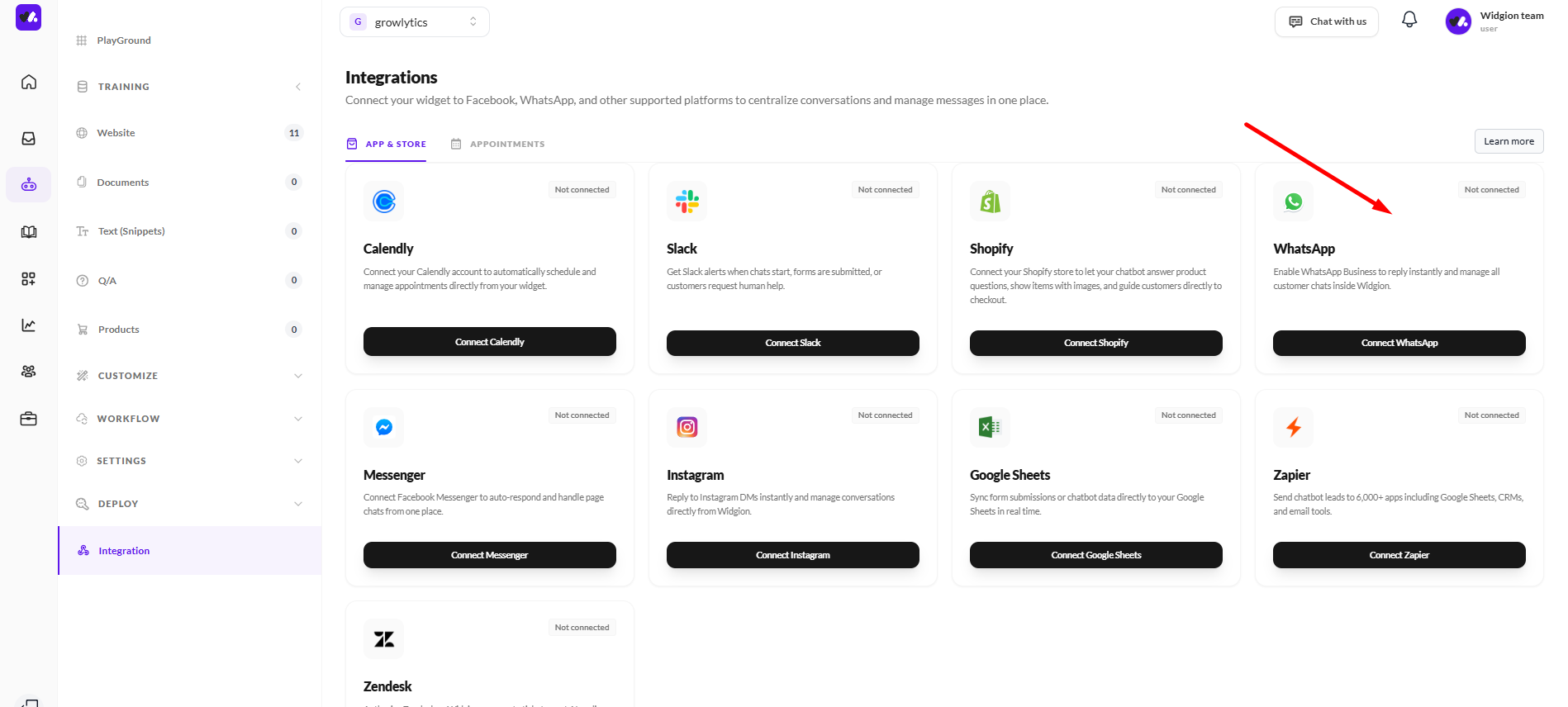
What the Integration Enables
After connecting your WhatsApp Business account, Widgion can receive messages in real time and respond using automated or AI-generated replies. Conversations are stored and managed directly within your Widgion dashboard, making it easy to keep track of interactions.
The integration also allows you to trigger workflows, notifications, and analytics while routing conversations to human agents when needed. It works with WhatsApp Business accounts connected through Meta.
Requirements
Before connecting your WhatsApp Business account, make sure you meet a few basic requirements. You need a WhatsApp Business account (not a personal account) that is already connected to Meta Business Manager, along with a verified phone number linked to it.
You should also have Admin access to the associated Meta Business account and be logged into Facebook with the correct account before starting the connection process.
Connect Whatsapp in Widgion
Log in to your Widgion account and open your project. Navigate to the Integrations section, select WhatsApp, and proceed to connect it to your chatbot. If this is your first time connecting, you will be prompted to grant Widgion permission through Meta. Review the requested permissions and continue.
During the setup, you’ll be asked to select the business assets to connect. Choose the correct WhatsApp Business account and associated phone number, especially if multiple options are available. If you’ve previously connected an account and need to make changes, you can select Edit previous settings to update your access.
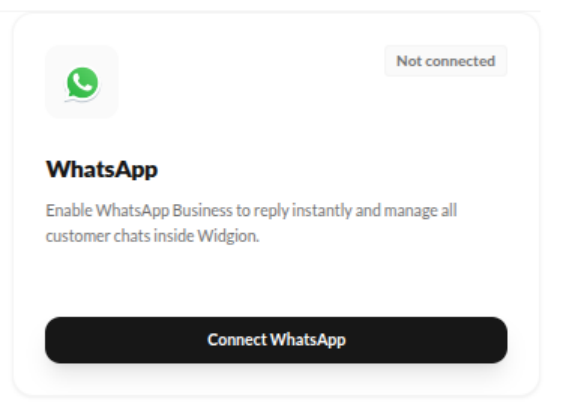 Select Business Accounts
During this step, choose which business accounts you want to grant access to. You can select to opt in to current businesses only if you want to choose specific accounts, or opt in to all current and future businesses to grant access to all available accounts, which is the recommended option. Make sure you select the business account that is linked to your WhatsApp Business account and phone number.
After selecting your business account, review the requested permissions and click Save to continue. Once completed, click Done or Got it and wait a few seconds for the integration to finish connecting.
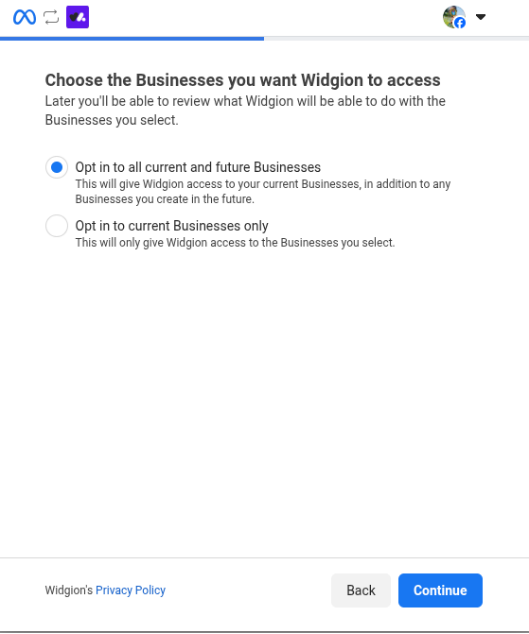
Select WhatsApp Number
Once the integration is complete, you can choose the WhatsApp Business number your chatbot will use from the Select WhatsApp Number section inside Widgion. This allows you to pick the specific number linked to your Meta Business account.
The selected number will be used to receive and reply to messages through your chatbot, so it’s important to choose the correct one. Only the selected number will be active for messaging.
Configure Response Behavior
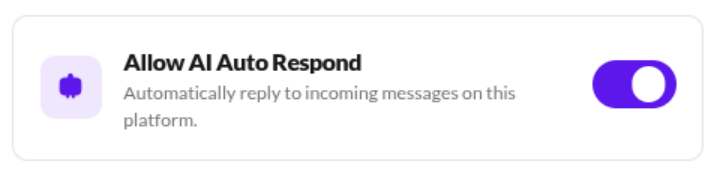
You can control how incoming WhatsApp messages are handled by your chatbot. By default, all messages are routed to a human agent, but you can update this behavior to allow the AI chatbot to respond automatically.
With the Human Agent option, all incoming messages are handled manually, while the Response option enables the chatbot to reply in real time. Choose the option that best fits your workflow and support strategy.
 Disconnecting Whatsapp
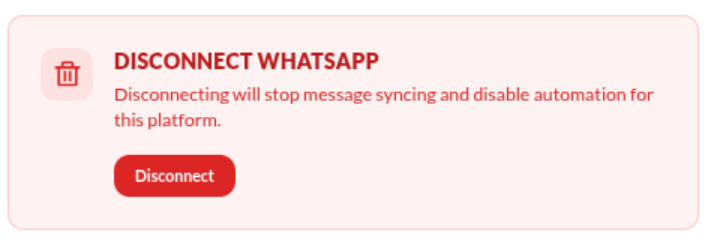
You can disconnect Whatsapp at any time by going to Manage Integrations and selecting Disconnect. Once disconnected, your chatbot will no longer receive or respond to messages from the selected business account.
Troubleshooting
If you encounter any issues, start by checking your setup and permissions. Missing messages are often caused by incomplete permissions or an improperly connected WhatsApp Business account, so ensure everything was correctly granted during setup.
If your bot is not responding, verify that AI auto-response is enabled or confirm that a human agent is available to reply. If your WhatsApp number is not showing, make sure your WhatsApp Business account is connected to Meta Business Manager and that you have Admin access to the associated business account.
Did this answer your question?
What was missing or unclear?
Thank you for your feedback!
Your input helps us make this article better.
Still need help?
Contact support →Related articles
Widgion + Calendly Integration Guide
Connect Widgion with Calendly to schedule meetings and capture bookings directly from chat.
Widgion + Slack Integration Guide
Connect Widgion with Slack to receive notifications and manage conversations within your workspace.
Widgion + Facebook Messenger Integration Guide
Connect Widgion with Facebook Messenger to manage conversations and respond to users in real time.
Widgion + Shopify Integration Guide
Connect Widgion with Shopify to enhance support and capture leads directly in your store.
On this page