
Widgion + Slack Integration Guide
Connect Widgion with Slack to receive notifications and manage conversations within your workspace.
This guide explains how to connect your Slack workspace to Widgion. Once connected, you can receive and manage conversations, send notifications, and interact with your chatbot directly from Slack channels.
Requirements
Before connecting Slack, make sure a few requirements are in place. You need a Widgion account with access to chatbot settings and permission to install apps in your Slack workspace, typically with Admin access.
You should also have at least one Slack channel available for testing to confirm that notifications and messages are working correctly after setup.
Connect Slack in Widgion
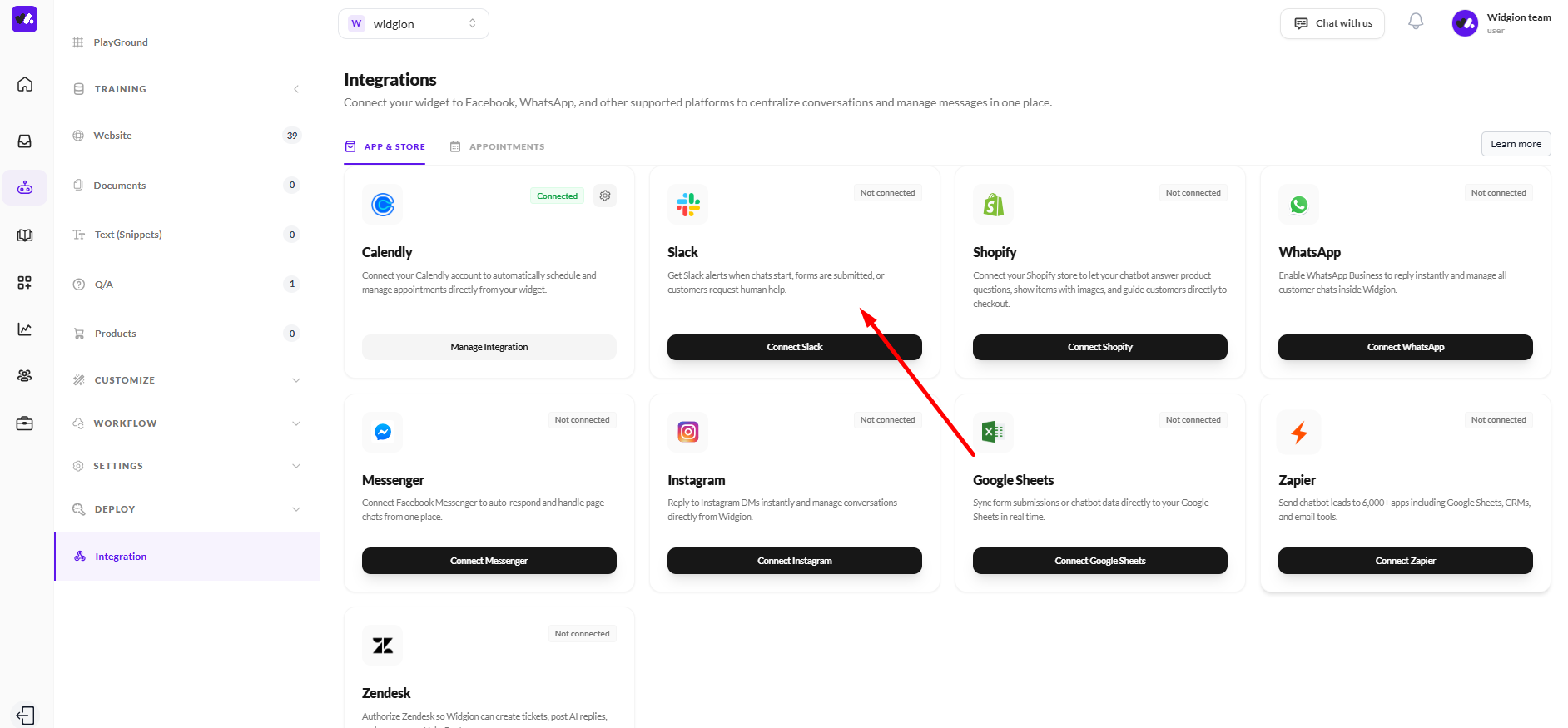
Log in to your Widgion account and open your project. Navigate to the Integrations section, then select Slack and proceed to connect it to your chatbot.
 Workspace and Approve Permissions
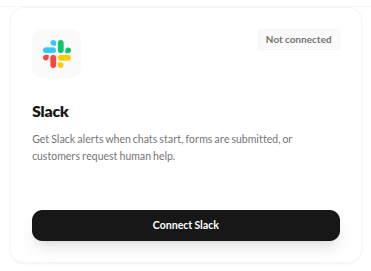
During this step, you will be prompted to connect your Slack workspace. Start by selecting the workspace you want to connect from the dropdown, making sure it is the correct one where your team and channels are active.
Next, review the requested permissions, which allow Widgion to access channel and conversation information, view basic workspace details, and send messages or replies in channels. Once you’ve reviewed everything, click Allow to complete the connection, and you’ll be redirected back to Widgion.
Configure Channel Roles
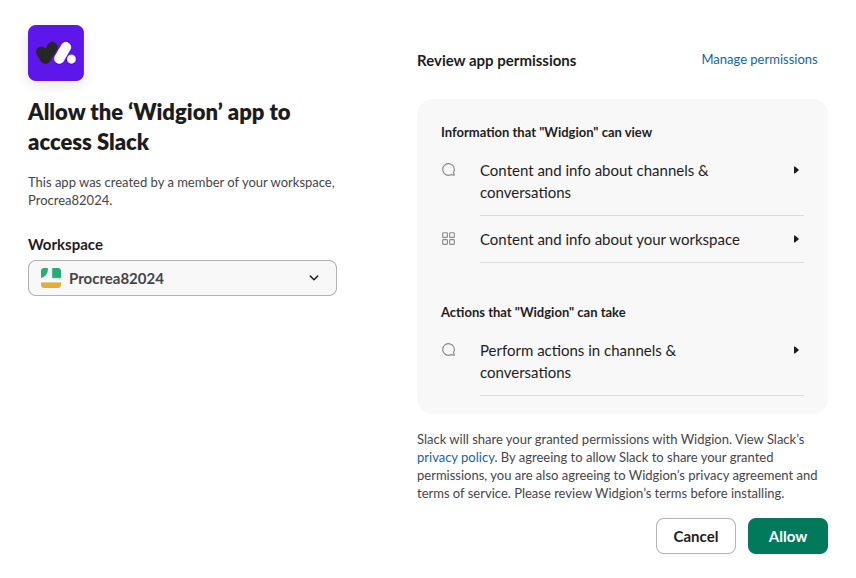
After connecting your Slack workspace, you can configure how channels are used inside Widgion from the Slack Settings panel. Widgion supports two channel roles, each serving a different purpose.
 Conversational Channel Settings
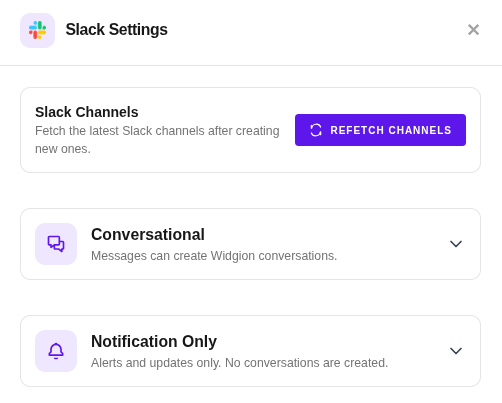
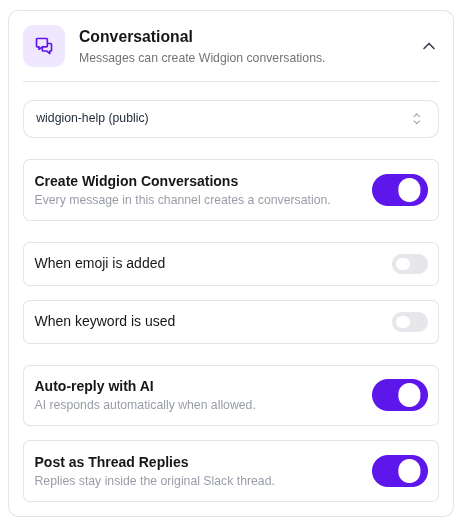
Channels assigned as Conversational are used for active interactions between Slack and Widgion. You can select the channel you want to use and control how messages are handled. When Create Widgion Conversations is enabled, messages in the selected channel will automatically create conversations. You can further refine this by using triggers, such as creating conversations only when an emoji is added or when specific keywords are used.
You can also enable Auto-reply with AI to allow the chatbot to respond to messages in real time. The Post as Thread Replies option keeps responses organized within Slack threads, making conversations easier to follow. To start using Widgion in a channel, type @widgion and send a message to invite the bot and enable interactions.
 Notification Channel Settings
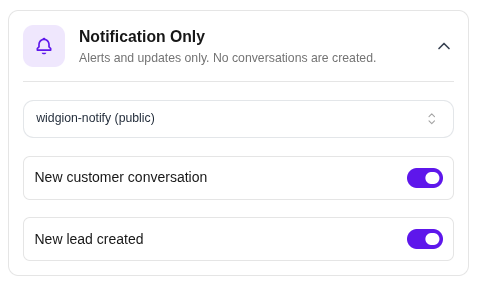
Channels assigned as Notification Only are used for internal alerts and updates. You can select the Slack channel where notifications should be sent, and no conversations will be created from messages in this channel, making it suitable for keeping your team informed without triggering chatbot interactions.
You can also choose which events to receive notifications for, such as new customer conversations or newly created leads. When enabled, Widgion will automatically send updates to the selected channel, helping your team stay aware of activity in real time.
 Disconnecting Slack
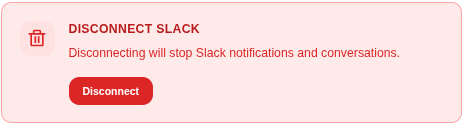
You can disconnect Slack at any time by going to Manage Integrations and selecting Disconnect. Once disconnected, your chatbot will no longer receive or send messages in the connected Slack workspace or channels.
Troubleshooting
If you encounter any issues, start by checking that the Widgion bot has been invited to the Slack channel, especially if it’s a private channel, and confirm that all required permissions were approved during setup.
Also make sure the appropriate notification or conversation settings are enabled, and verify that any keywords are entered correctly and separated by commas so triggers work as expected.
Best Practices
Use separate channels for conversations and notifications to keep communication organized. Keep your keyword lists short and relevant to improve accuracy, and enable thread replies so conversations remain structured, especially in busy channels.
You should also reserve notification channels for important updates only, helping your team stay informed without creating unnecessary clutter.
Did this answer your question?
What was missing or unclear?
Thank you for your feedback!
Your input helps us make this article better.
Still need help?
Contact support →Related articles
Widgion + Calendly Integration Guide
Connect Widgion with Calendly to schedule meetings and capture bookings directly from chat.
Widgion + WhatsApp Integration Guide
Connect Widgion with WhatsApp to manage conversations and engage users in real time.
Widgion + Facebook Messenger Integration Guide
Connect Widgion with Facebook Messenger to manage conversations and respond to users in real time.
Widgion + Shopify Integration Guide
Connect Widgion with Shopify to enhance support and capture leads directly in your store.
On this page