
Widgion + Shopify Integration Guide
Connect Widgion with Shopify to enhance support and capture leads directly in your store.
This document explains how to integrate your Shopify store with your widgion chatbot platform using secure client credentials. The chatbot can fetch products and get trained with them.
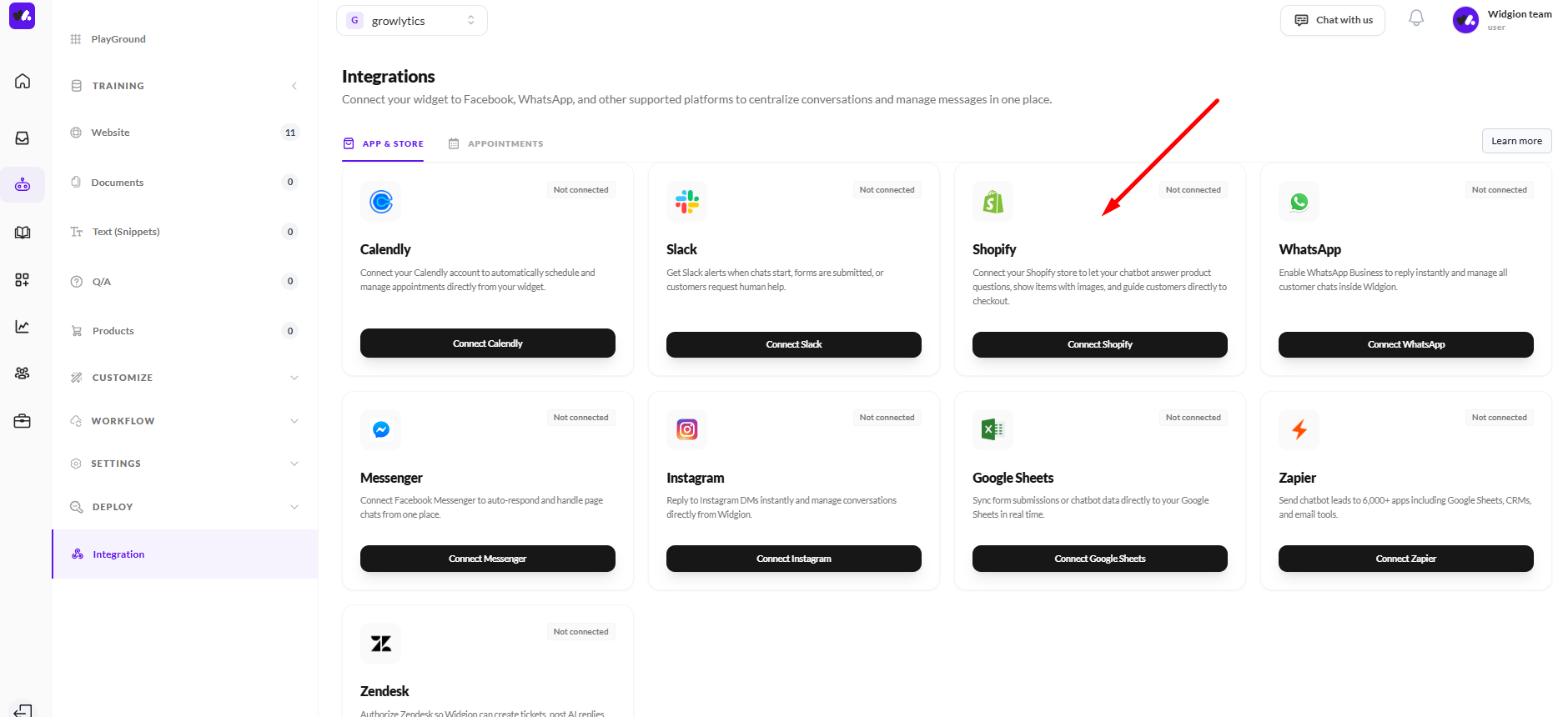
Requirements
You need a Shopify store, admin access, and the ability to create custom apps. You will also need your Client ID and Client Secret.
Create a Shopify Custom App
Go to Shopify Admin > Settings > Apps and sales channels > Develop apps > Build apps in the developer dashboard
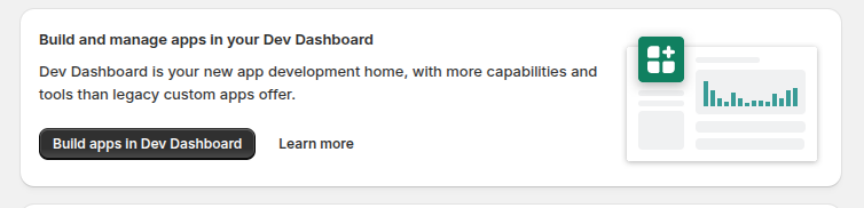 On the developer dashboard, click Create app and enter a name for your app, for example “Widgion Support”. After that, click Create.
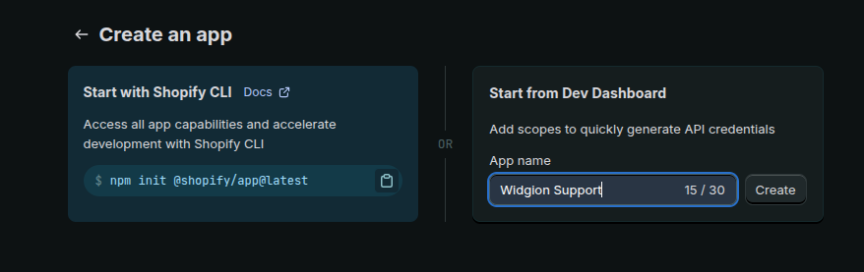
Configure API Permissions
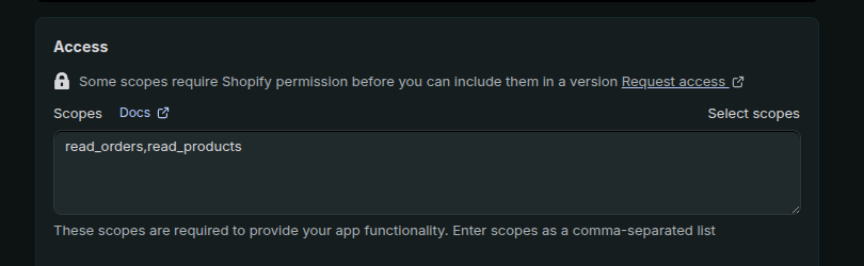
Next, on the Create version page, scroll down to the Access scopes section. Click Select scopes, then search for and enable the following:
read_products
read_orders
Then click Release to launch the app.
Install the App
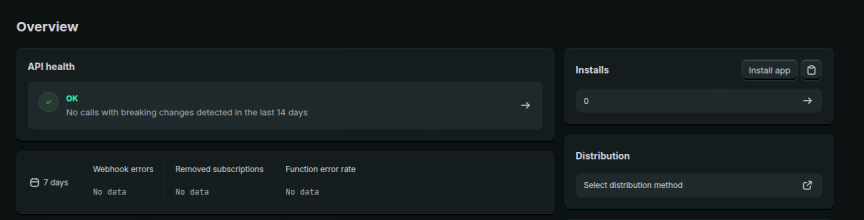
On the Overview page, click Install to begin installing the app. Select your store, review the requested permissions, and click Install to confirm. Once the process is complete, the app will be installed on your store.
Copy Credentials
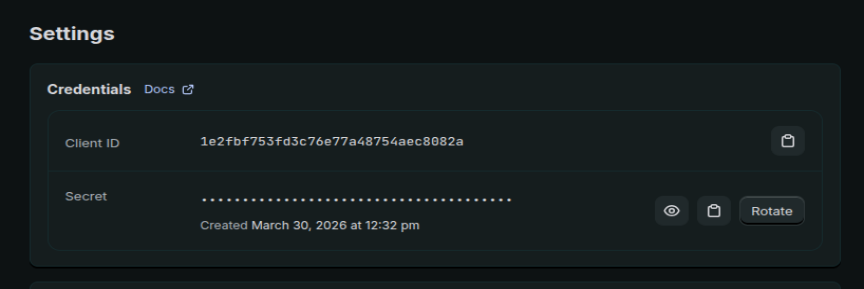
Return to the Shopify developer dashboard and select your app. Open the Settings section, then copy your Client ID and Client Secret.
Connect in Chatbot
Log in to your Widgion account and select your project. Navigate to the Integrations section, then choose Shopify and connect it to your chatbot.
Product Settings
After connecting your Shopify store, click Manage Integrations and open the Product Settings section. This area allows you to control how products appear and behave inside chatbot conversations.
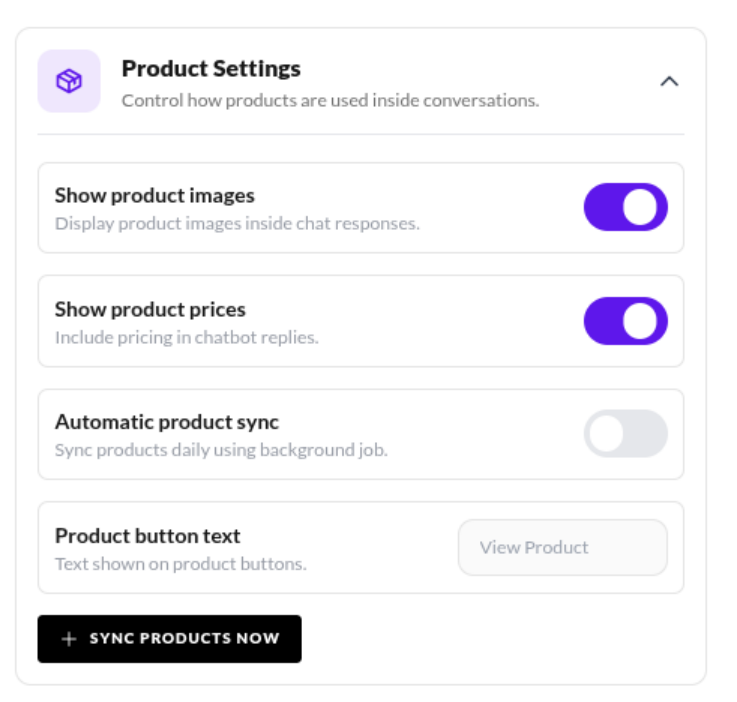 Show product images
Enable this option to display product images directly in chatbot responses. This helps users visually identify products during conversations.
Show product prices
Turn this on to include product pricing in chatbot replies. This allows customers to quickly see how much a product costs without leaving the chat.
Automatic product sync
When enabled, your products will be updated automatically using a background process. This ensures your chatbot always shows the latest product information without manual updates.
Product button text
This lets you customize the text displayed on product action buttons. For example, you can use “View Product” or any text that fits your brand tone.
Sync products now
Click this button to manually sync your products immediately. This is useful if you have just added or updated products in your Shopify store and want them reflected in the chatbot right away.
How this fits into the flow
After clicking Manage Integrations, this section is where you define how your products are presented to users during conversations. These settings directly shape the customer experience, from visuals to pricing visibility and interaction behavior.
Token Handling
The system automatically generates an access token when your store is connected and refreshes it every 24 hours. This process runs in the background, so no manual action is required.
Disconnecting Shopify
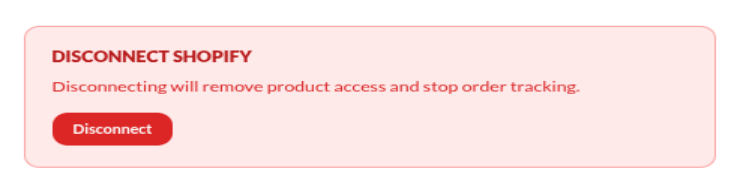
You can disconnect your store at any time by going to Manage Integrations and selecting Disconnect. Once disconnected, access is safely disabled while your store record remains saved for future use.
 Troubleshooting
If you encounter any issues, start by ensuring your store domain is entered correctly and that your Client ID and Client Secret are valid. These are essential for establishing a successful connection.
You should also confirm that all required permissions are enabled and that the app is properly installed on your Shopify store to ensure everything functions as expected.
Did this answer your question?
What was missing or unclear?
Thank you for your feedback!
Your input helps us make this article better.
Still need help?
Contact support →Related articles
Widgion + Calendly Integration Guide
Connect Widgion with Calendly to schedule meetings and capture bookings directly from chat.
Widgion + WhatsApp Integration Guide
Connect Widgion with WhatsApp to manage conversations and engage users in real time.
Widgion + Slack Integration Guide
Connect Widgion with Slack to receive notifications and manage conversations within your workspace.
Widgion + Facebook Messenger Integration Guide
Connect Widgion with Facebook Messenger to manage conversations and respond to users in real time.
On this page