
Responding to Customers in Real-Time
Best practices for handling live conversations professionally.
Handling live conversations effectively is key to creating a positive and reliable customer experience. When users engage with your chatbot or support system, they expect timely, clear, and helpful responses. Ensuring your agent communicates in a professional, conversational tone while staying accurate and relevant helps build trust and keeps interactions productive.
In this section, you’ll learn how to structure responses, manage user expectations, and maintain consistency across conversations. By applying these best practices, you can deliver support that feels human, efficient, and aligned with your brand—turning every interaction into an opportunity to assist, engage, and retain your users.
Handling Requests for Human Support Professionally
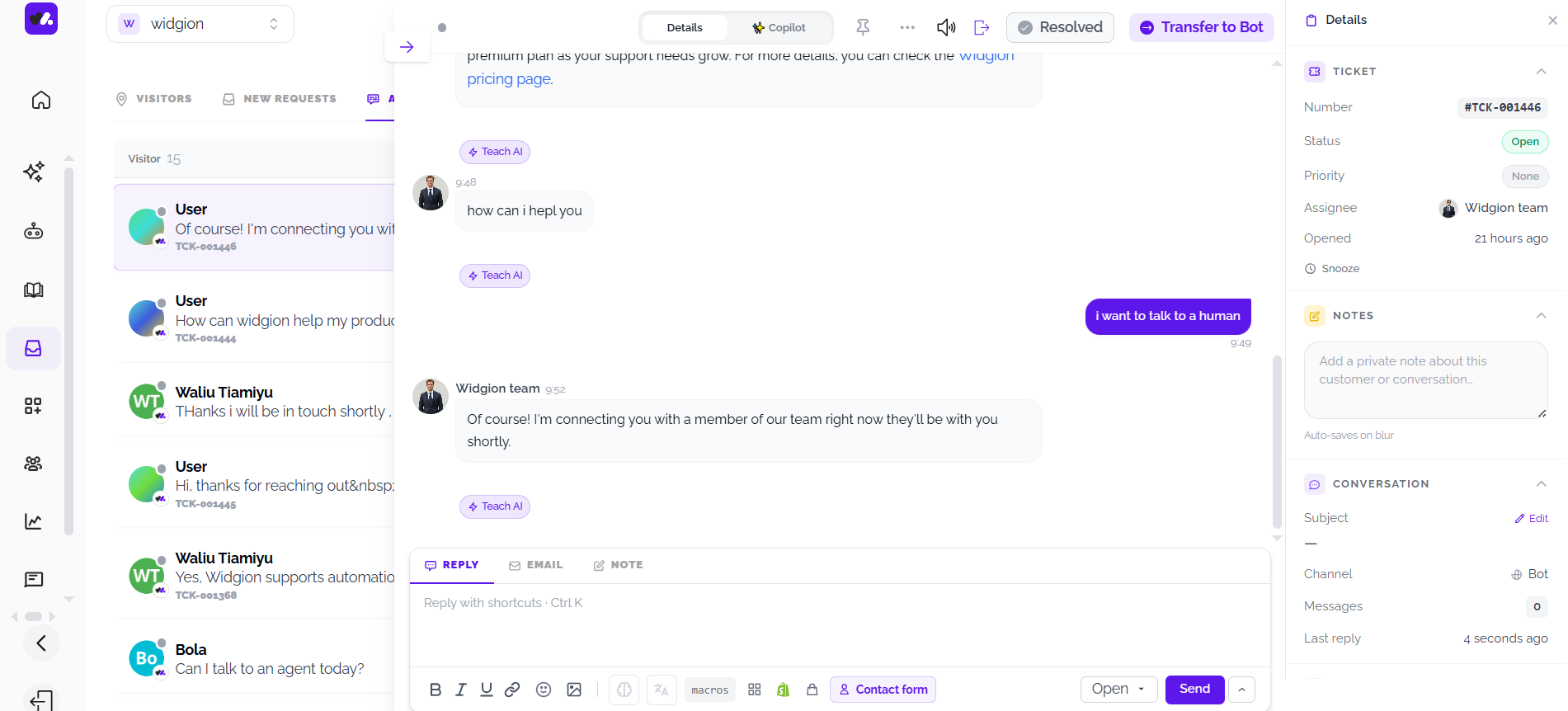
When a user asks to speak with a human agent, it’s important to respond in a way that is clear, reassuring, and professional. Acknowledge the request immediately and confirm that the conversation will be handed over to a team member. This helps manage expectations and lets the user know they are being attended to, even before a human joins the conversation.
Keep the tone polite and supportive, avoiding any ambiguity or delay. A smooth handover experience should make the user feel heard and prioritized, not passed around. By providing timely confirmation and maintaining a consistent tone, you ensure the transition from AI to human support feels seamless and trustworthy.
Ensuring Visibility of Incoming Requests
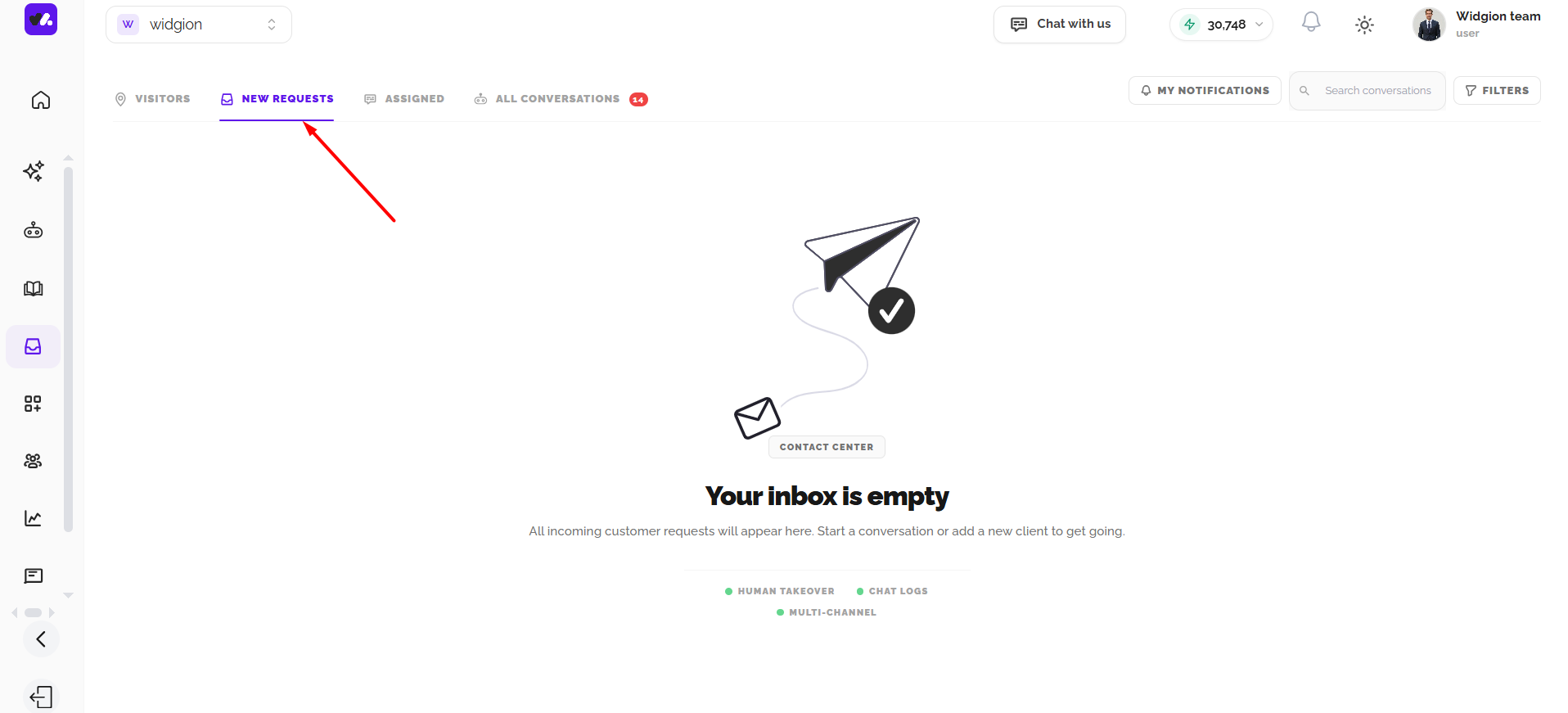
When a user requests human support, the conversation is automatically routed to the New requests tab in the contact center, making it immediately visible to available team members. This centralized view ensures that no request is missed and allows agents to quickly identify and prioritize incoming conversations.
For professional handling, it’s important that teams actively monitor this section and respond promptly. A fast first response not only reduces user wait time but also reinforces reliability and trust. Keeping requests organized and visible helps maintain a smooth support workflow, ensuring every customer receives timely attention.
Taking Ownership of the Conversation
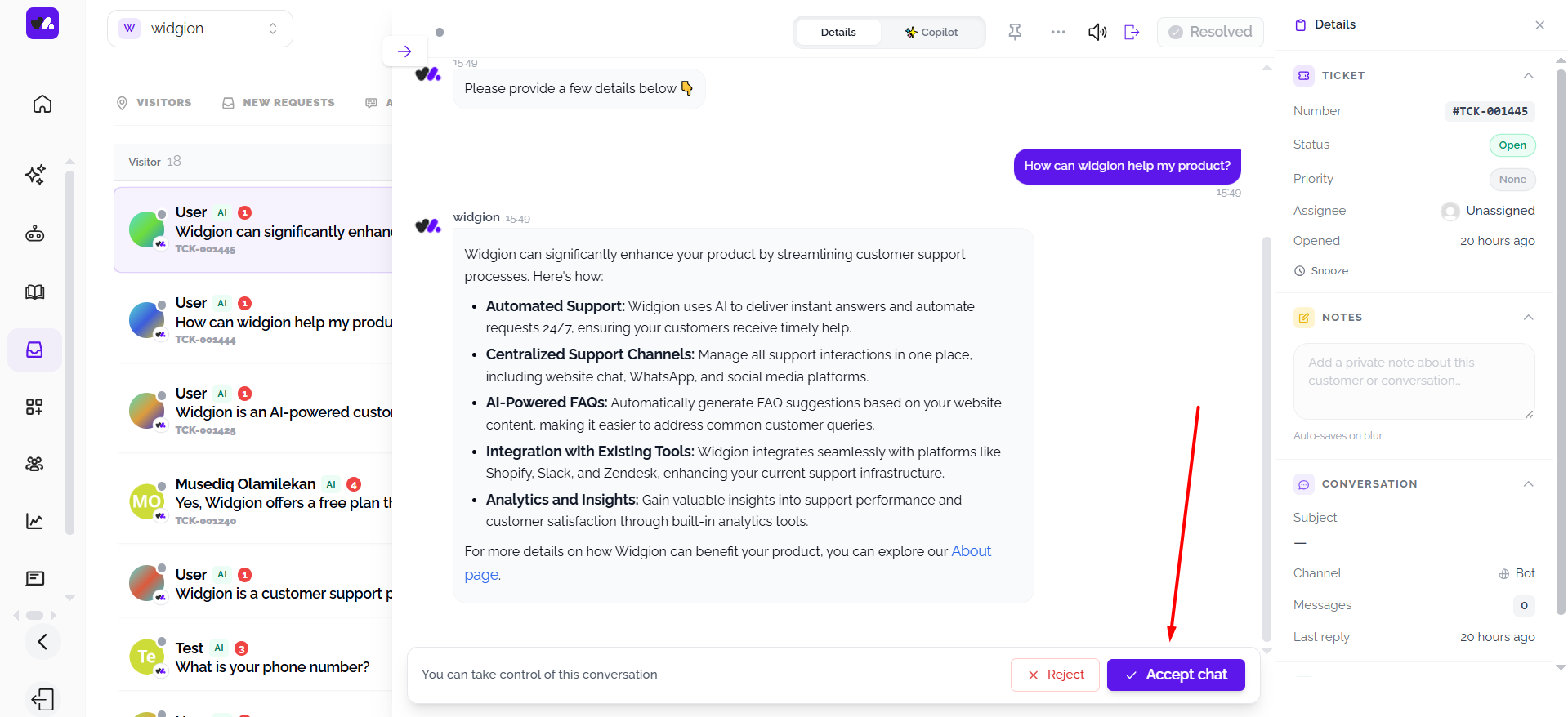
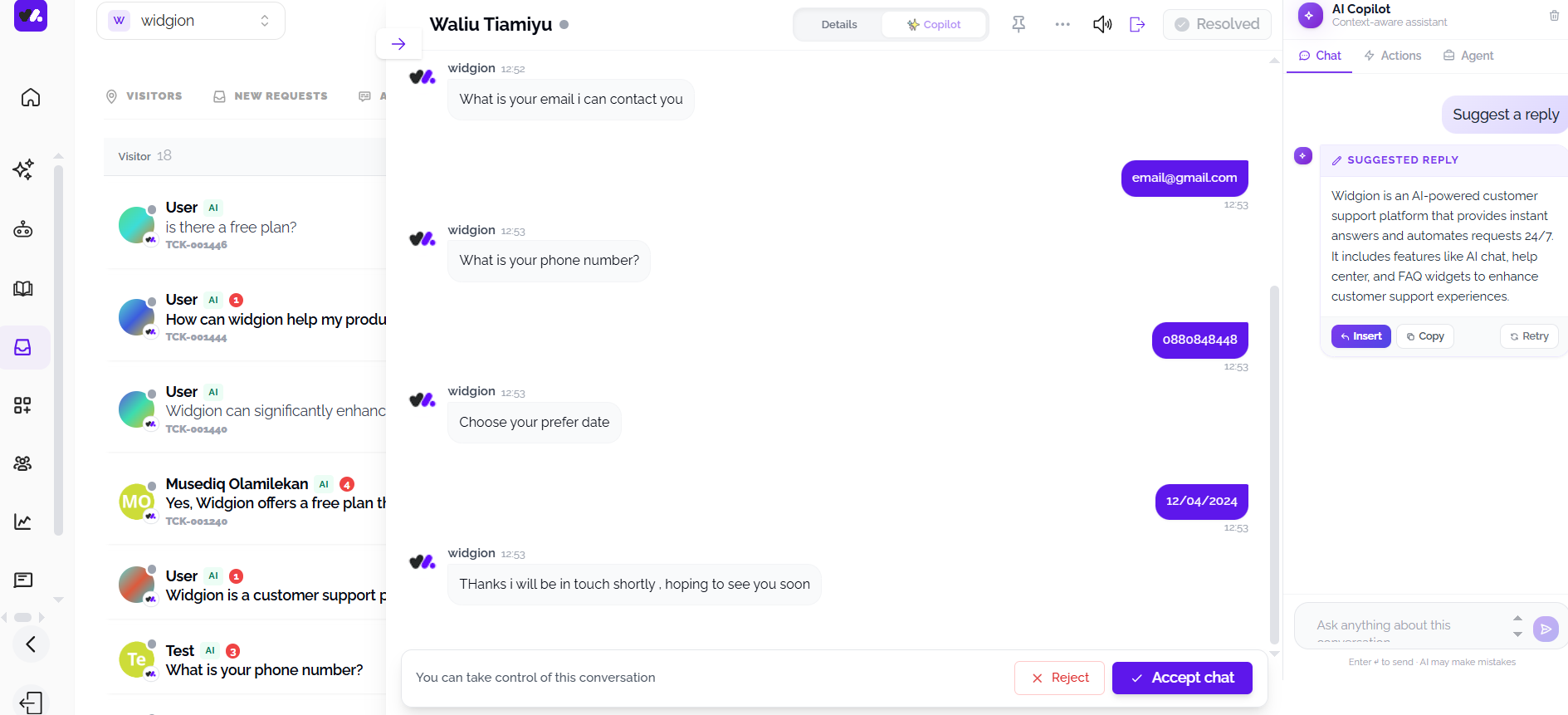
Once a request is opened, the next step is to accept the chat, which signals that a team member is actively taking responsibility for the conversation. This step is crucial in maintaining professionalism, as it ensures the user is no longer waiting without acknowledgment and that there is clear ownership of the interaction.
Before responding, quickly review the conversation history and any available user details to understand the context. Accepting the chat promptly and being prepared with context allows you to respond confidently, avoid repetition, and provide a smoother, more personalized support experience.
Using AI Copilot During the Conversation
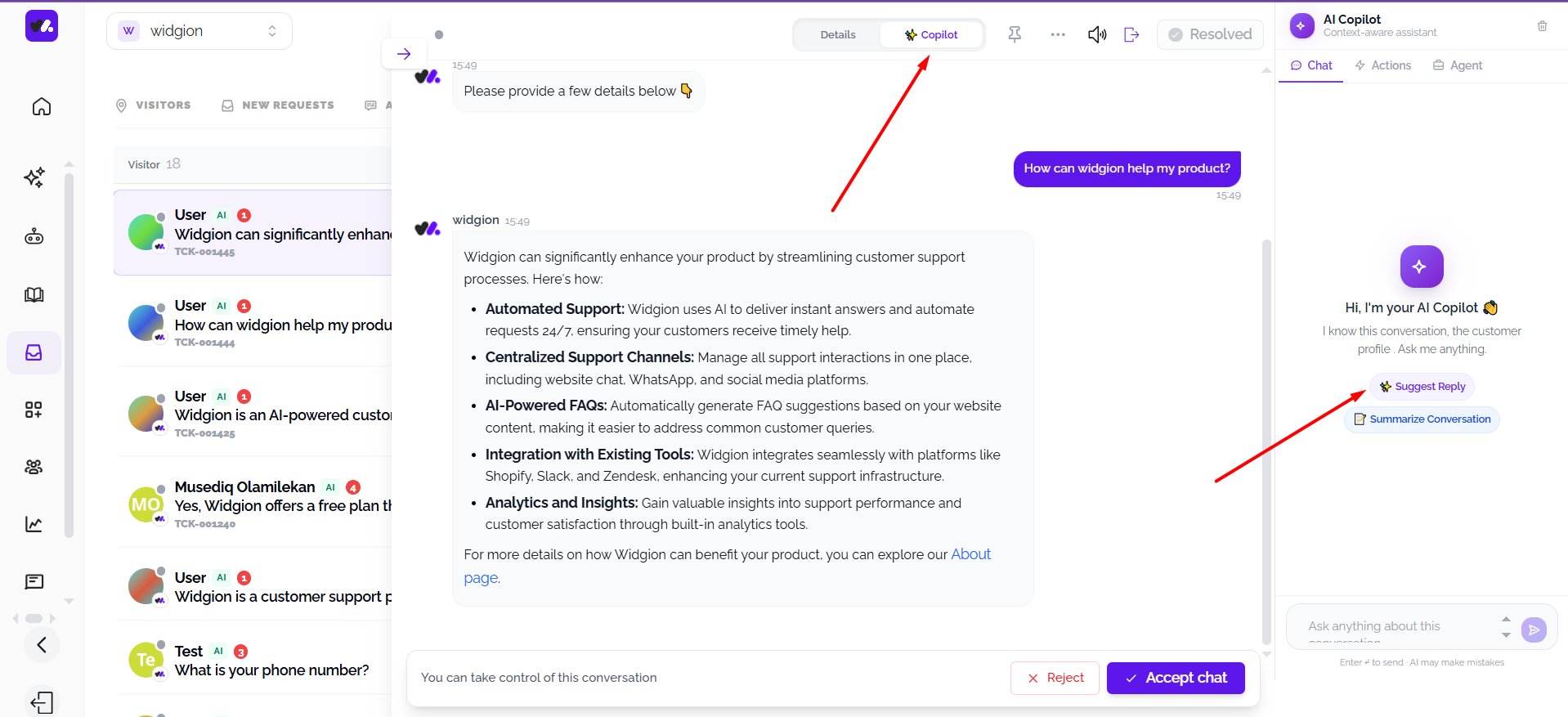
Accepting a chat doesn't mean handling it entirely on your own. Widgion's AI Copilot sits alongside the conversation, already aware of the chat history and the customer's profile, ready to support you as you respond. When you're unsure how to phrase a reply, Copilot can generate a suggestion based on the conversation so far, something you can edit, adjust, or send as is, without ever taking the decision out of your hands. If you're stepping into a longer conversation or picking one up from another team member, Copilot can also summarize what's already been discussed, saving you from reading back through the entire history.
Beyond these quick actions, you can ask Copilot directly about the conversation, whether that's clarifying something the customer mentioned earlier or checking how best to phrase a technical answer. Copilot is there to make you faster and more confident, not to take the conversation over, every suggestion still passes through you before it reaches the customer.
Responding with Clarity and Continuous Improvement
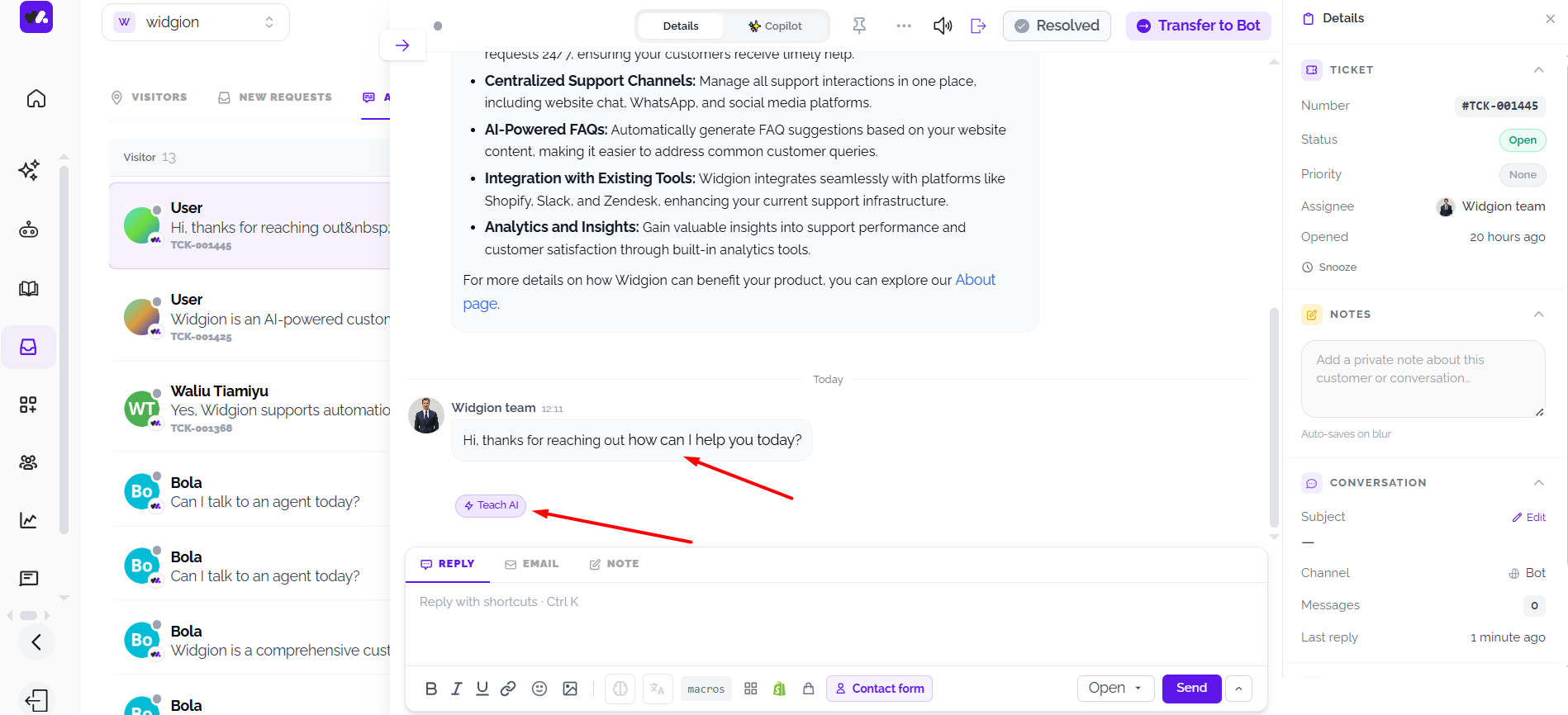
After accepting the chat, begin by introducing yourself and acknowledging the user’s need for support. A clear and polite introduction, followed by an open-ended question, helps set a professional tone and encourages the user to share more details about their issue. This approach makes the interaction feel personal, attentive, and solution-focused.
As you respond, you also have the option to use the Teach AI feature to improve future interactions. By allowing the system to learn from your responses, you help refine the assistant’s accuracy and effectiveness over time. This ensures that future conversations benefit from real human input, creating a smarter and more efficient support experience.
Closing Conversations Professionally
As the conversation comes to an end, it’s important to close it in a polite and reassuring manner. Confirm that the user’s concern has been addressed, thank them for reaching out, and leave the door open for further assistance if needed. A well-structured closing message helps ensure the user leaves the interaction feeling supported and valued.
Once the conversation is complete, inform the user that the chat will be handed back to the bot for any additional assistance. This maintains continuity and ensures they can still get help without starting over. A smooth and professional closing reinforces trust and creates a positive final impression of your support experience.
Marking Conversations as Resolved
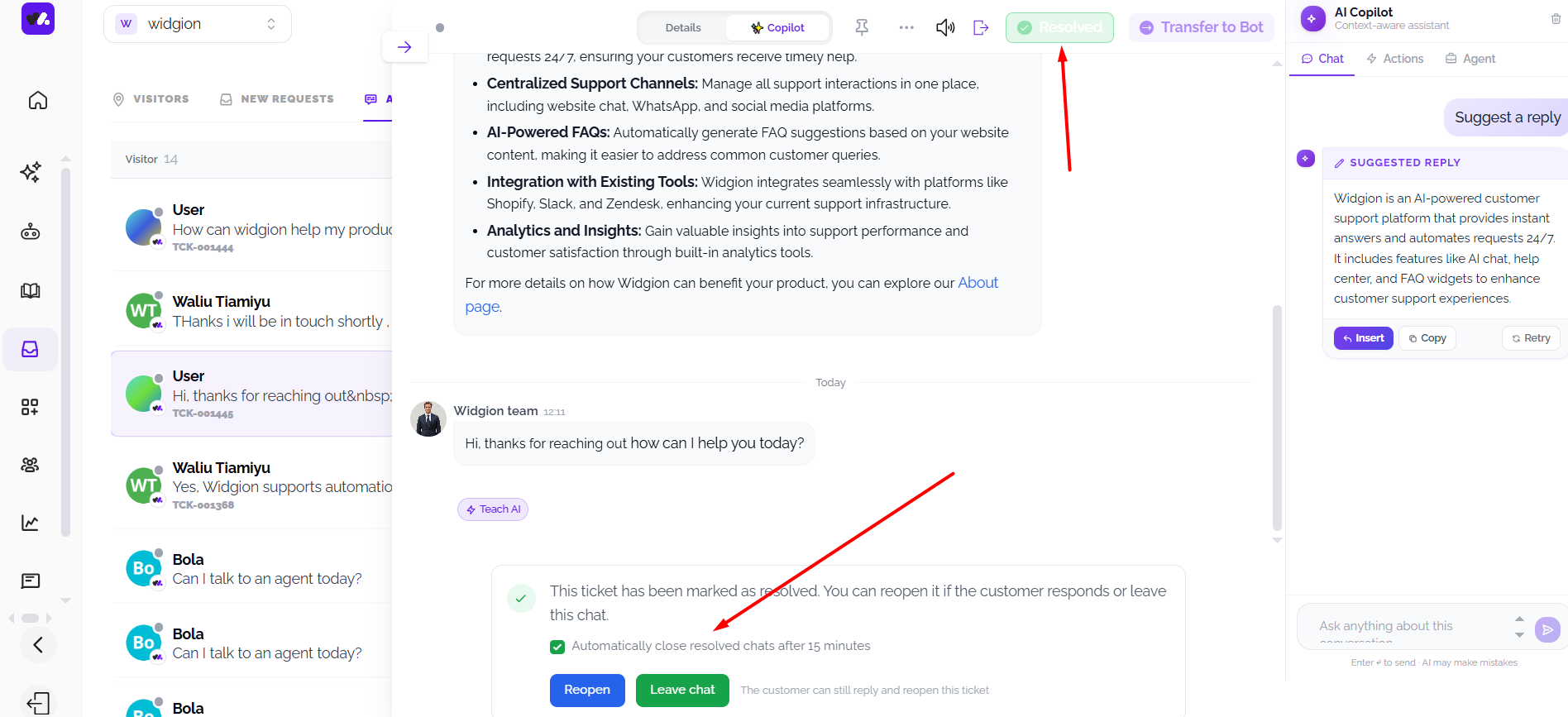
After successfully assisting the user and closing the conversation, the final step is to mark the chat as Resolved. This indicates that the issue has been handled and helps keep your support queue organized and up to date. Properly resolving chats ensures your team can focus on active conversations without confusion or overlap.
Once marked as resolved, you can leave the chat and move on to other requests. This workflow keeps your support process efficient while maintaining a clear record of completed interactions. Consistently resolving chats also helps track performance and ensures a structured, professional support experience.
Maintaining Professional Standards in Every Interaction
Handling live conversations effectively goes beyond just responding—it’s about delivering a consistent, respectful, and solution-oriented experience from start to finish. From acknowledging a user’s request to transferring, assisting, and closing the conversation, each step should reflect clarity, empathy, and professionalism.
Always aim to respond promptly, communicate clearly, and adapt your tone to match the user’s needs. Even when the issue is simple, a thoughtful and well-structured response can significantly improve the user’s perception of your support.
Continuously Improving Your Support Experience
Every conversation is an opportunity to improve. By leveraging features like AI training, reviewing past interactions, and maintaining organized workflows, your team can become more efficient and effective over time.
As you consistently apply these best practices, your support system evolves into a reliable, scalable experience, one that not only resolves issues but builds trust and long-term user satisfaction.
Did this answer your question?
What was missing or unclear?
Thank you for your feedback!
Your input helps us make this article better.
Still need help?
Contact support →Related articles
Viewing and Managing Conversations
Learn how to access, filter, and manage incoming chats.
Adding, Editing, and Managing Contact Data
Handles actions like adding contacts, editing details, deleting, and exporting.
Understanding Contact Types (Users, Guests, and Custom Lists)
Explains the difference between Users, Guests, and Custom Lists, and how each is used within the platform.
Installing the Chat Widget on Your Website
Step-by-step guide to embedding the chat widget on your website.
On this page