
Viewing and Managing Conversations
Learn how to access, filter, and manage incoming chats.
Every conversation your chat widget receives flows into the Contact Center. This is where you can monitor incoming requests, track ongoing chats, review bot-handled conversations, and access full chat logs — all from one place. To access it, click the Contact Center icon in the left sidebar.
Understanding the Four Tabs
The Contact Center is organized into four tabs at the top of the page: Visitors, New Requests, Assigned, and All Conversations. Each tab gives you a different view depending on what stage a visitor or conversation is in.
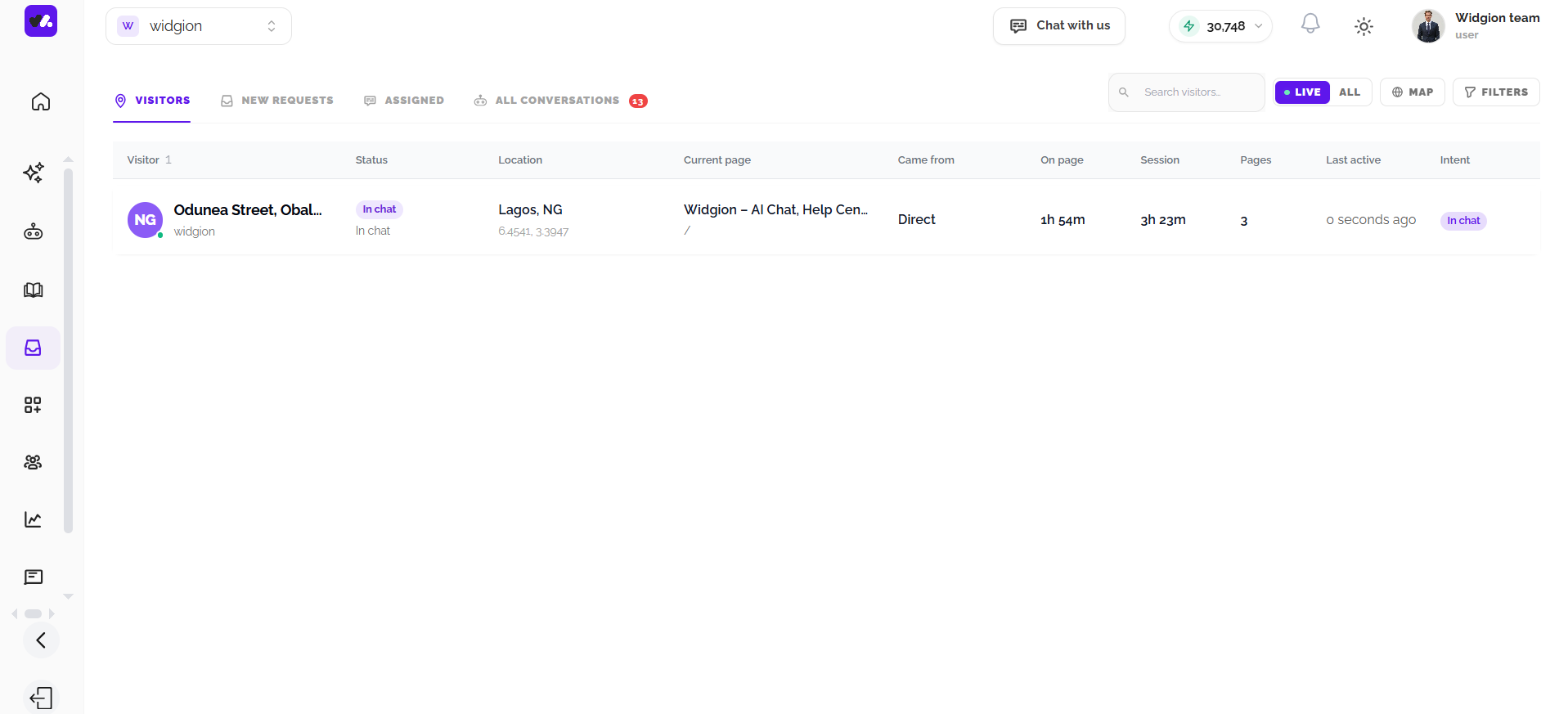
Visitors Tab
The Visitors tab shows who is currently active on your website in real time, along with their location, current page, and how engaged they are, before they've even started a conversation. This gives your team the opportunity to reach out proactively instead of waiting for a visitor to ask for help.
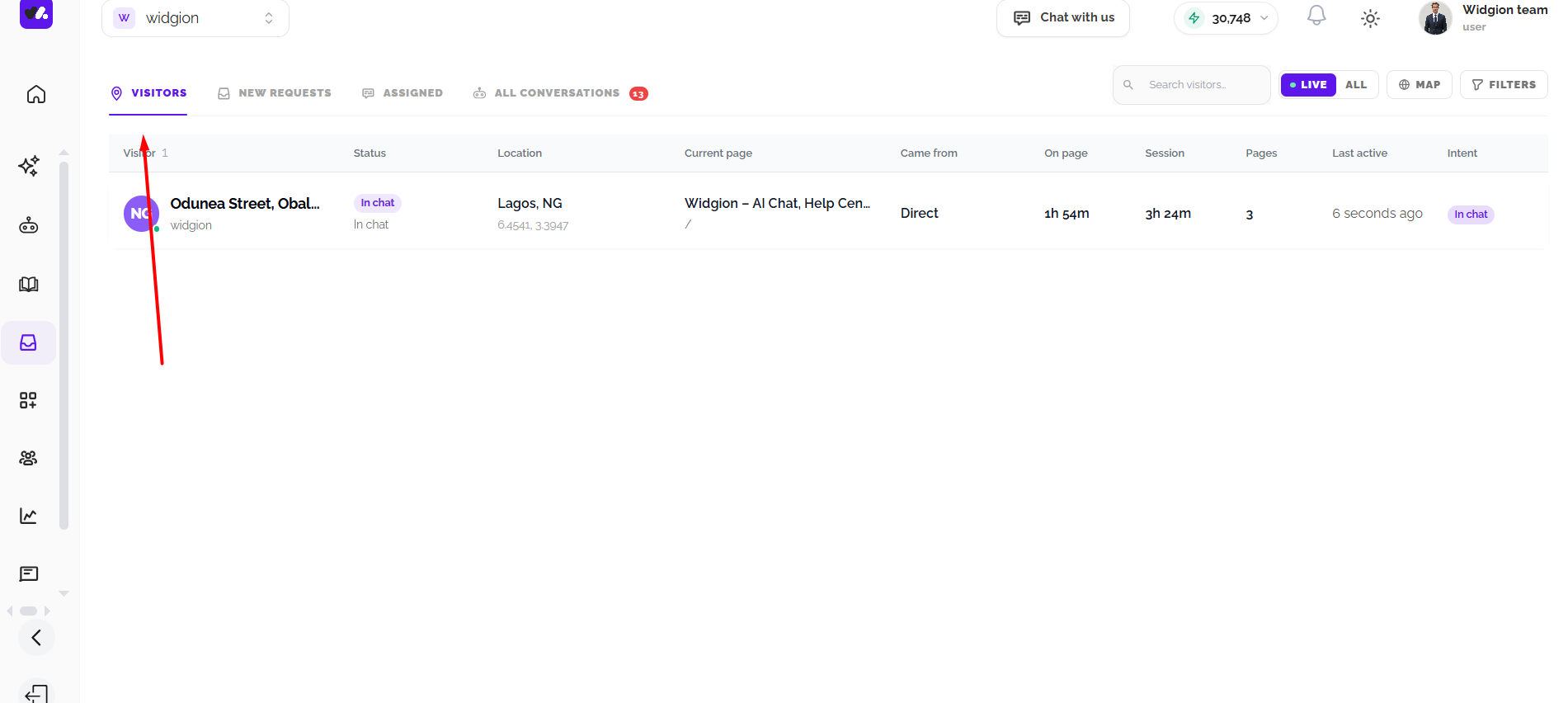
New Requests Tab
The New Requests tab shows conversations that are waiting for a human agent to step in, whether a visitor asked to speak with someone directly or a conversation was automatically transferred through Human Handover. This is where your team should look first to make sure no incoming request goes unanswered.
The badge on the tab shows how many requests are currently waiting.
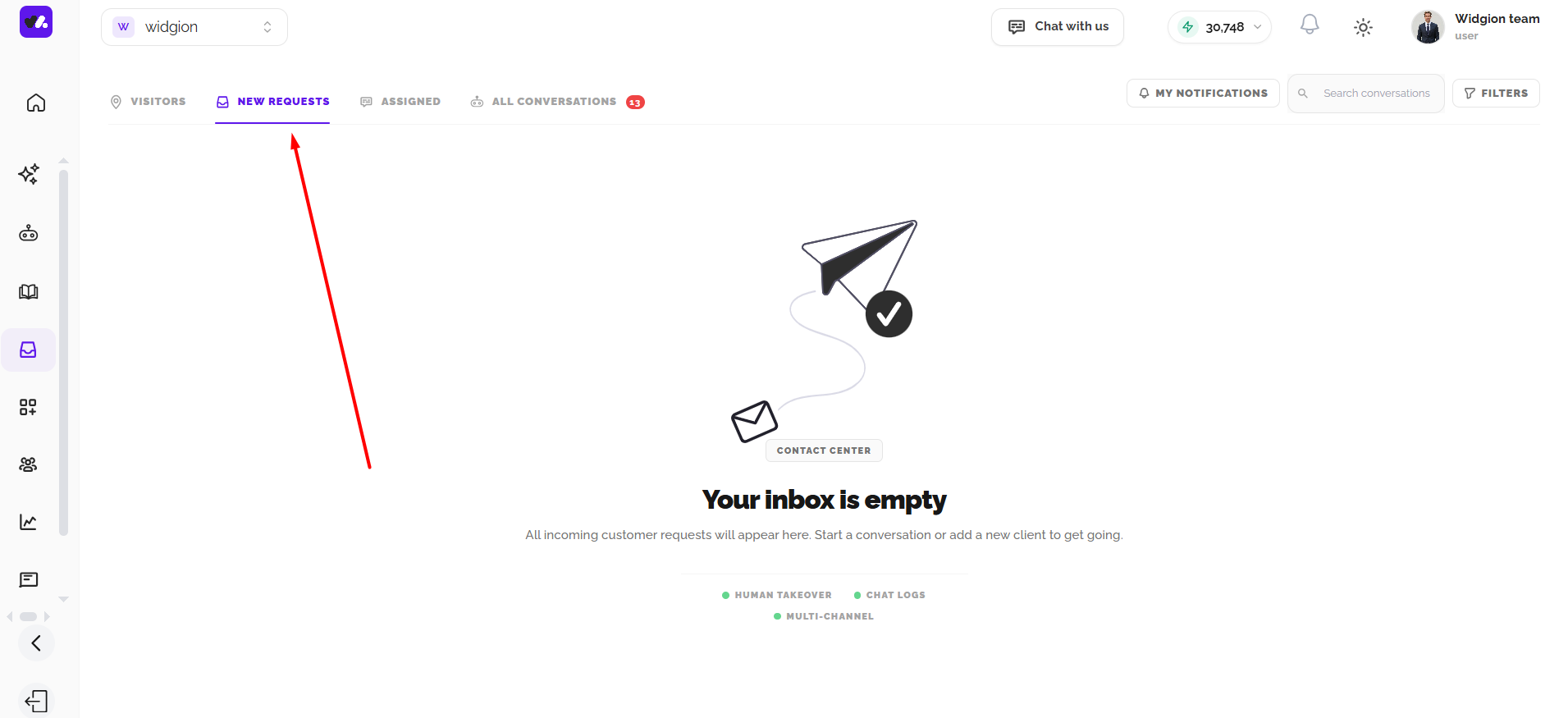 Assigned Tab
The Assigned tab shows conversations that have been accepted and assigned to a human agent. Each entry in the list displays the visitor's name, their last active time, ticket status, assigned agent, channel, and topic, so you can see exactly where each conversation stands.
The badge on the tab shows the total number of assigned conversations at a glance.
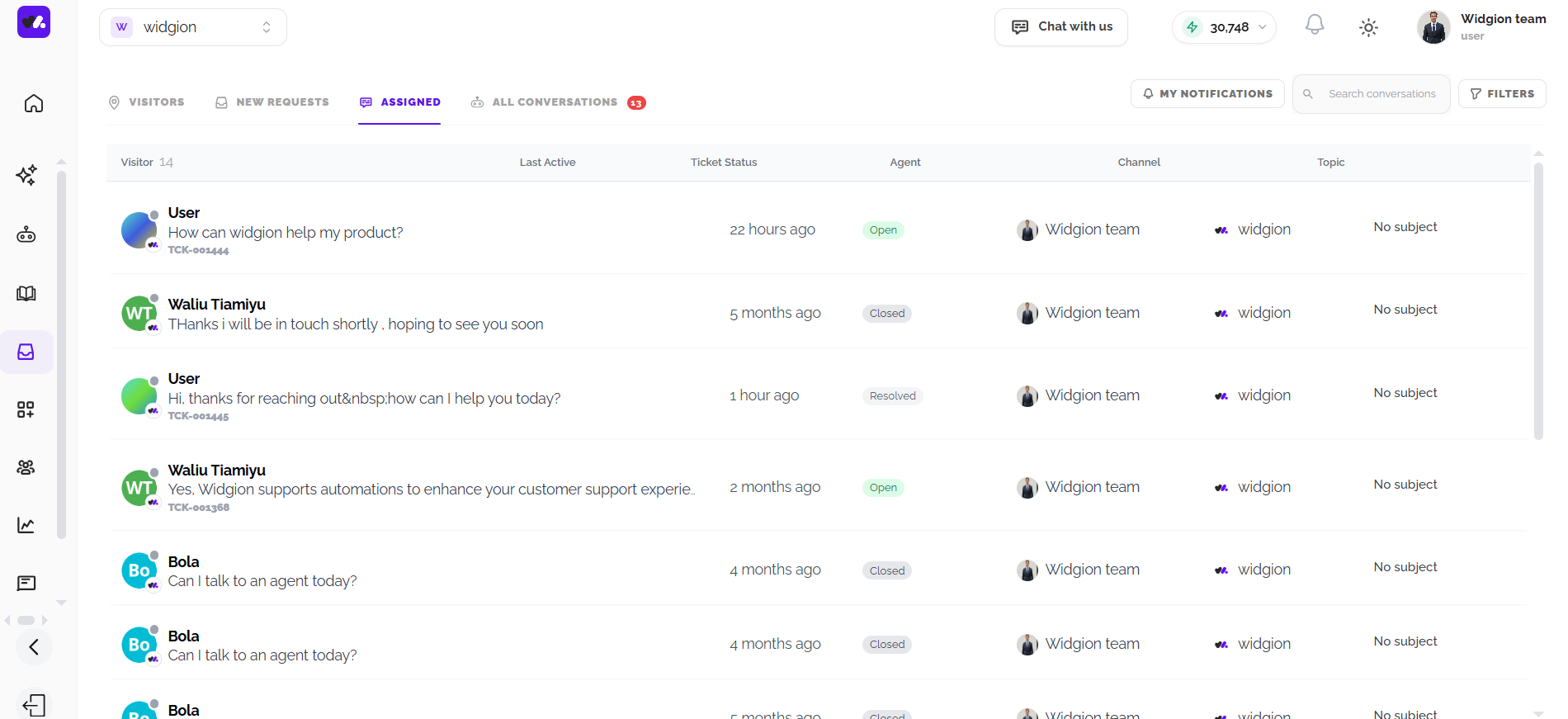
All Conversations Tab
The All Conversations tab gives you access to your full conversation history, whether a conversation was handled entirely by AI, passed to a human agent, or is still ongoing. Conversations currently being handled by your AI assistant are marked with an AI badge, giving you a quick way to spot bot-handled conversations without needing a separate tab.
Each entry shows the visitor's name, last active time, ticket status, assigned agent, channel, and topic. You can search through conversations using the search field at the top, and use Filters to narrow the list down further.
You can also search through conversations using the search field at the top of the left panel.
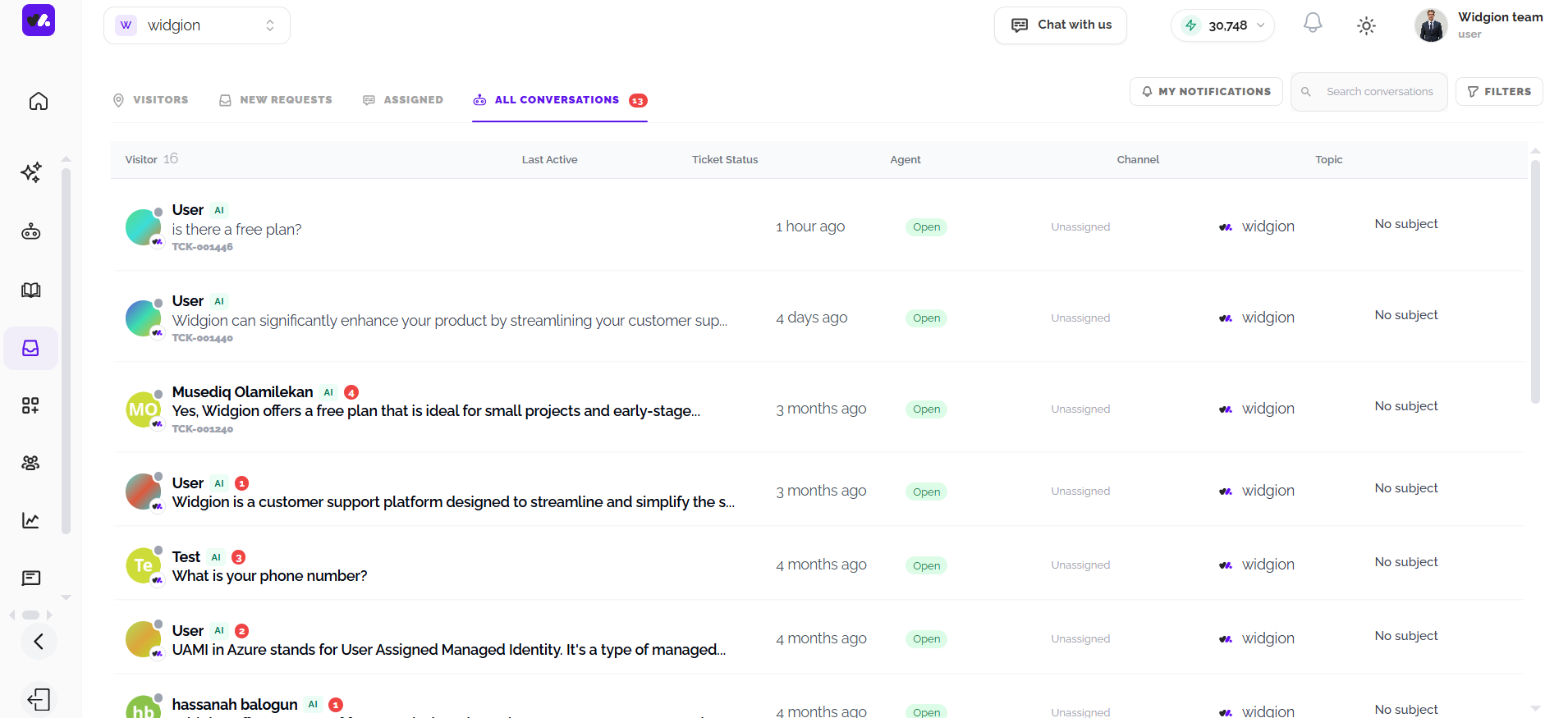
Everything in One Place
Everything in One Place The Contact Center gives you full visibility into every conversation happening across your widget, from a visitor's first moment on your site to a fully resolved conversation. Keeping an eye on these tabs regularly helps you stay on top of your support queue, spot patterns in visitor questions, and step in whenever a conversation needs a human touch.
Did this answer your question?
What was missing or unclear?
Thank you for your feedback!
Your input helps us make this article better.
Still need help?
Contact support →Related articles
Responding to Customers in Real-Time
Best practices for handling live conversations professionally.
Adding, Editing, and Managing Contact Data
Handles actions like adding contacts, editing details, deleting, and exporting.
Understanding Contact Types (Users, Guests, and Custom Lists)
Explains the difference between Users, Guests, and Custom Lists, and how each is used within the platform.
Installing the Chat Widget on Your Website
Step-by-step guide to embedding the chat widget on your website.
On this page